
 Documentation-based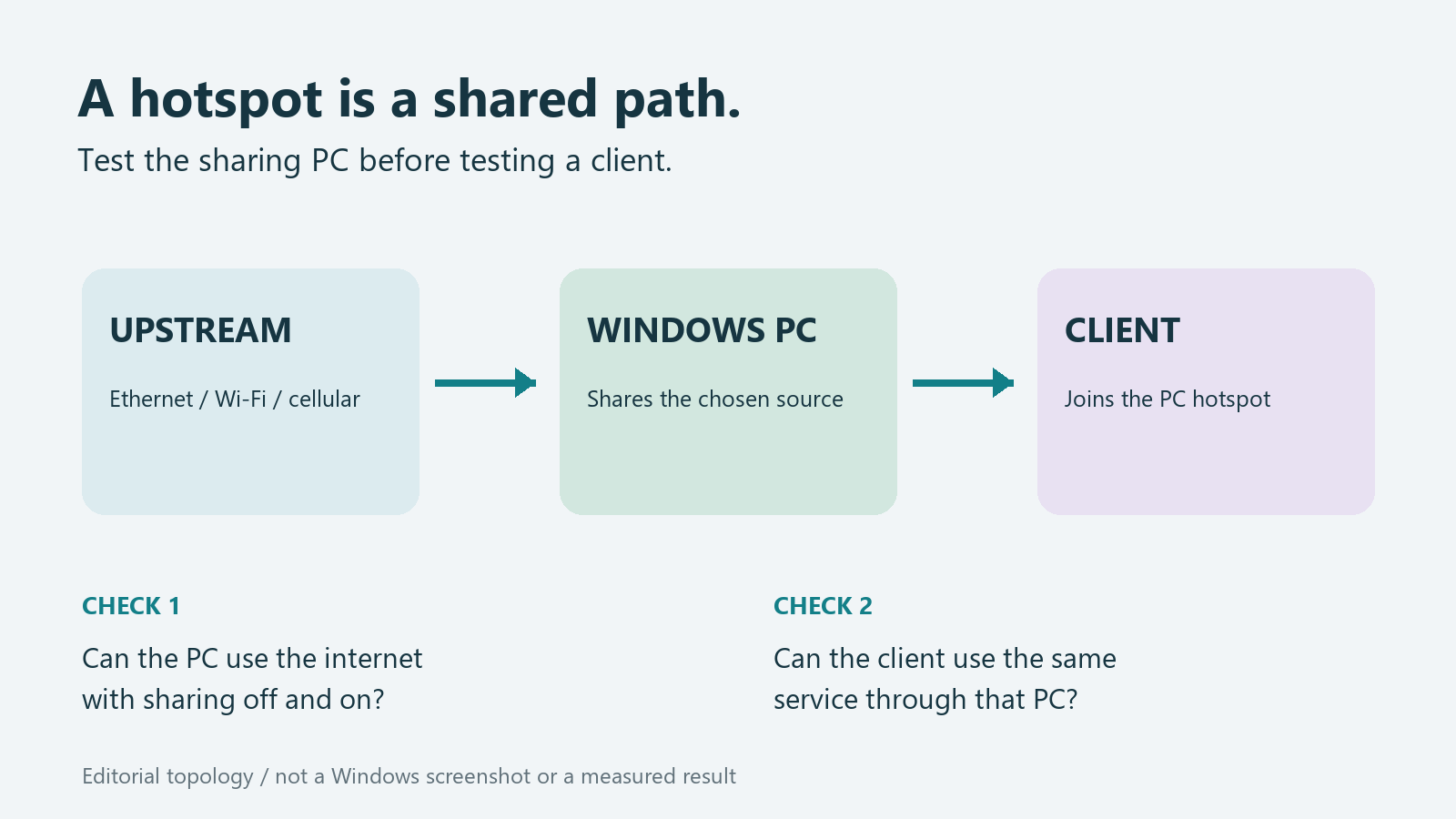
Microsoft documentation reviewed October 13, 2026 with AI assistance. Proposed comparisons were not reproduced on a physical hotspot. Alex Reed is an established pen name.
If a phone or laptop connects to your Windows 11 PC's mobile hotspot but cannot get online, first test the internet on the PC that is sharing it. Then check that Mobile hotspot is sharing the connection you intended. A client joining the hotspot confirms a wireless connection; it does not establish a working route through the PC to the internet.
This guide is for a Windows PC acting as the hotspot. If your PC is joining a phone's hotspot, the sharing device is the phone and these Windows hotspot settings are the wrong starting point. Before changing anything, identify which device supplies internet access and which device receives it.
Make the first comparison on the sharing PC
Save ongoing work and tell anyone using the hotspot that a short interruption may follow. On the sharing PC, turn Mobile hotspot off temporarily and open a fresh page from a site you trust. Also try the application that matters to you. Record whether each operation works; a page already open in a browser is a weak test.
If the PC itself cannot get online, resolve that connection first. When both Wi-Fi and Ethernet fail on the PC, use the two-adapter connectivity guide. On a hotel or other sign-in network, complete the network's authorized sign-in on the PC and follow its sharing rules; the login-page guide covers that separate problem.
Now turn the hotspot back on and repeat the same PC checks before connecting a client. If internet access disappears on the PC when sharing starts, record that change. It places the investigation on the sharing PC or its upstream connection; it does not identify a defective adapter, prove an update caused it, or justify resetting every client.
If the PC remains online, leave it on the same upstream connection for the next comparison. Changing the router, driver, DNS, and client together would erase the distinction you just established.
Confirm what Windows is actually sharing
Microsoft's current setup instructions use Settings > Network & internet > Mobile hotspot. In Share my internet connection from, select the intended internet connection. Share over chooses how other devices connect; use Wi-Fi for the Wi-Fi-client scenario here. Windows can share an Ethernet, Wi-Fi, or cellular source. Sharing cellular data uses that plan. Microsoft: Mobile hotspot setup
Treat the source and the sharing method as separate choices. A PC with Ethernet, Wi-Fi, and a VPN may have several connections to consider. Write down the selected source and compare it with the connection you expect to carry internet traffic. The existence of an adapter name is not proof that it currently reaches the internet.
If you correct the source, interrupt sharing deliberately, reconnect one client, and repeat the same test. Do not select a corporate VPN or another restricted connection merely to see whether it can be redistributed. Ask its owner whether sharing is supported and permitted.
For this already-connected symptom, changing the hotspot band is not the first comparison. Band compatibility is more relevant when a client cannot find or join the hotspot. Keep that different failure separate from a client that joins successfully but cannot use its intended service.
Compare one client with a second client
On the first client, confirm the hotspot's network name. If it is a phone, temporarily turn off cellular data for this check so a successful page load cannot silently use a different internet connection. Turn cellular data back on afterwards if you normally use it.
Try the same fresh page and required application used on the PC. If available, connect a second device you own or are authorized to use. Keep the PC, selected source, and test destination unchanged. These comparisons are proposed diagnostic observations, not results measured by PC Fieldnotes.
| Result with the sharing PC still online | What the comparison tells you |
|---|---|
| One client works and another fails | Sharing can carry that tested traffic for one device. Inspect the failing client's connection and application configuration. |
| Both clients join but neither can use the service | Investigate the shared path and restrictions common to the clients. Two failures do not establish which component is responsible. |
| Browsing works but one app fails | Record the app's exact error. General browsing does not test every route, proxy, authentication requirement, or protocol. |
| Everything required works, but a client retains a warning | Investigate that client's connectivity indicator separately before performing a broad reset. |
For a Windows client with working browsing and a No internet label, see the NCSI status guide. Microsoft describes NCSI as a connectivity assessment using active and passive probes. A successful probe is not a test of every application. Microsoft: NCSI overview
Keep a useful record before broader changes
On the sharing PC, this read-only PowerShell command lists visible network adapters:
Get-NetAdapter | Format-Table Name, InterfaceDescription, StatusMicrosoft documents Get-NetAdapter for inspecting adapter properties. Record the Wi-Fi adapter's exact model and driver version separately if support needs them. An Up status describes adapter state, not successful internet sharing. Do not delete an unfamiliar virtual adapter to simplify the list. Microsoft: Get-NetAdapter
On a Windows client, run:
Get-NetIPConfigurationWithout parameters, this reads the non-virtual connected interfaces. Match the result to the client's hotspot connection and record its addresses, gateway, and DNS servers. If support specifically needs virtual or disconnected interfaces, Get-NetIPConfiguration -All includes them. Configuration output is evidence to compare, not proof that a request reached the internet. Microsoft: Get-NetIPConfiguration
Do not assign an address, gateway, or DNS server copied from somebody else's hotspot example. Keep unredacted output private. A public screenshot or support attachment should omit passwords, network names, device identifiers, and addresses that the recipient does not need.
Include the Windows version and build, PC and wireless-adapter model, driver version, upstream type, selected sharing source, hotspot off/on results, client comparisons, and exact failure time. If another permitted upstream is available, repeating the same comparison there can help establish whether the symptom follows the upstream network. Record the difference without declaring a cause.
Choose the next action from the comparison
For a single failing Windows client, Microsoft's Wi-Fi guidance offers the Network and Internet troubleshooter in Get Help. If you forget and reconnect to the hotspot, keep its password available. Do not erase the only working remote connection while troubleshooting from elsewhere. Microsoft: Wi-Fi troubleshooting
For failures across clients, check with the PC or network owner before changing VPN, proxy, or sharing policy. Microsoft documents an Internet Connection Sharing policy that can restrict sharing and service operation on managed PCs. A restriction requires an administrator's decision, rather than a registry workaround. The policy reference is not a diagnosis that it is enabled on your PC. Microsoft: AllowInternetSharing policy
If the evidence points toward the PC's wireless adapter, preserve the correct manufacturer's driver package before any removal. Use the offline driver guide for identification and download preparation. Avoid third-party driver bundles or replacement system files.
Network reset is a later, disruptive step. Microsoft warns that it removes and reinstalls adapters and may require VPN software or virtual networking to be set up again. Read what to preserve before a network reset and keep the comparison record before considering it. Do not disable IPv6, firewall protection, or a required VPN merely to change a status label.
After a targeted change, repeat the original PC and client operations on the intended connection. Record what changed and which service recovered. A connected-device count or a different icon alone is not the result you were trying to achieve.
Evidence and scope
Reviewed October 13, 2026 against the linked Microsoft documentation. This is a documentation-based diagnostic guide. The proposed comparisons and original topology illustration are editorial material, not captured fault results. No physical Windows hotspot, wireless adapter, VPN-sharing combination, or multi-client recovery was tested. A virtual machine cannot validate those physical wireless-sharing conditions; no Windows interface screenshot is presented.
