
 Documentation-based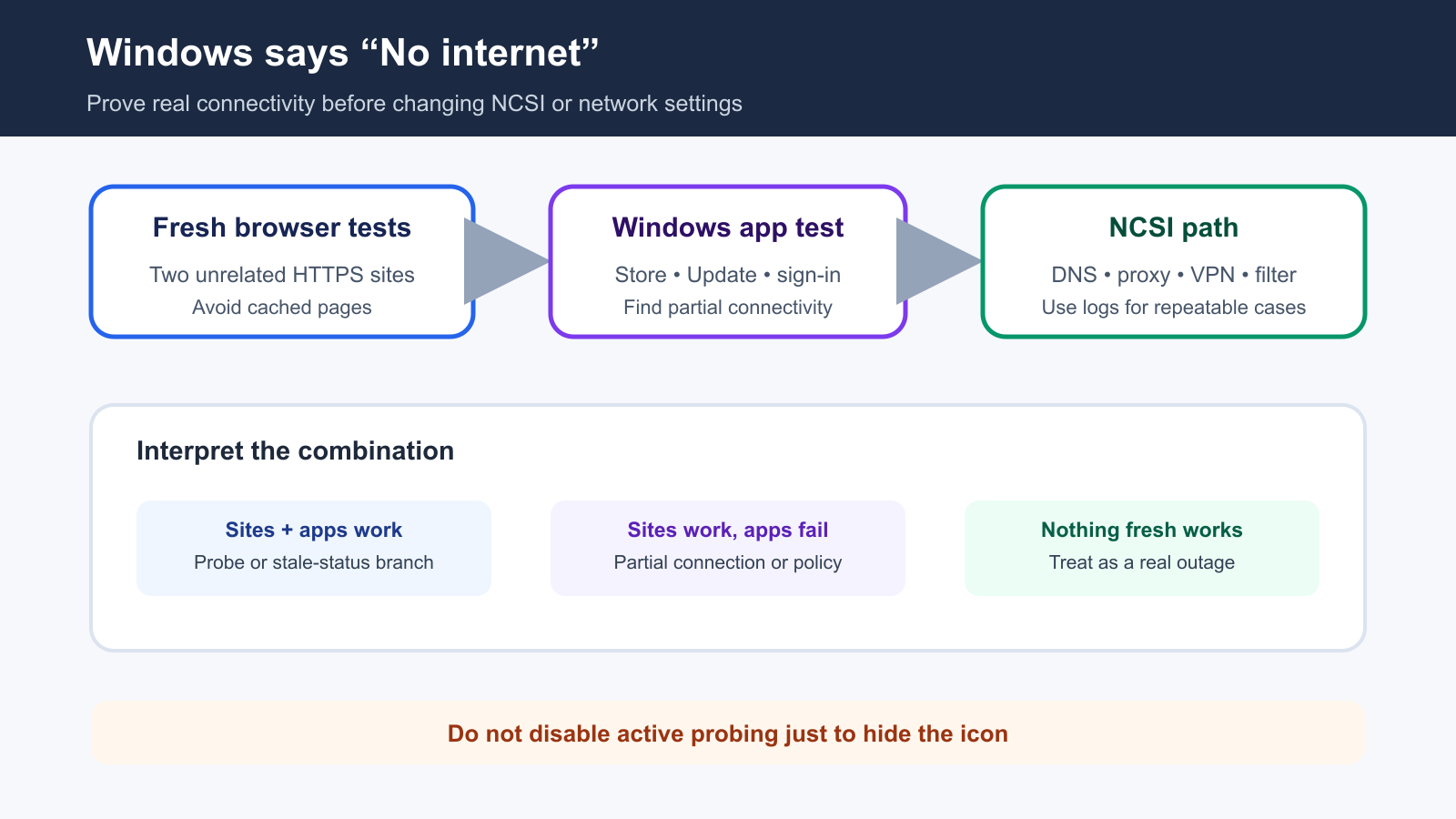
Based on Microsoft Learn documentation reviewed September 26, 2026. No hands-on reproduction was performed.
Last reviewed: September 26, 2026
If Windows 11 says No internet but websites still work, do not assume the icon is simply wrong. First compare a browser, a Windows app, DNS, VPN or proxy use, and any captive-portal sign-in. If normal browsing works while some Windows services fail, the Network Connectivity Status Indicator (NCSI) probe may be blocked or altered even though part of the connection still works.
The taskbar icon is a connectivity assessment, not a speed test and not proof that every application can reach the internet. The safest goal is to find which traffic works and which traffic fails, then correct that specific path.
Classify the symptom before changing settings
| What works | What fails | Likely investigation branch |
|---|---|---|
| Multiple HTTPS websites and Windows apps | Only the taskbar status | NCSI probe, proxy, firewall, filtering, or a stale transition |
| Websites work | Microsoft Store, Windows Update, sign-in, or another app | Partial connectivity, proxy, VPN, DNS, policy, or service-specific path |
| One cached website works | New websites fail | Browser cache, captive portal, DNS, or broader connectivity |
| IP-based access works | Domain names fail | DNS branch rather than an NCSI-only problem |
| Nothing new loads | Taskbar says No internet | Treat it as a real connectivity problem, not an icon problem |
This is an original editorial diagram based on Microsoft documentation. It is not a screenshot of a tested PC. PC Fieldnotes did not reproduce the condition on a physical Windows 11 system for this article.
What the Windows connectivity icon actually measures
Microsoft documents NCSI as the Windows component that evaluates network connectivity and shows the resulting status. It uses active probes together with passive network observations. On Windows 11, the Network List Manager service hosts NCSI.
For an active HTTP probe, Windows can request a Microsoft connectivity-test URL and compare the response with the expected content. A valid response supports an Internet status. If the probe is redirected, blocked, rewritten, authenticated, or cannot resolve its host name, Windows can report limited or no connectivity even while other destinations remain reachable.
That difference explains why a browser can open a familiar website while the taskbar says No internet. The browser and the NCSI probe may use different destinations, proxy behavior, authentication, filtering, or cached content. It does not prove Windows is broken, and it does not prove the whole connection is healthy.
Microsoft advises against disabling NCSI active probing as a fix. Doing so can make the status less accurate and can affect components that use the connectivity signal.
Step 1: Prove that new internet traffic works
Open two unrelated HTTPS websites that you have not just visited. Use a private browsing window if caching is a concern. Then test at least one Windows application that needs current network access, such as Microsoft Store or Windows Update.
Record the results separately:
- Browser site 1: works or fails
- Browser site 2: works or fails
- Windows app: works or fails
- Taskbar status: Internet, limited, or No internet
- VPN or proxy: connected, disconnected, or managed
- Network type: home, work, school, hotel, guest, or hotspot
If only an already-open page works, reload it fully or open a new destination. Cached content is not a reliable internet test.
If every new destination fails, stop treating this as an icon-only issue. Use the appropriate Ethernet or Wi-Fi connection guide and compare another device on the same network.
Step 2: Check for a captive portal, VPN, or proxy split
Hotel, airport, café, guest, and some managed networks require a sign-in or acceptance page. Open Settings > Network & internet and look for a sign-in prompt. Disconnect and reconnect only if doing so will not interrupt important work. Complete the authorized portal rather than trying to bypass it.
If a VPN is active, record its name and whether the symptom begins only after the tunnel connects. On a personal device, temporarily disconnecting the VPN for a controlled comparison can show whether the tunnel or its DNS and firewall policy changes the result. On a managed device, follow the organization's instructions instead of disabling required protection.
Check Settings > Network & internet > Proxy. Do not delete a proxy configuration that belongs to work, school, security software, or a filtering product. A browser may use a configured proxy successfully while another Windows component cannot reach its probe through the same route.
Security gateways, DNS filters, parental controls, and endpoint products can also allow common websites while blocking or rewriting connectivity tests. Preserve the product name, policy owner, and time of failure before changing anything.
Step 3: Compare DNS and general configuration
Open Command Prompt or PowerShell and run this read-only command:
ipconfig /allRecord the active adapter's IPv4 or IPv6 configuration, default gateway, DNS servers, DHCP state, and connection-specific DNS suffix. Redact physical addresses, device names, internal suffixes, VPN details, and public addresses before sharing the output.
You can test name resolution with:
nslookup www.msftconnecttest.comThis does not change DNS. A failed lookup suggests a DNS, filtering, VPN, proxy, or upstream branch; it is not proof that the DNS server itself is defective. If ordinary domain names also fail while direct IP access works, investigate DNS separately.
Do not replace organization-provided DNS or proxy settings with public values just to make the icon change. That can bypass intended policy without fixing the underlying condition.
Step 4: Use NCSI evidence on advanced or managed cases
Microsoft's NCSI troubleshooting guidance points to Event Viewer logs under:
Applications and Services Logs > Microsoft > Windows > NCSI
For a repeatable problem, note the exact time, reconnect once, and compare the NCSI events with the browser and app results. Advanced analytic logs can provide more detail, but enable extra logging only when you understand the storage and support impact or when an administrator requests it.
On managed networks, provide the administrator with:
- the exact time and network name
- whether Ethernet or Wi-Fi was used
- whether a VPN or proxy was active
- browser and Windows-app results
- DNS lookup result
- the relevant NCSI event text
Microsoft's NCSI FAQ recommends allowing the documented host names rather than relying on fixed IP addresses, because service addresses can change. Firewall or filtering exceptions should be made by the network owner and limited to the documented service, not by broadly disabling security controls.
Step 5: Refresh the state only after recording it
After collecting the evidence, try the smallest safe state change. Disconnect and reconnect the affected network once, or restart Windows once if the status became stuck after sleep, docking, VPN changes, or a network transition. Then repeat the same browser and app tests.
Avoid stacking DNS edits, adapter removal, service changes, registry edits, and Network reset. If the icon changes, you will not know which action mattered. Network reset is disproportionate when the connection already works and the evidence points to a probe or policy path.
Do not use registry changes to disable active probing merely to hide the warning. A better result is for the icon and real application connectivity to agree.
Verify the result across both status and real use
After one change, confirm all of the following:
- Two unrelated HTTPS websites load fresh content.
- A Windows app such as Store or Windows Update reaches its service.
- DNS resolves ordinary domains and the documented NCSI host.
- The taskbar changes to an Internet-connected state.
- The result remains after one reconnect or restart.
- Required VPN, proxy, security, and organization settings are restored.
If applications work but the icon still does not, preserve the evidence and contact the network or security-product administrator. If the icon is correct but one app fails, troubleshoot that app's service path rather than changing the whole network.
Common questions
Is the No internet icon always wrong when a website opens?
No. One website may be cached or allowed while other traffic fails. Test multiple fresh destinations and at least one Windows app before classifying it as an NCSI-only mismatch.
Should I disable NCSI active probing?
No. Microsoft advises against disabling active probing. It can reduce the accuracy of the connectivity state and affect software that relies on it.
Should I whitelist an NCSI IP address?
Microsoft recommends allowing the documented host names rather than fixed IP addresses. On a managed network, the administrator should make the narrow exception.
Sources and evidence note
This documentation-based guide was reviewed on September 26, 2026. No hands-on reproduction or original Windows screenshot was completed for this article.
- Microsoft Learn: Network Connectivity Status Indicator overview
- Microsoft Learn: NCSI frequently asked questions
- Microsoft Learn: NCSI troubleshooting guide
- Microsoft Learn: ipconfig
