
 Documentation-based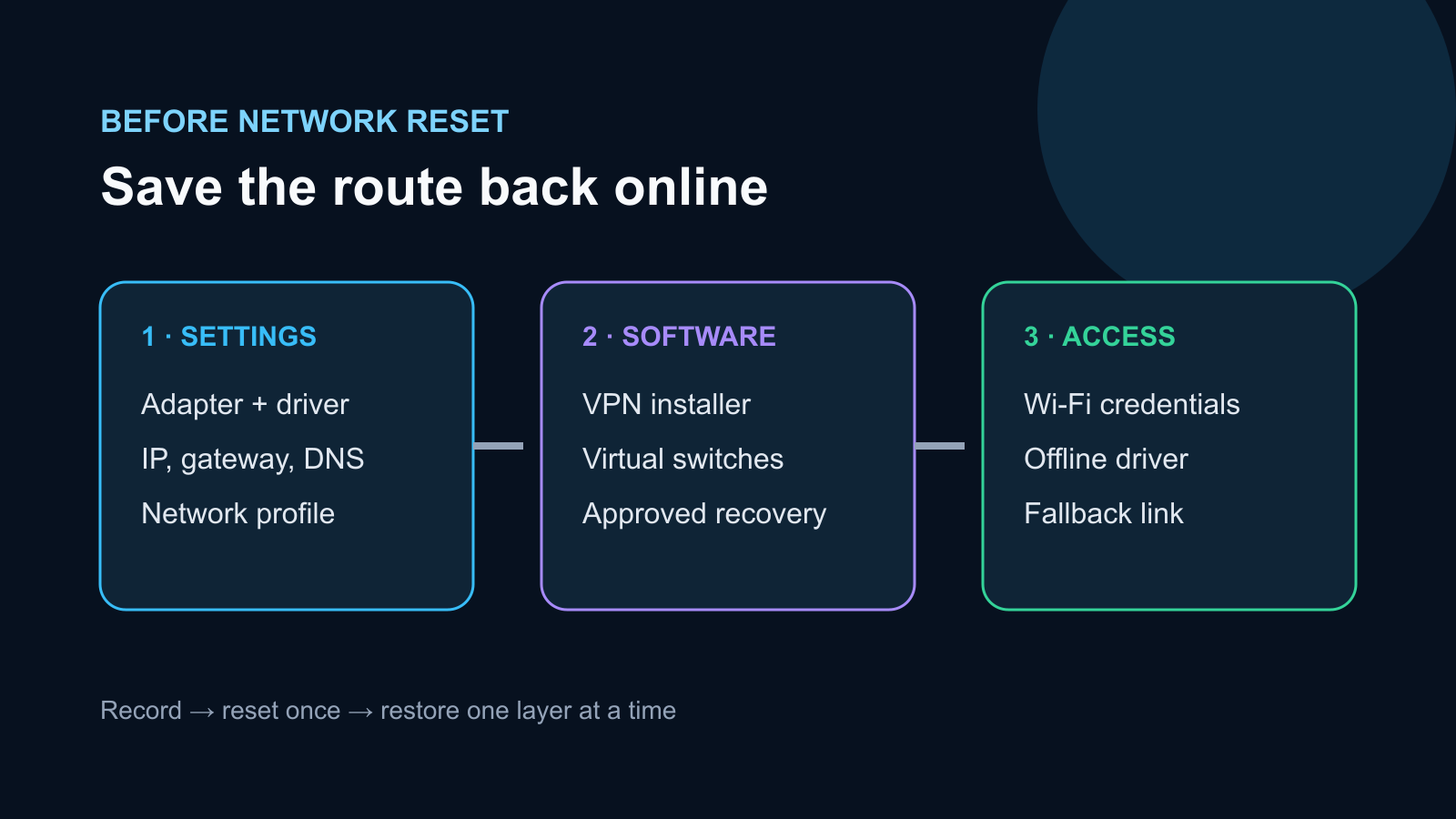
Based on Microsoft documentation reviewed September 28, 2026. No live Network reset was performed.
Last reviewed: September 28, 2026
Windows 11 Network reset removes installed network adapters and their settings, then reinstalls the adapters with default settings after restart. Microsoft also warns that you may need to reinstall VPN software or recreate virtual switches. Before selecting Reset now, record the affected connection, save the installer and sign-in details for any VPN or networking software, export only the Wi-Fi profiles you actually need, and make sure you have an offline path back to the correct network driver.
Use Network reset as a last troubleshooting step, not as a first response to one slow website, one failed app, or a router outage.
The five-minute pre-reset card
| Save or record | Why it matters after the reset | Minimum safe record |
|---|---|---|
| Adapter identity | Windows reinstalls adapters, but a driver or OEM package may still be needed | Adapter name, driver provider, version and date |
| Current IP configuration | Static addressing and custom DNS can be lost or obscured by defaults | Screenshots or text record of IPv4/IPv6, gateway and DNS |
| VPN software | Microsoft says VPN clients may need reinstallation and setup | Official installer, account/organization name and recovery method |
| Virtual networking | Hyper-V or other virtual switches may need recreation | Switch name, type, bound physical adapter and VM dependency |
| Wi-Fi access | Known connections can require re-entry | SSID and an authorized recovery method; export only if you can protect the file |
| A fallback connection | The reset can leave you temporarily offline | Ethernet, phone tethering if permitted, or an OEM driver copied from another device |
This is an original editorial checklist, not a screenshot of a completed reset. No reset was performed for this article.
First decide whether Network reset fits the symptom
Network reset is reasonable only after narrower checks fail and the problem appears to be inside the Windows networking stack or adapter configuration. Microsoft describes it as a last step for persistent connection trouble, including some post-upgrade problems and cases where internet access works but shared network drives do not.
Do not reset yet when:
- every device on the same router is offline;
- only one website or service fails;
- the Ethernet port has no link light;
- the Wi-Fi adapter is absent from firmware and Device Manager;
- a work or school PC is controlled by an administrator;
- you cannot recover a required VPN, virtual switch, static address or driver.
If both Wi-Fi and Ethernet fail, first use the comparison path in Wi-Fi and Ethernet Both Not Working in Windows 11. If Ethernet has a 169.254 address, use the 169.254 IP address checklist before resetting the whole stack.
Record the adapter and IP state
Open Settings > Network & internet > Advanced network settings and note which adapters are enabled. Then open Device Manager > Network adapters, open the affected adapter's properties, and record:
- exact adapter name;
- Device status;
- driver provider, date and version;
- whether the device is built in, USB, a dock, or a virtual adapter.
Record custom IPv4 or IPv6 addressing, gateway and DNS settings from the adapter properties or from ipconfig /all. Redact physical addresses, host names, corporate DNS suffixes and public IP information before sharing any record.
If the PC depends on a static address, do not assume the values will be rediscovered automatically. Confirm them with the network owner.
Prepare the recovery driver before going offline
For a laptop or prebuilt PC, use the manufacturer's official support page for the exact model or service tag. Save the approved Ethernet or Wi-Fi package to a non-system drive or USB device. For a custom desktop, use the motherboard or adapter manufacturer's official support page.
Do not use a third-party driver-download site. If you must identify an unknown controller, record its hardware ID and follow the matching steps in How to Install a Windows 11 Network Driver Without Internet.
Save VPN and virtual-network details
Microsoft specifically notes that Network reset can require VPN clients and Hyper-V virtual switches to be reinstalled or set up again.
For a VPN, save the official installer and record the provider or organization, server name, VPN type and sign-in or recovery method. Do not place passwords, private keys, recovery codes or exported certificates in an unencrypted note.
For Hyper-V or other virtualization software, record each switch name, whether it is external, internal or private, which physical adapter it uses, and which virtual machines depend on it. Use the product's own supported export or backup method when available.
On a managed PC, stop here and ask the administrator. Recreating a corporate VPN or virtual switch from memory can break policy or access controls.
Export Wi-Fi profiles only when the file can be protected
Microsoft documents netsh wlan export profile for exporting saved WLAN profiles to XML. The output folder must already exist. An administrator can include a Wi-Fi key in plain text with key=clear, which creates a sensitive file.
For a profile that does not need its key exported:
netsh wlan export profile name="YourNetworkName" folder="I:\WiFiProfiles"Use a protected non-system location that already exists. Avoid key=clear unless you own the network, truly need the key, and can encrypt and delete the export safely afterward. For a home network, recording where the router's authorized password is stored is often safer than creating a plaintext XML file.
Run the reset only after the recovery check passes
In Windows 11, open Settings > Network & internet > Advanced network settings > Network reset. Review the warning, select Reset now, and confirm only when the recovery material is ready. Save open work because Windows will restart.
After restart, Windows should reinstall network adapters and return their settings to defaults. Microsoft notes that known connections may be classified as public. That is safer for discovery, but it can affect local file or printer sharing.
Restore in a controlled order
- Confirm the expected physical adapter appears in Device Manager without an error.
- Reconnect to an authorized network and check whether it receives an address and gateway.
- Restore a required static IP or custom DNS only from the verified record.
- Check the network profile before enabling local sharing.
- Reinstall the official VPN client and recreate required virtual switches.
- Test internet access, local resources, VPN access and one restart.
Do not restore every old setting at once. Test after each layer so you know which change reintroduces a problem.
If Network reset does not fix the problem
The reset does not repair a failed cable, router port, radio, dock, adapter or upstream service. It also does not prove that a driver is correct. Compare the post-reset Device Manager state, IP address and gateway with the pre-reset record. If the same Code 10, missing device, 169.254 address or no-link condition remains, return to that narrower symptom rather than repeating Network reset.
Sources and evidence note
This documentation-based guide was reviewed on September 28, 2026. The checklist and diagram are editorial work. No live Network reset, VPN recovery or Hyper-V recovery was performed.
- Microsoft Support: Fix Wi-Fi connection issues in Windows
- Microsoft Support: Essential network settings and tasks in Windows
- Microsoft Learn: netsh wlan
