
 Documentation-based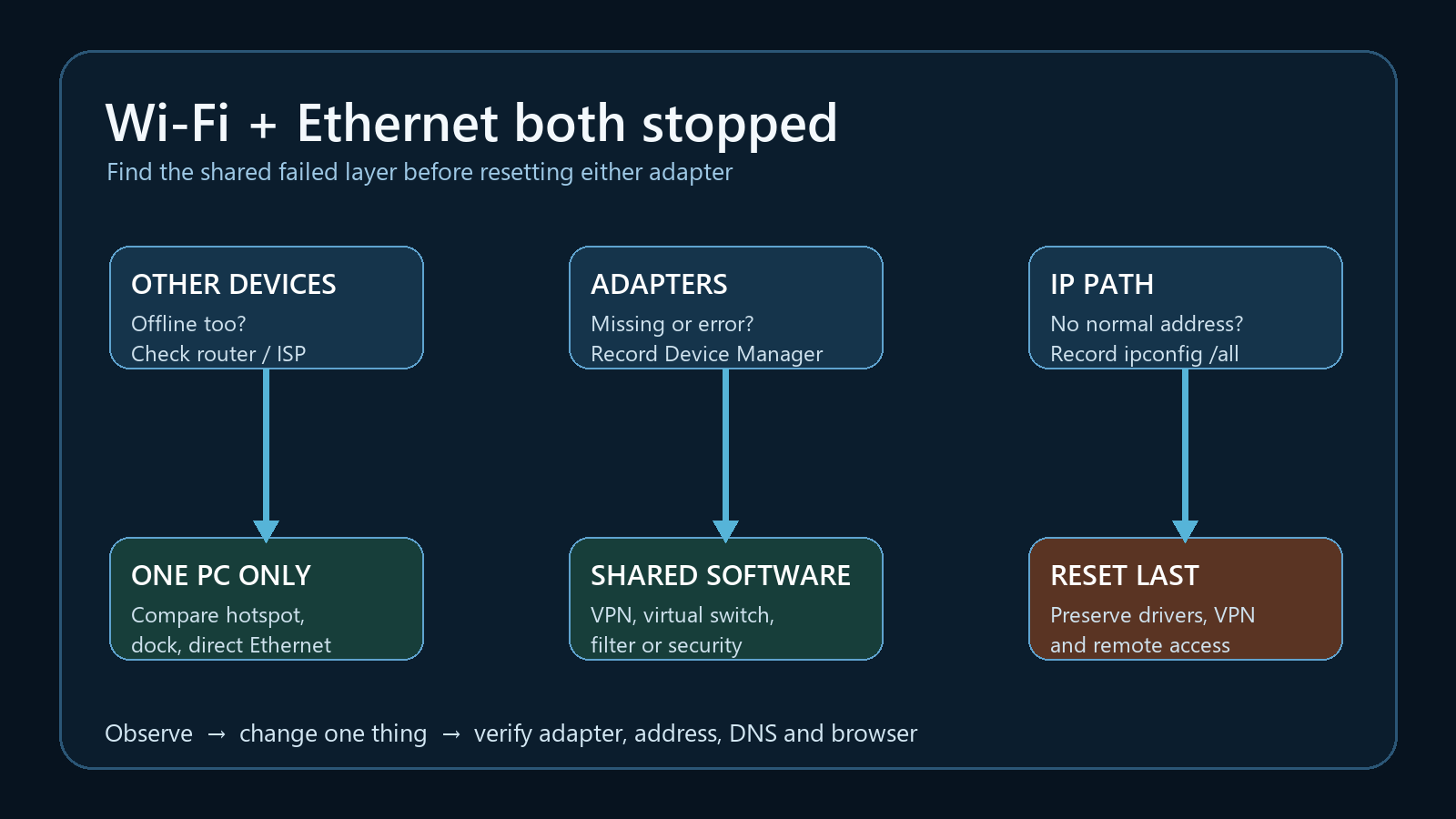
Based on Microsoft Support and Microsoft Learn documentation reviewed September 24, 2026. No hands-on hardware test was performed.
Last reviewed: September 24, 2026
If Wi-Fi and Ethernet both stop working on one Windows 11 PC, test the parts they share before resetting either adapter. First compare another device on the same router. Then check whether Windows can still see both network adapters, whether either adapter has a Device Manager error, and whether the PC has a usable IP address and default gateway.
Two failed connection types do not automatically mean two failed adapters. The common point may be the router, Windows networking, a VPN or virtual switch, security software, a recent driver change, or a USB-C dock that carries the wired connection.
Use this two-minute split first
| What you find | What it narrows down | Next check |
|---|---|---|
| Other devices also have no internet on this router | Router, modem, ISP, or upstream network | Restart the network equipment according to its instructions; check the ISP status |
| Other devices work, but both adapters are missing on this PC | Driver, firmware, hardware detection, or a broader Windows problem | Device Manager, Windows Update history, and the PC maker's support page |
| Both adapters appear with error icons | Record each exact Device Manager code | Follow the code-specific Microsoft guidance; do not assume both need reinstalling |
| Adapters are present, but neither gets a normal address | DHCP, router, VPN/filter, or Windows networking | Record ipconfig /all before changing settings |
| A phone hotspot works over Wi-Fi, but home Wi-Fi and Ethernet fail | Home router or local network path is more likely than both PC adapters | Check router DHCP, access controls, and LAN configuration |
| Ethernet works when connected directly, but not through a dock | Dock, USB-C path, power delivery, firmware, or cable | Test the supported direct path and check the dock maker's guidance |
This is a documentation-based decision tree. PC Fieldnotes did not reproduce this failure on a physical Windows 11 test system for this article.
Check whether the problem is one PC or the network
Try one other device on the same Wi-Fi network. If possible, also compare a second Ethernet device on the same router or switch. Do not factory-reset the router for this test.
If every device is offline, focus on the modem, router, ISP, or upstream connection. Microsoft recommends checking cables and restarting network equipment in the documented order. A combined modem/router needs only the instructions for that single device.
If other devices work, keep the investigation on the affected PC. A phone hotspot can provide one more useful comparison: if the PC connects to the hotspot, its Wi-Fi adapter and basic Windows path can work, even though that does not prove the home router is configured correctly.
Confirm that Windows can see both adapters
Open Device Manager > Network adapters. Record the exact names of the Wi-Fi and Ethernet adapters and any warning icons. Open each affected adapter's Properties page and copy the complete Device status text and error code.
You can also open PowerShell and run this read-only command:
Get-NetAdapter | Format-Table Name, InterfaceDescription, Status, LinkSpeedIf an adapter is missing, choose View > Show hidden devices only as an observation. A faded historical entry is not proof that Windows currently detects the hardware. Check the PC manufacturer's support page for the exact model before changing chipset or network drivers.
If Ethernet comes through a USB adapter or dock, note whether other dock devices disappeared too. A dock failure is not the same as a built-in Ethernet failure.
Separate the Wi-Fi-only checks
Confirm that airplane mode is off and Wi-Fi is enabled in Settings > Network & internet. If the Wi-Fi control is missing, check whether the wireless adapter is enabled in Device Manager.
Press Win + R, enter services.msc, and inspect WLAN AutoConfig. Record whether it is running before restarting it. WLAN AutoConfig affects Wi-Fi discovery and connection management; it does not explain a dead Ethernet link by itself.
If Wi-Fi disappeared specifically after sleep while Ethernet has a different symptom, use the Wi-Fi missing after sleep guide and keep the two observations separate.
Record the shared IP path
Before using repair commands, run:
ipconfig /allFor both adapters, record the IPv4 address, default gateway, DHCP state, and DNS servers. Redact device names, MAC addresses, public IP information, and internal network details before sharing the output.
An address beginning with 169.254 means Windows is using a link-local address rather than a normal address supplied by the network. Follow the 169.254 troubleshooting guide for that branch. Do not invent a static address; a wrong value can create an address conflict or put the PC on the wrong subnet.
If a normal address and gateway are present, test the actual gateway shown in your output and then DNS separately:
ping <actual-default-gateway>
nslookup example.com
A failed ping is not conclusive because some devices block ICMP. Compare it with a browser request and the router's documented management address. A DNS answer also does not prove that every application uses the same resolver path.
Look for software shared by both adapters
VPN clients, Hyper-V or other virtual switches, packet-capture drivers, endpoint security software, and third-party firewalls can attach filters to more than one network adapter. If the failure began after installing or updating one of these products, record the timing and use the vendor's supported repair or removal procedure.
Do not disable security software, remove filter drivers, or delete virtual switches as a generic test. Those actions can reduce protection, break remote access, or remove a working lab configuration. On a managed PC, contact the administrator.
Also note whether the problem began after a Windows update, driver update, BIOS update, dock firmware change, or hardware change. Timing is evidence, not proof of cause.
Recover with the smallest reversible action
Work locally if an action will interrupt networking. Start with one change at a time:
- Restart the PC once and record whether both adapters return.
- Reseat the Ethernet cable or dock once, then observe link and adapter status.
- Disable and re-enable only the affected adapter if it is present and you are not relying on that connection remotely.
- Check Windows Update and the PC manufacturer's current driver guidance for the exact model.
- Preserve an offline copy of the supported network driver before uninstalling one.
Do not start by running a collection of netsh resets, disabling IPv6, forcing DNS servers, or uninstalling both adapters. Those changes destroy useful evidence and may create a second problem.
Use Network reset last
Microsoft describes Network reset as a last step. It removes installed network adapters and reinstalls them after restart, returning their settings to defaults. VPN clients and virtual-switch software may need to be reinstalled or reconfigured, and known networks may use a public profile afterward.
Before selecting Settings > Network & internet > Advanced network settings > Network reset, record:
- VPN profiles and the vendor installer
- Hyper-V or other virtual-switch configuration
- static IP, DNS, proxy, VLAN, or authentication settings
- the correct Wi-Fi password
- a supported offline network-driver installer
- how you will regain access if this is a remote PC
If both adapters remain missing or show repeatable error codes after supported driver and firmware checks, send the PC manufacturer the exact model, Windows build from winver, BIOS version, adapter names, driver versions, error codes, and the comparison results.
Verify the result instead of stopping at the icon
After one change, verify the same path in this order:
- Windows detects the adapter without an error.
- Ethernet shows a link or Wi-Fi sees the expected network.
- The adapter receives the expected address and gateway.
- A DNS lookup returns an answer.
- A browser opens a known site.
- The result survives one restart and three comparable connection tests.
If only the taskbar icon reports no internet while sites work, keep that as a status-detection problem instead of resetting a working connection.
Common questions
Should I reinstall both network adapters?
Not first. Record whether Windows detects each adapter and any error code. Two failed connections can share one router, software filter, virtual switch, DHCP path, or Windows component.
Does this mean the motherboard is failing?
Not by itself. Wi-Fi and Ethernet may use different hardware while still sharing software and network infrastructure. Compare another device, Device Manager, and the IP path before drawing a hardware conclusion.
Will Network reset remove my files?
It is not a personal-file reset, but it removes and reinstalls network adapters and resets their settings. VPN and virtual-switch software may require repair or reconfiguration.
Sources and evidence note
This documentation-based guide was reviewed on September 24, 2026. No hands-on hardware test or original Windows screenshot was completed for this article.
- Microsoft: Fix Wi-Fi connection issues in Windows
- Microsoft: Fix Ethernet connection problems in Windows
- Microsoft: Error codes in Device Manager in Windows
- Microsoft: Essential network settings and tasks in Windows
- Microsoft Learn: Get-NetAdapter
