
 Documentation-based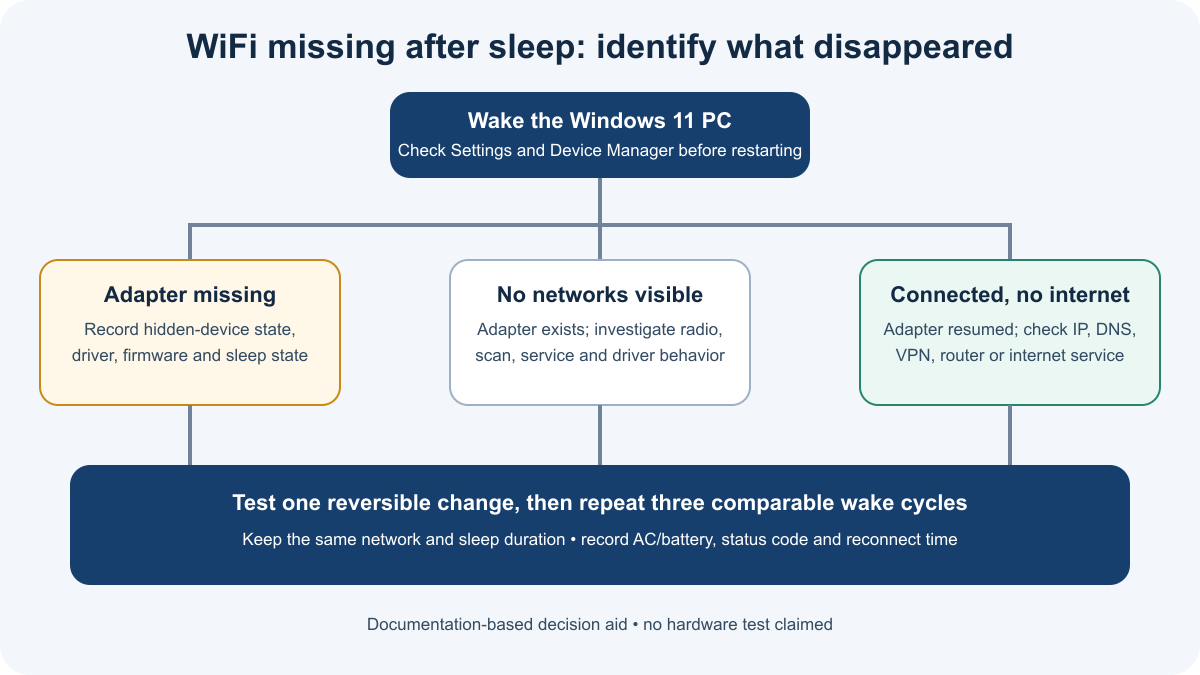
Based on Microsoft Support and Microsoft Learn documentation reviewed September 22, 2026. No hands-on hardware test was performed.
Last reviewed: September 22, 2026
If WiFi disappears after your Windows 11 PC wakes from sleep, first find out what actually vanished: the WiFi switch, the wireless adapter in Device Manager, the list of available networks, or only internet access. Those outcomes point to different problems. Do not begin with a network reset or uninstall the only available driver.
Save your work, record the wake time, and compare the adapter before sleep and immediately after resume. A restart may restore service, but it also removes useful evidence about the failed wake event.
Start with what disappeared
Open Settings > Network & internet and Device Manager > Network adapters. Then match what you see:
| After resume | What it usually means | Next step |
|---|---|---|
| The WiFi switch and wireless adapter are both missing | Windows is not presenting the adapter normally | Record Device Manager state, check hidden devices, then follow the driver and firmware path |
| The adapter is present but disabled | The device exists but is not active | Enable that specific adapter if you are working locally and record whether it returns |
| The adapter shows a warning or error code | Windows detected the device but it did not start normally | Copy the full Device status and use the code-specific support path |
| The adapter is present but no networks appear | Radio, driver, service, or scan behavior needs investigation | Keep this separate from a missing-adapter problem |
| WiFi is connected but the internet does not work | The adapter resumed; the remaining problem may be IP, DNS, VPN, router, or internet service | Diagnose connectivity instead of reinstalling the adapter |
This guide focuses on the first three branches. A visible adapter with no internet is not the same failure.
Record the wake event before restarting
Write down the exact time the PC woke, whether it was on AC power or battery, the computer model, Windows version and OS build, and the wireless adapter model and driver version.
Open Terminal or Command Prompt and run:
powercfg /aThis reports the sleep states available on the PC. It can show whether the system uses S0 Low Power Idle, commonly called Modern Standby, or another supported state. It does not identify a defective driver by itself, and it is not a reason to force a different sleep model through registry changes.
In Device Manager, select View > Show hidden devices. Open the wireless adapter's properties if it appears and copy the full Device status. Note whether the entry is normal, disabled, greyed out, or marked with a warning. Do not rely on a screenshot alone; text is easier to search and share with support.
Try a reversible recovery
If the WiFi control still exists, turn WiFi off once, wait a few seconds, and turn it back on. If the adapter is present in Device Manager, disabling and enabling that specific adapter can test whether Windows can reinitialize it.
Only do this while working locally. Disabling the adapter immediately disconnects networking and is unsafe when WiFi is your only remote connection.
Windows 11 also provides a Network and Internet troubleshooter through the Get Help app. It may identify common connectivity problems, but save the before-and-after state so an automatic change does not erase the comparison.
If a restart is the only way to recover the adapter, record that fact. “A restart fixes it” is useful evidence, but it does not explain whether the cause is the driver, firmware, Windows power transition, or hardware.
When the Power Management tab is missing
Many instructions tell users to clear Allow the computer to turn off this device to save power. That checkbox is not available on every adapter or every Windows power model. A missing Power Management tab does not prove that anything is broken.
Use a path that does not depend on the checkbox:
- Record the result of
powercfg /a. - Record the PC model, BIOS or firmware version, adapter model, and wireless driver version.
- Check the PC manufacturer's support page for the exact model before using a generic driver package.
- Download or preserve the appropriate installer before removing or rolling back a driver, especially if the PC has no Ethernet connection.
- Review the manufacturer's firmware and chipset guidance together with the wireless driver notes.
If the checkbox is present and you choose to test it, record its original value and change only that one setting. Restore the original value if it does not improve three comparable wake cycles. Do not combine several power, driver, and registry changes in one test.
Compare the driver and power conditions
Repeat the same sleep-and-wake test once on AC power and once on battery. Use the same access point and approximately the same sleep duration. This does not prove a root cause, but it can show whether the symptom follows a power condition.
Check Windows Update and the PC manufacturer's support page for a wireless driver intended for the exact model and Windows version. Prefer the PC manufacturer's package when it includes platform-specific integration. Intel or another adapter vendor may provide useful guidance, but vendor instructions apply only to supported hardware.
Roll back only when Device Manager offers a known previous version or the manufacturer supplies a supported recovery path. Do not remove the last working installer while offline, and do not install a package for a similarly named but different adapter.
Avoid blanket fixes such as disabling IPv6, security software, Modern Standby, or unrelated USB power saving. They broaden the problem and can create new failures without showing why the adapter disappeared.
Generate a wireless network report
When the adapter remains available long enough, Windows can generate a wireless report:
netsh wlan show wlanreportThe HTML report includes recent wireless sessions and events. Look around the recorded wake timestamp rather than reading only the final summary. The report can help separate adapter detection, connection attempts, authentication, and disconnect events.
Review the file before sharing it. It may contain network names, adapter identifiers, user paths, and other details that should be redacted from public screenshots or support posts.
If the adapter is completely absent after resume, the report may contain little or no wireless activity for that period. That absence is still worth recording alongside Device Manager state and the exact wake time.
Check three comparable wake cycles
Use a small log instead of declaring success after one wake:
| Field | Cycle 1 | Cycle 2 | Cycle 3 |
|---|---|---|---|
| AC or battery | |||
Sleep state from powercfg /a | |||
| Sleep duration | |||
| Adapter present after resume | |||
| Device Manager status or code | |||
| Networks visible | |||
| Time until usable connection | |||
| One change tested |
Keep the network, sleep duration, and change as consistent as practical. There is no universal reconnect deadline that proves every PC is healthy.
If the failure continues, send the PC manufacturer the model, BIOS version, Windows build, adapter and driver versions, sleep state, wake timestamps, Device Manager status, and redacted WLAN report. That package is more useful than repeatedly resetting the network stack.
Questions about WiFi after sleep
Does quiet networking during sleep mean the adapter is broken?
No. Modern Standby can reduce or manage network activity while the screen is off. The problem covered here is failure to restore a usable adapter or connection after the PC resumes.
Should I force S3 sleep if my PC uses Modern Standby?
No. powercfg /a reports supported states; it does not authorize forcing an unsupported state. Use the PC manufacturer's firmware and driver guidance.
Should I uninstall the WiFi driver first?
Not first. Record the current state and preserve an appropriate offline installer before any removal. Otherwise you may lose the easiest recovery path when the adapter is unavailable.
Sources and evidence note
This documentation-based guide was reviewed on September 22, 2026. PC Fieldnotes did not reproduce the failure on physical hardware, and the steps above are not presented as a universal fix.
- Microsoft: Fix Wi-Fi connection issues in Windows
- Microsoft: Analyze the wireless network report
- Microsoft Learn: Overview of Modern Standby testing and diagnostics
- Microsoft Learn: Network connectivity in Modern Standby
- Microsoft Learn: Powercfg command-line options
