
 Documentation-based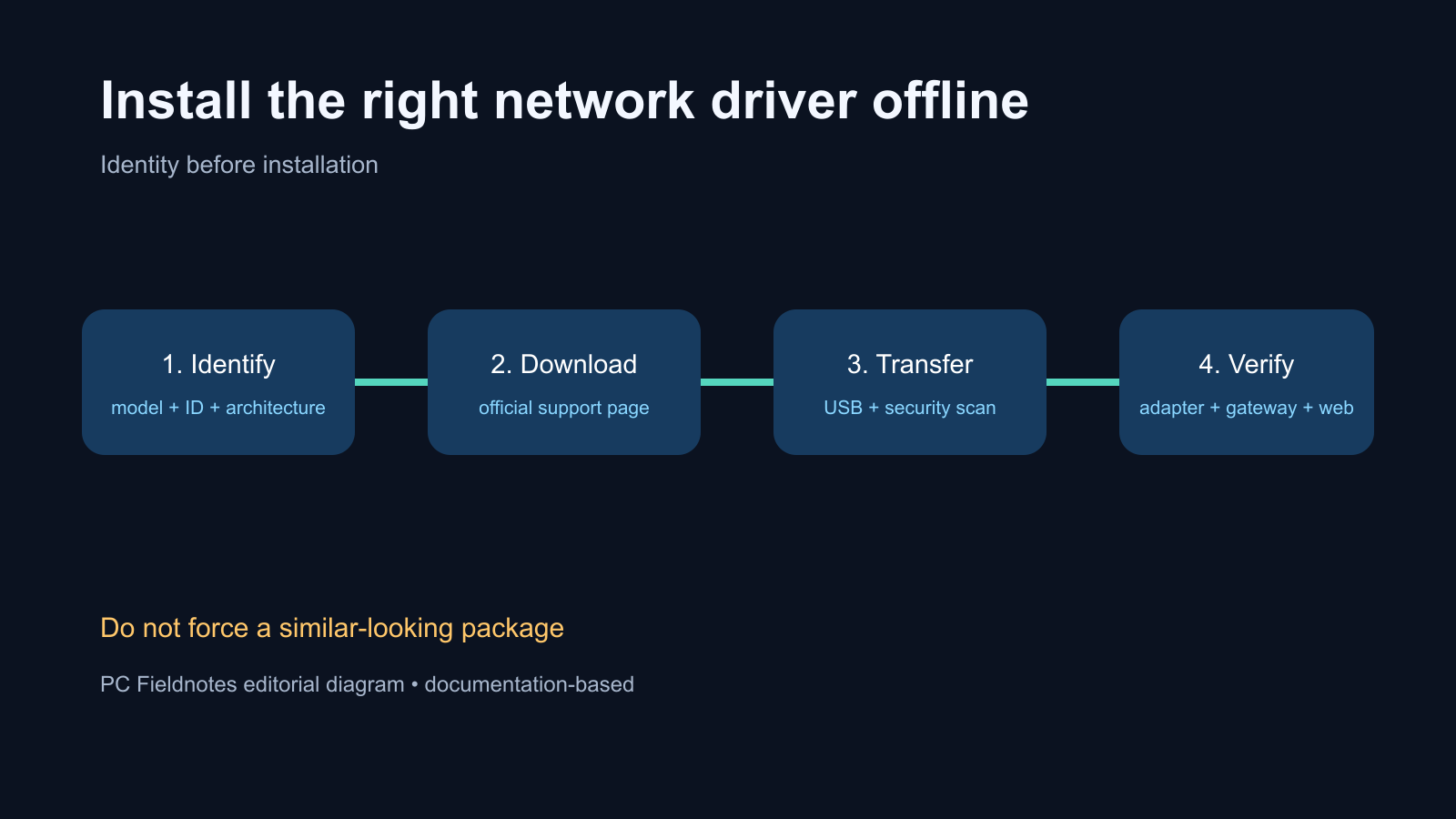
Based on Microsoft documentation reviewed September 27, 2026. No hands-on installation was performed.
Last reviewed: September 27, 2026
To install a network driver without internet, use another trusted device to download the driver for the exact PC model and Windows architecture, copy it to a USB drive, scan the files, and install the manufacturer's package or point Device Manager to the extracted driver folder. Record the current adapter identity before you start and keep the downloaded package until the connection is verified.
Do not choose a driver from a third-party download site or only from a similar-looking adapter name. The PC model, hardware ID, Windows version, and x64 or Arm64 architecture must agree.
Choose the path that matches what Windows shows
| What you see | Best identification method | Installation path |
|---|---|---|
| Adapter listed by name | PC model plus adapter name | OEM setup package first |
| “Network Controller” under Other devices | Hardware IDs plus PC model | Download exact OEM package, then point Device Manager to extracted files if needed |
| No wireless or Ethernet device appears | PC support page, BIOS/UEFI and hardware check | Do not assume a driver alone can fix detection |
| Windows setup has no network | Another device and USB drive | Load the exact network driver supplied for that PC |
This is an original editorial workflow diagram, not a screenshot of a tested installation. No physical installation was performed for this article.
Step 1: Record the exact PC and Windows architecture
Find the manufacturer and complete model or service tag on the PC label, firmware screen, purchase record, or Settings > System > About. Record the Windows version and System type.
The architecture matters. An x64 package is not interchangeable with an Arm64 package. A driver for a nearby laptop model can also omit the correct subsystem match, power configuration, or companion software.
For a custom desktop, record the motherboard model or the exact add-in adapter model instead of relying on the case brand.
Step 2: Identify an unknown network controller safely
Open Device Manager. Look under Network adapters and Other devices. If you see Network Controller, Ethernet Controller, or an unknown device:
- Right-click it and choose Properties.
- Open the Details tab.
- Choose Hardware Ids from the Property list.
- Record the first one or two values privately.
Microsoft documents hardware IDs as identifiers Windows uses to match a device with a driver package. Treat the strings as identifiers, not commands. Do not paste a complete device inventory into a public post when one redacted ID is enough.
Hardware IDs help confirm the device family, but the PC manufacturer's package is usually the safer first choice for a laptop or prebuilt system.
Step 3: Download from a trusted support page
On another internet-connected device, go to the PC, motherboard, or adapter manufacturer's official support page. Search by the exact model or service tag. Select the installed Windows version and architecture, then download the Ethernet, wireless LAN, or chipset dependency named for that model.
Also download any release notes or installation instructions. Some packages are setup programs; others are archives that must be extracted before Device Manager can find an .inf file.
Avoid generic “driver updater” sites. A package can have a familiar vendor name and still be wrong for the device, architecture, or OEM configuration.
Step 4: Transfer and scan the files
Copy the package to a USB drive. On the offline PC, copy it to a local folder on the I: or another non-system data drive when available, then scan the file with Windows Security or the organization's approved security tool.
Keep the original download and note its filename, version, source URL, and download date. If the package is an archive, extract it to a clearly named folder. Do not run an unknown script just because it accompanied a driver bundle.
Step 5: Install the narrowest correct package
If the manufacturer provides a signed setup package for the exact model, follow its instructions first. Restart only when the installer requires it.
If there is no setup program but you have an extracted driver folder:
- In Device Manager, right-click the affected device.
- Choose Update driver.
- Choose Browse my computer for drivers.
- Select the extracted folder and keep Include subfolders enabled.
- Review the result and any error code.
Do not use Let me pick to force an unrelated model. Do not disable driver-signature protections to make an untrusted package install.
Advanced administrators can use PnPUtil with a verified driver package, but the graphical path is easier to audit for a one-PC recovery. Avoid commands copied from a forum when you have not confirmed the package contents and target device.
Step 6: Verify more than the Wi-Fi icon
After installation or restart:
- Confirm the adapter appears by its expected name in Device Manager.
- Confirm Device status does not show an error code.
- Connect to the authorized Ethernet or Wi-Fi network.
- Confirm the adapter receives a usable address and default gateway.
- Open two unrelated HTTPS websites.
- Run Windows Update and check the PC manufacturer's support app for a newer approved package.
- Keep the offline installer until the connection remains stable after one restart.
If the device still does not appear, recheck the model, architecture, firmware settings, physical connection, and whether a chipset or serial-I/O dependency is required. A missing device is not always a missing network-driver package.
Windows setup cases
Microsoft's Windows setup guidance allows a network driver to be loaded from USB when the device cannot get online. Use the exact driver supplied for the device. If setup still cannot see the adapter after loading it, return to the hardware ID, architecture, and OEM dependency checks rather than trying random packages.
On a work or school PC, do not bypass enrollment or required network controls. Contact the administrator for the approved image and driver bundle.
Common questions
Can I download the driver on a phone?
Yes, if you can reach the manufacturer's official support page and transfer the unchanged file by USB or another trusted method. Record the source and scan the file on the PC.
Should I install the newest vendor-generic driver?
Not automatically. For laptops and prebuilt PCs, start with the exact model's support page. A generic package may not include the OEM's validated configuration.
What if Ethernet works but Wi-Fi does not?
Use Ethernet temporarily to retrieve the exact wireless package, but still identify the wireless adapter and PC model first.
Sources and evidence note
This documentation-based guide was reviewed on September 27, 2026. No hands-on driver installation or original Windows screenshot was completed.
- Microsoft Support: Get connected when setting up your Windows device
- Microsoft Learn: Device identification strings
- Microsoft Learn: Identifiers for PCI devices
- Microsoft Support: Update drivers through Device Manager
