
 Documentation-based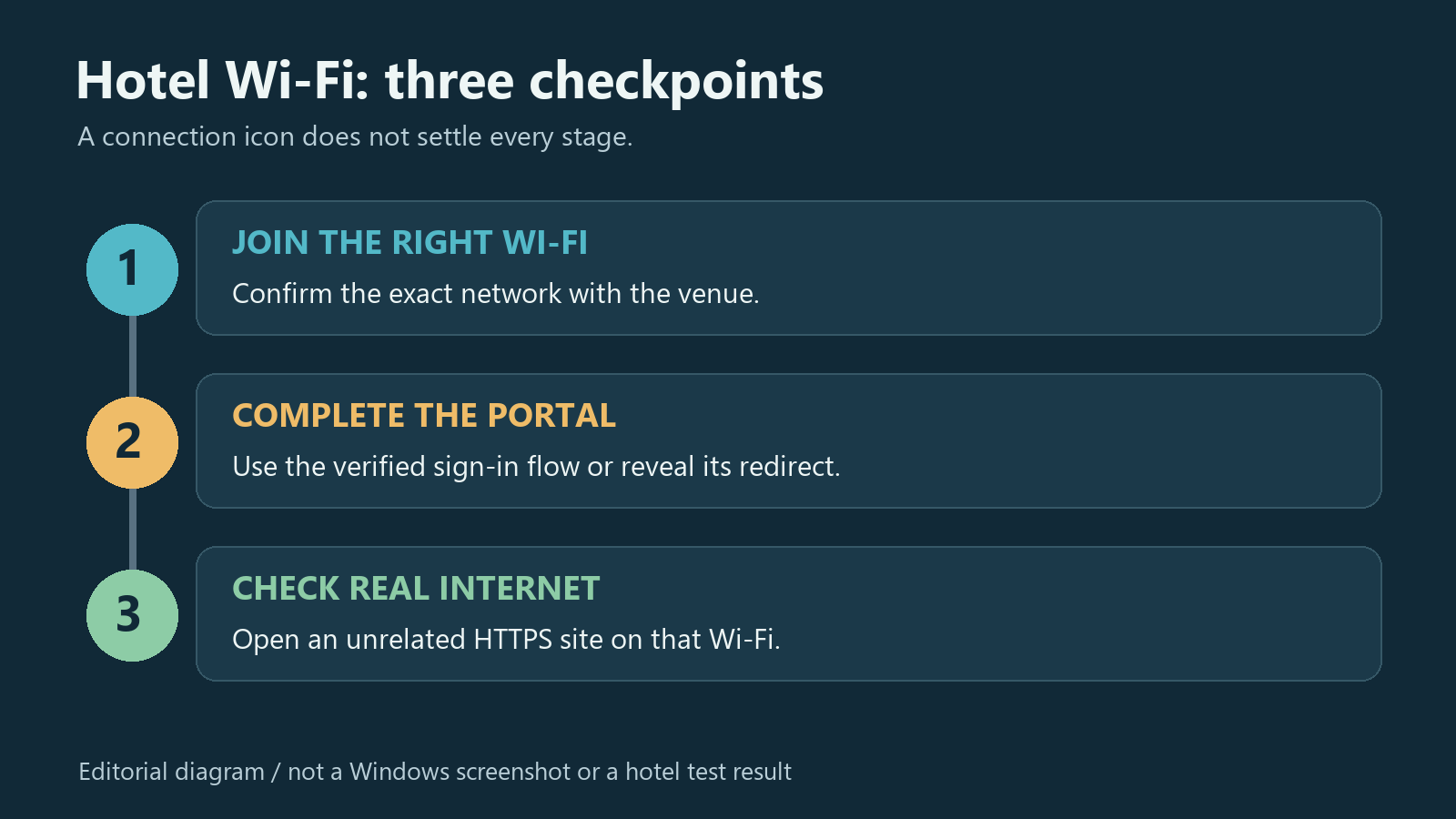
Microsoft and Google documentation reviewed October 11, 2026 with AI assistance. No hotel access point or live captive portal was tested; the illustration is not a Windows screenshot. Alex Reed is an established pen name.
If your Windows 11 laptop joins a hotel's Wi-Fi but no login page appears, confirm the network name with the venue, then open its sign-in notification or the portal address supplied by staff. If neither is available, a plain HTTP request can expose the redirect. Joining Wi-Fi and receiving permission to use the internet are separate steps.
This guide is for a missing captive-portal page on public Wi-Fi, not for a laptop that cannot see or join any wireless network. Last reviewed: October 11, 2026. It is based on Microsoft and Google documentation; no hotel access point or live portal was tested.
First, confirm which connection you are testing
Ask the front desk or network operator for the exact Wi-Fi name, whether a browser login is required, and the official portal address if one exists. A plausible hotel name in the network list does not by itself establish who operates it. Some venues use only a Wi-Fi password; do not keep hunting for a portal they do not provide.
On Windows 11, open the taskbar's quick settings, choose Manage Wi-Fi connections, and check the selected network. Microsoft's Wi-Fi connection instructions show this sequence. If Windows is still asking for the wireless password or has not connected, resolve that stage first.
Check whether Ethernet, a phone tether, or another connection is carrying your browser traffic. A working page through that other connection says little about the hotel's Wi-Fi. Avoid interrupting an active work session just to test; arrange a brief, controlled comparison when practical.
If a phone works, confirm it is using the same Wi-Fi rather than cellular data. Also note whether that phone already completed the venue's sign-in. Those observations make the comparison useful; “my phone works” alone does not establish that the laptop has been authorized.
Open the sign-in flow before changing network settings
Use a Windows or browser notification that asks you to sign in to this network, if one is present. Otherwise, open the default browser and enter the portal address supplied by the operator. Microsoft describes this automatic browser behavior in its public-network sign-in guidance.
No notification does not prove there is no portal. Windows uses connectivity probes, and their response affects what it detects. Microsoft's NCSI overview explains that a responding HTTP probe whose content differs from the expected test text can indicate a captive portal. A request that never reaches that stage may not produce the expected sign-in experience.
If you do not have the venue's portal address, type this complete address into the browser's address bar:
http://www.msftconnecttest.com/redirectThis is a Microsoft-documented redirect address, not a universal hotel login URL. Depending on the network, you may reach a portal, an ordinary Microsoft/MSN destination, or an error. Google also recommends trying an HTTP page when a public Wi-Fi sign-in is missing in its Chrome error guidance.
Use this request to reveal the next page, not to send credentials to the test address. If the browser upgrades it to HTTPS and the attempt fails, ask the operator for the direct portal address rather than disabling browser protections globally. Do not continue through a certificate warning to reach a guessed login page.
Let the returned page determine the next move
The venue's verified portal appears. Review its instructions and any terms or charges yourself. Enter only the information appropriate to that service. If the page unexpectedly asks for a Windows PIN, company account, software installation, or certificate, verify the requirement with staff before proceeding. A redirect is not proof that every request on its destination is legitimate.
MSN or another ordinary page opens. That result can occur in the Windows connectivity flow; it does not mean Microsoft hosts your hotel's login form. Try an unrelated HTTPS website and check the address bar. If normal sites work over the intended Wi-Fi, there may be no remaining portal step. If access remains limited, ask the operator about your device's authorization rather than repeatedly reopening the same redirect.
The browser shows “Microsoft Connect Test.” You have reached the test text, commonly served at connecttest.txt, rather than a sign-in form. It shows access to that endpoint, not unrestricted internet access. A portal can handle test destinations differently from other traffic. Microsoft's captive-portal design guidance describes how inconsistent handling can interfere with detection.
The page times out, cannot resolve a name, or loops. Save the exact message and destination. An absent portal and a broken connection are still different possibilities. Try the operator's direct address. If the same verified page fails in one browser, compare it in another installed browser or a private window. Google's loading-error guidance uses Incognito as a browser-state comparison. Success there points toward a browser-specific difference; private mode does not change the Wi-Fi authorization or prove the network is safe.
Check policy and addressing only when the evidence points there
A VPN, proxy, or custom network configuration is relevant information for support, especially on a managed laptop. Record what is active and whether the product provides a documented public-Wi-Fi sign-in flow. Give that information to your administrator; do not defeat a company VPN requirement or kill switch just to make a portal appear.
Microsoft's NCSI troubleshooting guidance calls out proxy configuration and warns against disabling active probing as a fix. Turning off NCSI can hide useful status information while leaving the authorization problem intact.
Check the Wi-Fi connection's IPv4 address under its Windows network properties if support asks for it. An address beginning with 169.254 belongs in the APIPA/DHCP diagnostic branch, rather than a browser-cookie repair. That linked guide uses an Ethernet example; the address-assignment distinction also matters when investigating Wi-Fi.
Microsoft's network settings reference explains IP/DNS assignment and the Public network profile. Do not copy a gateway, static address, or DNS server from a different hotel or random guide. Keep the public network classified as Public; switching to Private enables discovery behavior and is not a captive-portal login step.
Network reset, driver removal, and disabling the firewall are disproportionate first responses to a missing web page. Stop before those changes unless a separate diagnosis establishes why one is needed.
Confirm internet access, then close the case
After the portal reports success, stay on the intended Wi-Fi and open an unrelated HTTPS site. Check that it loads without returning to the sign-in page, then try the application you need. A portal's success banner, an accessible test endpoint, and usable internet are three different observations.
If those checks work but Windows still says No internet, follow the separate NCSI status-mismatch guide. Do not start resetting a working connection merely to change the icon.
If login fails or returns repeatedly, give staff the Wi-Fi name, time, Windows version, browser, exact error, and portal hostname. Ask them to check this device's session, any applicable device limit, and the venue's upstream connection. Do not assume a universal two-device limit or try to bypass one.
Keep room details, vouchers, passwords, full private addresses, and session links out of public screenshots. If you cannot establish a working authorized session, use an independently available connection while the operator investigates. The illustration above shows the three checkpoints; it is not a record of a successful hotel test.
