
 Documentation-based
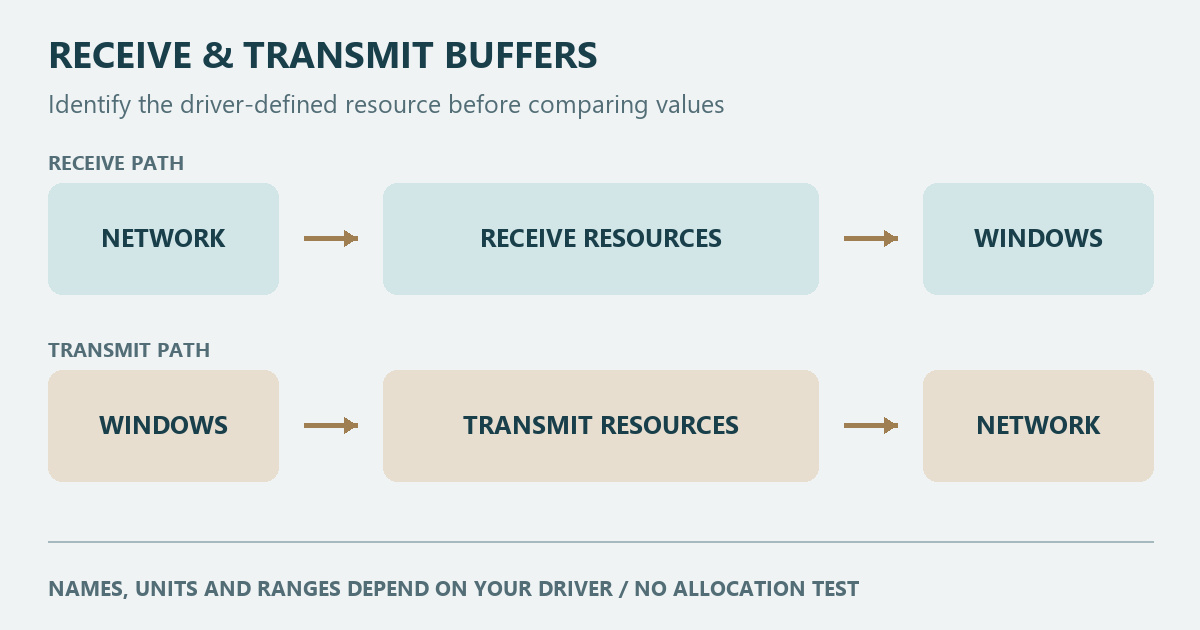
Microsoft and Intel documentation reviewed November 1, 2026 with AI assistance. Standardized ReceiveBuffers and TransmitBuffers definitions are kept separate from Intel descriptor terminology. No physical NIC, allocation, packet-loss, throughput or gaming test was performed. Commands are examples without captured output. Alex Reed is the established pen name.
Last reviewed: November 1, 2026
For a Windows 11 Ethernet adapter, keep Receive Buffers and Transmit Buffers at the driver defaults unless you are investigating a repeatable receive or transmit problem. Larger settings reserve more resources on the adapters described by Intel; they do not establish a general gaming or internet-speed improvement. Before changing 256 to 512, or choosing the largest number, check what that number means for your exact adapter and record the starting value.
The two settings concern resources used to receive and send network traffic. Their displayed numbers are not a portable recipe: different driver descriptions can refer to different kinds of buffers or descriptors. A value copied from another model may have a different meaning or may not be supported at all.
First establish what the number counts
A descriptor is a record the adapter or driver uses to track packet data in memory. It is useful to distinguish the records from the data they describe before comparing a setting across devices.
In Microsoft's editable network-driver keywords, *ReceiveBuffers is the number of receive descriptors. Too small a value can leave the adapter short of receive buffers under heavy load; an excessive value wastes resources. The driver chooses the default.
The same Microsoft page describes *TransmitBuffers as a hardware-dependent transmit-buffer size in bytes, potentially including data buffers and descriptors. In Intel's advanced-settings reference, the relevant Intel properties are instead described as Receive Descriptors and Transmit Descriptors, also called buffers. Those descriptions explain how the driver handles incoming data and tracks outgoing packets.
For the Intel settings documented there, increasing the resources can help the corresponding traffic direction and consumes system memory. Intel advises keeping the transmit default when there is no transmit-performance problem. Treat these as vendor-specific descriptions. Do not infer a universal byte count, descriptor count, or memory cost from a bare number in Device Manager.
| What you have established | What you can reasonably do with it |
|---|---|
| Exact adapter, driver, setting label, and its documented unit | Interpret the value for this installation |
| Only a forum recommendation such as 256, 512, or maximum | Keep the default while finding the matching driver documentation |
| A setting is absent or offers a different range | Check support for that driver; do not force another model's values |
This table is an interpretation aid. It contains no measurements from a physical adapter.
Locate the two properties without changing them
In Device Manager, open the physical Ethernet adapter under Network adapters, then look in Properties > Advanced. Names and available settings depend on the driver. Intel notes that a setting not displayed may be unavailable for the device or Windows version; its older PROSet interface is not a promise about every current OEM driver.
For a read-only inspection, replace Ethernet with the adapter's actual name:
Get-NetAdapterAdvancedProperty -Name "Ethernet" -AllProperties |
    Where-Object { $_.RegistryKeyword -in '*ReceiveBuffers', '*TransmitBuffers' } |
    Format-List DisplayName, DisplayValue, RegistryKeyword, RegistryValue, Valid*
Get-NetAdapterAdvancedProperty can expose the property labels, current values, and available value metadata. Save the exact labels along with the driver version. These are documented command examples, not output captured for this article.
An empty result does not prove that the adapter has no internal buffers. It means this query did not return those standardized properties. Check that you chose the intended adapter and consult its OEM documentation for different names or unsupported controls. A Wi-Fi, VPN, or virtual adapter's properties do not establish what a separate physical Ethernet driver exposes. Avoid adding registry values to manufacture missing options.
Decide whether there is a problem to compare
Write a short baseline before touching either setting: what task fails or slows, which direction transfers data, and whether it happens only under a particular load. An online recommendation to maximize every advanced option is not a baseline.
You can inspect available adapter counters with this read-only example:
Get-NetAdapterStatistics -Name "Ethernet" | Format-List *Microsoft's statistics reference includes errors and discards among the adapter statistics. Record a before-and-after counter difference over the same workload, along with the time interval. A cumulative total on its own does not identify when a problem happened. An error or discard also does not prove buffer exhaustion; the command reports counters, not a diagnosis of the underlying cause.
If the actual complaint is a link negotiated at 100 Mbps, use the separate Speed & Duplex explanation and its link to the cable-and-port checks. Buffer allocation is a different question from the connection's negotiated rate.
Compare one supported setting and retain the original
On a work-managed PC, ask IT before making a change. Keep local access and finish network-dependent work first: applying an advanced property can restart the adapter and interrupt the connection, as described in Microsoft's Set-NetAdapterAdvancedProperty documentation.
If the hardware documentation supports a comparison, change only the receive or transmit property relevant to the observed direction. Choose a value the driver offers, repeat the same workload, and record the result. Keep the other buffer setting and nearby features fixed. If there is no repeatable improvement, restore the recorded value rather than accumulating changes.
Use this blank record for your observations:
| Record | Before | After one change |
|---|---|---|
| Adapter and driver | ______ | ______ |
| Setting label, documented unit, and value | ______ | ______ |
| Workload and interval | ______ | ______ |
| Task result and available counter differences | ______ | ______ |
The empty cells are not site test results. A useful comparison needs the same task and conditions on both sides.
Restore a saved value or reset one default
To undo the comparison exactly, put the saved number back in the same driver property. If your intention is to return that property to its driver-defined default, Microsoft documents Reset-NetAdapterAdvancedProperty:
Reset-NetAdapterAdvancedProperty -Name "Ethernet" -DisplayName "Receive Buffers"Use the exact displayed label from your driver, including its language, in an elevated session. This example resets only the named receive property and can interrupt the connection. Resetting to a default may produce a different value from your saved starting configuration. Avoid resetting every advanced property for a one-setting comparison.
Is 256 or 512 better for gaming?
Neither number is a universal recommendation. The driver-defined unit, supported range, workload, and measured problem come first. This site has not tested gaming latency, packet loss, frame rate, or throughput for these values, so it cannot name a winning number from this guide.
For other Advanced controls, Receive Side Scaling concerns receive processing, while Interrupt Moderation concerns interrupt handling. Jumbo Frames concerns frame size. Keep those mechanisms separate from buffer resources. The adapter-properties overview also distinguishes protocol bindings from driver Advanced options.
Sources were reviewed on November 1, 2026. This is a documentation guide with an original resource-direction illustration. No physical NIC, buffer allocation, packet-loss, game, or transfer test was performed. A virtual adapter cannot verify an OEM physical adapter's resource behavior; no VM output is presented as proof. Recheck the meanings and defaults when the adapter driver changes.
