
 Documentation-based
Microsoft NDIS and NetAdapter documentation reviewed October 21, 2026 with AI assistance. No physical NIC, Windows 11 VM, game, ping or throughput benchmark was performed. Alex Reed is an established pen name.
Keep the adapter's supplied RSS configuration on a working Windows 11 PC. If a previous tweak disabled Receive Side Scaling, first read its actual state and check the adapter maker's guidance before deciding whether to restore it. Disabling RSS is not a general gaming fix, and enabling it does not establish a particular improvement on your PC.
RSS distributes network receive processing across eligible processors. The useful first question is whether this specific adapter and driver expose RSS, not how many queues a tuning video recommends. Record the current state before changing it.
Different flows can use different processors
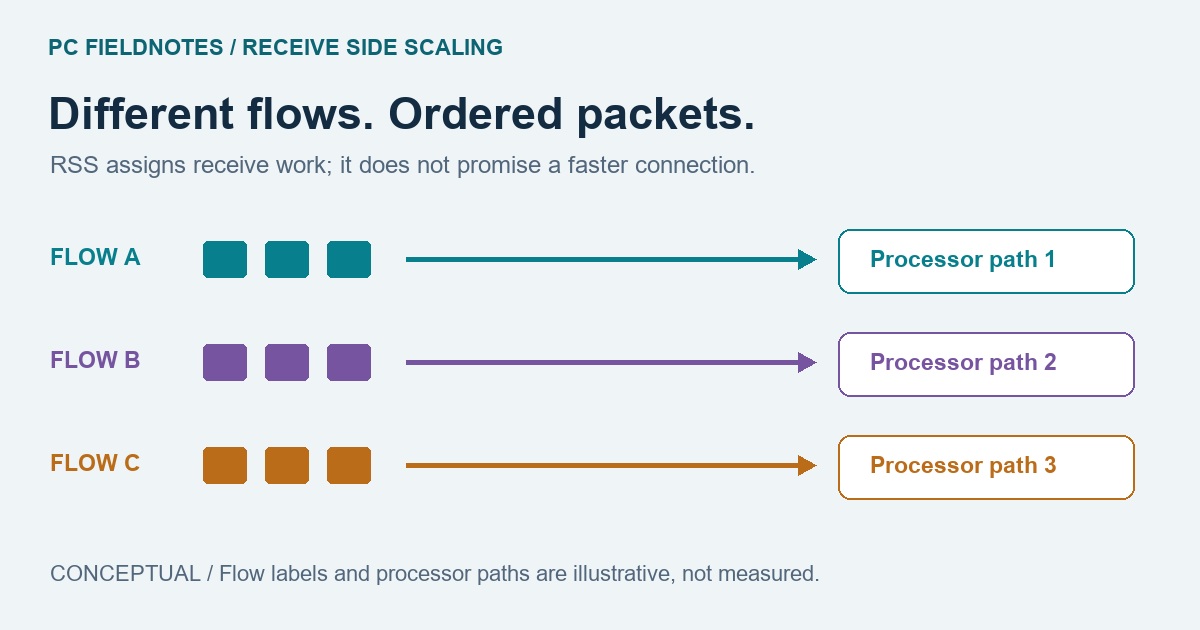
Microsoft's RSS introduction explains how a packet-header hash and an indirection table guide receive work to a processor. Traffic associated with a given connection stays on an assigned processor, preserving order. Other connections can be assigned elsewhere.
That distinction matters when interpreting CPU graphs. RSS does not mean every packet from one TCP connection is divided evenly across all cores. One busy download is not a reliable demonstration that RSS is broken, and a diagram with several flows is not a throughput prediction. The illustration on this page shows the assignment idea only.
RSS also answers a different question from Interrupt Moderation: which processor handles receive work, rather than how often the adapter notifies the CPU. Leave the other control unchanged during a comparison. Energy Efficient Ethernet concerns wired-link low-power behavior and should be considered separately too.
Read the current adapter before choosing a setting
In Windows PowerShell, identify the connection name with this read-only command:
Get-NetAdapter -Physical |
    Format-Table Name, InterfaceDescription, Status, LinkSpeed
Microsoft documents -Physical in Get-NetAdapter. Use the name belonging to the intended wired adapter, especially if a dock, VPN or virtual switch is also present.
Replace Ethernet in the next example with that name:
Get-NetAdapterRss -Name "Ethernet" | Format-List -Property *The Get-NetAdapterRss reference describes this as a lookup for RSS properties on adapters supporting RSS. Inspect the returned Enabled state and any queue, processor and profile fields the adapter reports. Preserve the full private record, then remove device identifiers before sharing it. These examples are documented commands, not output captured from a tested Windows 11 device.
| What you find | What to do next |
|---|---|
| RSS is enabled and there is no repeatable problem | Keep the configuration; a queue count alone does not justify tuning |
| RSS is disabled after a known tweak | Compare the saved configuration with the exact OEM or adapter documentation before restoring it |
| The named adapter is not found | Check the connection name first; this does not establish RSS support or lack of support |
| The command gives an error or no usable RSS properties | Preserve the message, identify the adapter and driver, and consult its supported-feature documentation; do not invent a registry property |
An Advanced-tab label is another view of a driver's exposed controls. Its absence is not enough to infer a particular hardware fault. A virtual adapter's result also does not establish what a physical NIC supports.
Enabled, queues and CPU limits are separate decisions
The RSS enable switch, the number of receive queues and the allowed processors are related configuration choices, but they are not interchangeable. A queue count is not a count of connections, and a processor limit is not a requirement to use every core for one transfer.
Microsoft's processor-count guidance describes the trade-off: distributing work can remove a receive-processing bottleneck, while involving more processors adds interrupt and DPC overhead. More resources do not automatically produce more throughput. The guidance favors per-adapter PowerShell configuration over directly editing registry values.
For an ordinary desktop, that is a reason to retain the supplied queue and processor settings unless a specific workload and matching vendor guidance justify a comparison. It is not a reason to copy a server's queue count, exclude CPU 0, or change several offloads together. We have not measured a best queue count for any adapter.
If there is a reason to compare on and off
Define the problem first: for example, a repeatable receive-throughput or CPU-use issue under one known workload. Record the driver version and RSS output. Keep the cable, peer, workload, power condition and other settings unchanged. An internet speed test alone cannot isolate the local receive-processing path from its server and network path.
Microsoft provides separate Enable-NetAdapterRss and Disable-NetAdapterRss commands. They change the chosen adapter's state; they are not read-only diagnostics. The references document that applying a change can restart the adapter unless restart is suppressed. Arrange any change while working locally, save work first, and have IT handle a managed PC. Do not disrupt your only remote connection for this comparison.
After one justified change, repeat the same workload and read the RSS state again. Compare the symptom you originally identified, then return to the recorded starting configuration if no repeatable benefit appears. Re-enabling RSS does not, by itself, restore any queue counts or processor limits you also changed. Keep those choices in the original record rather than treating an on/off command as a complete reset.
There are no gaming, latency or physical-adapter measurements in this guide. It explains how to identify and compare settings, without promising a lower ping or a faster download. For a link that negotiates at the wrong speed, begin with the link-speed explanation instead of assuming RSS changes the negotiated rate.
Sources reviewed October 21, 2026. Recheck when your OEM changes RSS support, driver defaults or a relevant troubleshooting recommendation. A Windows 11 VM cannot validate the physical NIC behavior discussed here; no VM or hardware benchmark was performed.
Related adapter settings: Interrupt Moderation explains notification timing, Jumbo Frames explains frame-size and path checks, and Large Send Offload explains send-side TCP segmentation. Choose the page that matches the observation you are investigating.
