
 Documentation-based
Microsoft NetAdapter and NDIS documentation reviewed October 22, 2026 with AI assistance. No Windows 11 VM, physical NIC, gaming, latency or throughput test was performed. Alex Reed is an established pen name.
Leave a working adapter's supplied Large Send Offload configuration alone. If you have a repeatable send-side problem or a change recommended for your exact driver, first record the separate IPv4 and IPv6 states. A blanket disable command can change both, and a blanket enable command may not restore the configuration you started with.
LSO lets the adapter split a large TCP send request into smaller packets. It does not require you to enable Jumbo Frames. The practical decision is whether a controlled change helps one identified problem on this adapter, rather than whether an on/off label sounds faster.
A large send request still becomes smaller packets
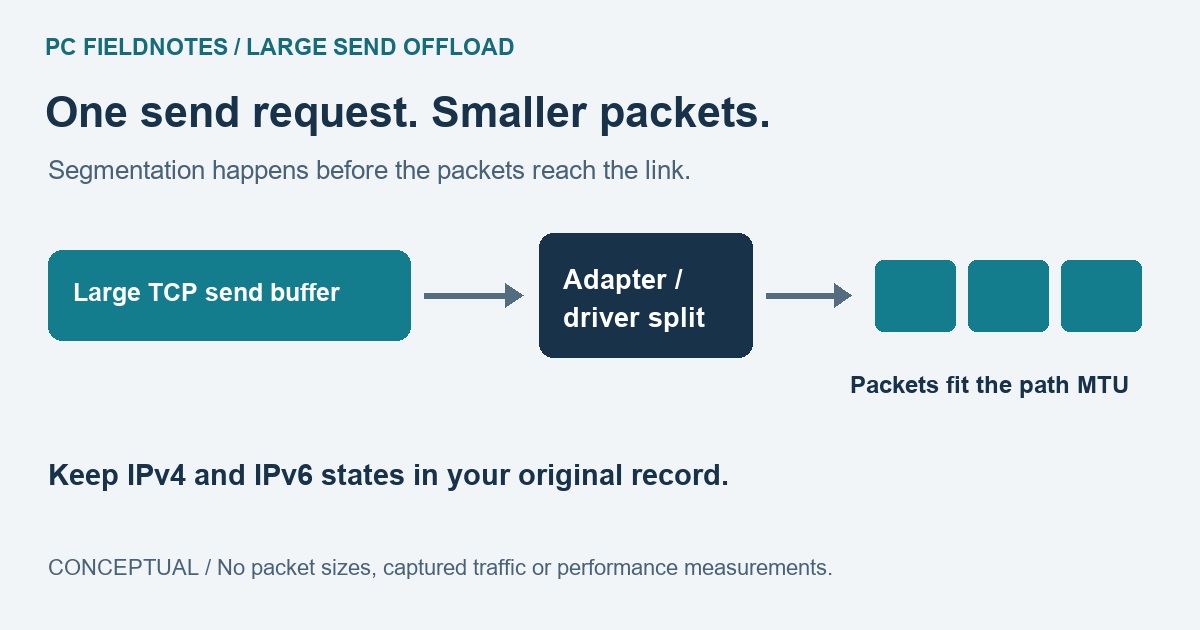
Microsoft's NDIS segmentation documentation describes sending a large TCP packet down to a capable driver and NIC for segmentation. The resulting TCP segments follow the maximum segment size supplied by the transport. LSOv2 extends the earlier version with IPv6 support.
The diagram shows where that split occurs. It is an explanation of the documented mechanism, not a packet trace or a measurement. Do not interpret the size of a software send request as permission to increase the network's MTU. If you are deciding whether a wired path supports larger frames, use the separate Jumbo Frames and MTU guide.
Microsoft distinguishes LSO from other offloads in its task-offload overview. LSO concerns TCP send segmentation; UDP Segmentation Offload is a separate feature. A claim that disabling LSO fixes every game or every UDP flow needs evidence specific to that problem. This guide contains no such test.
Save a pair of states, not one word
Identify the intended connection in Windows PowerShell:
Get-NetAdapter -Physical |
    Format-Table Name, InterfaceDescription, Status, LinkSpeed
The documented Get-NetAdapter physical-adapter filter helps separate a wired NIC from other interfaces. Choose the connection name belonging to the adapter you are investigating. A dock, virtual switch or second connection can make the name more useful than assuming every PC uses Ethernet.
Replace Ethernet in this read-only lookup with that exact name:
Get-NetAdapterLso -Name "Ethernet" | Format-List -Property *Microsoft documents this full-property lookup in Get-NetAdapterLso. Keep the full output privately along with the driver version. Record the IPv4 and IPv6 settings separately; if a legacy LSOv1 field appears, preserve that too. Remove device identifiers before sharing the record. The examples here are documented syntax, with no fabricated command output.
An error is a reason to check the adapter name, exact message and OEM feature support. It is not enough to diagnose broken hardware or justify creating a registry value that the driver does not expose. On a managed PC, give the record to IT before changing it.
Why an enable command may not undo a disable command
Consider an illustrative starting configuration: IPv4 LSO enabled and IPv6 LSO disabled. This is a hypothetical record, not a recommended default or output from a tested machine.
Microsoft's Disable-NetAdapterLso reference says that omitting the protocol switches disables both. Its Enable-NetAdapterLso reference likewise enables both when neither is specified. Applying the two broad operations in sequence therefore leaves the example with IPv6 enabled, although it began disabled. They are opposite actions, but that sequence is not a saved-state restore.
Microsoft's Set-NetAdapterLso example demonstrates setting IPv4 and IPv6 to different Boolean values. That is why the original pair matters when arranging a rollback. Do not copy a mixed example as a tuning recommendation: use the values actually recorded for your adapter and avoid changing any unrelated offload state.
These setters can restart the adapter. Run a justified change locally with work saved and a way to recover the connection. Do not experiment over your only remote-access path. This article intentionally starts with read-only commands; it does not ask you to apply a broad change to every adapter.
Decide whether a comparison is useful
For a stable connection, an Advanced-tab entry alone is not a problem to fix. Keep the supplied state. LSO exists to move segmentation work away from the host processor; there is no performance result here establishing that either state is best for your hardware.
For a reproducible send-side symptom, write down the application, destination, transfer direction, driver version and failure condition. Ask whether the exact adapter or application documentation points to LSO. Keep the peer, link, workload and other NIC controls unchanged for any justified comparison. Record the symptom and CPU or transfer measurements relevant to it, then read back the LSO states. If the change brings no repeatable benefit, restore the actual starting values.
If several offloads, queue settings and power controls were changed together, the result cannot identify which setting helped. Return to a documented baseline before drawing a conclusion. Receive Side Scaling concerns receive processing, so do not quietly change it during a send-segmentation comparison.
Sources reviewed October 22, 2026. Recheck after an OEM driver change or a documented LSO issue affecting the same adapter and workload. A Windows 11 VM cannot establish physical NIC behavior; no VM or physical hardware benchmark was performed for this guide.
Related adapter settings: the Jumbo Frames and MTU guide answers the network-size question, the checksum-offload guide explains separate protocol and Rx/Tx values, and the Wireshark checksum guide explains what a local capture can show before hardware finishes its work.
