
 Documentation-based
Microsoft NetAdapter, Intel and Wireshark documentation reviewed October 23, 2026 with AI assistance. No Windows 11 VM, physical NIC, packet capture or performance test was performed. Alex Reed is an established pen name.
Keep your adapter's checksum-offload settings at their existing supported defaults unless you have a specific, repeatable problem to investigate. First record the individual IPv4, TCP, and UDP settings, including receive and transmit directions. A local Wireshark checksum warning alone is not a reason to disable every offload, and a settings list is not evidence of lower gaming latency.
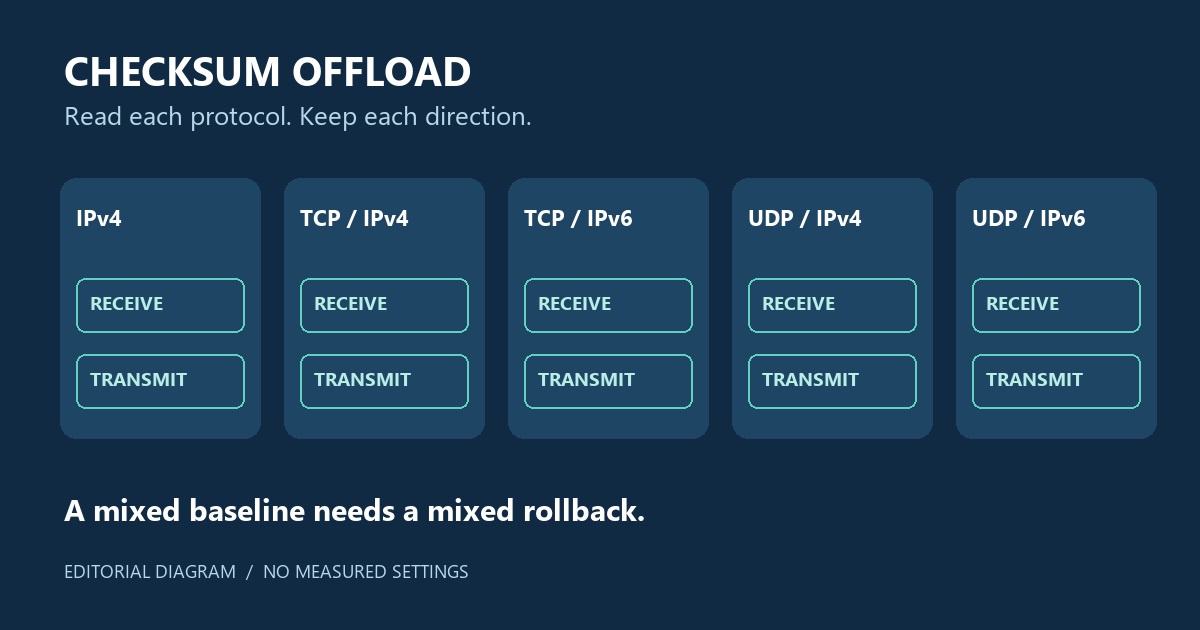
This guide explains how to read the controls and plan a reversible comparison on Windows 11. It is based on Microsoft, Intel, and Wireshark documentation reviewed October 23, 2026. We did not run a packet capture, reproduce a driver fault, or measure a physical adapter. The diagram is an editorial illustration.
Read the whole configuration before choosing a switch
Checksum offload moves supported checksum calculations between Windows and the network adapter. Microsoft's Get-NetAdapterChecksumOffload reference covers separate IP, TCP, and UDP settings. The practical implication is that “checksum offload is enabled” can hide a mixed configuration.
Open Windows PowerShell and identify the physical adapter you actually use:
Get-NetAdapter -Physical | Format-Table Name, InterfaceDescription, Status, LinkSpeed
Get-NetAdapterChecksumOffload -Name "Ethernet" | Format-List *
Replace Ethernet with its exact name from the first command. These are read-only queries. Microsoft's Get-NetAdapter documentation explains the physical-adapter filter. A VPN or virtual adapter with a similar name is not interchangeable with the NIC carrying your test traffic.
Keep the result locally before changing anything. Record the driver version, the problem you can reproduce, and whether the affected application is using IPv4 or IPv6 and TCP or UDP. If that traffic is unknown, collect the observation first; randomly changing several protocol families makes the comparison harder to interpret.
| Control to record | Question it answers | What it does not tell you |
|---|---|---|
| IPv4 checksum offload | Who handles the supported IPv4 header checksum work? | The state of TCP or UDP offload |
| TCP checksum offload, IPv4/IPv6 | Which directions use the adapter for that TCP family? | The UDP setting or application latency |
| UDP checksum offload, IPv4/IPv6 | Which directions use the adapter for that UDP family? | Whether a game server or Wi-Fi link is healthy |
| Rx, Tx, or both | Whether the setting applies to receiving, transmitting, or both directions | Whether another protocol has the same value |
Intel's Ethernet advanced-settings reference distinguishes receive verification from transmit calculation and notes that TCP and UDP controls can be separate for IPv4 and IPv6. It also warns that changing some settings can briefly interrupt connectivity. Available names and controls depend on the adapter and driver; an absent entry is not an instruction to create a registry value.
Start with the observation that prompted the change
For a working connection with no reproducible fault, retain the recorded configuration. There is no result to compare against if the goal is only “make the network faster.” Write a concrete observation instead: a particular upload stalls, a transfer fails through one adapter, or one application disconnects during a repeatable task.
For a checksum warning in a capture, first read why Wireshark may show an incorrect TCP checksum. Wireshark's checksum documentation explains how local outbound capture timing can expose packets before hardware finishes the checksum. Changing an analyzer preference and losing the warning does not establish that the network was repaired.
If the issue is a link negotiating at 100 Mbps, use the Ethernet link-speed checks. If the link drops repeatedly, start with the disconnect observation sequence. Those observations need their own diagnosis before you attribute them to a checksum feature.
Make a comparison narrow enough to reverse
Arrange a local maintenance window. Do not experiment through the only remote connection you depend on. Keep the cable, port, workload, test endpoint, and other adapter settings constant, then change only the supported control that matches the hypothesis.
Microsoft documents the direction-specific parameters in Set-NetAdapterChecksumOffload. Changes require appropriate privileges and may restart the adapter. This example illustrates a single TCP/IPv4 change; it is not a recommended setting for every PC:
Set-NetAdapterChecksumOffload -Name "Ethernet" -TcpIPv4Enabled Disabled
Get-NetAdapterChecksumOffload -Name "Ethernet" | Format-List *
Use a supported value from the documentation and your adapter's recorded state. If the command fails or the driver does not expose the feature, stop and check the exact model's support documentation. Do not substitute a registry tweak or a command that disables all networking offloads.
Then repeat the original task. Keep the starting result, changed setting, readback, and repeated result together. A useful note says what actually happened: “the same upload still stalled” is an observation; “offloading is broken” is a conclusion that needs more evidence.
Restore the values you recorded, including mixed states
Rollback means returning the changed controls to their original values. It does not necessarily mean enabling everything. For example, only if your saved baseline says TCP/IPv4 was RxTxEnabled, restore that one control with:
Set-NetAdapterChecksumOffload -Name "Ethernet" -TcpIPv4Enabled RxTxEnabled
Get-NetAdapterChecksumOffload -Name "Ethernet" | Format-List *
If the original value was RxEnabled, TxEnabled, or Disabled, use that original value instead. Leave untouched protocol families alone. Compare the final readback with your saved starting record; a successful command alone does not prove that the desired configuration is active.
Do not combine this comparison with Large Send Offload changes. LSO concerns TCP segmentation; this article concerns checksum controls. If several features were changed together, restore the known baseline before drawing a conclusion about any one of them.
If the same symptom repeatedly disappears with one controlled change and returns after restoration, keep that record for the PC or adapter vendor. Include the exact model, driver, workload, and affected traffic. That is useful evidence for a device-specific investigation; it does not establish a universal Windows 11 optimization.
