
 Documentation-based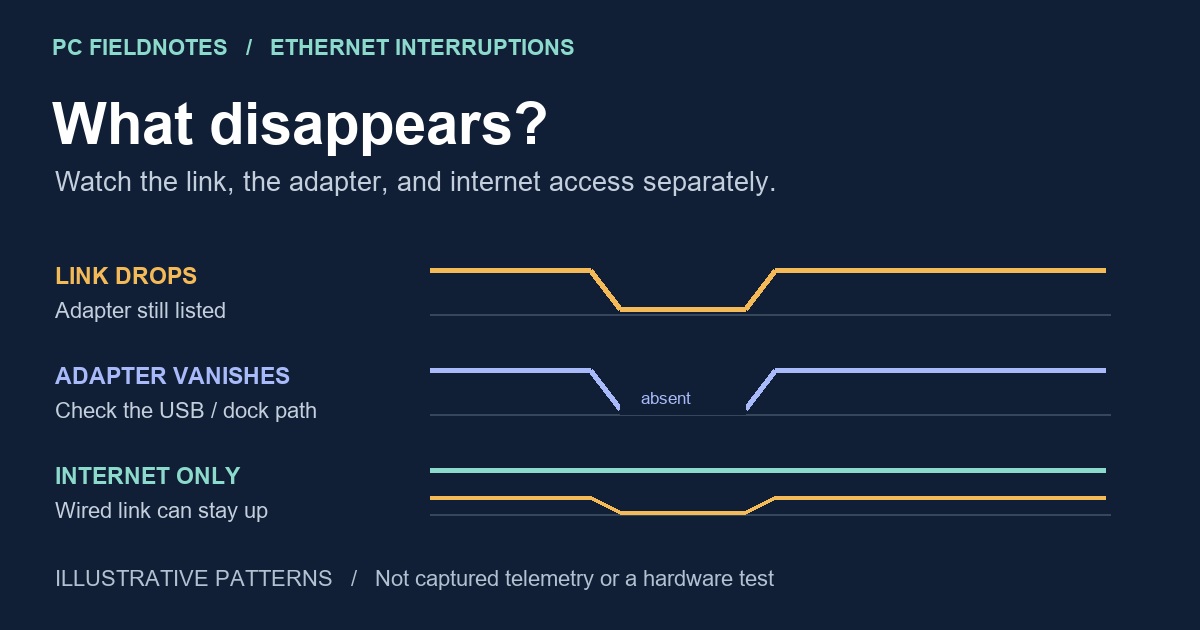
Microsoft adapter, Ethernet, ipconfig and ping references plus Intel I225-V and Dell WD-series guidance reviewed October 18, 2026 with AI assistance. Documentation-based diagnostic synthesis; no physical link, dock or router reproduction. VM cannot validate physical link and power conditions. Alex Reed is an established pen name.
If Ethernet repeatedly disconnects for a few seconds and reconnects, check what disappears at the moment of the drop: the wired link, the adapter itself, or only internet access. Note the time and compare Windows adapter status with the port lights and another device on the same router. That comparison tells you whether to start with a cable or port, a USB dock, or the network beyond the Ethernet link.
Avoid changing driver power options, Speed & Duplex, and router settings together. A connection that recovers after several simultaneous changes gives you little evidence about which change helped. This guide is for recurring interruptions while the PC is in use. For a port that never establishes a link, use the Ethernet port with no lights guide; for a failure specifically after waking, use the Ethernet after sleep guide.
Catch one interruption before resetting anything
Open PowerShell and read the physical adapters:
Get-NetAdapter -Physical | Format-Table Name, InterfaceDescription, Status, LinkSpeedMicrosoft's Get-NetAdapter reference documents this inventory of adapter properties. Find the adapter actually carrying the wired connection; its name may not simply be Ethernet. Compare a result taken while working with one taken during the interruption. A single reading can miss a short drop, so an unchanged result does not rule one out.
Also check the Ethernet lights on the PC or dock and the switch or router, where available. Record whether they go dark, stay lit, or restart their normal activity. Light behavior depends on the device, so use its manual rather than treating a particular color as a universal error code. For a dock, note whether a connected keyboard, storage device, or display drops at the same time.
Use these observations to choose one branch:
| During the interruption | What that supports checking next | What it does not establish |
|---|---|---|
| The adapter remains listed but reports Disconnected; link lights also change | Cable, connector, switch port, or the adapter's link handling | That the cable is definitely defective |
| The USB Ethernet adapter disappears, especially with other dock devices | The dock, USB connection, power, driver, or firmware path | That the router or ISP caused the USB disappearance |
| Adapter remains Up with a link speed, but sites stop loading | IP configuration, router reachability, DNS, VPN, or upstream access | That a recorded link speed proves a healthy internet connection |
These are diagnostic branches, not measurements from a tested PC. A driver reset can also interrupt link lights; use the comparisons below before naming a failed component.
If the link drops, change one physical part
Use a replacement cable whose operation you have already checked, keeping the same adapter and LAN port. If interruptions continue, compare another LAN port with that cable. Microsoft's Ethernet troubleshooting guidance recommends checking the cable at both ends and comparing another cable or device. Use a LAN port intended for clients, not the router's Internet/WAN socket.
Repeat the activity that normally triggers the failure, such as a transfer or game, for a comparable interval. Then try another PC or adapter on the same cable and port, if available. A failure that follows one adapter across working cables and ports strengthens the case for its driver, firmware, or hardware. Several devices dropping at the same time instead makes the shared switch, router, or upstream connection worth investigating.
Record adapter and PC model, driver version, and whether the interruption began after an update. Preserve the correct OEM installer before driver removal so an offline PC has a recovery path. Do not force 1 Gbps or another duplex setting as a generic cure. If the manufacturer's instructions call for a setting change on your exact hardware, record its original value and test that change by itself.
If the USB adapter disappears, follow the dock path
Save work before unplugging a dock: external storage, displays, and other devices may be connected through it. Check the dock's specified power supply, host cable, and supported firmware or Ethernet-driver package. If the PC has a built-in Ethernet port, a direct connection can compare the dock path with the PC's own port. This comparison changes the adapter as well, so a better result narrows the path without proving the dock's exact fault.
For broader simultaneous device interruptions, continue with USB-C dock devices disconnecting. There are also model-specific exceptions. Dell documents intermittent Ethernet loss on WD19, WD19S, WD19DC, and WD19DCS docks when the Realtek controller's Flow Control is disabled; its model-specific article says Enable is the default and prescribes restoring it. Match the dock and condition before following that procedure. It is not an instruction to toggle Flow Control on every Ethernet adapter.
Intel's I225-V network-issue guidance describes certain motherboard configurations and an OEM firmware/NVM-and-driver process. An Intel-branded adapter alone is insufficient to match that case. Check the exact motherboard and the OEM's package instructions; do not flash firmware from an unrelated board or copy a forum's driver settings as a universal fix.
If the link stays Up, separate local access from internet access
Read the active adapter's configuration with:
ipconfig /allMicrosoft's ipconfig documentation explains the adapter configuration output. Compare the Ethernet address and default gateway before and during the failure. A 169.254.x.x IPv4 address belongs in the separate 169.254 address and DHCP check, rather than another round of cable-driver changes.
If the Ethernet gateway normally replies to ping, observe whether it still replies during the drop. Microsoft's ping reference documents -t for repeated requests; follow it with your actual Ethernet default-gateway address and stop with Ctrl+C. A gateway can block ping, so a timeout on a router that never replies is not evidence that it has just failed. Do not copy a gateway address from somebody else's PC.
When local router access survives but websites fail, compare another device's internet access and then the affected PC's DNS, VPN, and application behavior. If Wi-Fi, a VPN, or several gateways are active, a successful probe may use another route; it cannot prove the Ethernet path is working. Record that mixed setup for support instead of assigning the result to the wrong adapter.
Keep a short record of the comparison
For each attempt, record the drop time, adapter status, link lights, other affected devices, cable and port used, and the single change made. Include whether recovery happened by itself or required reconnecting the adapter. Redact IP addresses, PC names, and network details before sharing the record publicly.
Give the PC or dock manufacturer that record with the exact models, driver and firmware versions, Windows version, and the activity that triggers the drop. Network reset can remove useful configuration and belongs late in troubleshooting; review what to save before Network reset first. One successful reconnect is a reason to continue the same comparison, not enough to call an intermittent fault permanently fixed.
Evidence: Microsoft, Intel, and Dell documentation reviewed October 18, 2026. The three-branch comparison and observation record are an editorial synthesis. We did not reproduce this fault or measure a cable, physical Ethernet adapter, USB dock, or router. A virtual machine cannot validate those physical link or power conditions; the illustration shows example patterns, not captured telemetry.
