
 Documentation-based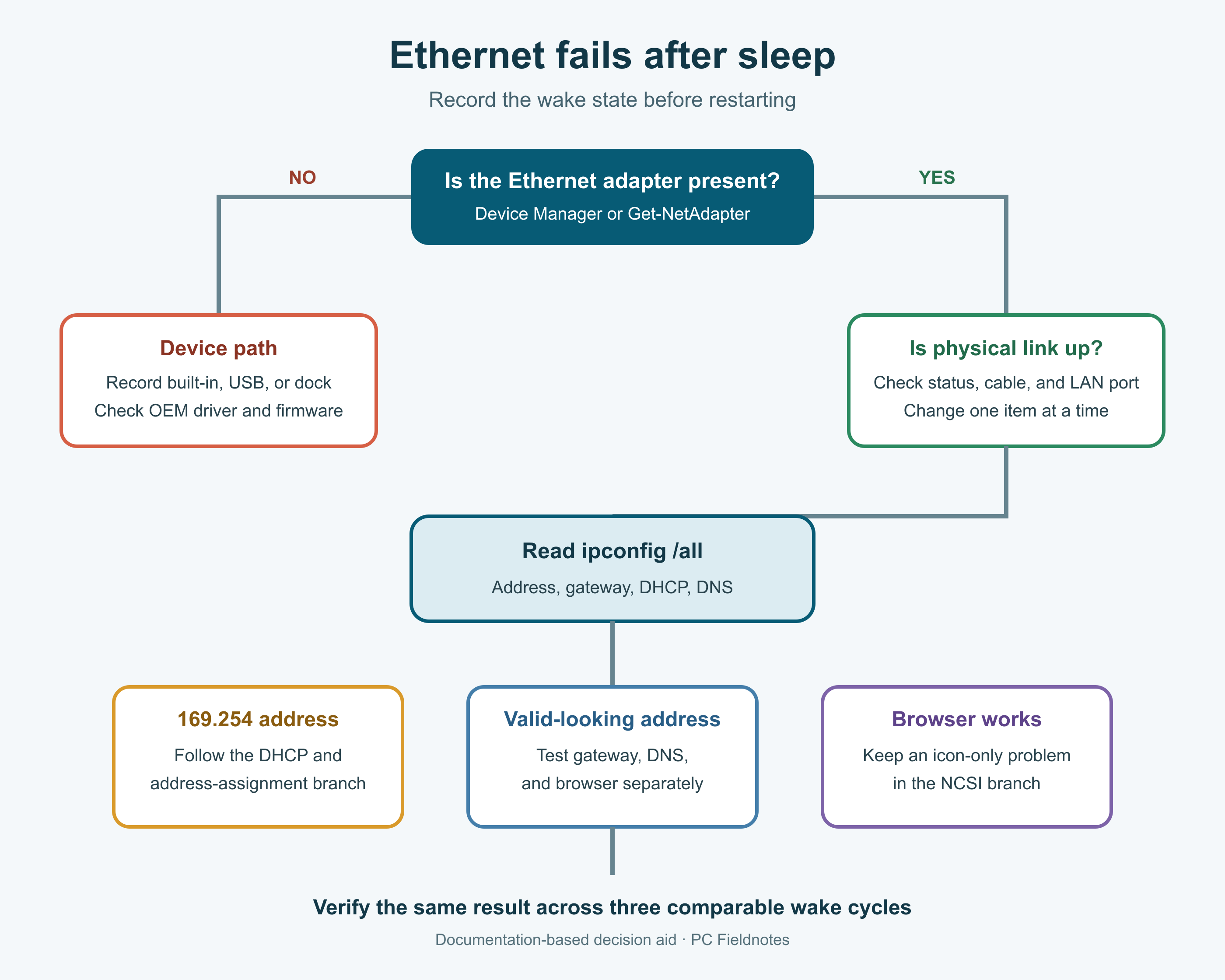
Based on Microsoft Support, Microsoft Learn, and model-specific Dell documentation reviewed September 23, 2026. No hands-on hardware test was performed.
Last reviewed: September 23, 2026
If Ethernet stops working after your Windows 11 PC wakes from sleep, do not start with a network reset. First identify what failed: the adapter disappeared, the physical link stayed down, Windows received no usable IP address, the gateway or DNS path failed, or only the network icon says there is no internet.
Record the wake time and the state before restarting. A reboot may restore the connection, but it also removes the best evidence of what did not resume. The checks below apply to built-in Ethernet, USB Ethernet adapters, and docks, with separate steps where the hardware path matters.
Identify the failed layer
Open Settings > Network & internet > Ethernet, then open Device Manager > Network adapters. If you can use PowerShell locally, run:
Get-NetAdapterMicrosoft documents Get-NetAdapter as a way to read basic adapter properties. Compare the affected Ethernet adapter before sleep and immediately after wake.
| What you find after wake | Likely branch | Next safe check |
|---|---|---|
Adapter missing from Device Manager and Get-NetAdapter | Device, driver, dock, USB, firmware, or resume path | Record the hardware path and check the PC or dock manufacturer's support page |
| Adapter present but status is disabled or down | Adapter state or physical link | Record status and link lights, then check the cable and LAN port |
| Link is up but the address begins with 169.254 | Windows did not obtain a normal address for that connection | Record ipconfig /all and follow the address-assignment branch |
| Address and gateway look normal, but sites do not open | Gateway, DNS, VPN, security, router, or internet path | Test the recorded gateway, DNS resolution, and a browser separately |
| Sites open but the taskbar icon says no internet | Windows connectivity-status detection may disagree with application traffic | Do not reset a working connection only to change the icon |
This decision flow is based on documentation, not a hardware reproduction. PC Fieldnotes did not reproduce this failure on a physical test system for this article.
Record the sleep and hardware path
Run this before changing power settings:
powercfg /aIt reports the sleep states supported by the PC. Write down whether Windows lists S0 Low Power Idle, commonly called Modern Standby, or another state. Do not force a different sleep model through registry changes. A Dell dock problem documented for hibernation, for example, should not be treated as proof that every S0 or S3 resume failure has the same cause.
Also record:
- PC manufacturer and exact model
- Windows version and OS build from
winver - Ethernet adapter name and driver version
- built-in, USB adapter, or dock connection
- dock model, power supply, cable, and firmware version when applicable
- whether the failure happens on AC power, battery, or both
- whether a restart, cable reconnect, or dock reconnect restores service
If the adapter's Power Management tab is missing, record that fact. The tab is not present for every driver and power model. Its absence does not prove the adapter is defective, and this guide does not depend on changing that checkbox.
Check the adapter and physical link
If the adapter is present, inspect its Device Manager status and copy any complete error message. Do not rely on a cropped screenshot when text can be copied.
Check whether the Ethernet cable is seated at both ends. Link lights can help on hardware that has them, but light behavior is model-specific. Microsoft recommends comparing another known-working cable and router or switch port when available. Change one item at a time so the result identifies something useful.
For a USB Ethernet adapter or dock, record whether other dock devices also disappeared. If the PC has a built-in Ethernet port or a supported direct adapter, a direct connection can help separate the dock path from the rest of the network. Do not disconnect a dock during a remote session if that dock carries the only network connection.
Read the address before changing DNS
Run:
ipconfig /allFind the affected Ethernet adapter. Record its IPv4 address, default gateway, DHCP status, and DNS servers. Redact public screenshots because the output can contain device names, adapter identifiers, and network details.
An address in the 169.254.x.x range indicates that Windows is using a link-local address instead of a normal address from the network. Follow the 169.254 Ethernet troubleshooting guide for that branch. Do not guess a static IP address; a wrong address can create a duplicate or move the PC onto the wrong network.
A private address and a listed gateway are useful observations, but they do not prove the route, DNS service, or internet connection works. Continue with separate tests.
Separate gateway, DNS, and browser results
Use the default gateway shown for the affected adapter rather than copying a gateway address from an example:
ping <actual-default-gateway>
nslookup example.com
A successful gateway reply shows that one local IP test worked. A failed ping is not conclusive because a device or policy may block ICMP. Compare the result with an actual browser request and the router's documented management path.
nslookup can show whether the selected DNS query returns an answer, but it does not prove that every application uses the same resolver path. Record the server used, the answer or error, and whether a browser opens a known site.
If browser traffic works while Windows still shows an offline icon, keep that as a status-detection branch. Microsoft documents Network Connection Status Indicator separately; an icon alone is not proof that all internet access has failed.
Recover with the smallest supported change
Begin with reversible actions. Reseat the Ethernet cable once and observe whether link and address return. If the adapter is present, you may disable and re-enable that specific adapter while working locally. This immediately interrupts networking, so do not do it through the only remote connection.
If the driver appears involved, check the PC manufacturer's support page for the exact model. Before uninstalling any network driver, preserve the supported installer offline. Microsoft specifically advises having a backup driver available because a disconnected PC may not be able to retrieve one.
Treat Network reset as a late step. Microsoft says it removes installed network adapters and restores their settings after restart; VPN clients or virtual-switch software may need to be reinstalled or reconfigured. Record those settings first. Do not disable IPv6, security software, Energy Efficient Ethernet, or force speed and duplex as a generic first move.
Handle docks and hibernation separately
Dell documents a specific Ethernet-loss case involving listed Dell laptops and Type-C docks after hibernation. That article is useful only when the manufacturer, affected product, dock path, and S4 hibernation condition match. Follow the current Dell instructions for the exact model rather than applying the workaround to an unrelated built-in adapter.
For other docks, check the PC and dock manufacturers for supported BIOS, chipset, Ethernet-driver, dock-firmware, and power-delivery guidance. Record one change per test. If a direct connection works repeatedly while the dock path fails, send that comparison to the manufacturer.
Verify three comparable wake cycles
Do not declare the issue fixed after one successful wake. Use the same cable, LAN port, sleep duration, and test sequence for three cycles.
| Field | Cycle 1 | Cycle 2 | Cycle 3 |
|---|---|---|---|
| Sleep state and duration | |||
| Built-in, USB, or dock path | |||
| Adapter present and status | |||
| Physical link | |||
| IPv4 address and gateway | |||
| Gateway test | |||
| DNS lookup | |||
| Browser result | |||
| One change tested |
If the problem returns, send the PC or dock manufacturer the model, Windows build, BIOS and firmware versions, adapter and driver versions, sleep state, wake timestamps, and the redacted before-and-after results. “Restart fixes it” is useful evidence, but it is not a root cause.
Questions about Ethernet after sleep
Should I turn off adapter power saving first?
Not as a universal first step. Record the sleep state, adapter status, link, and address before changing a power option. If the option exists and the manufacturer recommends testing it, record the original value and change only that setting.
Does a 169.254 address mean the cable is bad?
No. It means Windows is using a link-local address for that adapter. The cable, link, DHCP path, router, VLAN, dock, driver, or other configuration may still need investigation.
Should I use Network reset immediately?
No. Microsoft describes Network reset as a last step because it removes adapters and resets their settings. Preserve VPN and virtual-switch information before using it.
Sources and evidence note
This documentation-based guide was reviewed on September 23, 2026. No hands-on hardware test or original Windows screenshot was completed for this article.
- Microsoft: Fix Ethernet connection problems in Windows
- Microsoft Learn: Get-NetAdapter
- Microsoft Learn: Overview of Modern Standby validation
- Microsoft Learn: NCSI troubleshooting guidance
- Dell: Ethernet connection lost on Type-C docks after hibernation
