
 Documentation-based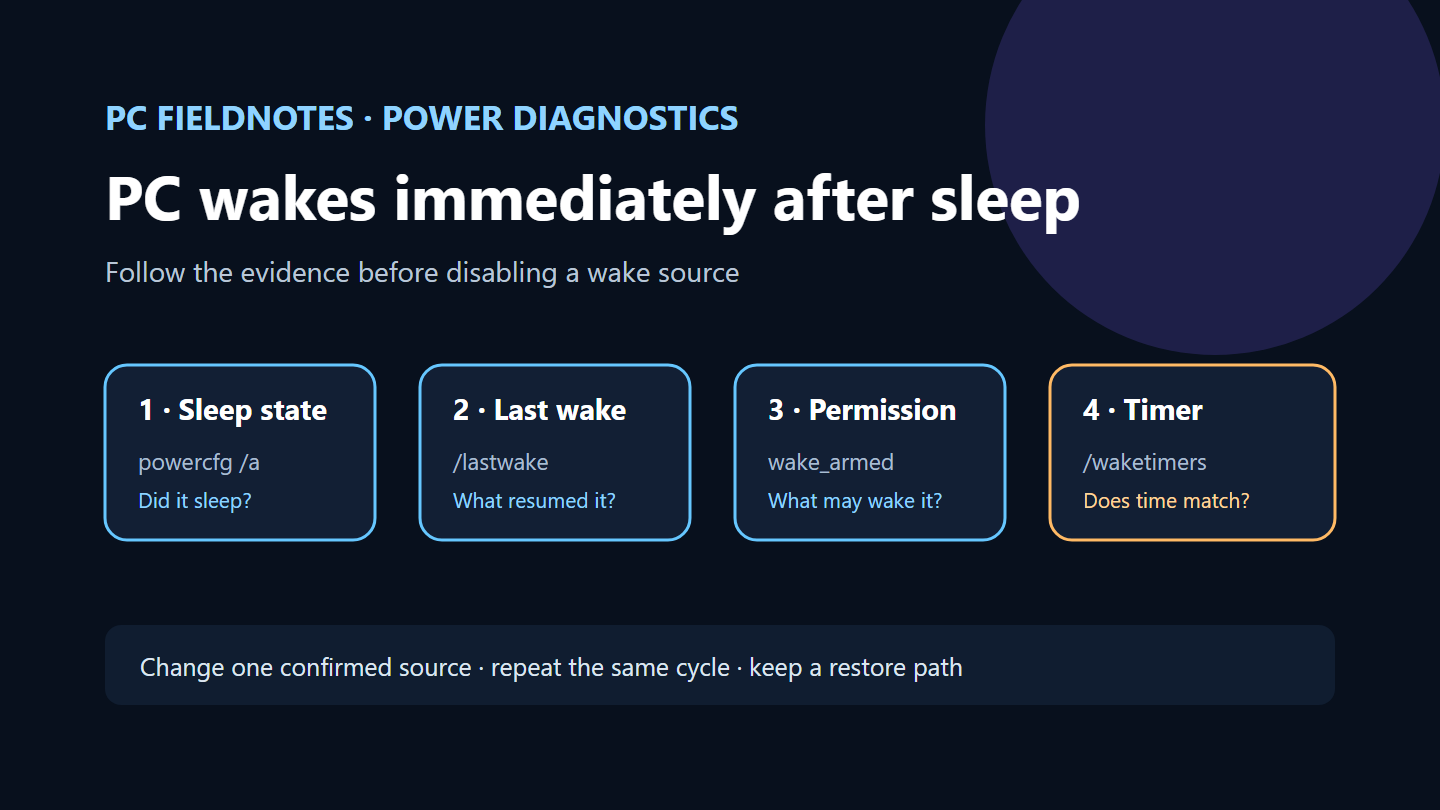
Microsoft powercfg and Windows device-wake documentation reviewed October 8, 2026 with AI assistance. No physical PC sleep-wake test was performed. Alex Reed is an established pen name.
When a Windows 11 PC wakes a few seconds after you put it to sleep, first verify whether it entered a sleep state at all. Then use Windows’ read-only powercfg reports to compare the last wake source, devices currently allowed to wake the computer, active wake timers, and requests that may have prevented sleep. Do not start by disabling every keyboard, mouse, network adapter, and scheduled task.
This guide is based on Microsoft’s power-management documentation reviewed on October 8, 2026. Sleep states and wake behavior vary by hardware, firmware, drivers, and policy. We did not reproduce an immediate-wake problem on a physical PC, and the sample commands below contain no invented results.
Establish whether the PC slept or only turned off the display
Open Terminal as an administrator and run:
powercfg /aMicrosoft’s powercfg reference says /a reports the sleep states available on the system and reasons unavailable states cannot be used. Save the output with the PC model, Windows build, and the time of the test. A Modern Standby system and a system using traditional S3 sleep can expose different evidence.
Next, perform one controlled cycle. Disconnect unnecessary external devices, note the exact time, choose Start > Power > Sleep, and observe whether fans, indicators, and the display change. If the display returns immediately, do not assume a wake source yet. An application or driver request may have prevented the transition.
Run this after the failed attempt:
powercfg /requests/requests lists application and driver power requests. It helps when the PC did not truly sleep; it is not the history of what woke a sleeping computer. Keep any process, driver, or service name exactly as reported. Do not add a request override simply to make the list empty.
Read the most recent wake evidence
After a cycle where the PC appears to sleep and then resumes, run:
powercfg /lastwakeMicrosoft documents /lastwake as the report for what woke the system from the most recent sleep transition. Save the complete output before repeating the test, because a later wake replaces the observation you are investigating.
Interpret the output cautiously:
- A named input device is a lead to verify with another controlled cycle, not proof that the device is defective.
- A network-related device can point toward wake-on-LAN or network activity, but the exact options depend on the adapter, firmware, and PC maker.
- A generic controller or an empty result may require firmware and event-log evidence that this article does not infer.
Microsoft’s device wake documentation explains that wake ability depends on both system and device power states. Not every device or computer supports the same wake paths.
Compare armed devices with the last wake source
List devices currently configured to wake the system:
powercfg /devicequery wake_armedCompare this list with /lastwake. The lists answer different questions: wake_armed describes current permission, while /lastwake describes the latest recorded wake transition.
If the same device is repeatedly named after controlled tests, and you can accept losing its wake function, Microsoft documents this command:
powercfg /devicedisablewake "exact device name from wake_armed"Copy the exact device name from the report. Change one device, repeat the same sleep test, and record the result. To restore the permission, Microsoft documents:
powercfg /deviceenableawake "exact device name"Do not disable the only keyboard or other wake method on a machine that is difficult to reach. Keep the power button available and check the PC maker’s guidance before changing firmware wake settings.
Check wake timers separately
Run:
powercfg /waketimersMicrosoft documents /waketimers as the list of active wake timers. Its automatic wake setting explains that capable systems can wake for scheduled tasks, including maintenance such as updates.
A timer shown in the report is stronger evidence than guessing from Task Scheduler. Record the timer’s owner and scheduled time, then inspect that specific task or application. If the reported time does not match the immediate resume, keep looking rather than disabling all wake timers globally.
Managed PCs may intentionally wake for maintenance. Ask the administrator before changing policy or scheduled tasks. A home PC may also have backup, media, or vendor utilities with legitimate timers.
Use a small comparison matrix
Repeat at most the tests needed to separate the likely branch:
| Test | What to record | What it can distinguish |
|---|---|---|
| Normal sleep with usual devices | time, /lastwake, /requests | |
| Unnecessary USB devices disconnected | same fields | |
| Network temporarily disconnected | same fields | |
| One confirmed wake permission changed | same fields and restored setting |
Keep power connected if the device maker recommends it, and avoid repeated cycles when the system is installing updates. A result from one PC cannot establish the cause on another model.
Preserve a support-ready record
PC model and firmware version:
Windows edition, version, and build:
powercfg /a summary:
Sleep attempt time:
Did the machine visibly enter sleep?
powercfg /requests result:
powercfg /lastwake result:
powercfg /devicequery wake_armed result:
powercfg /waketimers result:
One change made and its result:
Redact account names and private paths before sharing the record. Send it to the PC maker, driver vendor, or Microsoft support when the source remains unclear.
The useful sequence is simple: confirm the available sleep state, distinguish “never slept” from “slept and woke,” identify the latest wake evidence, and change one verified source at a time. For other observation-first Windows workflows, use the diagnostics index.
Recheck this guide if Microsoft changes powercfg behavior or Windows sleep diagnostics. Public-page checks are scheduled for October 9 and October 15, 2026.
