
 Documentation-based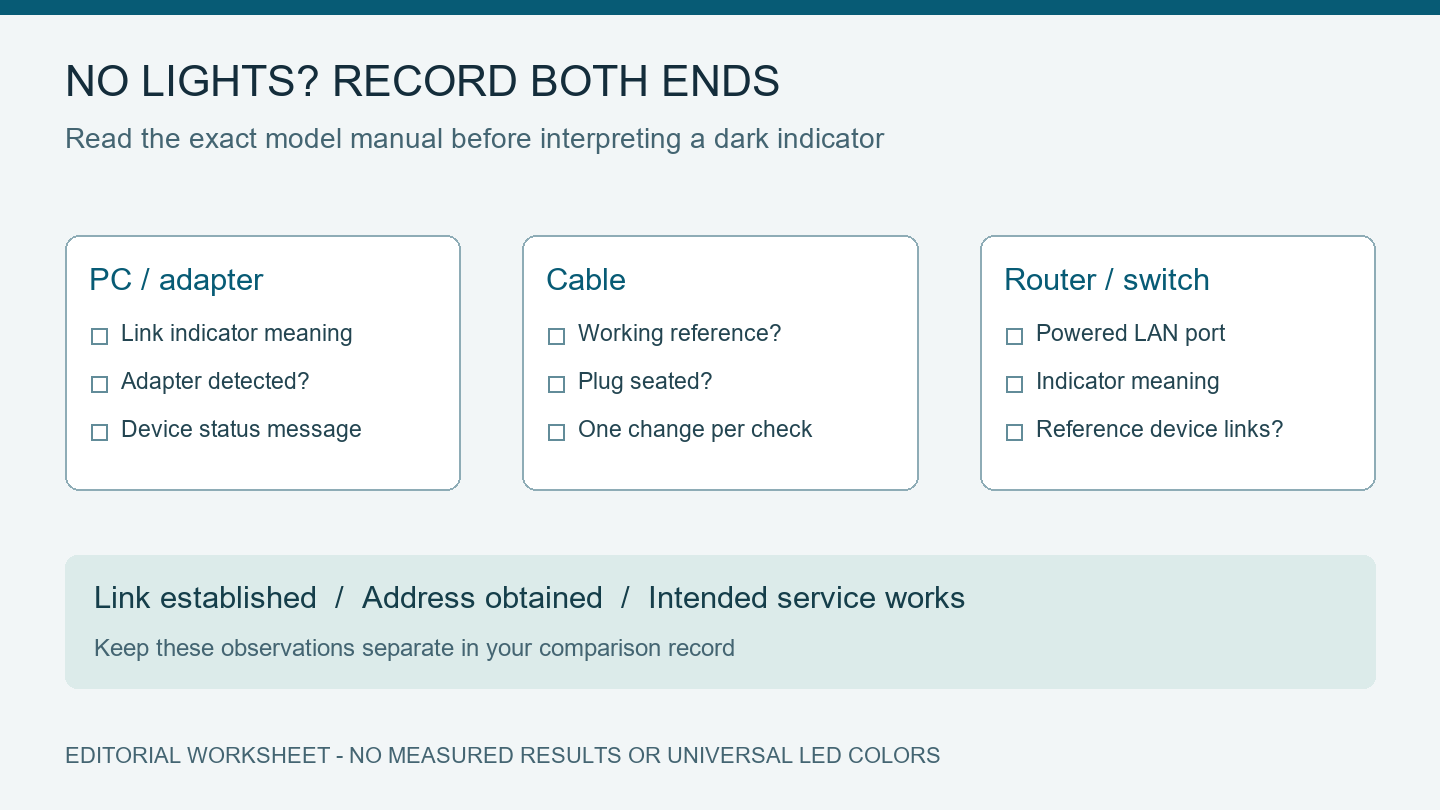
Intel, Microsoft, Dell, and ASUS documentation reviewed October 3, 2026 with AI assistance. No physical Ethernet LED, cable, router port, or Windows 11 hardware fault was tested. The worksheet contains prompts, not observed results. Alex Reed is an established pen name.
When an Ethernet port has no lights, first check which light your device uses for link status. Then compare the PC port and the router or switch port while the PC is awake, the other device is powered, and the cable is connected to a LAN port. If the model's link indicator stays off and Windows reports the cable disconnected, compare a known-working cable and another LAN port before changing IP or DNS settings.
This guide is for a Windows 11 PC with a built-in Ethernet port or a USB Ethernet adapter. It was reviewed on October 3, 2026. We have not tested a physical port or reproduced this fault. A virtual machine cannot validate Ethernet LEDs, cable continuity, or the hardware in a PC's network jack. The worksheet below is a proposed comparison record, not a completed test.
A dark speed light can coexist with a working link
An Ethernet jack can have separate link/activity and speed indicators. Their colors and off states depend on the exact adapter. Read the PC, motherboard, USB adapter, or switch manual; do not assume that green always means connected or that amber always means faulty.
For a concrete example, Intel's I210-T1 LED reference says its link/activity LED is off for no link, on for a link, and blinking for traffic. Its separate speed LED is unlit at 10 Mb/s, green at 100 Mb/s, and amber at 1 Gb/s. On that model, the dark speed LED alone is not evidence of a disconnected cable. These meanings apply to the I210-T1, not every Intel adapter or built-in port.
If the manual says the connection is active and Windows agrees, stop treating the lamp as a no-link fault. An unexpected negotiated speed belongs in the 100 Mbps link-speed guide. A working link with no usable internet connection belongs in the wired-versus-Wi-Fi comparison.
If your device has no visible LEDs, use the router or switch's documented port indicator and Windows connection status. If the LEDs stay on while the PC is asleep or shut down, that observation also needs the model's power-state explanation. Take the no-link comparison with the computer running.
Check the connector and the port at both ends
Follow the cable physically from the PC or USB adapter to its other end. For a home router, it should use a LAN port, not the WAN or Internet port reserved for the upstream connection. Microsoft's Ethernet troubleshooting guide makes this distinction and recommends comparing another cable when one does not work.
Seat both plugs without forcing them and look for a broken latch or visible damage. ASUS's wired-network troubleshooting page calls out loose plugs, damaged cables, and the cable latch, including the additional USB connection when a USB-to-Ethernet adapter is used. Stop if a plug or socket is damaged; do not bend contacts or insert tools into a powered port.
For a USB adapter, identify two connections: USB to the computer and Ethernet to the LAN. If the adapter itself has vanished from Windows, investigate its USB connection before interpreting the Ethernet light. For a dock, verify that its own power and host connection are present. If the dock also loses storage or displays, use the whole-dock disconnection guide to investigate the shared path.
Keep the router or switch powered. Avoid restarting an entire shared network as the first comparison. A cable or LAN-port swap gives more specific evidence and avoids disconnecting other people.
Use a working reference, then change one item
Choose a short cable and LAN port that currently establish a link on another device, if one is available. A cable that looks undamaged is not yet a working reference. Wall outlets, patch panels, and extra couplers add connections; a temporary direct cable to the router or switch can help separate those from the PC port.
Use this blank record while comparing. Write down the manual's meaning for each indicator instead of entering only a color.
| Comparison | PC link indicator | LAN-port indicator | Windows connection status | Next decision |
|---|---|---|---|---|
| Original cable and original LAN port | Record | Record | Record | Establish the starting condition |
| Reference cable, same LAN port | Record | Record | Record | If the link returns, recheck the original cable on a working device |
| Same reference cable, another known-working LAN port | Record | Record | Record | If the result changes, examine the original LAN port or its configuration |
| Reference cable and port, another device | Record | Record | Record | If this device links but the PC does not, investigate the PC-side adapter path |
Do not change cable, port, driver, and speed settings together. If the comparison cannot hold one condition fixed, note that limitation. A failed link on two computers can still share the same bad cable or disabled switch port; it does not by itself establish an ISP outage. Conversely, another computer linking through the same cable and port narrows the investigation but does not prove that the original PC's hardware is broken.
If one end's light disagrees with the other, recheck the meaning of both indicators and record the mismatch. Use a different working cable before treating an LED as failed. On a managed switch, ask the administrator to confirm that the port is enabled and intended for your device; do not alter switch configuration yourself.
Match the Windows device state to the physical observation
Open Device Manager and identify the actual wired adapter under Network adapters. Record its full name and the Device status message. A listed adapter tells you that Windows has detected a device; it does not establish that the Ethernet connection has negotiated a link.
If the adapter is disabled, enable it only if it is your personal PC and you know why it was disabled. On a managed computer, ask IT to check the setting. If the adapter is missing or has an error code, record that separately and check the exact PC or motherboard model's support documentation. Install only the corresponding manufacturer driver. Keep an offline copy before considering driver removal; our offline network-driver guide explains how to match a package to the device.
If the adapter is present without a reported error but the cable remains disconnected after the reference comparisons, send those results to the PC or motherboard vendor. Its onboard-LAN firmware setting and diagnostic procedure may matter, but their location and meaning vary by model. Read the existing setting with the model's instructions; do not reset the BIOS or clear CMOS as a generic no-light repair.
The Dell Ethernet-port guide includes cable seating, cable damage, router-port failure, and disabled adapters among its no-light checks. We use those categories, not its broad color table as a replacement for an exact model manual.
Changing DNS, assigning a static IP, or running a network reset does not establish a missing physical link. Preserve your current network configuration while checking the cable and port. If the physical link comes back but Windows has a 169.254 address, continue with the DHCP address guide instead of repeating cable swaps.
Verify what recovered and when hardware support is warranted
After one change, check the documented link indicators at both ends and the Windows connection status. Then test the connection you originally needed. Record whether only the link recovered, whether Windows obtained an address, and whether the intended network service works. A lamp turning on is not the same observation as full internet access.
If the link fails again, keep the working-reference cable and LAN port in the record. Give support the PC or motherboard model, adapter name, Windows build, exact Device Manager message, indicator meanings from the manuals, and each comparison result. Supply any driver or firmware change and its date. Keep serial numbers, MAC addresses, and account information out of public posts.
Hardware support is appropriate when visible damage is present, or the PC repeatedly fails to establish a link using a cable and port that work on another device after the vendor's applicable adapter checks. That is a reason for a model-specific investigation, not a diagnosis of a dead network chip. No physical repair or replacement has been verified by this article.
Sources were reviewed October 3, 2026. Routine public-page checks are due October 4 and October 10. Recheck the technical guidance if the adapter, driver, firmware, or model manual changes.
