
 Documentation-based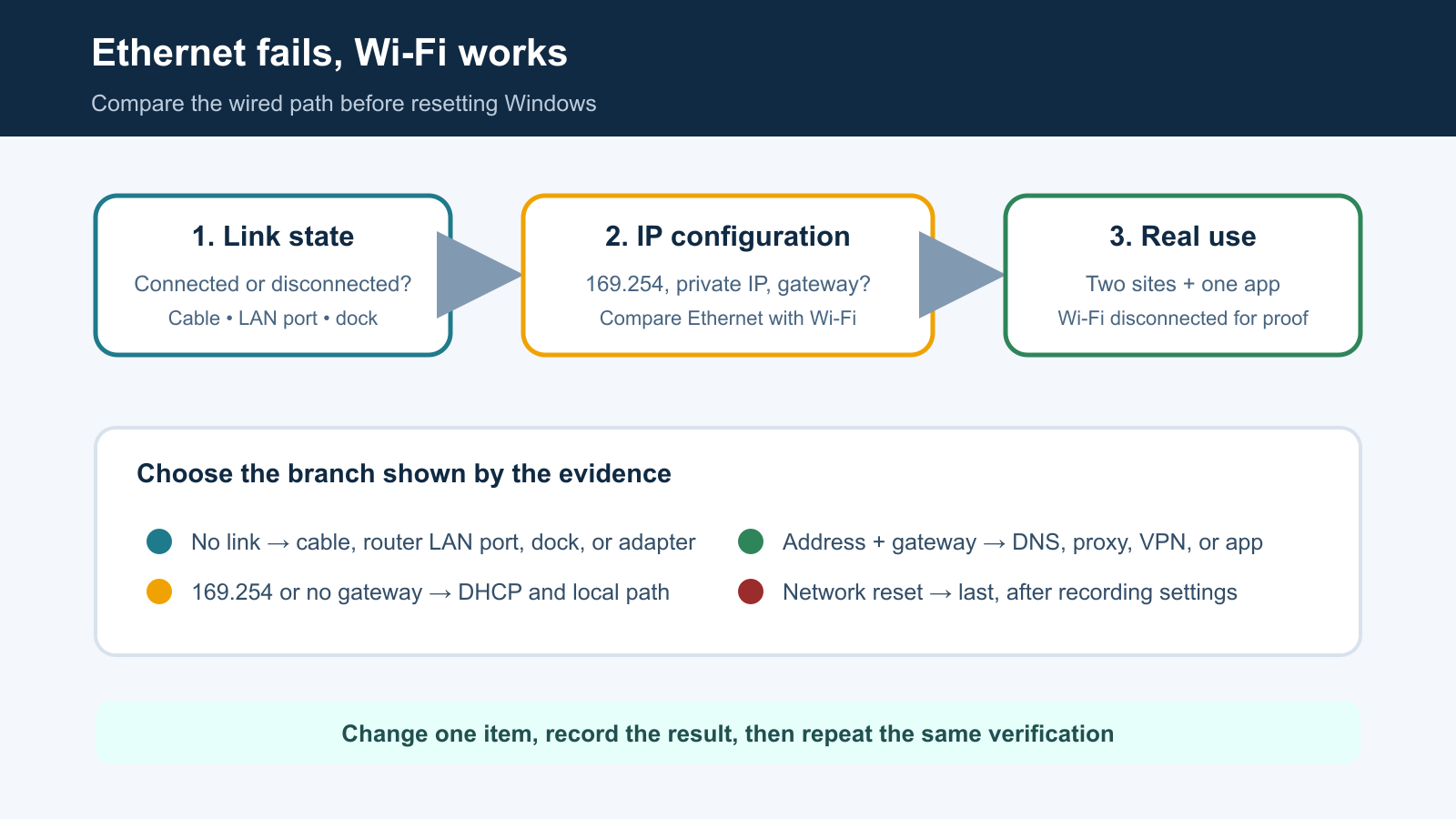
Based on Microsoft Support and Microsoft Learn documentation reviewed September 26, 2026. No hands-on hardware test was performed.
Last reviewed: September 26, 2026
If Ethernet is not working but Wi-Fi works on the same Windows 11 PC, the internet service is not the first suspect. Compare the two adapters on the same router. Start with the Ethernet link state, then compare the wired and wireless IP address, default gateway, and browsing result. That separates a cable or port problem from DHCP, adapter, driver, or Windows configuration problems.
Do not begin with Network reset. A wired connection that shows Network cable unplugged needs a different response from one that has a valid address and gateway but cannot open a website.
Use this comparison first
| Ethernet observation | Wi-Fi observation | Most useful next check |
|---|---|---|
| Disconnected or cable unplugged | Connected | Try one known-good LAN cable and a different router LAN port |
| Connected with a 169.254.x.x address | Has a normal private address and gateway | Investigate DHCP on the wired path |
| Connected with a private address but no default gateway | Has a gateway | Check automatic IP settings, router port, dock, or managed-network configuration |
| Has an address and gateway but websites fail | Wi-Fi opens websites | Test name resolution and one app without changing several settings at once |
| Ethernet works only after reconnecting the cable or dock | Wi-Fi remains stable | Record the cable, port, dock, and power-state pattern |
This is an original editorial diagram based on Microsoft documentation. It is not a screenshot of a tested PC. PC Fieldnotes did not reproduce the failure on physical hardware for this article.
Keep the test conditions comparable
Connect Ethernet and Wi-Fi to the same router or local network if possible. Confirm that another device can reach the internet through that router. Wi-Fi working through a phone hotspot does not prove the home router's Ethernet ports are working.
For the clearest test, save any work that depends on the network, connect the Ethernet cable, and temporarily disconnect Wi-Fi. Windows can prefer one route over another, so a browser result while both adapters are active may not prove which connection carried the traffic. Reconnect Wi-Fi after the wired test.
On a managed work or school computer, record the symptom and ask the administrator before changing adapter, proxy, VPN, or static-address settings.
Step 1: Read the Ethernet link state
Open Settings > Network & internet > Ethernet and note the reported status. You can also open PowerShell and run this read-only command:
Get-NetAdapter -Physical | Format-Table Name, Status, LinkSpeedFind the physical Ethernet adapter rather than a VPN or virtual adapter. If it shows Disconnected, Windows is not seeing an active wired link. Check the simple physical path before changing software:
- Reseat the cable at the PC or dock and at the router.
- Confirm the router end is in a LAN port, not the port labeled Internet or WAN.
- Try one known-good cable.
- Try one other LAN port on the same router.
- If a dock or USB Ethernet adapter is involved, record its exact model and test one supported port or direct connection when available.
Change one item at a time and write down the result. If another computer also cannot establish a link with the same cable and port, the shared physical path becomes more likely. If the same cable and port work on another computer, focus on the first PC's adapter, dock, driver, or hardware.
Link lights can be useful, but their meaning varies by device. Use the router or adapter manual rather than assuming a color represents a particular speed or error.
Step 2: Compare IP configuration without publishing private details
Open Command Prompt or PowerShell and run:
ipconfig /allThis displays configuration; it does not reset anything. Locate the Ethernet adapter and the Wi-Fi adapter, then compare these fields locally:
- DHCP Enabled
- IPv4 Address
- Subnet Mask
- Default Gateway
- DNS Servers
Do not post the complete output publicly without redacting physical addresses, device names, DNS suffixes, VPN details, and public IP information.
A normal home-network result often gives both adapters a private address and a default gateway, although the final address numbers do not need to match. If Ethernet has an address beginning with 169.254 and no useful gateway, Windows has assigned an automatic private address because it did not receive a normal DHCP lease. Follow the focused 169.254 Ethernet address guide instead of changing DNS first.
If Ethernet has no default gateway while Wi-Fi has one, check whether IPv4 assignment is set to automatic on a normal home network. Microsoft recommends automatic DHCP for typical setups. Do not overwrite an organization-provided static configuration.
Step 3: Separate gateway, DNS, and application symptoms
If Ethernet has a private IP address and a default gateway, disconnect Wi-Fi and try two unrelated HTTPS websites. Also try a Windows app that uses the network. One failed website is not evidence that the entire Ethernet path is down.
If websites fail by name, record the exact browser message. You can compare a DNS lookup with:
nslookup microsoft.comThis is a diagnostic check, not a command to change DNS. A failed lookup can point toward name-resolution, proxy, VPN, security software, or upstream policy, but it does not identify the cause by itself.
You may also test the default gateway address shown by ipconfig, but a missing ping reply is not conclusive because routers and firewalls can ignore ICMP. Treat it as one observation, not a pass-or-fail verdict.
Avoid a common mistake: if Ethernet never received a usable address or gateway, changing public DNS servers cannot repair the missing local path. Return to the DHCP, cable, port, dock, or adapter branch.
Step 4: Check the adapter and driver only after the path is known
Open Device Manager > Network adapters and identify the exact Ethernet adapter. Record whether it is enabled, whether a warning icon appears, and the complete Device status. Also record the driver provider, version, and date.
If Windows reports an adapter or driver error, use the PC or adapter manufacturer's support page for the exact model. Keep the supported installer available offline before uninstalling the adapter, because the affected connection may not be able to download it afterward.
Do not use an unrelated driver-download site or install a package only because the adapter name looks similar. A laptop dock, motherboard controller, and USB Ethernet adapter may require different packages.
If the symptom began immediately after a Windows, driver, BIOS, dock-firmware, VPN, or virtualization change, record the timing. Timing narrows the investigation, but it does not prove the change caused the problem.
Step 5: Use Windows repair actions from narrowest to broadest
Microsoft recommends the Network and Internet troubleshooter in the Get Help app for Windows 11. Run it after preserving the current adapter status and configuration so you can compare what changed.
Restart the PC and router only when you can safely interrupt other users and services. Then retest the same cable and port. Avoid stacking a restart, driver removal, DNS edit, and network reset into one attempt; if the connection returns, you will not know which action mattered.
Microsoft presents Network reset as a last step. It removes and reinstalls network adapters and resets their settings. VPN clients, virtual switches, static addresses, custom DNS, and other networking software may need reconfiguration afterward. Do not run it during remote access or before recording the settings and obtaining any needed installers.
Verify the Ethernet fix without Wi-Fi masking it
After one change, use the same verification sequence:
- Disconnect Wi-Fi temporarily.
- Confirm Ethernet shows Connected rather than cable unplugged.
- Confirm the Ethernet adapter has a usable address and default gateway.
- Open two unrelated HTTPS websites.
- Test one Windows app that uses the network.
- Reconnect Wi-Fi and confirm both adapters still behave as expected.
- Repeat the wired test after one restart if the failure used to return after boot, sleep, or docking.
Record the cable, router port, dock or adapter, Windows build, driver version, and time of the test. A repeatable comparison is more useful than a long list of fixes.
Common questions
Why can Wi-Fi work when Ethernet does not?
Wi-Fi and Ethernet use different adapters and physical paths. The router's internet connection can be healthy while an Ethernet cable, LAN port, dock, wired adapter, DHCP exchange, or driver fails.
Should I change DNS first?
Not if Ethernet is disconnected, has a 169.254 address, or lacks a default gateway. Establish the local wired path first. DNS becomes relevant only after the adapter has usable network configuration.
Should I disable Wi-Fi?
Temporarily disconnecting Wi-Fi during the test helps prove whether Ethernet is carrying the traffic. It is not intended as a permanent fix. Reconnect Wi-Fi after verification.
Sources and evidence note
This documentation-based guide was reviewed on September 26, 2026. No hands-on hardware test or original Windows screenshot was completed for this article.
- Microsoft: Fix Ethernet connection problems in Windows
- Microsoft Learn: ipconfig
- Microsoft: Essential network settings and tasks in Windows
- Microsoft Learn: Get-NetAdapter
