
 Documentation-based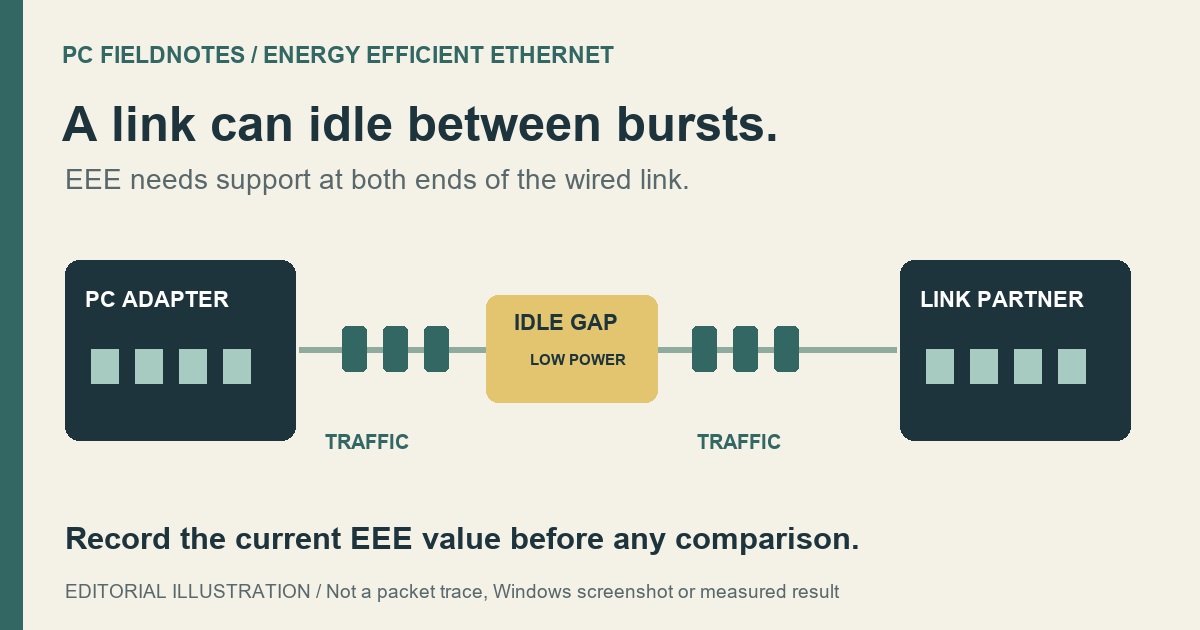
Microsoft, IEEE and Intel documentation reviewed October 20, 2026 with AI assistance. Documentation-based explanation; no physical EEE, Windows11 VM, gaming, latency or energy measurement was performed. Intel 2023 guidance is identified as historical. Alex Reed is an established pen name.
Leave Energy Efficient Ethernet at your PC or adapter vendor's setting unless you have a repeatable wired-link problem or model-specific support instructions. EEE, standardized in IEEE 802.3az, reduces link power use during gaps in traffic. Turning it off is a possible comparison for a particular problem; it is not a universal gaming recommendation.
Before changing anything, identify the exact Ethernet adapter and record the current value. Restoring that recorded value and resetting the property to its driver default are different actions. Keeping that distinction gives you a useful way back.
What the switch actually controls
EEE works at the Ethernet link. Intel's Ethernet Adapters and Devices User Guide, section 4.21.7 describes a capable device using Low-Power Idle between traffic bursts. Power saving requires EEE at both endpoints, such as the PC adapter and its connected switch port. The manual also requires automatic link-speed negotiation and notes that some adapters lack EEE support.
When traffic returns, the endpoints resume full-power operation. Intel describes a possible transition delay, without establishing a gaming benefit from disabling the feature. The IEEE 802.3az abstract describes the physical-layer mechanisms for entering and leaving Low-Power Idle. An idle interval here does not mean that Windows has entered Sleep.
| Choice | What you are choosing | What the choice does not establish |
|---|---|---|
| Keep EEE at the supplied setting | Preserve the existing power-saving configuration | That every cable, driver and link partner is fault-free |
| Temporarily disable the identified EEE property | Compare the same wired connection without that feature | A guaranteed reduction in ping, higher FPS, or a faster broadband plan |
| Reset the property | Return to the driver's documented default behavior | Restoration of a value you or an administrator previously customized |
This concerns a wired adapter. It is separate from the LLDP and protocol checkboxes in connection properties.
For the separate choice about packet notifications to the CPU, see the Interrupt Moderation guide. Keep that control unchanged while comparing EEE.
Identify EEE before choosing a value
In Device Manager, expand Network adapters, open the physical Ethernet adapter's Properties, and inspect Advanced. Use the adapter model and installed driver's documentation to interpret the listed properties. Intel's advanced-settings reference warns that settings vary with the device and Windows version; its current table does not itself define EEE.
A read-only PowerShell check is more precise than guessing from a similar label. Replace Ethernet below with the adapter's actual connection name:
$nic = "Ethernet"
Get-NetAdapterAdvancedProperty -Name $nic -AllProperties |
    Where-Object { $_.RegistryKeyword -eq "*EEE" } |
    Format-List Name, DisplayName, DisplayValue, RegistryKeyword,
                RegistryValue, ValidDisplayValues, ValidRegistryValues
This lists a property; it does not modify one. The equality comparison identifies the literal standardized keyword *EEE. Microsoft documents that Get-NetAdapterAdvancedProperty can return properties without a display name when -AllProperties is used, and can expose their permitted values. These are command examples, not output captured from a tested Windows11 adapter.
If there is no matching result, check that you chose the physical wired device and consult its current vendor documentation. An empty result does not prove that Windows needs repairing, that a virtual adapter exposes the physical adapter's controls, or that adding a registry entry will create hardware support. Stop rather than inventing a missing control.
Green Ethernet and other nearby labels
Do not automatically treat Green Ethernet, Advanced EEE, and Power Saving Mode as interchangeable with *EEE, or with each other. We did not verify a manufacturer-specific mapping for those labels in the sources used here. Use the exact model and driver guide to find what a property does before changing it. A setting that sounds similar is insufficient evidence.
Which default applies to your PC
Microsoft's power-management keyword table defines *EEE as IEEE 802.3az support, with 0 meaning disabled and 1 marked as the enabled default. That is the standardized entry's documented default, not a readout of your PC's current configuration.
A saved value may reflect an OEM package, administrator choice or earlier adjustment. Record the displayed value and registry value you actually read. For a managed computer, ask IT to confirm the intended configuration before editing it; do not use a generic internet recommendation to override it.
When a one-setting comparison is justified
A concrete manufacturer instruction for your adapter is a stronger reason than a general promise to improve gaming. For example, Intel's February 3, 2023 I226-V communication suggested disabling EEE as a mitigation to explore for reported connection drops on certain 700-series motherboards.
That is a dated, product-specific example. It does not identify every later I226-V problem, establish a new Windows11 defect, or supply a current firmware prescription. Check your motherboard or adapter maker's current guidance for the exact hardware and installed version.
If your link drops after idle periods, first record whether Ethernet itself disconnects, which adapter is involved, and whether the same symptom recurs with the same cable and port. The Ethernet disconnection guide separates a link loss from a connection that stays up while internet access fails. If Windows simply reports 100 Mbps, follow the link-speed checks instead of assuming EEE imposed that limit.
Our recommendation is to keep the supplied setting when there is no specific problem to investigate. This page provides no physical-adapter, ping, frame-rate or latency measurements, so it cannot select a faster setting for your game or PC.
Change one property, then restore the recorded value
If the exact control is present and a comparison is warranted:
- Record the adapter model, driver version, current EEE value and the symptom you intend to compare. Keep the original record locally.
- In that adapter's Advanced page, change only the identified EEE property. Leave speed/duplex, offloads and other power controls unchanged. Allow for the network connection to be interrupted when the driver applies a change; work locally, outside an active remote session.
- Repeat the same activity and idle period using the same cable, port and workload. Record what actually happened. A single good attempt is an observation, not proof of the cause.
- Return that property to the original recorded value if the comparison is inconclusive or worsens the connection. If you lose access to the machine, use its local console rather than adding remote changes.
Microsoft's Reset-NetAdapterAdvancedProperty reference documents a reset to factory defaults and requires the property's display name. It is useful when the intended destination is the default. It is not an automatic undo of a previous custom value. Restoring your recorded value in the same property dialog is the clearer rollback for this comparison; avoid a wildcard reset of every advanced property.
Evidence and future checks
Sources were reviewed on October 20, 2026. This is a documentation-based explanation, with an original editorial link-state illustration. A virtual NIC cannot validate a physical adapter's EEE operation; we did not run a Windows11 VM, physical-link, game or energy-saving test for this article.
Recheck this guidance when your adapter vendor changes the property's definition, supplies a relevant driver or firmware notice, or repeated comparisons reveal a consistent symptom. Keep notes about settings separate from claims of measured performance.
