
 Documentation-based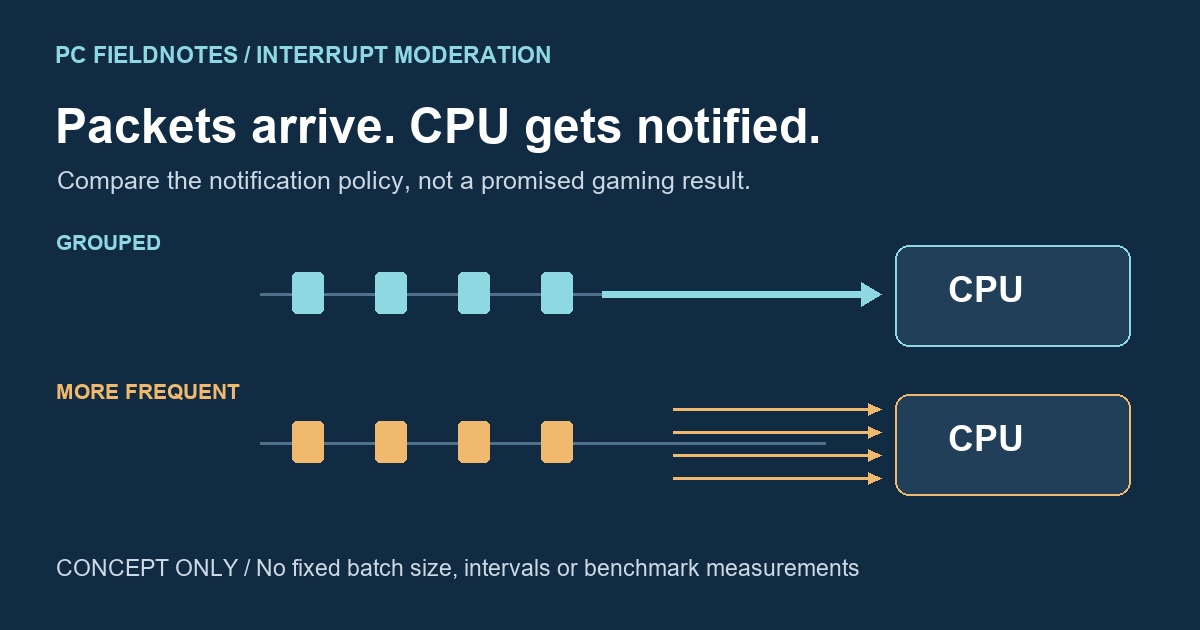
Microsoft NDIS/NetAdapter and Intel advanced-settings documentation reviewed October 20, 2026 with AI assistance. Documentation-based explanation; no physical NIC, Windows11 VM, ping, FPS, DPC-latency or game benchmark was performed. Alex Reed is an established pen name.
Keep your adapter's supplied setting unless you are comparing a specific, repeatable problem. Interrupt Moderation reduces how often the network adapter interrupts the CPU. Disabling it can favor earlier packet notification while requiring more interrupt processing. That trade-off does not give every Windows 11 PC the same best setting for gaming.
Before trying a change, record both Interrupt Moderation and any separate Interrupt Moderation Rate value. They are related controls, but an on/off switch and a driver's Rate policy are not the same choice. Preserve the original values so you can return to your actual starting configuration.
The switch and the Rate control answer different questions
Microsoft's Enumeration Keywords reference defines *InterruptModeration as the standardized enable/disable property. Its table assigns 0 to Disabled and marks 1, Enabled, as the default. The same document leaves moderation algorithms device-dependent and permits vendors to expose additional algorithm settings through their own keywords.
That is why a driver may show only Interrupt Moderation, another may also show a Rate option, and another may not expose either control. The standard's documented default does not establish what is currently saved on your adapter.
For Intel's documented Interrupt Moderation Rate control, a higher ITR setting means fewer interrupts with a greater packet-handling delay; its Adaptive option lets the driver adjust the policy. Intel describes the supplied choice as suitable for common configurations. These are definitions from Intel's advanced-settings page, not a numeric recipe for a different adapter.
In particular, do not interpret a label such as High as “more CPU interrupts” without the matching driver's definition. Nor should Low, Minimal, and Off be treated as interchangeable. If your vendor does not define a Rate choice, leave that control at its supplied value instead of translating a value from another brand.
Why batching interrupts has a cost and a benefit
Microsoft's Interrupt Moderation explanation describes hardware waiting for additional packets or a timeout before notifying the processor. The vendor chooses the packet threshold, timer or other algorithm. This reduces interrupt frequency, but notification for an individual packet is no longer necessarily immediate.
The practical trade-off is between interrupt-processing work and packet-handling responsiveness. Avoiding some notifications can reduce CPU overhead; removing moderation can increase notification frequency. Neither direction, by itself, establishes your game's frame rate, end-to-end ping or whether a connection problem has been fixed. The cover illustration explains the idea without supplying measured intervals or a universal batch size.
This feature is also separate from Energy Efficient Ethernet, which concerns low-power behavior of the wired link. Changing both at once would prevent a clean comparison of either setting. The protocol-binding list and Packet Coalescing discussion belong in the connection-properties guide; they are not instructions to disable every advanced feature together.
Read the property your driver actually exposes
Open Device Manager, expand Network adapters, and choose the Ethernet device you intend to examine. In Properties > Advanced, record the displayed controls and their current values. Keep the adapter model and driver version with that record. The driver-identification page helps keep changes tied to the correct device.
For a read-only lookup, replace Ethernet with that adapter's connection name:
$nic = "Ethernet"
Get-NetAdapterAdvancedProperty -Name $nic -AllProperties |
    Where-Object { $_.RegistryKeyword -eq "*InterruptModeration" } |
    Format-List DisplayName, DisplayValue, RegistryKeyword,
                RegistryValue, ValidDisplayValues, ValidRegistryValues
The literal keyword comparison selects the standardized on/off property. It does not identify an unspecified vendor Rate property. Microsoft's Get-NetAdapterAdvancedProperty reference documents these readable fields and -AllProperties, including properties without a display name. The example changes nothing and is not a captured result from a tested Windows 11 adapter.
For the Rate option, use the actual driver's property description and allowed values. Do not assume that the standardized on/off keyword can also select a particular vendor's adaptive algorithm.
Make a comparison that can answer your question
Start with an observable symptom, such as a repeatable application problem under a particular workload. “Make gaming faster” does not define what you will observe. The following is an editorial comparison plan, not a reported test result:
- Record the starting on/off and Rate values, the driver version, and the workload. Decide which one property you intend to compare and why.
- Keep the cable, port, server, workload and other adapter settings unchanged. If you are investigating the on/off switch, leave Rate and the other controls alone. Use the local PC; applying advanced properties can interrupt network access.
- Repeat the same workload after one change. Record the application's own relevant observations and CPU use under comparable conditions. Do not substitute a vague feeling for the problem you originally identified.
- Restore the exact original value and repeat the comparison when practical. An isolated good run does not establish cause. If no repeatable benefit appears, return to the starting configuration rather than accumulating extra tweaks.
We have no hardware or game measurements for this guide, so we do not recommend a universal gaming Rate, a latency figure, or a promised FPS increase. If a managed PC is involved, have IT confirm the intended settings and arrange any comparison.
Restore your values rather than guessing at defaults
Returning each changed control to its recorded starting value is a targeted rollback. Microsoft's Reset-NetAdapterAdvancedProperty documentation describes a different operation: restoring factory defaults using a property's display name. It does not remember an earlier custom value. Avoid a wildcard reset of every advanced setting just to undo this one comparison.
If the option is missing or unavailable
A missing menu entry can reflect the device, driver or supported Windows combination. Microsoft's NDIS documentation also accounts for devices that do not support interrupt moderation. An empty property lookup is not evidence that a hidden registry edit will make the feature available.
Check the exact adapter and OEM documentation. A virtual adapter is not a reliable view of a physical adapter's exposed controls. If the property is greyed out or policy-controlled, ask the administrator or vendor about that specific restriction; this guide cannot identify the cause from the label alone. Do not install an unrelated driver or create a guessed registry property to force the option into view.
Sources were reviewed on October 20, 2026. No Windows 11 VM, physical-adapter, game, ping, FPS or DPC-latency test was performed. Recheck the explanation when your adapter vendor changes its control definitions or supplies a relevant support notice.
