
 Documentation-based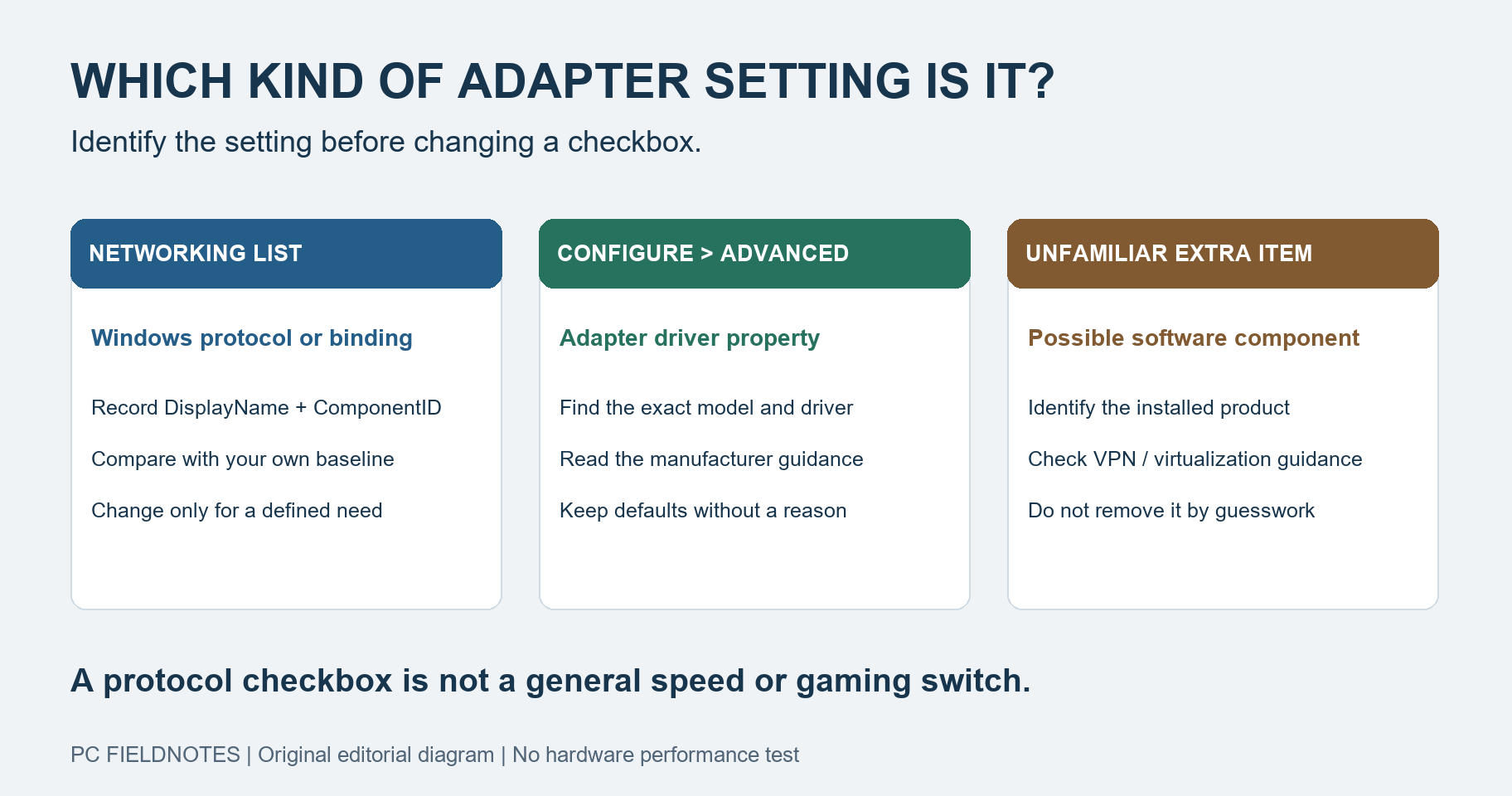
Microsoft Learn and Intel documentation reviewed October 10, 2026 with AI assistance. Windows 11 VM observations are identified in the article; they do not establish physical-adapter defaults or gaming performance. Alex Reed is an established pen name.
Keep the Networking-list items at your own known working settings unless a specific task requires a change. On an ordinary Windows 11 PC, do not enable Microsoft Network Adapter Multiplexor Protocol as a speed tweak. Leave Microsoft LLDP Protocol Driver at its existing setting unless your network administrator or a documented requirement says otherwise. Neither checkbox is an established gaming optimization in this guide.
Last reviewed: October 10, 2026. The table below records one Windows 11 virtual adapter, not universal defaults for every PC. Software, policy, adapter type, and Windows configuration can change the list. No physical-adapter or gaming-latency test was performed.
Quick reference: the Networking checkbox list
| Item | ComponentID | Observed VM state | Decision and consequence |
|---|---|---|---|
| Microsoft Network Adapter Multiplexor Protocol | ms_implat | Off | Leave off for an ordinary client connection; identify managed teaming first. |
| Microsoft LLDP Protocol Driver | ms_lldp | On | Keep your working baseline; consult the administrator for discovery requirements. |
| Client for Microsoft Networks | ms_msclient | On | Keep when accessing Microsoft-network resources. |
| File and Printer Sharing for Microsoft Networks | ms_server | On | Keep when providing authorized file/printer sharing; permissions still apply. |
| QoS Packet Scheduler | ms_pacer | On | Keep unless a specific policy or application requires a change. |
| Internet Protocol Version 4 (TCP/IPv4) | ms_tcpip | On | Keep for IPv4 access; unbinding can break that traffic. |
| Internet Protocol Version 6 (TCP/IPv6) | ms_tcpip6 | On | Keep; Microsoft advises against unbinding IPv6. |
| Link-Layer Topology Discovery Mapper I/O Driver | ms_lltdio | On | Keep unless a defined topology-discovery policy requires otherwise. |
| Link-Layer Topology Discovery Responder | ms_rspndr | On | Keep unless a defined topology-discovery policy requires otherwise. |
“On” means the binding was enabled in the recorded VM; it does not prove that a corresponding service is running, a firewall permits access, or a particular network uses that feature. “Keep” means retain your working baseline, rather than copy this VM's settings blindly.
Multiplexor Protocol: leave it off on a normal client PC
Microsoft Network Adapter Multiplexor Protocol belongs to the network-teaming context. It is not a way to combine the internet speed of Wi-Fi and Ethernet merely by checking a box. Microsoft's NetLbfo reference limits its LBFO NIC Teaming feature to Windows Server, while client-side cmdlets can manage teams on a remote server. The existence of a protocol entry on Windows 11 does not make that client a supported LBFO teaming host.
For a normal single-adapter Windows 11 connection, leave this entry off. If you inherited a server, virtual-switch, bridge, or vendor-managed configuration, identify that configuration before changing bindings. This article does not evaluate third-party teaming software.
We did not test manually enabling Multiplexor or an automatic unchecking prompt. Reports of that behavior are not evidence that your driver is broken, and we do not reproduce an unverified dialog here.
LLDP: retain your baseline, especially on a managed network
LLDP is Link Layer Discovery Protocol. IEEE's 802.1AB overview describes discovery of physical topology and connection information from adjacent devices. It serves local-link discovery rather than choosing your internet bandwidth. Microsoft's LLDP agent reference documents management by interface; it is not a reason to run server-management commands on a home PC.
Keep the observed working state unless you have a defined discovery requirement. On a managed network, ask the administrator before disabling it. On a home connection, leave a working configuration alone rather than follow an unsupported “turn everything off” list. We have no benchmark showing that disabling this binding improves ping or throughput, and we make no blanket promise that disabling it is harmless in every home setup.
What the other items control
Client for Microsoft Networks concerns access to Microsoft-network resources. File and Printer Sharing for Microsoft Networks concerns providing those resources from this adapter. Their checkboxes alone do not establish sharing permissions, firewall rules, or the network profile. If sharing is the task, diagnose sharing directly; do not cancel both items as an internet-speed experiment.
QoS Packet Scheduler is a traffic-scheduling component. Keep its existing state when you have no specific policy or application requirement. This guide supplies no claim that removing it frees a fixed percentage of bandwidth.
IPv4 and IPv6 are the IP protocol bindings. Removing IPv4 can break IPv4 access even if IPv6 still works; a successful IPv6 website visit would not prove IPv4 was restored. Microsoft advises against disabling or unbinding IPv6, because Windows components may not function correctly. Leave both at their working state unless you are following a scoped administrator procedure.
Link-Layer Topology Discovery Mapper I/O Driver and Responder concern LLTD network discovery, a separate protocol from LLDP. Microsoft's LLTD policy reference describes their roles and policy controls. Do not infer internet speed from whether a discovery checkbox is selected.
For each of these entries, recovery starts by restoring the exact previous state of that component on that adapter. A table of somebody else's defaults cannot replace a record of your own configuration.
An unfamiliar item: identify its owner first
Use the original diagram above to separate three cases:
- An item in the Networking list: record its display name and ComponentID. Compare it with the Windows component names in the reference table.
- An option under Configure > Advanced: use the exact adapter model, driver version, and manufacturer documentation. The checkbox table does not describe it.
- An additional binding installed by software: check your VPN, virtualization, packet-capture, or other networking product documentation. Do not disable or uninstall it just because its name is unfamiliar.
Microsoft's Get-NetAdapterBinding reference distinguishes visible bindings from the full list returned by -AllBindings. ComponentID identifies the binding; it is not a complete publisher or trust report. Match unknown entries to the installed product before deciding what to change.
Advanced settings are different: Packet Coalescing
Packet Coalescing belongs to driver configuration, when that adapter exposes it. It is not the Multiplexor or LLDP checkbox. Microsoft describes packet coalescing as buffering certain broadcast or multicast packets to reduce receive interrupts and processing overhead. A configured buffer-time limit is part of that mechanism; this does not establish an improvement in your game's latency.
Intel's wireless-settings reference lists Enabled for Packet Coalescing on the Intel wireless adapters covered by that document. Available settings vary with the adapter, driver, and operating system. That value is not a default for all Ethernet cards, all Wi-Fi products, or every Intel adapter.
Without a measured problem and model-specific guidance, retain the driver's default. Our VM does not establish physical driver properties or performance. For a negotiated 100 Mbps link, use the separate Ethernet link-speed diagnosis instead of changing protocol checkboxes.
Record the state and undo only your change
In Control Panel, open Network and Sharing Center > Change adapter settings, right-click the intended adapter, and choose Properties. The Networking tab contains “This connection uses the following items.” The Configure button opens adapter-driver properties; its Advanced tab is a different surface. Windows 11 Settings also exposes adapter controls under Network & internet > Advanced network settings, with labels that can vary by build.
For a read-only PowerShell inventory, replace Ethernet with your actual adapter alias:
Get-NetAdapterBinding -Name "Ethernet" -AllBindings |
  Format-Table DisplayName, ComponentID, Enabled
Keep the result privately before editing. If sharing a screenshot, omit adapter/device names, addresses, and other identifiers. A binding change can restart the adapter and affect connectivity; use a local console rather than experimenting through the connection that carries your remote session.
If you specifically disabled IPv4 and your earlier record shows it enabled, an administrator can restore only that binding with Microsoft's Enable-NetAdapterBinding cmdlet:
Enable-NetAdapterBinding -Name "Ethernet" -ComponentID ms_tcpip
Get-NetAdapterBinding -Name "Ethernet" -ComponentID ms_tcpip
Do not use this as a generic repair command or enable all bindings with a wildcard. Microsoft notes that enabling one binding can affect other bindings. If the changed component was LLDP, sharing, or another entry, restore that entry's recorded state instead; the IPv4 example does not repair it.
If restoring the recorded state does not recover connectivity, use the guide for Wi-Fi and Ethernet both failing or, for an IPv4 self-assigned address, the 169.254 address guide. A missing adapter after an update is a detection problem, not a reason to check every protocol.
Network reset is a last resort. Microsoft's reset guidance says adapters are removed and reinstalled with default settings after restart; VPN software or virtual switches may need setup again. Read what to preserve before network reset before choosing it. Resetting the network is much broader than undoing a single checkbox.
Evidence and limits
Windows 11 Pro, version 25H2, build 26200.9457; observed October 10, 2026. A linked clone named PCFieldnotes-A037-20261010 was made from PCFieldnotes-Win11-25H2's Clean-Windows11-25H2 snapshot, then allowed to finish its pending Windows update. These are the resulting virtual Ethernet binding states, with no manual binding changes.
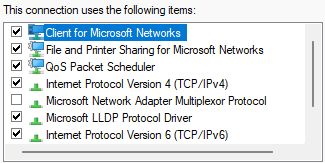
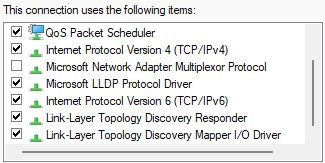
Actual Networking-list screenshots, shown in two parts because the list scrolls. Unrelated desktop areas and adapter identifiers are excluded. Read-only Get-NetAdapterBinding -AllBindings output was also retained and used to check the ComponentIDs and Enabled column.
The original diagram is an editorial decision map. The VM observation documents Windows software state only. It cannot validate physical network-card Advanced settings, cables, switch behavior, or a gaming-performance change. Recheck the list when Windows, an adapter driver, VPN software, or managed-network policy changes.
