
 Documentation-based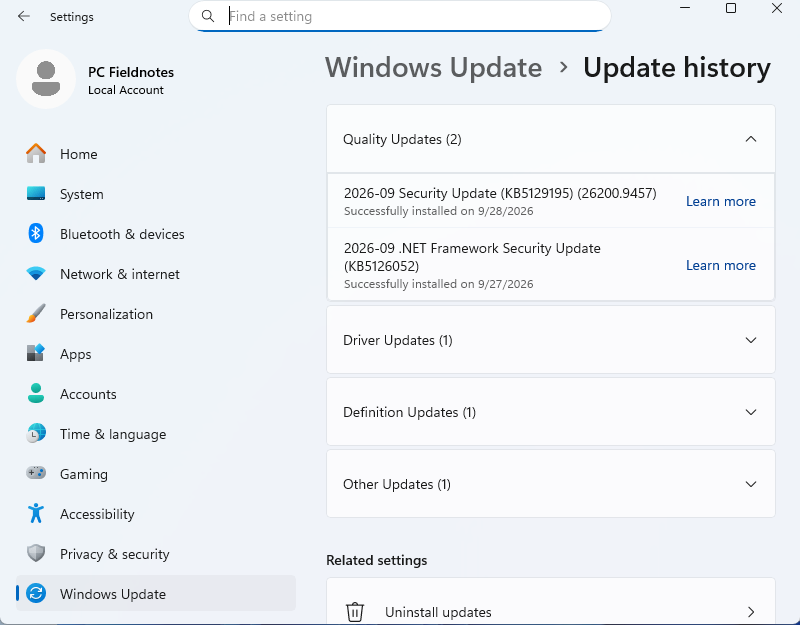
Based on Microsoft documentation and Windows 11 Pro 25H2 VM UI evidence captured September 29, 2026. The failure was not reproduced.
Last reviewed: September 29, 2026
If a network adapter disappears after a Windows 11 update, first preserve the timeline: record the update name and install time, the adapter model and driver version if still visible, and whether the device is normal, disabled, hidden, showing an error, or absent from Device Manager. Prepare the correct offline OEM driver before uninstalling anything. Roll back a driver only when Windows offers a previous driver, and treat uninstalling a Windows security update as a later, riskier branch—not the first fix.
This page is for a device that was present before an update and then changed. If the Wi-Fi control is missing but you do not have a reliable update timeline, start with Wi-Fi Option Missing in Windows 11 instead.
Build a before-and-after record
| Record | Before the suspected update | After the suspected update | Why it matters |
|---|---|---|---|
| Windows version and build | From System > About or an earlier support record | Current version and OS build | Separates a feature update from a driver-only change |
| Update history | Previous successful quality and driver updates | Exact KB, driver update, and install time nearest the failure | Establishes timing without claiming causation |
| Adapter identity | Model, hardware ID, driver provider and version | Normal, disabled, hidden, error code, unknown device, or absent | Chooses the driver, device, or broader recovery branch |
| Recovery material | OEM driver package and installation notes | Confirm the file remains available offline | Prevents a driver uninstall from leaving the PC stranded |
| Comparison | Other adapter or another device on the network | Same comparison after the change | Separates one adapter from a router or upstream outage |
This Windows 11 VM screenshot shows where to record quality updates and driver updates. It does not show that either listed update removed a network adapter.
Classify what “missing” means
Open Device Manager > Network adapters. Then choose the matching state.
The adapter is listed and says it is working
The adapter is not actually missing. Check whether it is disabled in Settings > Network & internet > Advanced network settings, whether the cable or Wi-Fi connection is available, and whether the PC received an address. Do not uninstall an update solely because the taskbar icon changed.
The adapter is listed with an error
Record the complete Device status and error code before changing the driver. For Intel Wi-Fi Code 10 or STATUS_DEVICE_POWER_FAILURE, use the narrower Intel Wi-Fi Code 10 checklist.
The adapter appears only after Show hidden devices
In Device Manager, View > Show hidden devices can expose a non-present or previously installed device. A gray entry does not by itself prove that Windows Update removed the adapter. Record its model, hardware ID when available, and driver details, then check whether the physical or virtual device should currently be attached.
The adapter is completely absent
Check Other devices for an unknown Network Controller. If it appears there, its hardware ID can identify the correct package. Follow How to Install a Windows 11 Network Driver Without Internet and use the PC or motherboard manufacturer's official package.
If the built-in adapter is absent from both Network adapters and Other devices after a full shutdown and restart, do not assume a driver package can restore hardware that firmware no longer exposes. On a laptop or managed PC, use the manufacturer's diagnostics or administrator support. A virtual machine cannot verify a physical radio, cable, port, or firmware fault.
Check the driver branch before the Windows-update branch
Open the affected device's Properties > Driver tab and record Driver Provider, Driver Date, and Driver Version. The Roll Back Driver button is usable only when Windows has a previous driver package available.
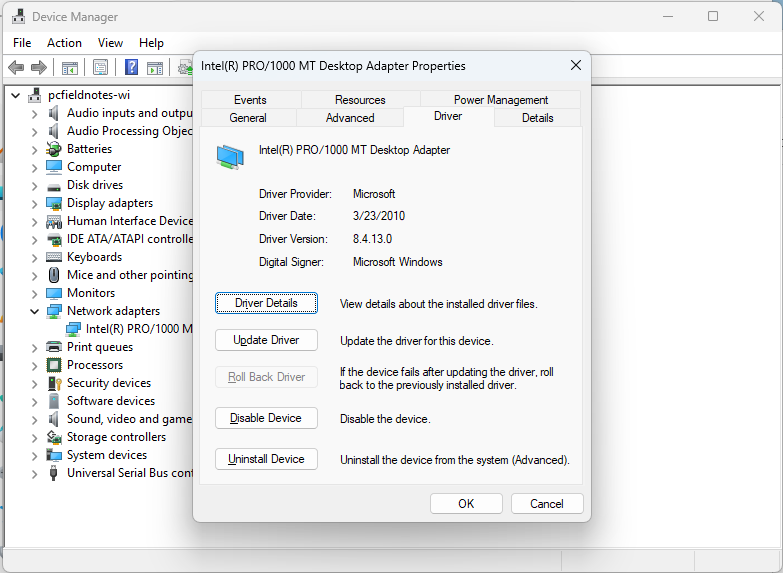
In this Windows 11 VM, the virtual Intel PRO/1000 adapter reports that it is working, and Roll Back Driver is unavailable. This is a control-state screenshot, not a failed-adapter test. When the button is gray on the affected PC, do not invent a rollback path.
Microsoft says that if a recent update caused a driver problem, returning to the previous driver can resolve it. Use that branch only after recording the current version and confirming the button is available. Restart, then verify that the adapter appears and that the intended connection works.
If rollback is unavailable, do not download a random older package. Save the correct OEM driver for the exact PC model first. Microsoft also documents uninstalling the network adapter and restarting so Windows attempts to reinstall it, but it explicitly recommends having a backup driver available before doing so. If the PC is already offline, that backup is not optional.
Decide whether the Windows update itself is the likely trigger
A close timestamp is evidence of sequence, not proof of cause. Increase confidence only when several facts agree:
- the adapter worked immediately before the recorded update and failed immediately after its restart;
- the affected adapter or an unknown controller changed state in Device Manager;
- the same driver reinstall or rollback changes the result;
- Microsoft, the PC manufacturer, or the adapter manufacturer documents a matching issue for the same update and hardware;
- other devices and the router continue to work normally.
If only one of these is true, keep the update correlation as a hypothesis.
Use the least disruptive recovery branch
- Adapter present, driver rollback available: record the current driver, use Roll Back Driver, restart, and retest.
- Adapter present or unknown, rollback unavailable: install the exact OEM package you saved offline. Test before changing Windows itself.
- Driver reinstall fails but Windows still starts: check the PC manufacturer's support page and Microsoft's Windows Update or release-health guidance for the exact model, build, and KB.
- A specific removable update is strongly correlated: review the security risk and backup requirements. Microsoft notes that some updates cannot be uninstalled and recommends less disruptive repair options first on Windows 11.
- The failure remains or the adapter is absent from firmware: stop repeating resets. Escalate to the manufacturer or administrator with the timeline, hardware ID, update record, and recovery attempts.
Windows exposes removable updates under Settings > Windows Update > Update history > Uninstall updates. Removing a security update reduces protection and can recreate other fixed problems. Do not use this branch on a managed PC without approval, and do not remove multiple updates at once because that destroys the timeline.
System Restore or Windows recovery can reverse broader system changes, but those options have wider impact than a driver rollback. Back up important files and ensure the BitLocker recovery key is available before using recovery tools. If you are considering Network reset, first read What Network Reset Removes in Windows 11; it is not a substitute for a missing physical device or the wrong OEM driver.
Verify the recovery without erasing the evidence
After one change, record:
- whether the adapter appears in Device Manager and its Device status;
- driver provider, date, and version;
- whether the expected Wi-Fi or Ethernet control returns;
- the assigned IP address and gateway;
- whether the connection survives one restart.
Keep the original update timestamp and pre-change driver record. If the issue returns after Windows installs the same driver again, the before-and-after comparison is more useful to the manufacturer than another full reset.
VM evidence and limitations
Screenshots were captured on September 29, 2026 from PCFieldnotes-Win11-25H2, a Windows 11 Pro 25H2 virtual machine at OS build 26200.9457. The VM showed Update history, a working VirtualBox Intel PRO/1000 virtual adapter, and an unavailable Roll Back Driver button. It did not reproduce an adapter disappearing after an update and cannot validate a physical Wi-Fi radio, Ethernet port, cable, OEM firmware, or hardware recovery.
Sources
- Microsoft Support: Update drivers through Device Manager in Windows
- Microsoft Support: Fix Ethernet connection problems in Windows
- Microsoft Support: How to uninstall a Windows Update
- Microsoft Support: Recovery options in Windows
