
 Documentation-based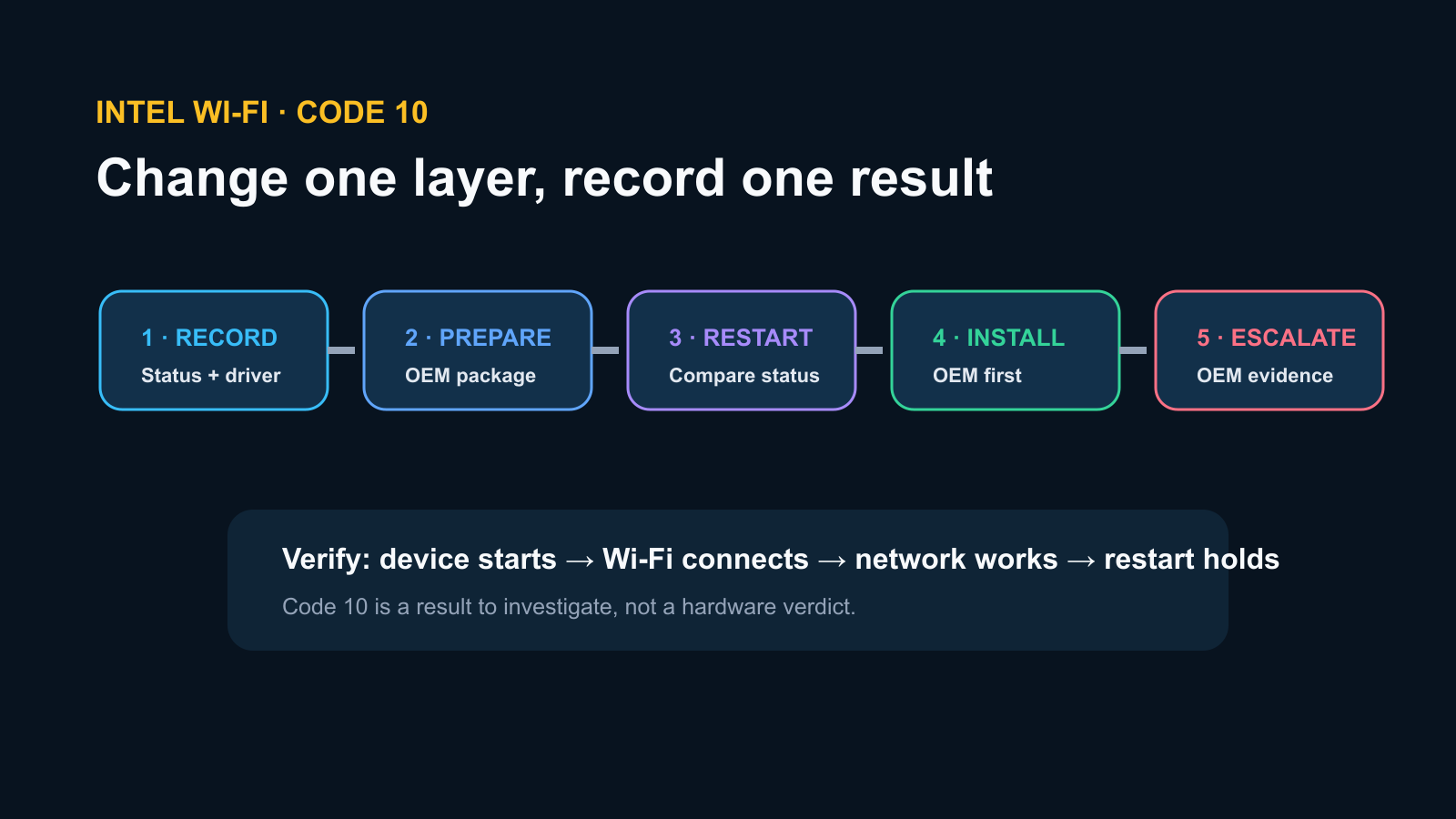
Based on Intel and Microsoft documentation reviewed September 28, 2026. No Code 10 fault was reproduced.
Last reviewed: September 28, 2026
Code 10 means Windows could not start the device; it does not by itself prove that the Intel Wi-Fi card has failed. Record the complete Device status message and driver version, download the correct OEM driver before uninstalling anything, then try a normal restart and the OEM-first driver path. Intel describes Code 10/43 as a generic, often temporary error and recommends testing the computer manufacturer's driver before an Intel generic package.
If Device status includes STATUS_DEVICE_POWER_FAILURE, preserve that exact text. It helps distinguish this path from a missing adapter, a disabled device, or a Wi-Fi connection that merely has no internet.
Match the symptom before changing the driver
| Device Manager result | What it means for this checklist | Next move |
|---|---|---|
| Intel Wi-Fi adapter, Code 10 | Windows sees the device but cannot start it | Record status and driver, then follow the ladder below |
| Code 22 | Device is disabled | Enable it before reinstalling |
| Code 28 | Driver is not installed | Install the exact OEM package |
| Code 43 | Device reported a problem | Use the same evidence-first OEM route, but keep the code distinct |
| Adapter absent, including hidden devices | Not a confirmed Code 10 case | Check firmware, hardware detection and OEM support |
| Adapter starts normally but Wi-Fi is missing | Different Windows/network-service path | Use the Wi-Fi option missing checklist |
This is an original editorial decision ladder, not a screenshot of a reproduced fault. No Code 10 failure or physical Wi-Fi card was tested for this article.
1. Capture the evidence that can disappear
Open Device Manager > Network adapters, double-click the Intel wireless adapter, and record:
- the full Device status text and code;
- adapter model;
- Driver Provider, Driver Date, and Driver Version;
- Windows edition, version, and OS build;
- PC manufacturer and exact model;
- whether the problem began after Windows Update, a driver update, sleep, a BIOS change, or physical service.
On the Details tab, choose Hardware Ids and privately record the first value. Redact serial numbers, computer names, user paths, network names, MAC addresses and organization identifiers from anything shared publicly.
Do not label every yellow warning icon “Code 10.” Microsoft assigns different meanings and remedies to Code 10, 22, 28, 31, 43, 45 and 48.
2. Download the recovery package before uninstalling
Intel explicitly advises downloading drivers before a clean installation. For a laptop, all-in-one or branded desktop, start at the PC manufacturer's official support page for the exact model or service tag. Download its current Windows 11 Wi-Fi package and any model-specific BIOS or chipset instructions.
Keep an offline copy. If this PC has no connection, use another trusted device and the process in How to Install a Windows 11 Network Driver Without Internet.
Do not begin by removing the only driver and then discover that the recovery package requires internet access. Do not use a third-party driver site, force a similar adapter model, or disable driver-signature protections.
3. Try the low-risk restart path
First use Start > Power > Restart. A restart is not the same as shutting the lid or returning from sleep.
Intel also reports that some customers resolve these wireless code errors with a cold reboot after reinstalling the driver. Its definition involves fully shutting down and removing power sources, including a removable battery when applicable. Do not open a sealed laptop, defeat battery safety, or follow a generic power-removal video. Use the computer manufacturer's shutdown or power-drain instructions for the exact model.
After restart, reopen Device Manager and record whether:
- the adapter starts normally;
- Code 10 remains unchanged;
- the code or message changes;
- the adapter disappears.
A changed result is evidence. Do not keep repeating power cycles without a new observation.
4. Test the OEM driver first
Install the Wi-Fi package downloaded for the exact computer model. Follow the manufacturer's instructions and restart when required. Then compare the adapter model, driver provider/version and Device status with the original record.
Microsoft's general Code 10 guidance is to update the driver. Intel narrows the route for its wireless devices: test the OEM driver first, then consider the Intel generic driver if the error remains after reinstalling the OEM package.
This distinction matters because a vendor-generic package may support the Intel radio but not every OEM integration, power policy or platform dependency.
5. Use a clean driver installation only with a recovery path
If the OEM's documented installation does not clear Code 10, Intel points to its clean-installation procedure for Wi-Fi drivers. Read the current procedure in full before removing anything. The broad sequence is:
- keep the verified OEM installer offline;
- disconnect from automatic driver delivery if the instructions require it;
- remove the affected Wi-Fi software/device only as documented;
- restart;
- install the prepared OEM package;
- restart and recheck Device status.
The exact checkboxes and software entries vary by package and PC. This article does not claim a clean installation was performed, and it does not substitute for the OEM or Intel procedure.
If the OEM driver fails again, test Intel's current generic package only when the adapter is supported and the PC maker does not require a different route. Record which package changed the result.
6. Separate a driver problem from a platform problem
If Code 10 persists with the correct driver, check the PC manufacturer's support page for model-specific BIOS, firmware, chipset and known-issue guidance. Intel recommends updating the system BIOS or resetting BIOS defaults through the OEM route, but firmware changes carry more risk than a driver reinstall.
Before changing firmware:
- confirm the exact model and current firmware version;
- connect reliable AC power;
- read BitLocker or device-encryption recovery requirements;
- preserve the recovery key through the authorized account or administrator;
- follow the manufacturer's instructions without interruption.
Do not flash a BIOS from a similar model and do not reset firmware settings on a managed PC without authorization.
7. Verify the repair at three levels
A successful result needs more than the yellow icon disappearing:
- Device level: the Intel adapter appears by name and Device status reports normal operation.
- Connection level: Wi-Fi can be enabled and the PC joins an authorized network.
- Network level: the adapter receives a usable address and gateway, reaches two unrelated HTTPS sites, and remains available after one restart.
If the adapter works after restart but disappears after sleep, use the separate Wi-Fi disappears after sleep checklist. That timing is useful evidence and should not be hidden inside repeated driver reinstalls.
When to stop and escalate
Contact the PC manufacturer when the correct OEM driver, documented restart path and supported updates leave Code 10 unchanged; when the adapter disappears from firmware or Device Manager; when the problem began after physical damage or service; or when firmware guidance is unclear.
Provide the exact model, hardware ID, Windows build, complete Device status, driver versions tested and the point at which the result changed. “Wi-Fi broken” is less actionable than a short evidence record.
Sources and evidence note
This documentation-based guide was reviewed on September 28, 2026. Intel's Code 10 article was last reviewed August 16, 2026 at the time of this review. No faulty adapter, clean installation, cold reboot or BIOS change was tested.
- Intel Support: Error Codes 10, 22, 28, 31, 43, 45 or 48 for Intel wireless devices
- Microsoft Support: Error codes in Device Manager in Windows
