
 Documentation-based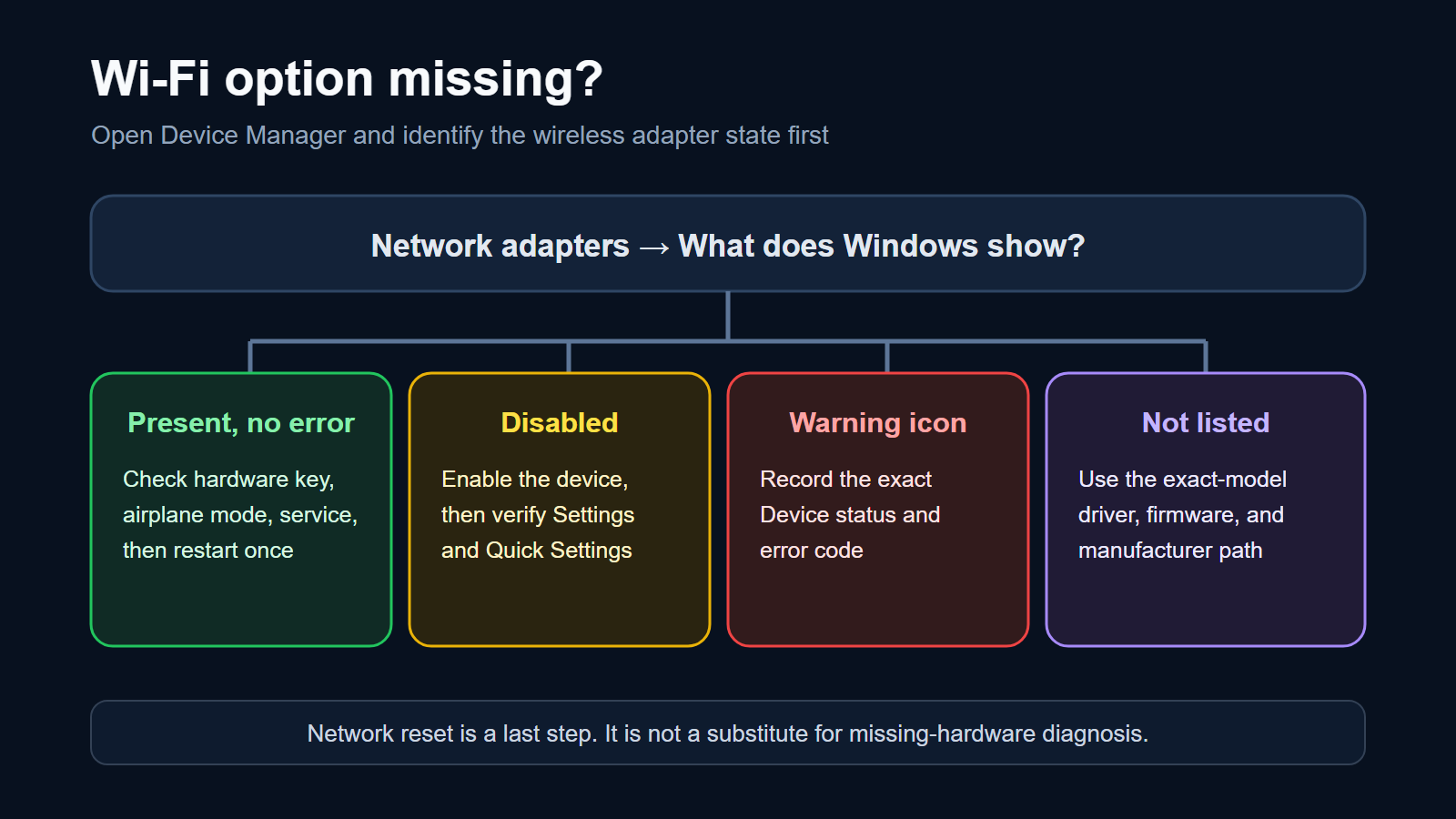
Based on Microsoft Support and Microsoft Learn documentation reviewed September 25, 2026. No hands-on hardware test was performed.
Last reviewed: September 25, 2026
If the Wi-Fi option is missing in Windows 11, open Device Manager > Network adapters before resetting the network. The next step depends on what Windows shows: an enabled wireless adapter, a disabled adapter, an adapter with an error code, or no wireless adapter at all. These are different states and should not be treated with the same fix.
If the Wi-Fi control is present but no networks appear, this guide is not the best match. That symptom starts after Windows has already detected a wireless adapter. Here, the starting symptom is that the Wi-Fi entry itself is missing from Quick Settings or Settings > Network & internet.
Use this state check first
| What Device Manager shows | What it means | Safest next step |
|---|---|---|
| Wireless adapter is present with no warning icon | Windows detects the device; the missing control may involve airplane mode, WLAN AutoConfig, policy, or a temporary Windows state | Check the physical wireless key, airplane mode, WLAN AutoConfig, and restart once |
| Adapter is disabled | Windows detects it, but it is not enabled | Choose Enable device, then check whether the Wi-Fi control returns |
| Adapter has a yellow warning icon | Windows detects it but reports a device or driver problem | Open Properties, record the complete Device status and exact error code, then follow code-specific guidance |
| No wireless adapter is listed | Windows is not currently detecting it | Check View > Show hidden devices only for history, then use the PC maker's exact-model driver and firmware guidance |
| Only a faded hidden entry appears | The entry may be historical rather than currently detected hardware | Do not treat the faded entry as proof that the adapter is working or present |
This is an original editorial diagram based on documented Windows checks. It is not a screenshot of a tested PC. PC Fieldnotes did not reproduce the failure on a physical Windows 11 system for this article.
Confirm that the Wi-Fi option is actually missing
Select the combined network, sound, and battery area on the taskbar. Then open Settings > Network & internet. Record whether the Wi-Fi entry is absent in both places.
Also check whether airplane mode is on and whether the laptop has a physical wireless switch or a function-key shortcut. The key varies by manufacturer, so use the model's manual rather than guessing. A hardware switch can make the wireless device unavailable even when Windows settings look normal.
Do not confuse these nearby symptoms:
- The Wi-Fi option is missing: start with device detection and service state.
- Wi-Fi is present but the network list is empty: investigate scanning, radio band, driver settings, and router visibility.
- Wi-Fi connects but says No internet: investigate the IP, gateway, DNS, router, and upstream path.
Check the wireless adapter in Device Manager
Open Device Manager, expand Network adapters, and look for a name containing Wireless, Wi-Fi, WLAN, or the adapter manufacturer's model. Avoid changing anything until you record what is present.
If the adapter is disabled, right-click it and select Enable device. Wait a few seconds, then reopen Quick Settings and Settings > Network & internet. If the control returns, restart once and verify it remains available.
If the adapter has a warning icon, open Properties > General and copy the complete Device status, including the number. An error such as Code 10 is a diagnostic branch, not a generic instruction to reinstall every network component. Keep the exact code and adapter name with your notes.
If the adapter is absent, choose View > Show hidden devices. A faded entry can show that Windows knew the device previously, but it does not prove the hardware is detected now. Check the PC manufacturer's support page using the exact model or serial-number lookup. Download only the supported wireless, chipset, and firmware packages for that model and Windows version.
For a USB Wi-Fi adapter, test one known-good port and check whether other USB devices work. For a built-in adapter, a repeated disappearance after supported driver and firmware checks may require manufacturer service. Do not open a laptop or reseat an internal card unless the maker's service instructions and your warranty situation allow it.
Check WLAN AutoConfig only when Windows sees the adapter
Press Win + R, enter services.msc, and open WLAN AutoConfig. Record its status and Startup type. This service manages wireless network discovery and connections.
If the service is stopped on a personal PC and Windows already detects the wireless adapter, start it and check the Wi-Fi control again. If it stops repeatedly, record the time and the related Event Viewer entry instead of repeatedly forcing it to run. On a managed PC, policy or administrative configuration may control the service, so contact the administrator.
WLAN AutoConfig cannot make physically missing hardware appear in Device Manager. If the adapter is not detected, return to the driver, firmware, hardware-switch, and manufacturer branches.
Restart once and review the change that came before the symptom
Save your work and restart the PC once. A restart is different from closing and reopening Settings, and it can complete a pending driver or Windows update operation.
Then record what changed immediately before Wi-Fi disappeared:
- Windows quality or feature update
- wireless or chipset driver update
- BIOS or firmware update
- sleep, hibernation, or docking event
- VPN, security, or virtualization software change
- physical impact, repair, or battery service
Timing is useful evidence, but it is not proof. Check Settings > Windows Update > Update history and the adapter's Properties > Driver page. Compare the installed driver version and date with the PC maker's supported package for the exact model.
If the Roll Back Driver button is available and the symptom began immediately after a driver update, record both versions before deciding whether to roll back. Use the manufacturer or Microsoft-supported recovery route. Keep an offline copy of a known supported driver before uninstalling a network adapter, because the affected PC may not be able to download it afterward.
Avoid broad fixes before you know the state
Do not begin by running a bundle of netsh commands, changing DNS, disabling IPv6, or resetting the router. Those actions target connection and protocol problems; they do not explain why Windows cannot see a wireless adapter.
Also avoid driver-download sites that are not Microsoft, the PC manufacturer, or the adapter manufacturer. A package for a similarly named model can be incompatible even if installation succeeds.
Microsoft describes Network reset as a last step. It removes installed network adapters and reinstalls them after restart, resets their settings, and may require VPN clients or virtual switches to be reinstalled or reconfigured. Use it only after Windows still detects the adapter and the smaller checks have failed. If the adapter is absent from Device Manager, network reset is not a substitute for model-specific hardware and driver diagnosis.
Before Network reset, record VPN settings, virtual switches, static IP or DNS settings, proxy configuration, Wi-Fi credentials, and a way to restore the supported driver offline. Do not run it while you depend on the affected connection for remote access.
Verify that the Wi-Fi option is really restored
After one change, verify the same sequence:
- Device Manager detects the wireless adapter without a warning icon.
- Wi-Fi appears in Settings > Network & internet.
- Quick Settings shows the Wi-Fi control.
- The expected network appears after a refresh.
- The PC connects and receives a usable IP address and default gateway.
- A browser opens a known site.
- The Wi-Fi control survives one restart and one sleep/wake cycle.
If the option returns but no networks appear, stop repeating adapter recovery steps and move to the network-list branch. If the adapter disappears again after sleep, use the Wi-Fi missing after sleep guide and preserve the power-state timing.
Common questions
Why did the Wi-Fi button disappear but Ethernet still works?
Wi-Fi and Ethernet use different adapters. Windows can continue using Ethernet while the wireless adapter is disabled, has a driver error, is not detected, or is unavailable because of a hardware switch or service state.
Should I uninstall the Wi-Fi adapter?
Not first. Record the adapter name, driver version, and exact Device Manager status. Have the supported offline driver ready before uninstalling anything.
Will Network reset bring back a missing adapter?
It may help some Windows networking problems, but Microsoft presents it as a last step. If Device Manager does not detect the hardware, use the PC maker's driver, firmware, and service path instead of assuming a network reset will restore it.
Sources and evidence note
This documentation-based guide was reviewed on September 25, 2026. No hands-on hardware test or original Windows screenshot was completed for this article.
- Microsoft: Fix Wi-Fi connection issues in Windows
- Microsoft: Setting up a wireless network in Windows
- Microsoft: Error codes in Device Manager in Windows
- Microsoft: Update drivers through Device Manager in Windows
- Microsoft Learn: Windows 11 release health
