
 Documentation-based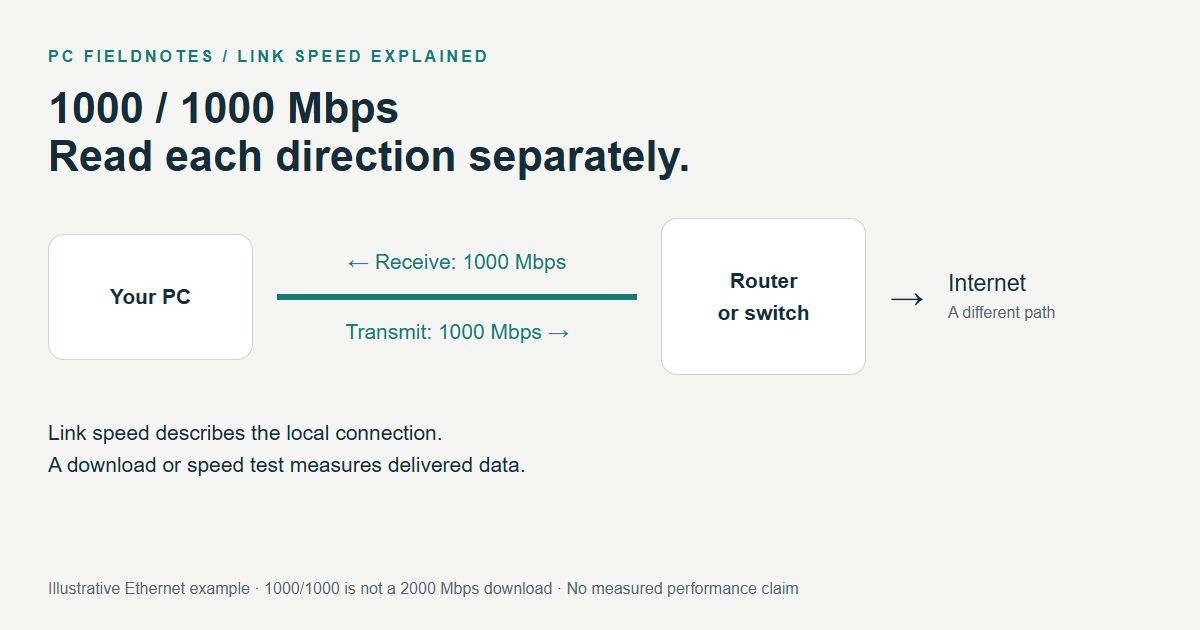
Microsoft, Intel and TP-Link documentation reviewed October 14, 2026 with AI assistance. The article identifies a Windows 11 25H2 VM observation; no physical-network performance was tested. Alex Reed is an established pen name.
Link speed is the rate reported for your network adapter's local connection to the device at the other end, such as a router, switch, or Wi-Fi access point. It is not an internet speed-test result. In a field labelled Receive/Transmit, 1000/1000 Mbps means 1000 Mbps in each direction; it does not mean a 2000 Mbps download.
Start by recording the exact label, both numbers, and whether the connection is Ethernet or Wi-Fi. If a physical Ethernet connection that should support gigabit shows 100/100 Mbps, use the Ethernet capped at 100 Mbps guide for the repair sequence. This page explains the reading before you change anything.
Read the label before the number
Receive describes traffic coming into your adapter. Transmit describes traffic leaving it. Microsoft defines the adapter's ReceiveLinkSpeed and TransmitLinkSpeed properties separately, in bits per second. Those are link properties, not counters showing how much data an application is transferring at that instant. Microsoft: MSFT_NetAdapter
Mbps means megabits per second; Gbps means gigabits per second. In these decimal units, 1000 Mbps equals 1 Gbps. MB/s, often used for file transfers, means megabytes per second: dividing Mbps by eight converts the units. For example, 1000 Mbps is 125 MB/s before allowing for protocol overhead or other limits. This arithmetic is not a promised file-copy result.
| Reported Ethernet rate | How to read it | What it does not establish |
|---|---|---|
| 10 Mbps | A 10-megabit link rate | That a gigabit-capable path is working as intended |
| 100 Mbps, or 100/100 | A 100-megabit rate; the pair gives receive/transmit | That your internet plan is limited to 100 Mbps |
| 1000 Mbps, 1 Gbps, or 1000/1000 | A gigabit rate; do not add the pair | A guaranteed gigabit download from every server |
| 2500 Mbps, 2.5 Gbps, or 2500/2500 | A 2.5-gigabit rate when the connection supports it | That every upstream port or internet service is equally fast |
These are examples, not a list of speeds supported by every adapter. Intel's guidance describes negotiation with the link partner and adapter-specific Speed & Duplex options. Check the capabilities of both ends of your own connection. Intel: Setting Speed and Duplex
What “Aggregated link speed” showed in our Windows 11 VM
On October 14, 2026, our test environment was Windows 11 Pro 25H2, OS build 26200.9457. At Settings > Network & internet > Ethernet, Windows displayed:
Aggregated link speed (Receive/Transmit): 1000/1000 (Mbps)The same virtual adapter reported LinkSpeed as 1 Gbps and each directional property as 1000000000 bits per second. The figure below preserves a cropped excerpt of the actual Settings row and places a transcript of the separately collected command output beneath it.
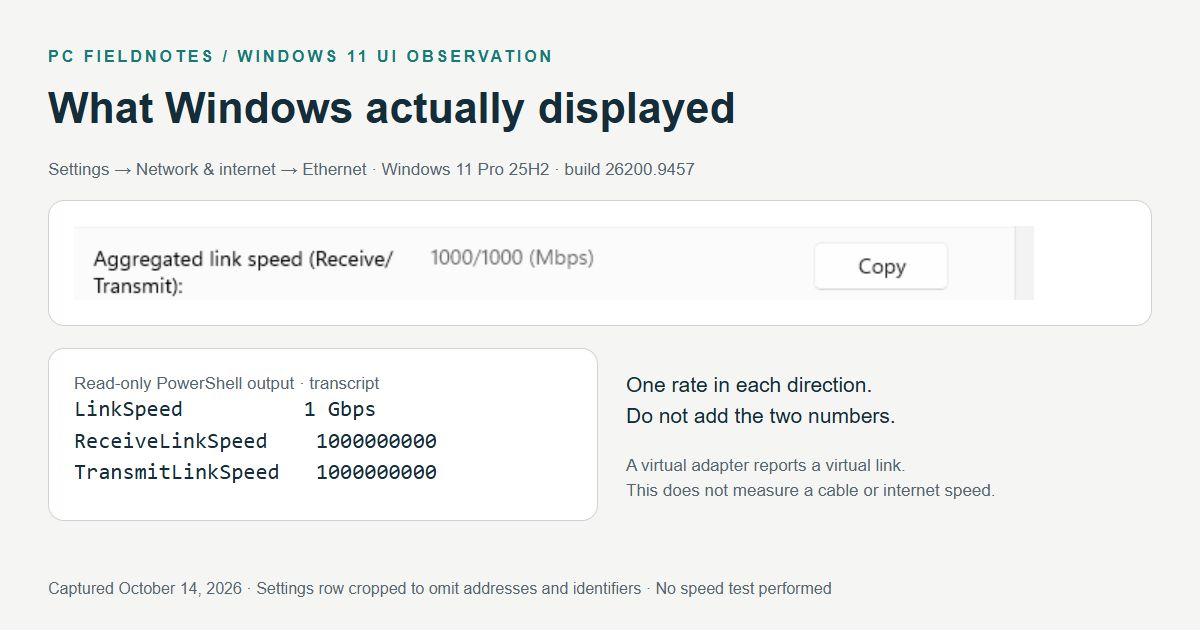
*Windows 11 Pro 25H2, build 26200.9457, captured October 14, 2026. This is a virtual adapter's reported rate. The screenshot proves the field's location and displayed value in this environment; it does not verify a physical cable, physical negotiation, or internet throughput. Addresses and identifiers are excluded from the published excerpt.*
We did not find a Microsoft specification defining the Settings label's aggregation calculation in the official references reviewed for this article. The observation above establishes agreement between this single adapter's displayed pair and its two directional properties. It does not establish how every Windows build, multi-link Wi-Fi configuration, or teamed adapter calculates that label.
Do not infer that Ethernet and Wi-Fi have been combined, or that two ports are bonded, merely because Settings uses the word “Aggregated.” Likewise, the displayed 1000/1000 pair is not evidence of a 2 Gbps single download. Read the explicit Receive/Transmit label, identify the adapter, and compare the directional values.
Check the value without changing your connection
For Ethernet, open Settings > Network & internet > Ethernet and look for the speed field on that adapter's page. The wording may vary with Windows version and connection type. The exact wording captured above is from the stated 25H2 build, not a promise that every version has an identical layout.
For a repeatable text record, open Windows PowerShell and run:
Get-NetAdapter | Format-Table Name, Status, LinkSpeedThen inspect the separate directions:
Get-NetAdapter | Format-List Name, ReceiveLinkSpeed, TransmitLinkSpeedMicrosoft documents Get-NetAdapter as a way to read basic adapter properties; without -IncludeHidden, it returns visible adapters. Match the output to the connection you are investigating. An Up status and a fast reported rate do not test the whole internet route. These commands do not change the adapter configuration. Microsoft: Get-NetAdapter
For Wi-Fi, Microsoft's command reference also provides:
netsh wlan show interfacesIt displays wireless interface information. On a connected wireless adapter, inspect the reported receive/transmit rate fields if available. Preserve the exact labels and units rather than treating a single number as a speed test. This VM had no working wireless interface to validate those output fields; we did not manufacture a Wi-Fi screenshot or enable services to simulate one. Microsoft: netsh wlan
Keep complete command output private. Before sharing a screenshot or support record, remove account and device names, SSIDs, MAC addresses, IP addresses, and other identifiers the recipient does not need.
Why link speed and internet speed differ
The adapter's link ends at its immediate partner. An internet transfer crosses a longer path, which can include a switch uplink, the router's WAN port, the provider's network, and a remote server. A fast local segment does not certify every later segment. TP-Link explicitly separates local link rate, advertised wireless capabilities, and actual internet speed. TP-Link: Link speed and internet speed
| Reading | What it describes | Use it for |
|---|---|---|
| Windows Ethernet link speed | The reported rate of that local Ethernet connection | Checking whether the local link is at the expected rate |
| Wi-Fi receive/transmit rates | The rates reported for the wireless connection | Comparing the wireless link under recorded conditions |
| An internet speed test | Delivered traffic along that test's path to its server | Measuring that particular test, connection, and moment |
| A file-copy rate in MB/s | Application data transferred during that copy | Evaluating that copy, including storage and protocol constraints |
For example, a PC can have a 1 Gbps local link while using a slower internet service. A 1 Gbps reading is also compatible with an internet outage. These are explanations of different measurements, not test results from this VM.
Wi-Fi does not have one universal “normal” link rate. The client and access point's capabilities, wireless conditions, and connection mode matter. Rates can change as conditions change, and application throughput is lower than the physical link rate because airtime and protocol overhead are involved. Do not apply a fixed percentage to predict every network's throughput. TP-Link: What Wi-Fi link speed means
Can you change the displayed speed?
The displayed field is a reading, not a general-purpose slider for adding bandwidth. On Ethernet, supported driver options may include Speed & Duplex, but forcing the highest number is not a universal fix. Intel recommends auto-negotiation for its normal copper-link setup; available settings depend on the adapter. A port, cable, or link partner that cannot support the requested rate will not become faster because you select a number.
Keep changes out of this first check. If your physical Ethernet rate is unexpectedly low, follow the 100 Mbps diagnostic guide. If you are looking at a list of protocol checkboxes instead of a speed field, see which network-adapter properties mean what. Those checkboxes are a different part of the configuration.
For Wi-Fi, record the rate and connection conditions before drawing a conclusion. If the real symptom is that a 5 GHz network is missing, use the 5 GHz network visibility guide; a missing network is a different problem from a low rate on a connected one. The Ethernet link-speed hub collects related wired checks.
Evidence and review scope
Reviewed October 14, 2026 against the Microsoft, Intel, and TP-Link sources linked above. The VM observation used the existing PCFieldnotes-A037-20261010 test clone derived from PCFieldnotes-Win11-25H2. It validates the displayed Settings field and read-only command values in that virtual environment. The original VM's clean snapshot was not restored or modified for this article.
No physical cable, physical adapter negotiation, wireless-rate change, speed test, NIC team, or multi-link Wi-Fi behavior was tested. The cover is an editorial illustration. Recheck the interface wording when Windows changes it, and review any future official definition of “Aggregated link speed” before extending the explanation to other configurations.
