
 Documentation-based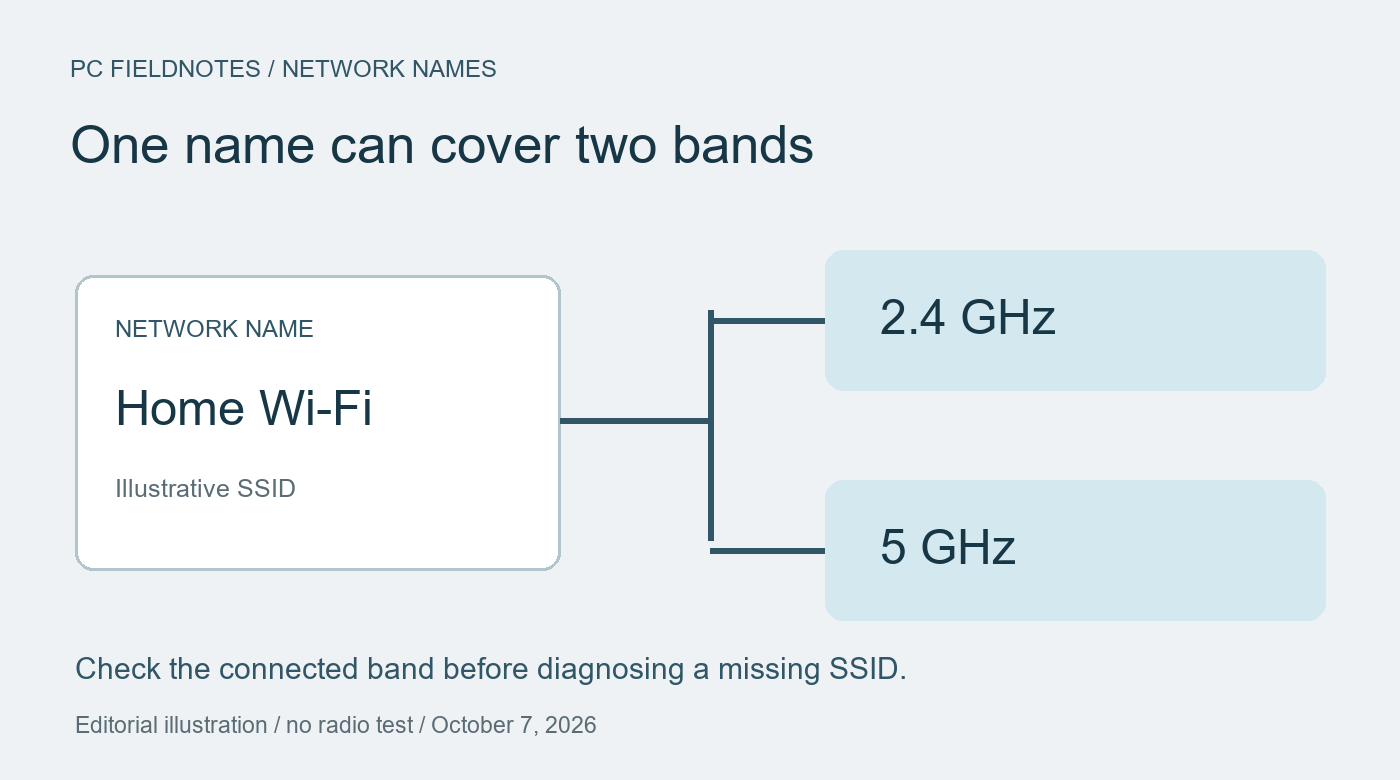
Microsoft and Intel documentation reviewed October 7, 2026 with AI assistance. No physical radio, router, or repair test was performed. Alex Reed is the established site pen name.
A missing network name with “5G” in it does not establish that 5 GHz is unavailable. First check whether the router uses one shared name for several bands, then check the current connection's band. If a separately named 5 GHz network is genuinely absent, compare a second compatible device at the same location before changing drivers or router settings.
This guide concerns a PC that can see some Wi-Fi networks but appears to miss the intended 5 GHz network. It is based on official sources reviewed October 7, 2026, without a physical router or Windows 11 radio test. A virtual machine cannot verify wireless broadcasting, range, or channel compatibility.
One network name can represent more than one band
Microsoft's home Wi-Fi guidance explains that some networks present one name across multiple bands. The visible name is the SSID; a suffix such as “5G” is a naming choice, not a measurement. Do not create a new network profile merely because the expected suffix is absent.
If you are already connected, follow the properties path in Microsoft's Windows Wi-Fi capability guide: Settings > Network & internet > Wi-Fi > your network's properties. Read Network band (channel). Record the value actually shown, rather than inferring it from the network name or speed.
If it shows 5 GHz, the PC is already using that band in the observed connection. A remaining performance problem needs a performance investigation. If it shows 2.4 GHz, you have confirmed the present connection, not proved that 5 GHz is absent. On a supported Wi-Fi 7 multi-link connection, Microsoft says the field can show multiple bands; do not force that observation into a single-band explanation.
Confirm what the router intends to broadcast
Ask the network owner or consult the manual for the exact router model and hardware revision. Record whether the 5 GHz radio is enabled, its SSID, whether the name is shared, and whether broadcasting is hidden. A router specification says what the product supports; it does not report what this router is currently transmitting.
For an ordinary personal network, refresh the available-network list using the control described in Microsoft's connection instructions. Keep the PC's location fixed for the first comparison. If you then move closer to the router, record that as a separate change and scan again.
Do not begin by renaming bands. A name change can require household devices to reconnect and can erase the usefulness of your baseline. If the owner later uses separate names as a controlled check, retain the original configuration and restore it when the check ends.
Use the second device to narrow the next question
Confirm that the comparison device supports 5 GHz. Check the same intended network near the same access point and at approximately the same time. Use this observation sheet; it is a proposed comparison, not a result obtained by PC Fieldnotes.
| Observation | What it supports | What it leaves open |
|---|---|---|
| Both devices miss the separately named network | Check broadcast configuration and location first | Whether the radio is disabled, the name is hidden, or the signal is unavailable there |
| Another compatible device sees it; this PC does not | Investigate this PC's capability, driver, or compatibility with the broadcast | Which component or setting caused the difference |
| This PC sees it only closer to the router | Location affects discovery in this comparison | Whether placement alone explains every failure |
| This PC sees the name but cannot join | Discovery succeeded; record the connection error | Credentials and security compatibility |
Microsoft describes shorter range and weaker obstacle penetration for 5 GHz than 2.4 GHz in its home-layout guidance. Seeing a 2.4 GHz network through several walls does not establish that the 5 GHz signal must be usable there. A phone and PC can also behave differently; the comparison narrows an investigation without identifying a failed adapter.
If discovery succeeds but joining fails, continue with the failed Wi-Fi connection guide. If no networks appear at all, use the empty-list guide. Those are different starting symptoms.
Check the complete adapter model before changing it
Record the adapter's full name in Device Manager and the driver version, then find the manufacturer's specification for that exact product. Pair it with the PC manufacturer's support information. Windows 11 by itself does not supply a missing radio band.
The capability guide documents this read-only command in Command Prompt or Terminal:
netsh wlan show driversUse its adapter, driver, and radio information alongside the product specification. Intel's band-support explanation distinguishes Wi-Fi 6 from Wi-Fi 6E: both include 2.4 and 5 GHz, while 6E adds 6 GHz. Do not diagnose a 5 GHz symptom using instructions written specifically for AX210 6 GHz eligibility.
For a record of networks the PC reports seeing, Microsoft's wireless troubleshooting reference documents:
netsh wlan show networks mode=bssidThe detailed view includes signal, channel, and radio information. It describes what this PC reports at that moment, not a complete inventory of everything the router transmits. Keep network names and hardware addresses private when sharing output. If Windows denies access or requests a permission, record the message rather than treating a failed command as proof that no network exists.
Make a change only when the record justifies it
Keep the baseline: PC and router models, Windows build, driver, configured bands and names, location, and two-device observations. If support documentation identifies a driver change for your exact PC, obtain that package from the manufacturer and preserve a way to reconnect. An offline driver copy may be needed before removing an existing package.
If the unresolved question is the router's channel or configuration, take the baseline to its owner or vendor. Use the instructions for that model and operating region; this guide does not prescribe a universal channel, disable encryption, or promise that changing Preferred Band will reveal an absent broadcast. Record one supported change, its original value, and the resulting scan, then restore it if it does not help.
Count recovery as two observations: the intended network becomes visible or the shared connection includes 5 GHz, and the required site or application works after joining. Do not use a speed-test number as proof of the band. Review the guide when official procedures or product requirements change.
