
 Documentation-based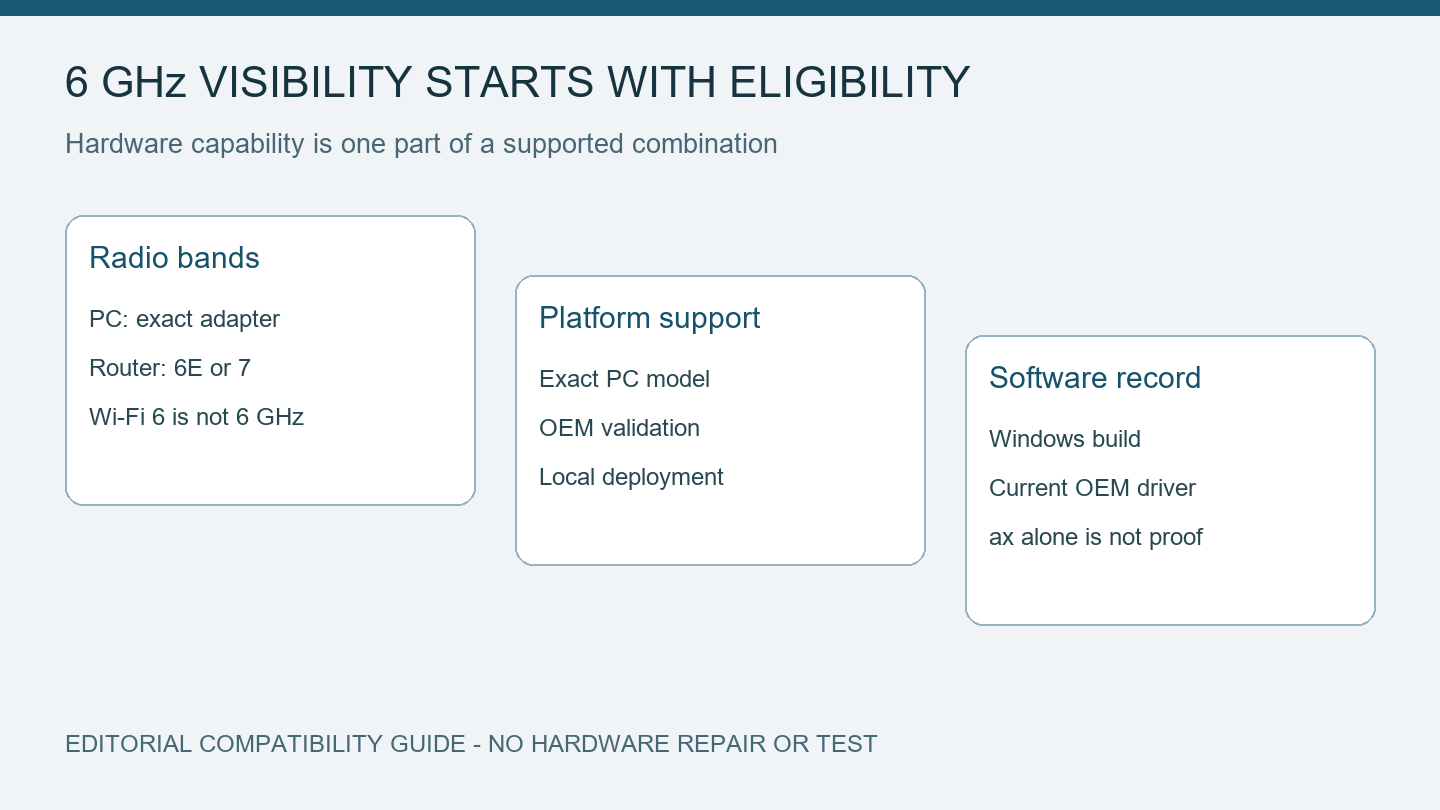
Intel and Microsoft documentation reviewed October 5, 2026 with AI assistance. This is a compatibility explanation, not a hardware test or repair report. Alex Reed is an established pen name.
An AX210 name in Device Manager does not establish that your entire PC and router combination can use 6 GHz. Before reinstalling a driver, check the router's actual bands, the PC manufacturer's support for that card and region, and your Windows and driver versions.
This guide explains eligibility and gathers evidence for the next step. It does not report an AX210 repair or a tested router combination. A missing 6 GHz network, a visible network that refuses to connect, and an adapter that detects no networks need different investigations.
Confirm the band on both ends
Look up the exact router model and hardware revision on its manufacturer's support page. A Wi-Fi 6 label is insufficient: Wi-Fi 6 uses 2.4 and 5 GHz, while Wi-Fi 6E adds 6 GHz. Intel's band support explanation makes that distinction explicit. A router with only 2.4 and 5 GHz cannot supply the missing band.
On the PC, open Device Manager, expand Network adapters, and record the complete adapter name. Keep AX210, AX200, and AX201 separate when comparing advice online. Check the exact adapter's product specification rather than interpreting every Intel adapter with “AX” in its name as 6 GHz hardware.
| What you have confirmed | What remains unresolved |
|---|---|
| A Wi-Fi 6 router with 2.4 and 5 GHz only | No 6 GHz radio is available from that router |
| A 6E-capable card and a 6E/7 router | OEM platform support, regional availability, software, and router configuration |
| A 6 GHz SSID appears in Windows | Connection and authentication; discovery has already succeeded |
| No Wi-Fi networks appear at all | Broader adapter detection, driver, or radio issue |
If the final row matches your situation, start with an adapter that is detected but finds no networks. Do not treat it as proof of a 6 GHz limitation.
Check the PC's platform and regional support
Intel's AX210 troubleshooting article calls out system manufacturer enablement and country restrictions. A manually installed card also needs a platform validated by the OEM for 6 GHz. Replacing a card does not establish that validation.
Find the support page for the complete PC model, not just the wireless module. Ask the OEM whether this configuration supports 6 GHz in the country where it is being used. Give them the PC model, installed card, and driver version. Keep the reply with your troubleshooting notes; a general specification for an AX210 is a different piece of evidence.
Avoid changing regulatory settings to make a network appear. A different Windows display language or an online claim about another country cannot confirm that your local deployment is supported.
Identify Windows and driver versions without resetting the network
Run winver and record the Windows version and OS build. In the adapter's Device Manager properties, open Driver and record its provider, version, and date. These are observations, so they give you a baseline before any change.
Intel's 6 GHz enablement requirements specify updated Windows 11, compatible hardware on both ends, and an appropriate driver. Its 22.70.0-or-later figure for Wi-Fi 6E is a documented baseline, not a recommendation to install that old release today. Check the current package offered for your exact PC by its manufacturer.
The same Intel page lists Windows 11 24H2 or later for Wi-Fi 7 functionality. Keep that requirement separate from the AX210's Wi-Fi 6E case; it is not evidence that all 6E operation requires 24H2.
Microsoft documents this read-only command in its Windows Wi-Fi capability guide:
netsh wlan show driversRecord the adapter name, driver information, and supported radio types. An 802.11ax entry alone does not settle the band question, because both Wi-Fi 6 and 6E use that radio standard. Pair the output with the exact hardware specification. No example output here is presented as a measurement from your PC.
Check the router's actual 6 GHz configuration
Use the manual for the router's exact model and firmware. Confirm that its 6 GHz radio is enabled, and record the network name associated with that band. When bands share a name, seeing the name in Windows is not enough to identify which band a connection uses.
Record the configured security mode and compare it with the vendor's 6 GHz instructions. Do not weaken security as a discovery experiment. Leave channel and regional configuration unchanged while establishing compatibility; several simultaneous changes make the result harder to interpret.
If another device is available, first confirm that it supports 6 GHz. Record whether it sees the same network at the same location. That comparison can help narrow the investigation, but it does not prove that the AX210 platform is supported or identify a driver fault by itself.
Decide what the evidence supports
Keep a short record containing the PC model, adapter, OEM confirmation, operating region, Windows build, driver, router revision, firmware, and exact symptom. Mark unknown fields as unknown.
If the router lacks the band, Windows changes cannot supply it. If platform or regional support is unconfirmed, obtain that answer before repeated driver changes. If the combination is documented as supported and the radio is enabled, take the record to the PC or router vendor for a specific next step. When obtaining a replacement driver requires another connection, use the offline network driver preparation guide.
These checks establish which investigation is justified. They do not promise that a driver update will make every AX210 installation detect 6 GHz.
