
 Documentation-based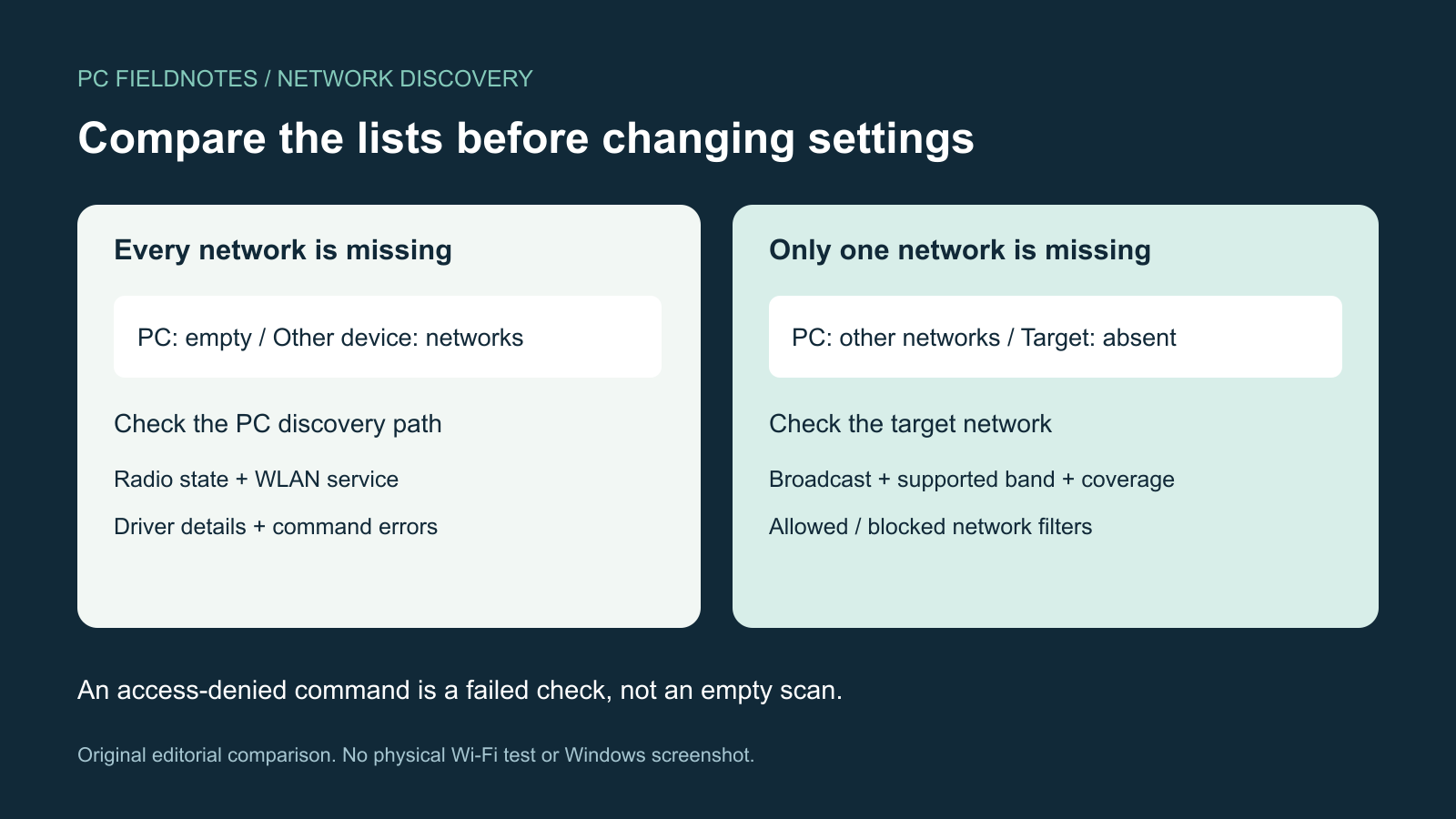
Microsoft documentation reviewed October 2, 2026 with AI assistance. No physical Wi-Fi testing was performed. A virtual machine cannot verify radio reception. Alex Reed is a pen name.
If Windows 11 detects your Wi-Fi adapter but shows an empty network list, first check whether another device can see nearby networks in the same place. Then separate an empty list from a missing Wi-Fi control or one missing network. Those observations determine whether to investigate the PC's scanning state or a particular access point.
This guide covers network discovery before you connect. If Windows has no Wi-Fi option, use our missing Wi-Fi guide. If a network appears but rejects a connection, record that separate symptom. We reviewed the documentation on October 2, 2026. We have not reproduced this fault on physical Wi-Fi hardware; a virtual machine cannot validate radio reception, antenna performance, or router compatibility.
Compare what the two devices can see
Open quick settings from the Network, Sound, or Battery area on the taskbar, open Manage Wi-Fi connections, and refresh the network list. Microsoft documents the refresh button in its Windows connection guide. Keep your comparison device beside the PC and check its available Wi-Fi list, rather than relying on its mobile internet connection.
| What you observe | What to investigate next |
|---|---|
| The PC sees other networks, but your network is absent | The target network's broadcast, coverage, supported band, or a filter affecting that network |
| The PC sees nothing; another device sees several networks | The PC's radio state, WLAN service, driver, or network filtering |
| Neither device sees the expected network | The access point and coverage; the PC result alone cannot identify a Windows fault |
| Wi-Fi controls or the adapter have disappeared | The missing-adapter branch, outside this guide's main scope |
These comparisons narrow the next investigation. They do not prove that a driver, router, or antenna has failed. Note the time and whether the symptom began after an update, sleep, or a move to another location. Keep that baseline before restarting anything.
When every network is missing
Check that Wi-Fi is on and Airplane mode is off. Some laptops also have a physical wireless switch or function key; consult the model's instructions before changing it. Microsoft's Wi-Fi troubleshooting guide covers these checks and the Network and Internet troubleshooter in Get Help.
For a closer inspection, open Command Prompt as administrator and run these diagnostic commands one at a time:
netsh wlan show interfaces
netsh wlan show drivers
netsh wlan show networks mode=bssid
Microsoft's wireless troubleshooting documentation recommends this baseline for network discovery problems. The interface output can help identify radio state; the driver output identifies the installed adapter information; the network output shows what the command can enumerate at that moment. Keep the exact error if a command fails. An empty result and a failed command are different observations.
If the output says WLAN AutoConfig is not running, open Services and inspect WLAN AutoConfig. On a personally managed PC, starting a stopped service can be the next supported troubleshooting step. If it fails to start, preserve the error instead of repeatedly changing its settings. On an organization-managed device, ask IT to check the service and applicable policies.
A detected adapter still needs a working discovery path. If radio and service checks are normal but the list remains empty, record the adapter model, driver version, Windows version, and the comparison-device result for the PC manufacturer. If the fault began with an update, compare the installed driver with the manufacturer's recommendation. Save a suitable driver package before any removal; our offline driver guide explains that preparation.
When only your network is missing
Confirm the target network is visible on the comparison device. Check whether the router is broadcasting the name and whether its configured band is supported by the PC's adapter. Use the router and adapter documentation to verify the actual settings; a name containing "5G" does not establish the band or compatibility.
Try the comparison closer to the access point without changing the router. If the network appears only there, record both locations before investigating coverage. If other networks remain visible but the target never appears, the targeted comparison is more useful than resetting every Windows network setting.
You can inspect configured filters with:
netsh wlan show filters
netsh wlan show blockednetworks
Microsoft's netsh reference distinguishes filter rules from the setting controlling whether blocked networks appear in the list. Save both results. Leave organization policies in place and ask the administrator whether the network is permitted. A filter entry is a lead to check, not permission to delete policy.
If the command asks for location permission
Windows restricts some Wi-Fi APIs that expose nearby access-point identifiers because they can reveal location. Microsoft's Wi-Fi access and location documentation describes access-denied results when the required consent is absent.
If a diagnostic command explicitly reports a location-permission problem, record that message and compare it with the list in Windows quick settings. A permission failure does not establish that no access points exist. Review Settings > Privacy & security > Location only if you choose to grant the required access, or ask IT on a managed PC. Avoid registry changes intended to bypass consent or policy. We have not verified the exact command message on your Windows build.
Stop when discovery works, then check the next symptom
After each change, refresh the list in the same location and confirm that the expected network appears. If it now appears but connection fails, preserve the new error and investigate connection or authentication. If connection succeeds but access fails, investigate that later stage separately.
Keep a short record of the original list, comparison device, change, and result. Do not start with DNS changes, profile deletion, or Network reset while the failure is still network discovery. Before considering a reset, read what Network reset removes. If the symptom keeps returning, send the manufacturer your observations and timestamps; the wireless report guide can help organize later connection events.
Evidence and review
The comparison table is an editorial diagnostic aid derived from the linked Microsoft documentation. It contains no measured failure probabilities. The illustration is an original editorial comparison, not a Windows screenshot or a hardware test. Review this guide when Microsoft changes discovery permissions or troubleshooting instructions, or when a reproducible device-specific case becomes available.
