
 Documentation-based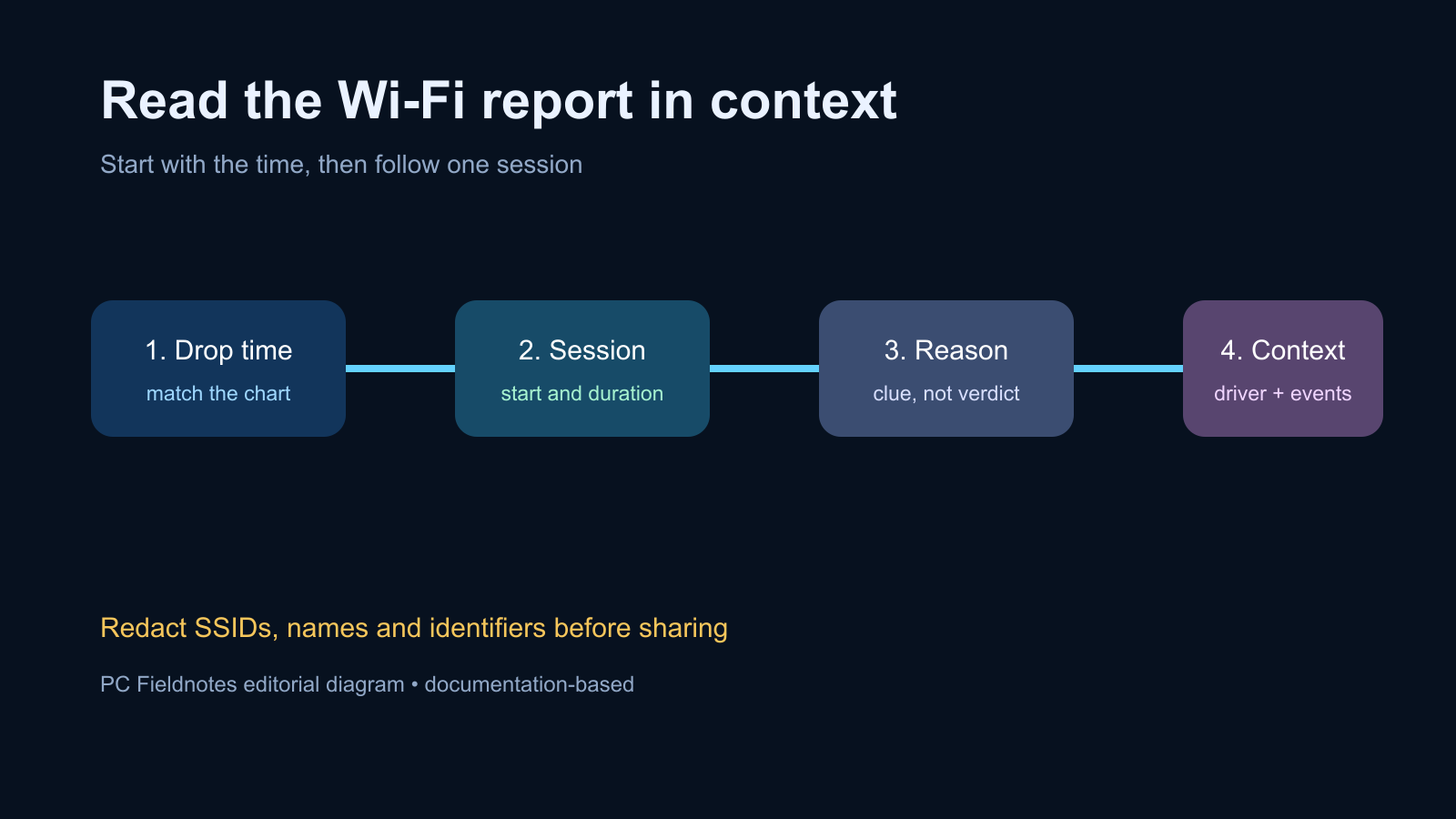
Based on Microsoft documentation reviewed September 27, 2026. No hands-on failure reproduction was performed.
Last reviewed: September 27, 2026
A Windows wireless network report is most useful when you start with the exact time the Wi-Fi dropped. Generate the report, find the matching session, and read its duration, disconnect reason, adapter, driver, and nearby events together. A reason code is a reported condition, not a complete diagnosis.
Do not post the full report publicly. It can contain the PC name, network names, adapter identifiers, and other details that should be redacted first.
Use this reading order
| Report section | What to record | What it can tell you |
|---|---|---|
| Summary chart | Exact hour of the drop | Which session to inspect |
| Wireless sessions | Start, duration, success or failure | Whether the problem was connection, authentication, roaming, or a later disconnect |
| Disconnect reason | Exact text and numeric value | What Windows or the access point reported at the end of that session |
| Network adapters | Model, driver version, driver date | Which device and software stack were active |
| Script output | Interface, profile, signal, radio type | The baseline around the failure |
This is an original editorial diagram based on Microsoft documentation, not a screenshot of a reader's report. No physical Windows 11 failure was reproduced for this article.
Generate the report and note where Windows saved it
Open Windows Terminal (Admin) or Command Prompt (Admin) and run:
netsh wlan show wlanreportWindows displays the path to the generated HTML file. Open that file locally in a browser. Microsoft describes the report as a summary of recent wireless sessions, disconnect reasons, adapter information, and related events.
If the command says the WLAN AutoConfig service is not running, record that message. The missing service state is itself relevant and can also make the Wi-Fi control disappear. Do not start changing services before preserving the original symptom.
Step 1: Match the report to the real drop time
Write down when the problem happened before reading codes. In the report's summary chart, find the connection session that overlaps that time. Then open that session and note:
- the network name, redacted in anything you share
- connection start and duration
- whether the connection succeeded before it dropped
- the reason shown when it ended
- whether the PC was sleeping, waking, roaming, docking, or changing networks
A report may contain routine disconnects caused by shutdown, sleep, leaving range, or intentionally choosing another network. The newest red entry is not automatically the one that explains your complaint.
Step 2: Separate connection failures from later disconnects
If the session never reached a connected state, focus on association, authentication, the saved profile, credentials, security mode, and whether the access point accepted the client.
If the session connected normally and dropped later, compare its duration and end time with signal changes, sleep or resume, roaming, driver events, and what other devices did at the same moment.
Microsoft's advanced Wi-Fi troubleshooting guide describes the connection stages as configuring, associating, authenticating, connected, roaming, and disconnected. The stage where the session stopped is more useful than a generic claim that “Wi-Fi failed.”
Step 3: Read a reason code as a clue, not a verdict
Keep the exact reason text and value. Do not translate a number from an unrelated forum post and treat it as proof.
Some disconnect information is supplied by the access point, while other events reflect the Windows client, driver, radio, or operating-system transition. Microsoft recommends correlating access-point-reported reasons with the router or controller log when that log is available.
For example, Microsoft's technical walkthrough shows an access point reporting a disassociation due to inactivity. That narrows the investigation toward session timers, power saving, traffic stopping, and the access point, but it still requires correlation. It does not prove the adapter is defective.
Step 4: Compare the adapter and driver context
In Network adapters, record the wireless adapter model, driver version, and driver date. Also record the Windows version and build from Settings > System > About.
If several drops began after an operating-system, driver, firmware, BIOS, VPN, security-product, sleep, or resume change, preserve that timing. Timing is a useful filter, not proof of cause.
Use the PC manufacturer's support page for a laptop or prebuilt PC. Use the adapter or motherboard manufacturer's guidance only when it applies to the exact model. Avoid installing a driver merely because its product family looks similar.
Step 5: Add a controlled comparison
The report becomes stronger when paired with one comparison:
- Test the same Wi-Fi network on another device at the same time.
- Test the affected PC near the access point.
- Compare one other known-good network, such as an authorized hotspot.
- Note whether Ethernet remains stable.
- If the failure follows sleep or resume, repeat that single transition once and record the time.
If multiple clients drop together, investigate the access point, upstream service, interference, or shared policy before rebuilding one Windows adapter. If only one PC drops across different networks, the client, driver, power state, or local software becomes more relevant.
Protect private details before sharing
Save an untouched private copy for your own records. In a copy intended for support or a public forum, redact:
- SSIDs and profile names
- computer and user names
- MAC addresses and adapter identifiers when they are not required
- internal DNS suffixes and organization names
- public IP addresses, VPN details, and location clues
Do not edit the only copy. Redaction can remove context a trusted support engineer may need later.
What to send with the report excerpt
A useful support note includes the exact drop time, the relevant session, reason text, adapter model, driver version, Windows build, network type, and one controlled comparison. Include only the smallest redacted excerpt needed.
Avoid sending a long list of resets. State what changed, what stayed the same, and whether the connection recovered by itself, after reconnecting, after restart, or only after a driver or router action.
Common questions
Does the disconnect reason identify the broken component?
Not by itself. It records a condition reported during the session. Correlate it with the connection stage, nearby events, another device, and router or controller logs when available.
Should I run Network reset after reading the report?
Only when narrower evidence supports it and you have recorded VPN, virtual adapter, DNS, and static-address settings. Network reset is not the default response to every reason code.
Can I share the HTML report as-is?
Usually not on a public site. Review and redact network, device, and organization identifiers first.
Sources and evidence note
This documentation-based guide was reviewed on September 27, 2026. It does not claim hands-on reproduction or a real user's report.
- Microsoft Support: Analyze the wireless network report
- Microsoft Learn: Wireless network connectivity issues troubleshooting
- Microsoft Support: Fix Wi-Fi connection issues in Windows
