
 Documentation-based
Microsoft, Intel and Cisco Meraki documentation reviewed November 1, 2026 with AI assistance. No physical NIC, cable, switch, negotiation, throughput, packet-loss or gaming test was performed. Commands are documentation examples without captured output. Alex Reed is the established pen name.
Last reviewed: November 1, 2026
Leave Speed & Duplex on Auto Negotiation for an ordinary Ethernet connection. The adapter and the port at the other end need compatible settings. Select a fixed value only when the equipment documentation or network administrator calls for it and you can check both ends. A higher number in this menu cannot upgrade the cable, adapter, or switch port.
If the reason you opened this setting is a link stuck at 100 Mbps, start with the 100 Mbps cable and port checks. This page explains the setting itself and how to reverse a change.
A setting request and a working link are different
Speed & Duplex is an Ethernet driver property. Its speed choice concerns the local wired link; full duplex allows simultaneous sending and receiving, while half duplex takes turns. The connection still has to work with its link partner, usually a switch or router LAN port.
Selecting a fixed 1 Gbps option is not evidence that a 1 Gbps link was established. Check the reported link speed after the connection returns. The link-speed reading guide explains that result and why it differs from an internet download rate.
For Intel adapters, Intel's Gigabit troubleshooting guidance specifically recommends Auto Negotiation. It also explains that some drivers omit a separate 1.0 Gbps Full Duplex choice. Its absence alone does not show that the adapter lacks Gigabit support.
Check the two ends before choosing a fixed value
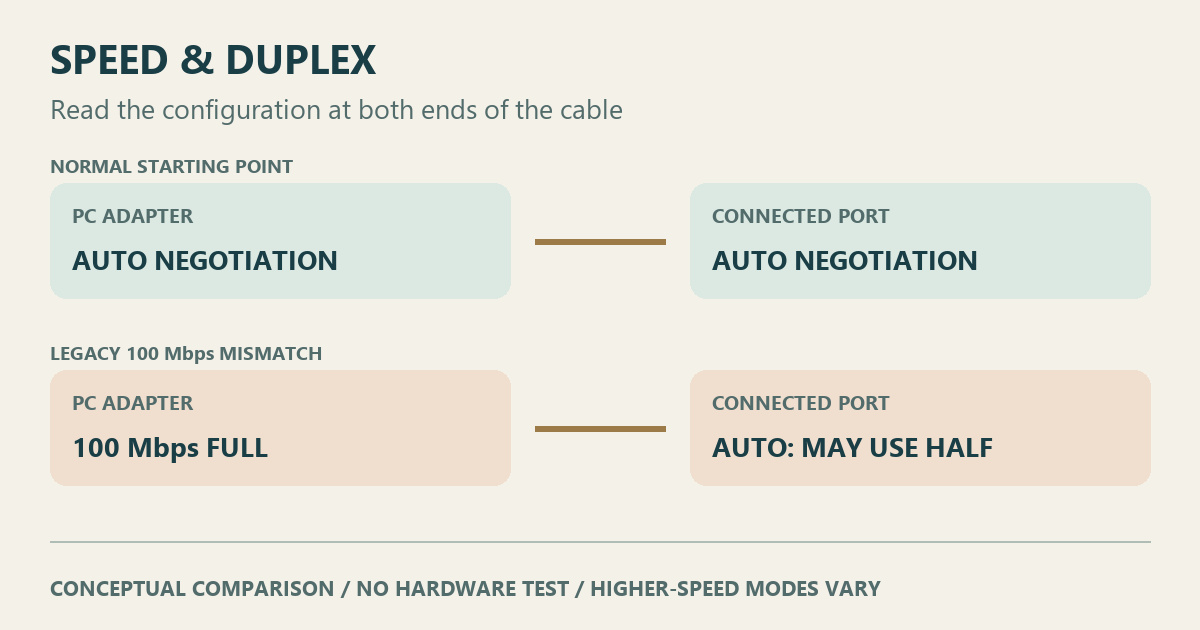
The useful comparison is between your adapter and the port it connects to. Cisco Meraki's duplex-mismatch guidance recommends negotiation at both peers and documents the legacy 100 Mbps mismatch below.
| PC adapter | Connected port | How to treat the combination |
|---|---|---|
| Auto Negotiation | Auto Negotiation | Normal starting point; check the resulting link rate |
| 100 Mbps Full Duplex | 100 Mbps Full Duplex | A coordinated manual configuration, only when the equipment and network require it |
| 100 Mbps Full Duplex | Auto Negotiation | Can produce a mismatch: Meraki's example detects 100 Mbps at the automatic peer but uses half duplex there |
| 100 Mbps Full Duplex | 100 Mbps Half Duplex | Incompatible duplex settings; correct the configuration at both ends |
This is a configuration comparison, not a test performed on your hardware. The documented single-ended 100 Mbps example does not establish the behavior of every higher-speed Ethernet mode. Meraki separately advises leaving negotiation enabled for Gigabit peers. Follow the instructions for your exact adapter and port rather than extending a legacy forced-mode example to them.
If you cannot inspect the switch configuration, ask its owner before trying a fixed value. A managed work connection belongs with IT. On an unmanaged home connection, leave negotiation enabled unless the manufacturer gives a specific reason to change it.
Find the property and read the supported choices
Open Device Manager > Network adapters, open the physical Ethernet adapter's Properties, and look under Advanced for Speed & Duplex. Driver interfaces differ; use the hardware maker's instructions if the label or tab differs.
You can also inspect advanced properties without changing them. In PowerShell, replace Ethernet with the adapter's actual name:
Get-NetAdapterAdvancedProperty -Name "Ethernet" -RegistryKeyword "*SpeedDuplex" |
    Format-List DisplayName, DisplayValue, RegistryKeyword, RegistryValue, Valid*
This is a command example, with no captured output shown. Microsoft documents Get-NetAdapterAdvancedProperty as a read operation. Record both the friendly value and the registry value. DisplayName is the driver's displayed label; RegistryKeyword identifies the property.
Microsoft's standardized enumeration defines these *SpeedDuplex values:
| Registry value | Defined meaning |
|---|---|
| 0 | Auto Negotiation |
| 1 / 2 | 10 Mbps Half / Full Duplex |
| 3 / 4 | 100 Mbps Half / Full Duplex |
| 6 | 1.0 Gbps Full Duplex |
| 7 | 10 Gbps Full Duplex |
These are identifiers, not a recommendation to write numbers into the registry. Microsoft says the device's driver should list only supported settings. Its enumeration also permits directly specified speeds of at least 1,000 Mbps. Your adapter's offered choices and documentation determine which values apply; a table on the web cannot add a missing hardware capability.
Make one change, then keep an exact way back
Before applying anything, write down the adapter name, driver version, displayed value, and registry value. If a fixed mode is genuinely required, also record the connected port's configuration. Finish calls or transfers first and keep local access to the PC. Applying an advanced property can restart the adapter and interrupt the connection; Microsoft's Set-NetAdapterAdvancedProperty reference describes this restart behavior.
Change only Speed & Duplex in the driver interface. After the connection returns, check its link rate and repeat the same task that exposed the problem. If the connection disappears or the result gets worse, restore the value you recorded. Leave other advanced properties unchanged so the comparison has a clear meaning.
Restoring your saved value and resetting to the driver default are separate actions. When your intention is specifically to restore the default, Reset-NetAdapterAdvancedProperty can reset one named property:
Reset-NetAdapterAdvancedProperty -Name "Ethernet" -DisplayName "Speed & Duplex"Use an elevated PowerShell session for a change, and substitute the exact DisplayName reported by your driver, including its language. The reset can interrupt networking. It restores the default defined for that property, which may differ from your recorded starting value. Avoid a wildcard display name when you only intend to reset this one item.
Gaming, missing options, and nearby settings
There is no gaming result measured for this guide. Selecting a fixed mode does not by itself demonstrate lower ping or smoother play. Keep a working negotiation setting unless you have a defined link problem and an equipment-specific comparison to make.
If Speed & Duplex is absent, first confirm that you selected the intended physical Ethernet adapter rather than a Wi-Fi, VPN, or virtual interface. Intel's advanced-settings reference notes that availability depends on the device and Windows version. Check the OEM driver documentation; do not create an unsupported registry property to make a menu entry appear.
Flow Control and Energy Efficient Ethernet have separate purposes. Leave them alone during a Speed & Duplex comparison. The Ethernet link-speed hub collects the related wired-link guides.
Sources and evidence scope
The Microsoft, Intel, and Cisco Meraki documentation linked above was reviewed on November 1, 2026. This is a documentation guide with an original editorial configuration diagram. No physical NIC, cable, switch, negotiation change, throughput, packet-loss, or gaming test was performed. A virtual adapter cannot verify the physical link behavior described here, so no VM screenshot is presented as evidence for it.
Recheck the hardware maker's supported values after a driver change. The comparison steps above are instructions for your own observations; they are not results obtained by this site.
