
 Documentation-based
Intel, Dell and Microsoft documentation reviewed October 25, 2026 with AI assistance. No physical adapter, battery, coverage, throughput or gaming test was performed; a virtual machine cannot validate radio behavior. Alex Reed is an established pen name.
For a supported Wi-Fi adapter, keep the OEM's working transmit-power setting unless you have a specific problem to compare. Highest is the starting point in Dell's general adapter guidance. A lower value is worth a controlled comparison in a dense wireless environment only if reliable communication is preserved. First save the exact original value and establish a repeatable baseline at the place where you actually use the PC.
This property concerns the PC's outgoing radio signal. It does not turn up the router, select a different band, or guarantee better download speed. The useful question is whether one supported setting improves your particular connection without making another part of your normal route unusable.
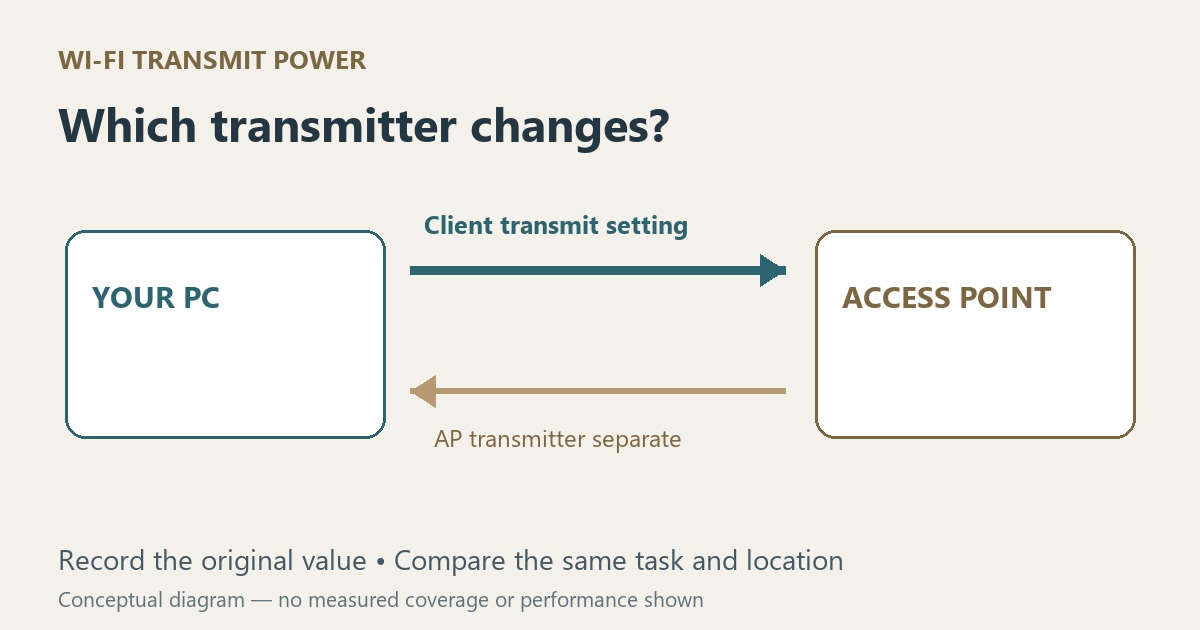
The PC and the access point have separate transmitters
Dell's advanced wireless settings guide identifies Transmit Power as the adapter-to-router signal setting. Its recommendation is Highest, within a broader troubleshooting guide. That recommendation is a reasonable comparison point for affected Dell systems, not evidence that every adapter or busy network benefits from its maximum setting.
Changing the client setting cannot be treated as a change to the access point's coverage configuration. This distinction matters when a laptop shows a strong network signal but an upload or call remains unreliable: the displayed signal alone does not isolate the cause. Keep the direction of the task in your notes rather than deciding from the icon that both directions must be healthy.
Intel's reference describes a coverage-versus-density tradeoff: reducing client power can limit coverage while helping coexistence in crowded deployments. It lists Highest as the default for the legacy adapters covered there. Available levels and defaults depend on the adapter, driver, operating system and regional rules. The reference is not a specification for every current Windows 11 card.
Match the comparison to the complaint
For a connection that already works throughout your normal route, leave the supported configuration alone. A benchmark at one desk does not establish that a lower setting will remain suitable in another room.
For a weak connection at the edge of coverage, lowering client power is a poor first experiment. Compare the same task nearer the access point before changing an advanced property. Microsoft's home-layout guidance recommends recording performance before and after changes and accounting for placement, obstacles and congestion. A better result nearby gives you a useful location comparison; it does not identify a defective adapter.
For an office or other managed, dense deployment, ask the network administrator whether client power is part of its radio plan. If a supported lower setting is proposed, test it at the required work locations. Do not change shared access-point settings to make a client-only experiment look successful.
For an absent 5 GHz network, use the 5 GHz visibility checks. For choosing among available bands, use Preferred Band. Those questions need different observations from a transmit-power comparison.
Build a small comparison you can repeat
Write down the adapter model, driver version, original power value, network name, connected band, location and task. Use an ordinary task that reproduces the problem: the same file transfer, call or application action. Label upload and download results separately. Avoid recording just “faster” without identifying what completed better.
Keep the access point, band preference, roaming setting, power source and test location unchanged during the first comparison. Note other traffic you cannot control. Run the original task more than once before deciding that an occasional pause belongs to a setting rather than normal variability. These are comparison controls, not measured results from a PC Fieldnotes hardware test.
If you also need to understand the rate Windows reports, see what link speed means. A displayed link rate and completion of an internet transfer are different observations; do not use one as a substitute for the other.
Change one supported level, then repeat the original task
On Windows 11, open Device Manager → Network adapters → your Wi-Fi adapter → Properties → Advanced. Find Transmit Power if the driver exposes it, record its current value and select one supported alternative. Dell documents this path and advises checking settings again after driver updates. Apply the change and follow any OEM restart instruction.
Arrange the comparison in a local session with a way to reconnect; changing adapter properties may interrupt the connection. If the entry is missing, use the documentation for your exact PC and adapter. Do not manufacture an unsupported property with a registry edit.
Repeat the baseline task in the same place, then check every other location where you need the connection. A lower value that works near the router but loses the connection elsewhere fails that requirement. If reliability worsens or the result is inconsistent, restore the exact original value and repeat the task once more to confirm recovery.
A useful result is a repeatable difference tied to the adapter, driver, location and workload you recorded. No change is also a result: return to the working configuration and investigate the symptom rather than lowering every other wireless option. Roaming aggressiveness is a separate decision about looking for another access point.
Documentation reviewed October 25, 2026. The original diagram distinguishes the client and access point; it is not a Windows screenshot or measured coverage map. No physical radio, battery, throughput or gaming test was performed. A virtual machine cannot validate real Wi-Fi coverage or an OEM radio driver's behavior. No range, battery-life or latency improvement is promised.
