
 Documentation-based
Intel, Dell and Microsoft documentation reviewed October 24, 2026 with AI assistance. No Windows 11 VM or physical Wi-Fi, coverage, roaming, throughput or gaming test was performed. Alex Reed is an established pen name.
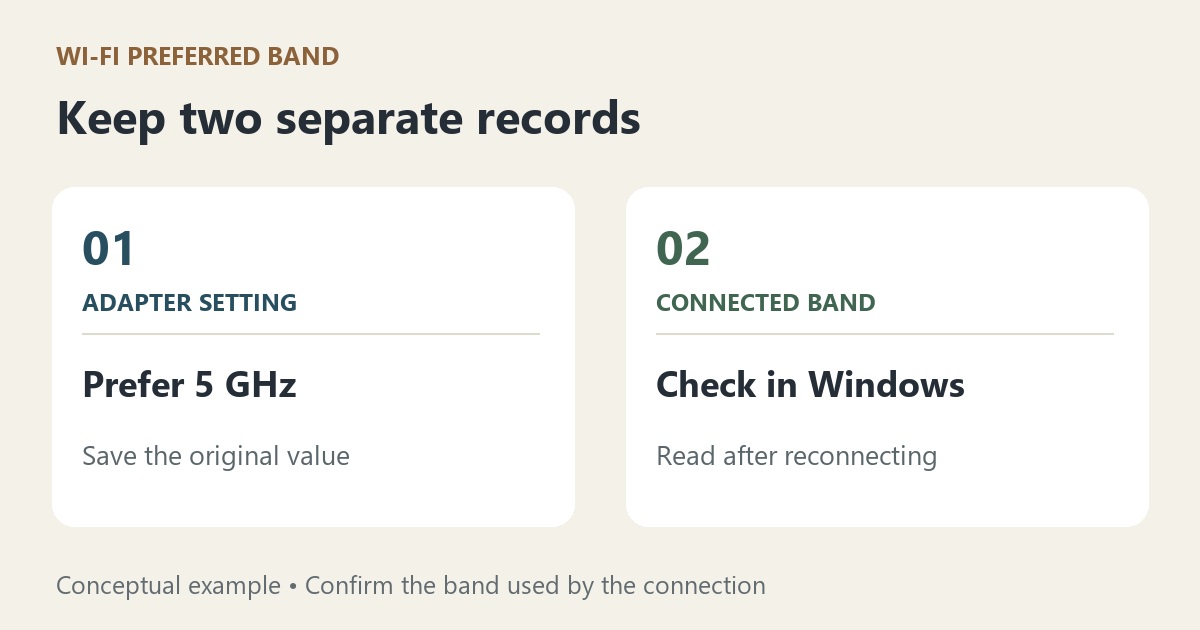
On a Windows 11 adapter that offers this setting, No Preference is a reasonable starting point when the connection works well. Consider Prefer 5 GHz when a usable 5 GHz connection is available at your normal location and you want to favor it over 2.4 GHz. Save the original value first, then check the connected band after reconnecting. The preference alone does not prove which band the PC actually used.
If the 5 GHz network is missing entirely, start with 5 GHz Wi-Fi not showing. Preferred Band cannot supply a radio band the adapter or access point does not support. This article covers choosing between available bands, rather than repairing a missing network.
Start with the connected band, not the network name
Open Settings → Network & internet → Wi-Fi → your connected network's properties and record Network band (channel). Microsoft's Wi-Fi features guide identifies that field as the place to inspect the connection's band information.
A network name, or SSID, is not reliable evidence by itself. The router can use one name for multiple bands. A name ending in “5G” is also just a label; check the reported band rather than treating the label as a measurement.
Write down the location, adapter model, driver version, original Preferred Band value and current connected band. Add one concrete symptom, such as a local transfer stalling at your desk. Without that starting record, a later change of band or speed is difficult to interpret.
For an optional read-only connection summary, use Command Prompt:
netsh wlan show interfacesMicrosoft documents this command in its netsh wlan reference. Output fields vary with Windows and the driver. If a location-permission message prevents the command from returning details, use the Settings view above; this comparison does not require disabling a privacy control. Do not post unredacted SSIDs, BSSIDs or other identifying network details publicly.
What the preference actually asks the adapter to do
Intel's advanced wireless settings reference lists No Preference, Prefer 2.4 GHz band and Prefer 5 GHz band. That reference marks No Preference as its default, but also notes that available properties depend on the adapter, driver and operating system. An OEM can supply different labels or a different supported starting configuration.
Dell's advanced Wi-Fi settings guidance describes Preferred Band as prioritizing a band when the router uses the same SSID for both. It lists Prefer 5 GHz or 5G First in its recommendations and treats Wireless Mode as a separate setting.
Read Prefer as a selection priority. Do not treat it as proof that 2.4 GHz has been disabled or that the connection is locked to 5 GHz. A driver option explicitly restricting allowed bands is a different control and can reduce the networks available to you. Leave wireless mode, channel width and router settings alone during this comparison.
If there is no Preferred Band entry, check your exact adapter's OEM documentation. The absent entry does not by itself establish that the card lacks 5 GHz support. Avoid adding undocumented registry properties to manufacture a menu option.
Choose for the place where you use the PC
Near an access point with a stable 5 GHz signal, favoring 5 GHz is a sensible comparison to try. Across several rooms, the same preference may provide no benefit. Microsoft's home Wi-Fi layout guide describes the general tradeoff: 2.4 GHz reaches farther and handles obstacles better, while 5 GHz generally offers more throughput over a shorter range. Those are band characteristics, not a prediction for your particular room.
For a working connection with no specific symptom, leave the supported configuration in place. For a shared-name network that repeatedly connects at 2.4 GHz despite usable 5 GHz coverage, compare Prefer 5 GHz at the same location. For a device used across changing coverage areas, prioritize reliable connectivity throughout the route rather than one favorable desk result.
When the router already exposes separate band-specific SSIDs, select the intended available network for the comparison and still confirm its band in Windows. Creating new SSIDs or changing the access point can affect other devices; neither is required just to test this client setting.
Keep the setting and the result as separate records
In Device Manager → Network adapters → your Wi-Fi adapter → Properties → Advanced, find Preferred Band if available. Record its exact starting value, select the single alternative you want to compare and apply it. The connection may drop while the driver applies a change. Use a local session with a recovery path, and follow any restart instruction from your OEM or driver.
Reconnect to the same intended network. Return to its Windows properties and record the actual band again before repeating the same task at the same location. Keep roaming aggressiveness and other properties fixed; roaming aggressiveness answers a separate question about when the adapter looks for another access point.
Interpret the result in two parts:
- The band changed and the symptom improved repeatedly: keep the record of the adapter, driver, location and workload. That supports a local choice, without establishing a universal speed or gaming benefit.
- The band changed but the symptom remained: band selection has not resolved the problem. Restore the original preference if the comparison offers no useful benefit.
- The band did not change: the setting readback alone is not a successful band-switch test. Check availability and coverage before changing more properties.
If connectivity becomes worse, restore the exact original value and confirm the connection again. No Preference should not be described as “2.4 GHz only.”
This guide focuses on 2.4/5 GHz preference. Do not infer 6 GHz support from these menu labels; see the separate 6 GHz visibility guide. Wi-Fi 7 Multi-Link Operation adds another case: Microsoft notes that Network band (channel) can show multiple bands. Record that result as displayed rather than forcing it into a single-band comparison.
Documentation reviewed October 24, 2026. The illustration separates a saved preference from an observed connection; it is not a Windows screenshot. No physical Wi-Fi adapter, roaming route, throughput or gaming test was performed. A virtual machine cannot validate real radio coverage or this OEM driver behavior.
