
 Documentation-based
Intel wireless and Microsoft networking documentation reviewed October 23, 2026 with AI assistance. No Windows 11 VM, physical wireless adapter, mesh handover, gaming or battery test was performed. Alex Reed is an established pen name.
For a supported Intel Wi-Fi adapter, start with Medium, Intel's recommended roaming-aggressiveness value. Lower or raise it only to investigate a repeatable problem in your own access-point layout. Lowest waits for a weaker current signal before looking for another access point; Highest starts looking while the current signal is still better. Neither value guarantees faster internet or uninterrupted gaming.
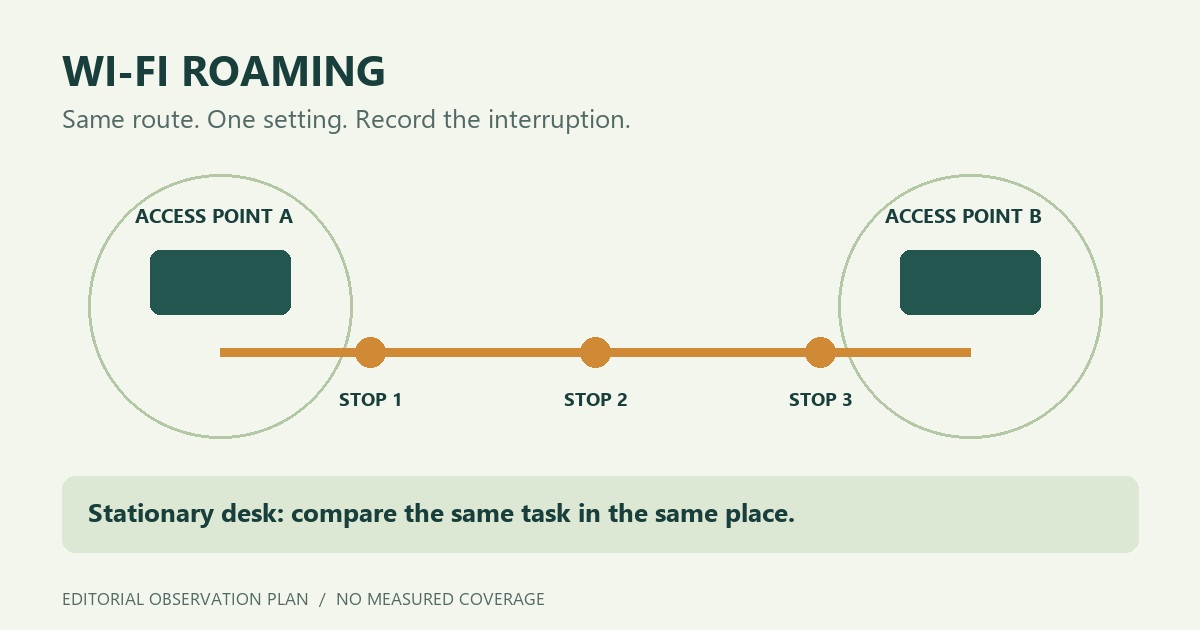
This is a documentation-based guide for interpreting the setting on a Windows 11 PC whose driver exposes it. We reviewed Intel and Microsoft sources on October 23, 2026. We did not test a physical Wi-Fi adapter, a mesh system, roaming speed, or battery use. The illustration shows a proposed observation route, not measured coverage.
What changes when you move the slider
Intel's roaming-aggressiveness explanation describes a signal threshold for scanning for another candidate access point. Its scale runs from Lowest through Medium to Highest, with intermediate options. The key distinction is when to look for a candidate, not a promised time to complete a handover.
Intel also lists Medium in its recommended 802.11ax settings. That is an Intel reference point, not proof of the factory value on every laptop or a rule for every vendor. Preserve a PC manufacturer's documented setting where it differs, especially on a managed network.
The Intel advanced wireless-settings reference notes that options depend on the adapter, driver, and operating system. If Roaming Aggressiveness is absent, record the exact device and driver and check their support documentation. Do not create a matching registry entry or assume another adapter's numerical values mean the same thing.
Two situations need different observations
You stay at one desk
Keep the normal value as the baseline. Write down what is actually interrupted: a call, a game, all websites, or only one application. Note whether the symptom coincides with a connection change. A lag spike by itself does not identify roaming as the cause.
If the network has only one usable access point, searching sooner cannot create another usable destination. If several radios share a network name, the name alone is not enough to tell which radio you are using. Record the connection details that Windows makes available rather than assuming “same Wi-Fi name” means “no change.”
You walk between access points
Choose a short, repeatable route and the application whose continuity matters. Mark a few places where you can pause and note the connection. Do the first run with the recorded baseline. Do not simultaneously move an access point, change the preferred band, and change roaming aggressiveness.
Intel's connection and roaming behavior article explains that a client does not necessarily select the nearest access point or immediately switch to one with a stronger indicated signal. Remaining associated with a more distant AP is therefore an observation to interpret, not proof that the adapter ignored its setting.
Build a short record before trying another value
Microsoft documents read-only wireless checks in netsh wlan:
netsh wlan show interfaces
netsh wlan show drivers
Keep the adapter model, driver, connection state, and available radio details with the time and location of the symptom. On a shared record, remove private network names and hardware addresses. If Windows restricts a field or requests permissions, record that limitation; do not disable protections to make the output match an online example.
For the setting itself, Microsoft's Get-NetAdapterAdvancedProperty reference describes a read-only view of driver properties:
Get-NetAdapterAdvancedProperty -Name "Wi-Fi" | Format-List DisplayName, DisplayValue, RegistryKeyword, ValidDisplayValuesReplace Wi-Fi with the actual adapter name. Read the exact label and the supported display values instead of copying an English label or a number from another driver. Keep a local screenshot or note of the starting value before using the supported driver interface to change it. We have not supplied a Windows 11 interface screenshot because we did not verify this control on a matching physical adapter.
For each run, a plain note is enough:
- Starting setting and the one value being compared.
- Same route or stationary position, power source, network, and application.
- Time and connection details before and after the interruption.
- What the application actually did, including cases where nothing improved.
Microsoft's wireless troubleshooting guide recommends collecting the attempt time, device and driver, Windows build, and wireless-session evidence. Use that evidence to separate connection transitions from authentication failures or other disconnects.
Keep a change only when the comparison supports it
Try one available value during a controlled period, then repeat the original observation. If nothing improves, return to the recorded baseline. Intel recommends reverting to Medium when other values do not help; where your manufacturer's starting configuration differs, preserve that original record and follow its guidance.
For a walking test, a useful comparison includes both whether the client changes connection and whether the application interruption improves. More connection changes are not a success criterion by themselves. For a stationary test, compare the same task at the same desk; one quiet minute after a change does not establish a lasting fix.
Keep roaming separate from sleep/resume and missing-network problems. If the adapter disappears after sleep, use the Wi-Fi sleep/resume guide. If a 5 GHz network never appears, use the missing 5 GHz network checks. For recurring disconnections, save and interpret the Windows wireless report before attributing every event to this one setting.
If a repeatable difference remains, give the network or PC support team the baseline, changed value, route, timing, and driver details. That gives them a defined case to investigate without turning one household's result into a setting recommendation for every Windows 11 PC.
