
 Documentation-based
Intel and Dell documentation reviewed October 28, 2026 with AI assistance. The proposed comparison and blank form are editorial guidance. No physical Wi-Fi, throughput, gaming or battery test was performed; a virtual machine cannot verify physical wireless airtime. Alex Reed is an established pen name.
Throughput Booster is mainly relevant to a sustained upload from your PC. Leave it at your PC maker's supported setting unless you have that workload to compare. Intel's documentation lists Disabled for the adapters it covers; the word "Booster" is not a reason to enable it on every Windows 11 laptop.
If you try it, assess the upload and the experience of other devices using the same Wi-Fi. A setting that helps one large transfer may be a poor choice for a shared home network.
Follow the upload direction
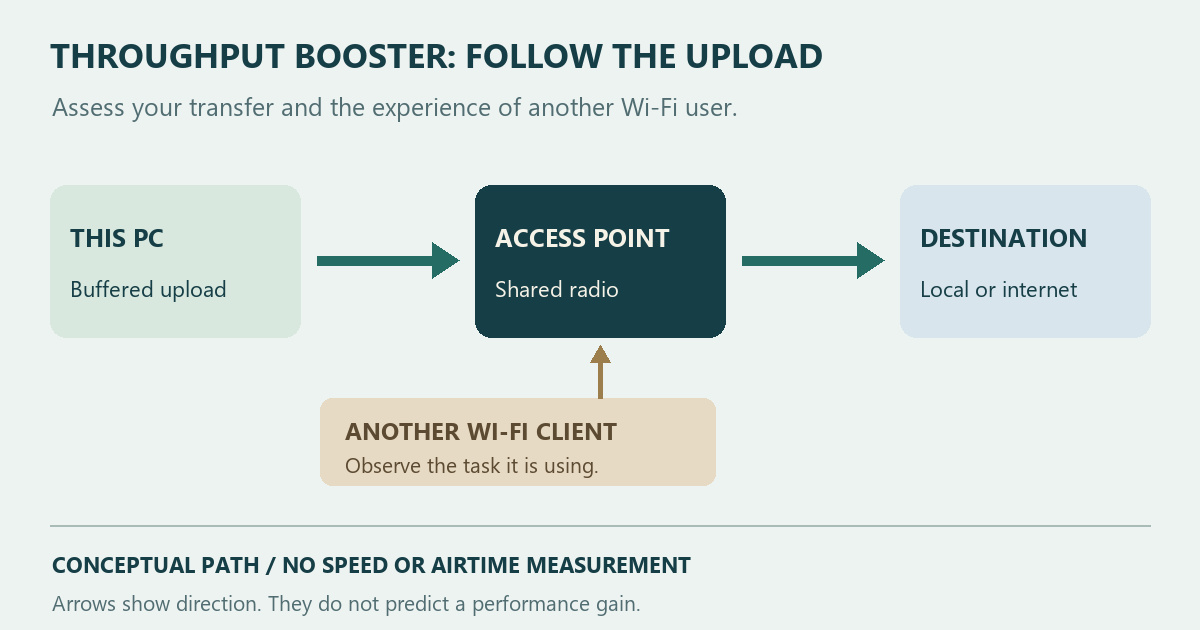
Intel's advanced wireless-settings reference describes Throughput Booster, also called Throughput Enhancement, as packet bursting. When enough transmit data has accumulated, the client can occupy the wireless medium longer to send it to the access point. Intel identifies large uploads as a relevant use and warns that other clients' throughput may suffer.
That description gives you a direction to investigate: data leaving this PC for the access point. It supplies no measured gaming-latency benefit for your system. The diagram here shows that direction and the shared radio; its arrow lengths do not represent measured speed or airtime.
A file copied from this PC to a server and a file downloaded to this PC answer different questions. Label the direction in your record before comparing numbers. If the number comes from Windows' adapter display, link speed and actual transfer throughput also need to be kept separate.
Judge the transfer alongside another device
Dell's advanced adapter guide recommends Disabled and reserves enabling it for situations such as prioritizing large transfers. Its advice also calls attention to other devices' Wi-Fi access. Use the instructions for your exact PC and adapter when they differ from a general reference.
For a comparison you choose to run, keep two observations together:
- Does the same upload complete more consistently or finish sooner with the changed value?
- During that upload, does another device's ordinary browsing, call or other interactive task become worse?
Choose an observation interval and a tolerable effect on that second task before starting. Otherwise it is easy to accept a faster file transfer while overlooking the interruption it caused elsewhere. Stop the comparison and restore the original value if it disrupts someone else's work.
These are proposed evaluation criteria, not results from a test we performed. On a network you do not administer, keep the existing configuration and consult its administrator.
Keep an inconclusive result inconclusive
Use the same destination and file for the repeated upload, keeping the PC in the same location. Record the active band and driver version. Changing the upload service, moving the laptop or changing several driver properties introduces more explanations for a difference.
Compare the original value with the candidate, then repeat the original value. If both later attempts improve, a reconnect or changing network conditions remain possible explanations. One successful transfer does not establish that the setting fixed an intermittent problem.
Internet uploads include a path beyond Wi-Fi. A slow destination or a changing internet connection can obscure what happened on the radio. Describe the task you actually used, such as an upload to a particular service or a copy to a local destination, without claiming that it isolated every bottleneck.
Use a blank record like this; fill it with observations rather than estimated gains:
PC / adapter / driver:
Access point / active band / location:
Original Throughput Booster value:
Upload destination and file:
Original / changed / original observations:
Other device's task during each upload:
Restored value and time:
Do not change channel width as part of this comparison. Channel Width Auto or 20 MHz addresses a separate property with a different purpose.
Find the setting and preserve a way back
Open Device Manager, expand Network adapters and open your wireless adapter's Properties. In Advanced, look for Throughput Booster or Throughput Enhancement if your driver exposes it. Record the exact original value before applying a change; allow for the connection to be interrupted, and follow your PC maker's restart instructions.
The absence of this property is not a reason to install an unrelated driver or manufacture a setting in the registry. Intel's 802.11n recommendations also list Disabled, but that document's adapter and wireless-standard scope matters. It cannot establish every current OEM default.
If your actual symptom is a recurring disconnect, preserve its timing and events with the Windows Wi-Fi report guide before collecting a set of performance tweaks. Keep the original value when there is no repeatable benefit for the intended upload or when the tradeoff for other users is unacceptable.
Documentation reviewed October 28, 2026. This guide proposes a comparison and a recording form; PC Fieldnotes did not perform physical Wi-Fi, throughput, gaming or battery tests. The graphic is conceptual, and a virtual machine cannot verify real wireless airtime or other clients' experience. Review the guidance again when the relevant OEM driver or access-point documentation changes.
