
 Documentation-based
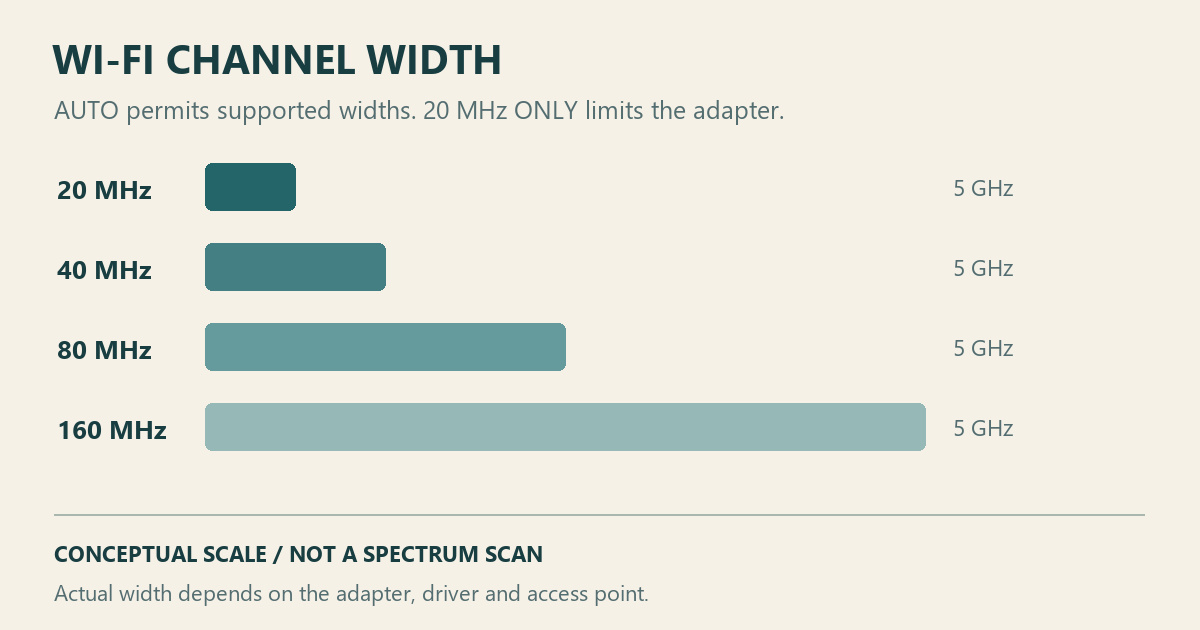
Intel, Microsoft and Dell documentation reviewed October 28, 2026 with AI assistance. No physical Wi-Fi, spectrum, throughput or gaming test was performed; a virtual machine cannot verify physical channel negotiation. Alex Reed is an established pen name.
If your Windows 11 Wi-Fi connection works reliably, keep the channel-width setting recommended for your adapter and driver. On the Intel adapters covered by its documentation, that is usually Auto. A setting of 20 MHz Only restricts the adapter's channel width and can be useful for a specific compatibility comparison, with a possible speed tradeoff.
Before changing anything, identify where you are looking: the Wi-Fi adapter's Advanced tab or the router's wireless settings. Those controls affect different parts of the connection. Record the current value and the frequency band so you can restore the same configuration.
Why Intel says Auto while Microsoft sometimes suggests 20 MHz
Intel's channel-bonding guide describes Auto as allowing the access point to determine the width. Selecting 20 MHz Only disables channel bonding for that adapter setting. Its guide covers older Intel products; the product list is not a current list of every adapter capable of wider channels.
Microsoft's home Wi-Fi guidance addresses another situation: an unreliable 2.4 GHz connection despite a strong signal and a clear channel. It suggests comparing a router's Auto or 20/40 MHz setting with 20 MHz because some older adapters and drivers handle 40 MHz poorly.
The advice applies at different locations and under different conditions. A stable laptop on Auto needs no change merely because another support page mentions 20 MHz.
| Where the setting appears | What to record before a comparison | Who may be affected |
|---|---|---|
| The PC's Wi-Fi adapter, with a separate entry for a band | Adapter model, driver version, band and exact original value | This adapter's connection |
| The router or access point | Router model, firmware, band or radio and original width | Other devices using that radio as well |
Change one location at a time. If you restrict the PC and the router together, a subsequent improvement will not identify which change mattered.
Auto does not promise the widest connection
Intel's advanced-settings reference lists Auto and 20 MHz, with the available wider widths dependent on the access point. The setting names and available properties vary with the adapter, driver and operating system. Auto therefore gives permission for supported wider operation; it does not establish the width used by a particular session.
You may see only Auto and 20 MHz Only even when the adapter supports wider operation. The absence of a separate 80 MHz selection is not enough evidence of a defective driver.
Keep the units separate. MHz describes channel width, while Mbps describes a rate. A download result cannot be read as a channel-width measurement. If the number you are comparing comes from Windows' link-rate display, use the distinction in what link speed means before treating it as internet throughput.
Choosing a band is another decision. For an adapter that keeps joining the undesired band, start with Wi-Fi Preferred Band. Restricting channel width does not explain why a particular band was selected.
If 20 MHz Only appears to stop a problem
Keep a short record of the exact symptom: failed connections, disconnects during a transfer, or a slow upload. Include the network and location, along with the adapter and driver. Use the same task for each comparison so that a completed small download is not being compared with a failed long upload.
Begin with the PC's original value. Repeat the task after changing only the relevant band's channel-width property, then return to the original value and repeat it again. Applying a driver property may interrupt connectivity, so finish calls and transfers first. Perform the comparison locally where you can restore the setting.
Treat an improvement as a result for that combination of PC, driver and access point. If both settings work after reconnecting, the record does not isolate channel width as the cause. If only the restricted value repeatedly works, save that observation for the PC or router manufacturer's support team. Include any cost you can actually observe, such as a slower transfer; do not attach an invented percentage.
For a recurring drop, a Windows Wi-Fi report can help preserve timing and connection events. A stable restricted connection is useful evidence, but it does not establish the underlying hardware or firmware fault.
Find the property without changing other settings
Dell's adapter-settings instructions use Device Manager, then Network adapters, your wireless adapter, Properties and Advanced. Look for a Channel Width entry for the relevant band. If it is absent, check the documentation for that PC and driver before attempting any substitute setting.
Keep wireless mode, transmit power and other properties at their original values during this comparison. If you later assess a router setting, restore the PC's baseline first and account for the other devices on that radio.
This is a documentation-based guide reviewed on October 28, 2026. The comparison procedure is an editorial recommendation, not a test performed by PC Fieldnotes. The original graphic is conceptual. No physical Wi-Fi, spectrum, throughput or gaming test was performed, and a virtual machine cannot verify the physical adapter's channel negotiation. Recheck the advice when the relevant OEM driver or router firmware documentation changes.
