
 Documentation-based
Microsoft RSC driver and PowerShell documentation reviewed October 27, 2026 with AI assistance. Commands are unexecuted examples. No physical NIC, VM RSC behavior, traffic capture, CPU benchmark or gaming test was performed. A virtual machine cannot establish an untested physical adapter’s behavior. Alex Reed is an established pen name.
Before turning Receive Segment Coalescing (RSC) off, check whether it is actually operational on the adapter carrying your traffic. An enabled setting and a non-operational receive path can exist together. Changing the enabled value without reading the operational state may test a different situation from the one you intended.
For a stable connection, retain the supported OEM and Windows configuration. RSC can reduce receive-processing overhead; disabling it is a comparison to investigate a specific workload, not a general requirement for Windows 11. The useful starting record includes the adapter, protocol, operational state and relevant receive activity.
RSC groups work after traffic arrives
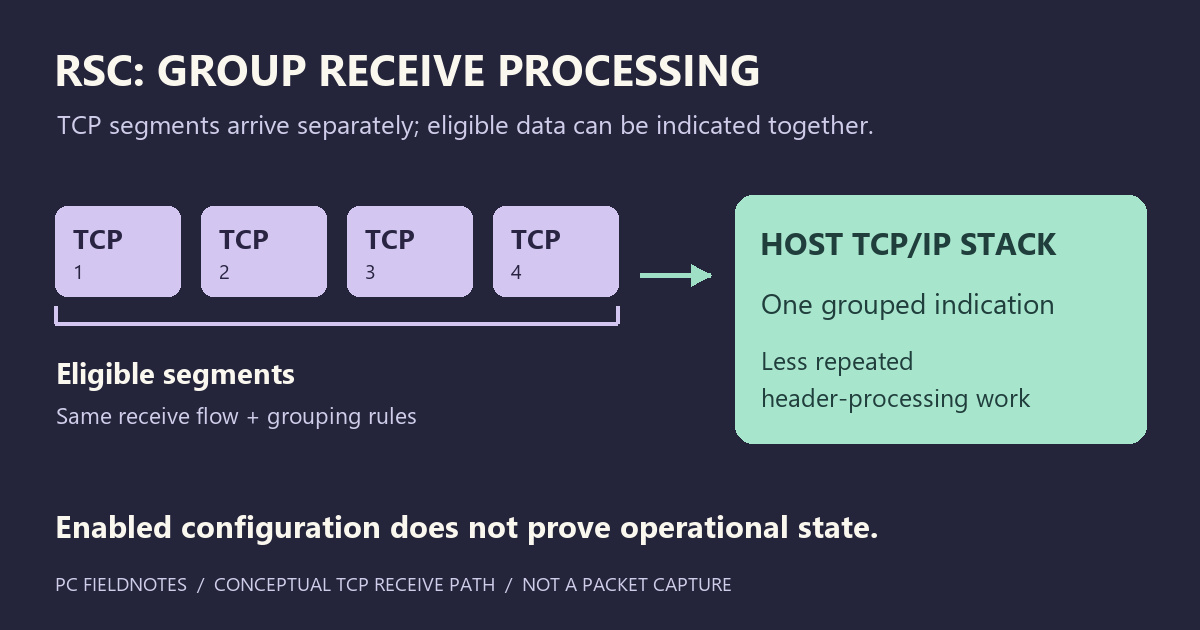
Microsoft's RSC overview describes combining eligible received TCP segments before passing them up the networking stack. Processing one grouped indication can reduce repeated header-processing work.
This is receive-side processing. It does not mean the remote sender transmitted a jumbo Ethernet frame, and it does not by itself change the network's MTU. The conceptual graphic on this page illustrates grouping at the receive path; it is not a packet capture.
Microsoft's network-adapter guidance recommends RSC for receive-heavy throughput workloads and recognizes that particular low-latency workloads can benefit from it being off. That is Windows Server workload guidance, not a measured recommendation for every Windows 11 game, Wi-Fi card or VPN. Use it to understand the tradeoff, then investigate your own supported configuration.
Read the full record before interpreting On or Off
The following are documentation-based PowerShell examples, not output collected from a tested Windows 11 adapter. Use the exact interface name for the connection you are investigating; Ethernet is only an example.
Start with the read-only Get-NetAdapterRsc command:
Get-NetAdapterRsc -Name "Ethernet" | Format-List *Keep the entire record. The enabled fields describe configuration for IPv4 and IPv6. The corresponding operational-state fields tell you whether the protocol path is operational for RSC. Preserve the failure-reason fields too, including the exact spelling returned by your system.
Enabled and operational: the two states agree for that protocol. You still need matching receive traffic to determine whether coalescing occurs during the workload.
Enabled but not operational: record the reason before toggling anything. The command reference distinguishes reasons such as WFPCompatibility, NDISCompatibility, ForwardingEnabled and NetOffloadGlobalDisabled. These labels identify different constraints; they do not all mean that the NIC's property is disabled.
Disabled: establish whether that is the OEM configuration, a previous troubleshooting change or a managed policy. IPv4 and IPv6 values can differ, so “turn it back on” is an incomplete rollback plan unless you saved both.
If the command cannot find the named interface, check the name and driver support first. Missing output is not a reason to create a registry setting. Do not disable security filters or forwarding merely to obtain an operational RSC flag; take the record to the relevant administrator or vendor.
Global configuration is another observation
Get-NetOffloadGlobalSetting reads the computer's global TCP/IP offload settings:
Get-NetOffloadGlobalSettingFind Receive Segment Coalescing in that output and retain it alongside the adapter record. A global setting is not the operational state of every interface. Conversely, one adapter's non-operational result does not establish that every adapter needs changing. These examples only read settings; this page does not prescribe a machine-wide toggle.
Counters describe the workload, with limits
Microsoft's adapter-diagnostics guidance also shows the RscStatistics member obtained through Get-NetAdapterStatistics. For the same example interface:
(Get-NetAdapterStatistics -Name "Ethernet").RscStatisticsWhere reported, the record includes coalesced bytes, coalesced packets, coalescing events and coalescing exceptions. Save a reading before and after the same receive workload. A difference over that interval is more useful than a single unexplained total.
A zero count alone does not identify the cause. Check that you observed the right interface, direction, protocol and time interval. An absent statistics member does not provide the same evidence as a reported zero. Neither result supplies a complete hardware diagnosis.
An exception counter also needs careful interpretation. Microsoft's conditions that terminate coalescing include TCP flags such as SYN and FIN, as well as invalid checksums and other conditions. Some normal connection traffic therefore ends a coalescing group. An exception total is not automatically a packet-loss count or proof of a damaged cable.
Compare the workload that prompted the question
For a receive-speed problem, keep the transfer source, path and protocol consistent and record throughput together with CPU activity. For an interactive application, retain its relevant delay or interruption observations instead of substituting a download score. No benchmark was performed for this article.
If the OEM or application vendor recommends an RSC comparison, save each protocol's original configuration first. Change only the documented RSC control, allow any required adapter restart to finish, and compare the same workload. Restore the saved configuration if the result does not justify the change. A reconnect during the comparison is itself an event worth recording.
Keep Receive Side Scaling separate: RSS distributes receive processing across CPUs. Large Send Offload concerns sending, and Jumbo Frames and MTU concern a different size constraint. Switching all of them together prevents a useful comparison.
This page covers interpreting adapter TCP RSC. It does not evaluate Hyper-V virtual-switch software RSC or the separate UDP receive-offload path. Microsoft documents UDP RSC support in NetAdapterCx; do not treat one TCP observation as proof about every receive feature.
Reviewed October 27, 2026 from Microsoft documentation. The commands are unexecuted examples. No physical NIC, virtual-machine RSC behavior, traffic capture, CPU benchmark or gaming test was performed. A virtual machine cannot establish the behavior of an untested physical adapter.
