 Documentation-based
Four Microsoft documentation pages reviewed October 29, 2026 with AI assistance. No Windows 11 UI session, discovery, file transfer or printer test was performed. The diagram is editorial; a virtual network cannot establish trust in your physical devices. Alex Reed is an established pen name.
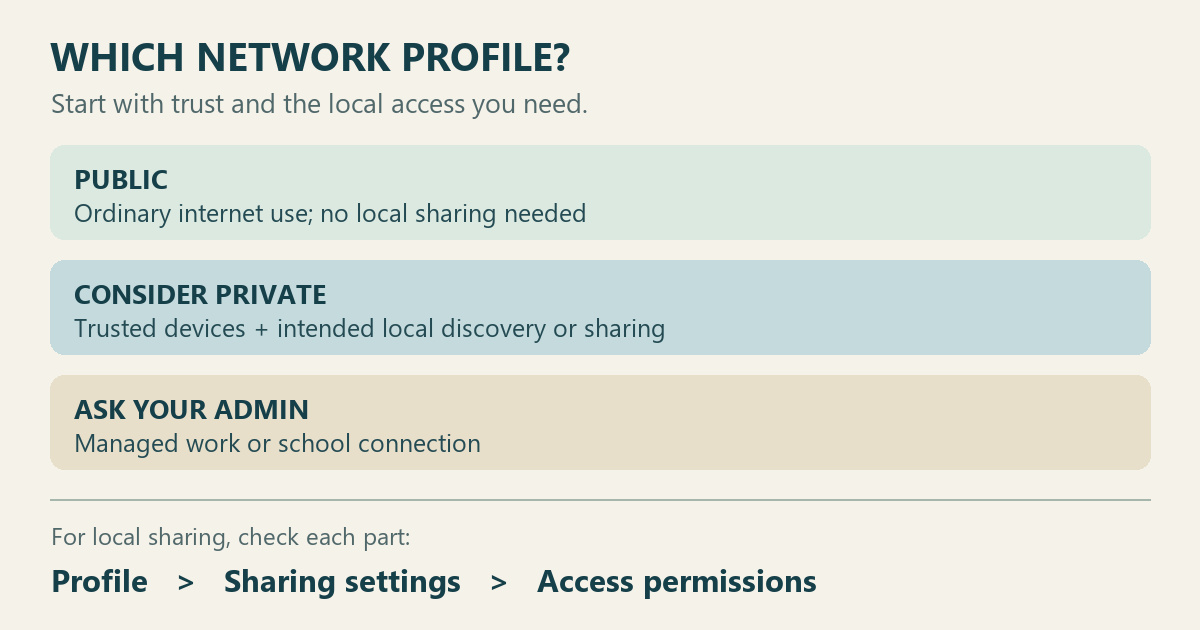
Keep Public for ordinary internet use. Consider Private when you trust the people and devices on the connected network and need local discovery or Windows file and printer sharing. A network being in your home does not, by itself, settle that choice.
Microsoft's Windows 11 network guidance recommends Public in most cases and uses it for new connections by default. Private makes the PC discoverable and supports local sharing. Start by identifying the connection you are changing and the local access you actually want.
Choose for the devices and task involved
Use these examples as a decision aid, rather than a rule based only on your location:
| Your situation | Starting choice | What to establish first |
|---|---|---|
| Browsing, email or online meetings without local sharing | Public | Whether you need any local device to find this PC |
| A trusted network where you intend to share a Windows folder or printer | Consider Private | Which devices and people should have access |
| Hotel, café or another network with unfamiliar users | Public | The network owner's connection instructions |
| A managed work or school PC | Follow the administrator's policy | Whether you are allowed to change the connection category |
Microsoft's Windows Security explanation bases the distinction on trust in other devices and generally applies stricter controls to public networks. A home network can be a suitable private network when its devices are known and trusted.
Before selecting Private, name the task: for example, letting another trusted household PC open one shared folder. If you cannot identify a local discovery or sharing requirement, keep the existing Public choice while you investigate the actual problem. Avoid changing the profile simply because an unrelated connection error appeared.
Find the profile of the connection you are using
Microsoft documents this path in Windows 11:
- Open Settings > Network & internet.
- For Wi-Fi, select Wi-Fi and the connected network. For a wired connection, select Ethernet.
- Under Network profile type, inspect Public network or Private network.
These are documentation-based instructions. We did not capture this menu in a Windows 11 test session; labels and available controls may differ with version or management policy.
Write down the connection name and its current category before making an authorized change. If both Wi-Fi and Ethernet are connected, identify which connection you are inspecting. Keep that detail with your notes so a later check does not silently switch to a different connection.
Private is one part of a sharing setup
Microsoft's file-sharing instructions describe choosing a folder and granting access to selected people separately from network discovery and sharing settings. Selecting Private therefore does not, by itself, choose a folder to share or decide who can open it.
For a planned share, keep the intended folder and recipients explicit. Check the sharing configuration and access requirements on the computer providing the resource. A profile change alone is not a complete sharing test.
Choose the next diagnosis from what you can observe. A NAS or PC missing from File Explorer Network is a discovery problem to investigate. An Enter Network Credentials prompt calls for checking the account the resource expects. A mapped drive missing after restart has its own connection and sign-in context. Keep this profile decision separate from those repair procedures.
Keep the firewall enabled for the selected profile
Windows Firewall's overview describes Domain, Private and Public profiles. Rules can allow an application on one profile and restrict it on another. Public is consequently not a promise that every possible connection is blocked, and Private is not permission for every application to communicate.
Use Windows Security > Firewall & network protection to inspect the active network type and firewall status, following Microsoft's linked Windows Security guidance. Keep the firewall enabled. If a particular application is blocked, investigate its specific allowance rather than disabling the firewall to make the test pass.
On an Active Directory domain connection, Windows can apply the Domain profile automatically when it detects a domain controller; that profile is not a manual Public/Private choice. For managed equipment or unavailable controls, ask the administrator about the applicable policy. This guide does not change domain detection, firewall rules or organization policy.
Check the local access you meant to enable
After an authorized change, return to the same connection's properties and confirm the category. Then check the intended task from an authorized device: can the selected recipient open the intended share, or can the chosen discovery task find the PC?
Record the result and any exact error. If the original symptom remains, review the relevant sharing, discovery or credentials guide before making another change. Restore the recorded category if the comparison was temporary and no longer serves an intended purpose. Do not leave a sequence of unrelated changes behind without knowing which setting was needed.
Documentation reviewed October 29, 2026 with AI assistance. The decision examples and suggested check are editorial guidance. No Windows 11 UI session, device discovery, file transfer or printer test was performed. The illustration is a conceptual guide, not a screenshot; a virtual network cannot establish which physical devices on your network are trustworthy. Recheck the guidance when Windows instructions, firewall policy or your sharing requirements change.
