
 Documentation-based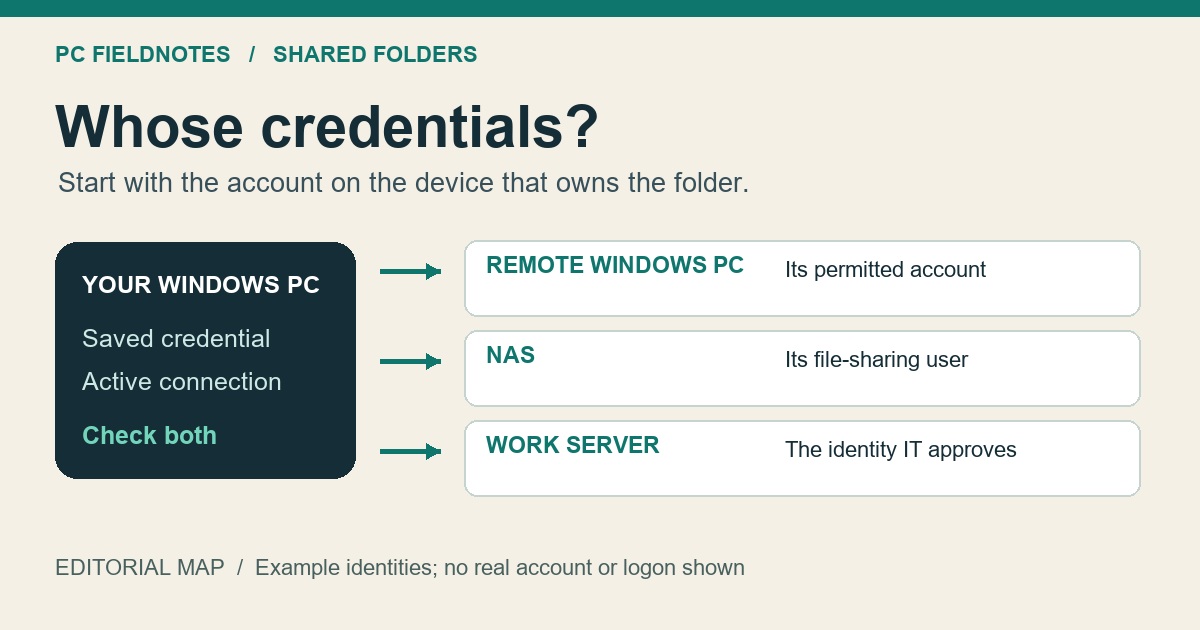
Microsoft Credential Manager, PIN, file-sharing, net use, error-code and SMB-signing documentation plus Synology SMB guidance reviewed October 18, 2026 with AI assistance. Documentation-based synthesis; no NAS, domain or failed-logon reproduction. Alex Reed is an established pen name.
When a shared folder asks you to enter network credentials, use an account recognized by the computer or NAS that owns the folder. Start by confirming the exact share address and that remote account with its owner. Your laptop's Windows Hello PIN is different from your Microsoft account password; repeatedly entering the PIN is not a useful password test. Keep password-protected access and SMB security enabled while you check the account.
This guide covers a reachable Windows or NAS share that asks for credentials or rejects the user name or password. If the server does not appear at all, first follow the separate NAS or PC missing from Network guide. A device appearing in File Explorer, or its administration page opening in a browser, does not by itself establish that your chosen account may open a particular shared folder.
Work backward from the folder's owner
Write down the address you actually use, such as \\FILEPC\Projects. FILEPC identifies the server; Projects identifies the share. Ask who manages that server and which account has permission to the folder. The answer determines what to enter:
| Folder owner | Account to confirm | Example of the identity |
|---|---|---|
| Another Windows PC using a local account | An enabled account on that remote PC, with access to this share | FILEPC\alex, using that account's password |
| A NAS using its own local users | A NAS user allowed to use its SMB service and the chosen shared folder | Follow the NAS vendor's user-name format; this is not automatically your Windows account |
| A work or school file server | The organization account and format supplied by IT | The approved domain-qualified name or sign-in name |
| A Windows PC using a Microsoft account | The identity and password accepted for sharing on that remote PC | Confirm with the owner; the display name and Windows Hello PIN are insufficient identifiers |
The names above are examples, not accounts to create or copy literally. For Synology local DSM accounts, its SMB logon-session guidance gives NAS-server-name\user-name as one supported way to qualify the account. It gives a different domain-qualified form for domain users. Do not apply one NAS vendor's format to every appliance.
For a Microsoft-account host, do not turn off Windows Hello or change a password merely to experiment with file sharing. Microsoft's PIN guidance distinguishes the PIN from the account password. If the owner cannot identify a usable sharing credential, have them or IT establish an approved account and grant only the folder access needed. Creating a new saved credential on your laptop cannot create an account or grant permission on the remote machine.
A rejected password can come from a saved entry or an existing session
First try the confirmed identity once. If Windows keeps returning to a different user name, check the saved entry on the client PC where you open the folder. Microsoft's Credential Manager guide places saved network credentials under Windows Credentials.
- Save work in files opened from that server and close applications using them.
- Search Start for Credential Manager, open it, and choose Windows Credentials.
- Find the entry matching this server's exact name or address. Record which account it names without recording its password.
- Remove only the entry confirmed to be stale, provided you know the replacement credential. Leave unrelated website, Office, VPN, and server entries alone.
- Reopen the same share and enter the confirmed remote account and password. If you choose to remember it, do so only on a trusted PC where storing that credential is permitted.
Changing a saved entry and ending an active file-sharing connection are different actions. A useful read-only inventory in an ordinary Command Prompt is:
net useMicrosoft's classic net use reference documents that running the command without parameters lists connections. Compare the server and share names with the address you are opening. Do not paste the full output into a public forum without redacting names and paths.
If the error is 1219, Microsoft's system-error reference identifies a conflict involving connections to a server or shared resource under more than one user name. Stop retrying alternate passwords. Save remote files, then have IT or the owner help end the relevant existing connection before retrying the intended identity. Avoid a wildcard disconnect of every mapped drive: unrelated work may still depend on them. Do not switch to an IP address or an alias merely to get around the conflict, especially on a managed network.
Let the next error choose the next check
A prompt disappearing is only one observation. Use the result of the next attempt to decide what to inspect:
- The same user-name or password error remains: reconfirm the exact remote account, whether it is enabled or locked, and whether a stale entry or session still supplies another identity. Avoid repeated guesses that could trigger a lockout.
- The folder opens but saving a file is denied: ask the owner to check the account's share and file-system permissions for that folder. A read-only grant is not repaired by resetting your laptop's network.
- The message names unauthenticated guest access or an invalid signature: move to the SMB guest-access and signing guide. These messages identify a different branch from an ordinary mistyped account password.
- The server or path cannot be found: return to the address and reachability check. Re-entering a password cannot correct a wrong share name.
For an old NAS, prefer a supported named account and current SMB support on the NAS. Microsoft's SMB signing documentation recommends enabling signing on a third-party server that lacks the needed support. Windows defaults vary by edition; its 24H2 guidance distinguishes Home from Pro, Enterprise, and Education. Do not assume every Windows 11 PC has identical defaults, and do not enable SMB1, guest access, or disable signing as a generic password fix.
After access works, reopen the same share with the intended account and perform only an operation you are allowed to do. If write access is expected, use a small disposable test file in an approved location. If the problem returns only after signing out or restarting, record that timing separately from the initial credential rejection.
Evidence and review: Microsoft and Synology documentation reviewed October 18, 2026. The account-selection table and error branches are an editorial diagnostic synthesis. We did not connect to a reader's NAS, reproduce a failed Windows logon, test a domain, or change authentication settings. No Windows screenshot or hardware test is implied by the illustration.
