
 Documentation-based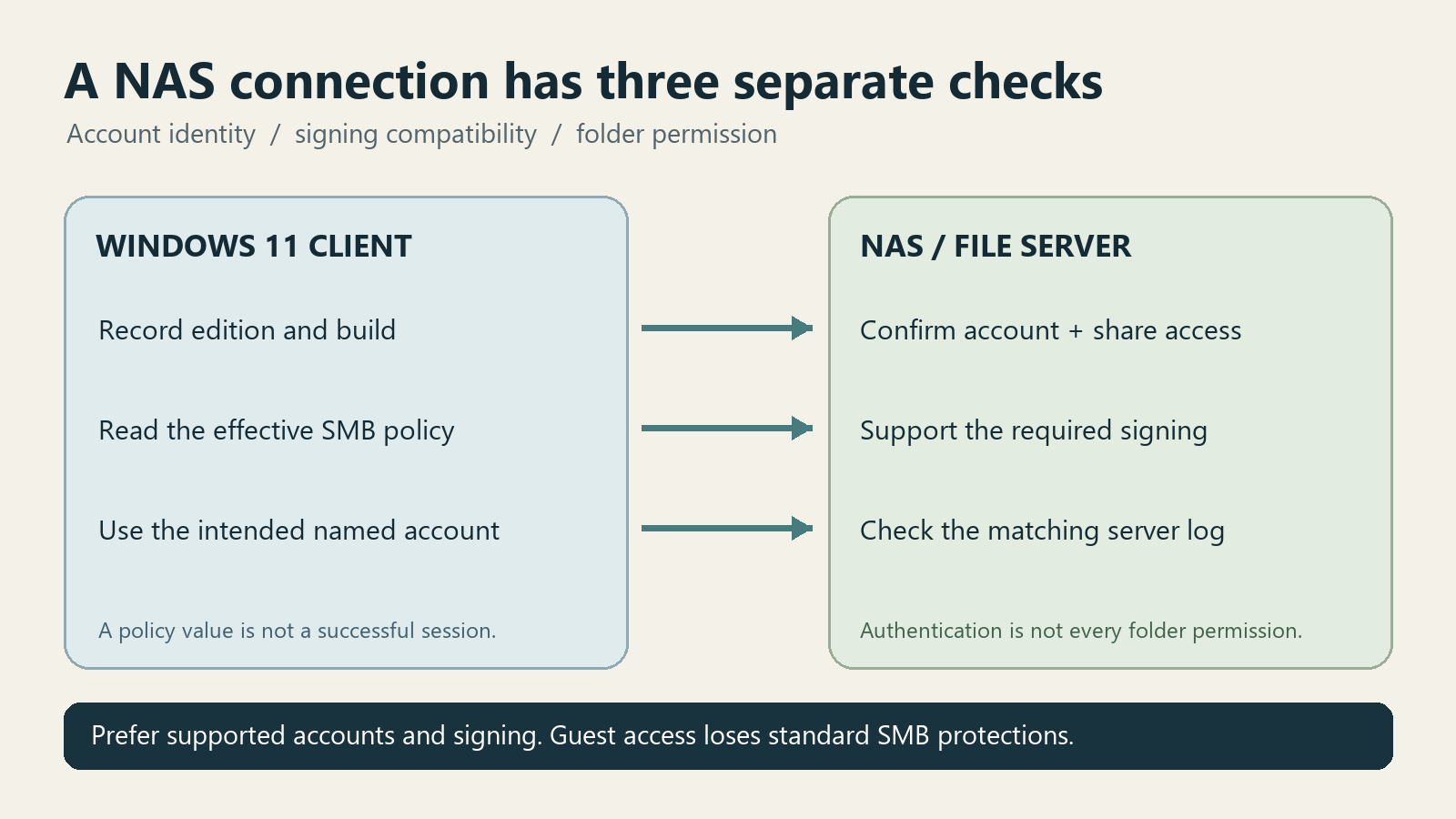
Microsoft Learn and Microsoft Support documentation reviewed October 11, 2026 with AI assistance. No NAS or guest-authentication failure was reproduced; the illustration is not a Windows screenshot. Alex Reed is an established pen name.
When Windows 11 says its security policies block unauthenticated guest access, start with the account offered by the NAS or file server. Connect with a named account that has permission to the share, and check that the server supports SMB signing. Allowing guest access on the PC alone may still leave a signing requirement unsatisfied.
This guide covers that specific guest-access message, including connections that stopped working after an upgrade. A missing computer in File Explorer, an unreachable server, and an ordinary permission denial need different evidence. Last reviewed: October 11, 2026. This is a documentation-based guide; no NAS, physical network, or guest-authentication failure was reproduced for it.
Identify the guest-access branch
The important part of the message is “security policies block unauthenticated guest access.” It describes an authentication path Windows rejected. It does not establish that the Ethernet driver is faulty or that your personal PC belongs to an organization.
Microsoft's SMB access-denied guidance associates the guest branch with that message or SMBClient event 31017. Save the complete error and its time. In Event Viewer, inspect Applications and Services Logs > Microsoft > Windows > SMBClient, especially Security and Connectivity, around the failed attempt.
Use the server name and share name supplied by its owner. In File Explorer's address bar, the form is \\server-name\share-name. These are placeholders, not a server to contact. Avoid guessing a different device's name or sharing your private server address publicly.
If the only evidence is 0x80070035, do not assume guest authentication is the cause. That code can accompany the guest/signing situation, but its wording alone does not distinguish authentication from other failures. If the PC also cannot reach ordinary websites, investigate Wi-Fi and Ethernet connectivity separately.
Check the edition and the effective client policy
Record the Windows edition under Settings > System > About and the version/build reported by winver. Then compare the documented baseline with the PC's current configuration.
| Client context | What Microsoft documents | What to check on this PC |
|---|---|---|
| Windows 11 24H2 Pro, Enterprise, Education | Both inbound and outbound SMB signing are required by default | The outbound client requirement for a connection to a NAS |
| Windows 11 24H2 Home | Neither inbound nor outbound signing is required by that edition's documented default | Actual policy and the NAS account; this is not a guarantee that guest access works |
| Another build, an upgraded PC, or a managed configuration | A version label does not show every effective setting | Read the configuration and involve the administrator when policy is managed |
These edition distinctions come from Microsoft's Control SMB signing behavior. They are not measurements of this particular PC. For a later release such as 25H2, check the effective state rather than copying the 24H2 Home row as a universal promise.
In PowerShell, these commands only display information:
Get-SmbClientConfiguration |
  Select-Object EnableInsecureGuestLogons, RequireSecuritySignature
Get-SmbConnection |
  Select-Object ServerName, ShareName, UserName, Dialect, Encrypted
Get-SmbClientConfiguration reports client settings. RequireSecuritySignature is a requirement, not proof that a particular connection was negotiated successfully. Record both selected values before considering any change.
Get-SmbConnection lists established connections. A blocked attempt may have no row; that does not prove the NAS is offline. A row for a different server or share is not evidence about the failed target. Keep usernames and server details private when sharing results.
Fix the account on the NAS side
Ask the NAS owner to confirm a named account, its password, and access to the intended share. Use the NAS manufacturer's instructions for that exact model and firmware to enable account-based SMB access. A Windows sign-in PIN is not automatically a password for an unrelated NAS account.
Try the intended share using those credentials. If Windows offers a remembered identity, check Control Panel > Credential Manager > Windows Credentials for that specific server. Coordinate any correction with its owner; do not delete every stored credential or disconnect every network drive as a diagnostic shortcut. Close work using the affected share before changing a saved identity.
If the named account is accepted but a particular folder remains inaccessible, check its permissions on the server. On a Windows file server, both the share and filesystem permissions matter. Microsoft's file-sharing support explains access and sharing controls. A NAS has its own permission interface; adding a user does not automatically grant that user every folder.
If you supplied a valid account but still receive the guest message, ask the server owner to inspect the matching authentication log. Whether the server actually accepted that identity or mapped the attempt to guest is the next question to settle. Do not infer the answer merely from the username typed into the Windows prompt.
Separate signing failures from permission failures
The PC opening a NAS folder acts as the SMB client. The NAS providing the folder acts as the server. Changing the PC's inbound server settings is not the first response to a failed outbound NAS connection.
When signing is required but unsupported at the target, Microsoft recommends enabling signing on the third-party server. Check the NAS vendor's supported firmware and SMB settings. A signature error such as STATUS_INVALID_SIGNATURE calls for this branch, rather than granting more folder permissions.
After a supported server or account correction, reopen the same share under the intended identity. Confirm that the expected files can be read. Test writing only in a folder where the account is meant to have write access; a read-only share should remain read-only. Then compare the matching SMBClient events and established connection entry with the earlier record.
If authentication and signing evidence do not explain the failure, stop broadening security exceptions. Give the administrator the error, target, Windows build, account type, and timestamp. A managed NTLM restriction or a server permission problem needs its own scoped investigation.
What enabling insecure guest logons changes
Microsoft documents an Enable insecure guest logons policy and a corresponding PowerShell setting in its guest-logon reference. That documentation also recommends against using it as a routine repair.
Guest authentication does not support SMB signing or encryption. A PC can therefore permit guest logons yet still reject the connection because another requirement remains in force. Removing those requirements reduces protection against a malicious server or an attacker between the client and server; it is not equivalent to fixing a password.
For an appliance that supports only guest access, the owner must decide whether a supported update, replacement, or another transfer method is practical. Any temporary exception needs a defined scope, recorded original settings, and a plan to restore them. A managed PC needs its administrator's decision. This guide does not provide a blanket command to weaken every SMB connection.
Installing SMB1, disabling a firewall, or turning off Defender does not establish that you have corrected guest authentication. Likewise, changing the adapter's Networking checkboxes is not a substitute for identifying the account and signing requirement.
Keep a record that can settle the next question
Save a short private note: Windows edition/build; NAS model/firmware; intended server and share; guest or named account; exact error and time; the two client configuration values; and whether the intended connection appears after the correction. Add the relevant event message and the read/write result.
That record lets you distinguish “a connection now exists” from “the intended account has the intended access.” Recheck it if Windows policy, NAS firmware, or sharing permissions change. The original illustration is a guide to those responsibilities, not a screenshot or evidence of a completed repair.
