
 Documentation-based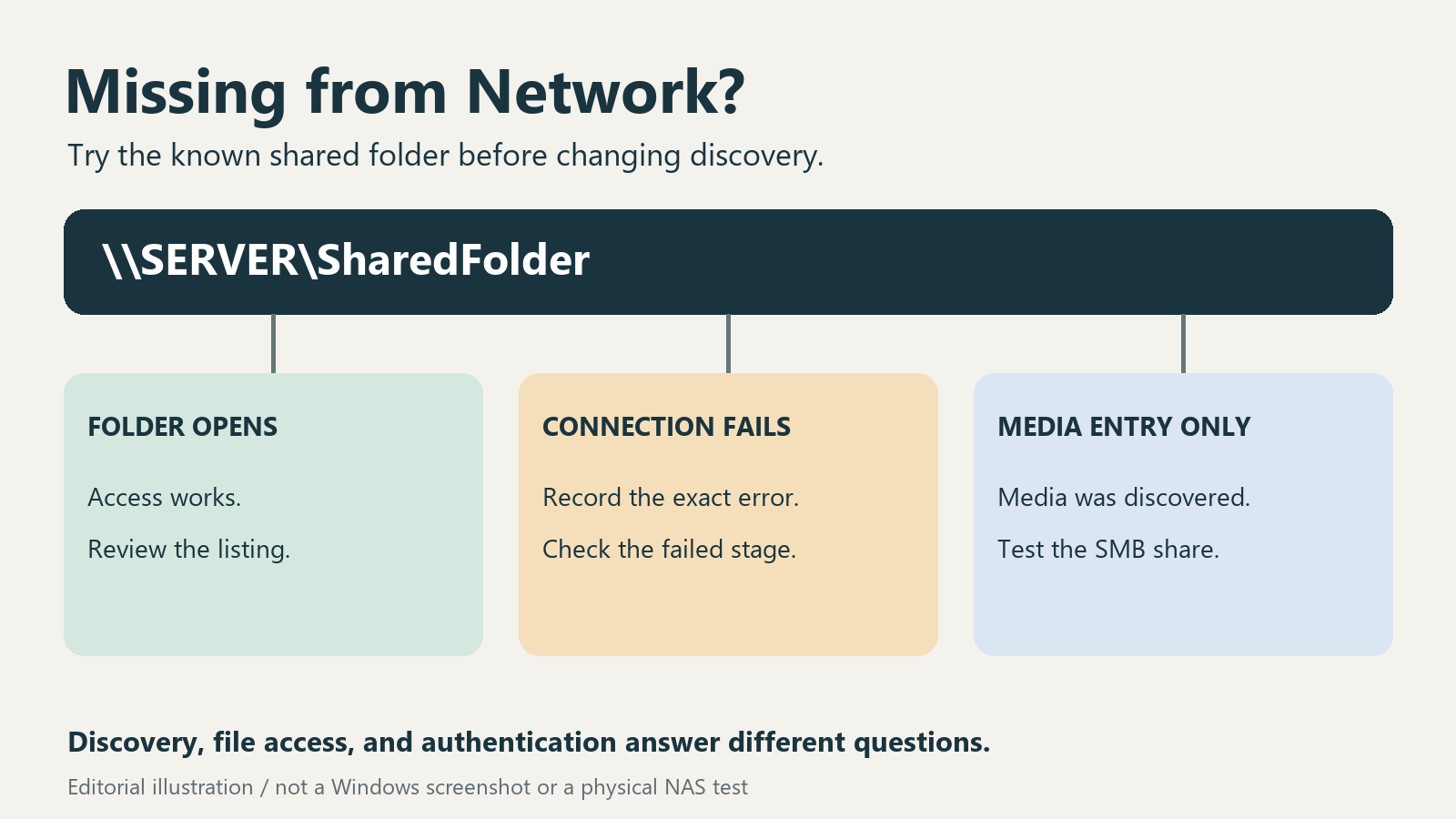
Microsoft and Synology documentation reviewed October 12, 2026 with AI assistance. No physical NAS, LAN discovery failure, or router change was tested. Alex Reed is an established pen name.
If a NAS or another PC is missing from Network in File Explorer, first try a shared folder whose address you already know, such as \\SERVER\SharedFolder. If that folder opens, you have a usable file connection even though automatic discovery is incomplete. If it fails, record the exact message before changing discovery settings.
This guide separates a missing device listing from a failed SMB connection on Windows 11. Use it on a home or small workgroup network you trust. On a managed PC, ask your administrator before changing network profiles, services, or sharing rules.
Start with a known shared folder
Ask the device owner for its current computer name and a shared folder you are allowed to use. In File Explorer, select the address bar and enter the complete path. Replace both names in the example; typing the placeholder literally is not a test of your NAS.
Use the server name normally used for the share. A router's device list or the NAS administration page can help its owner check the device identity. A successful web administration login alone does not demonstrate that SMB file sharing works.
| What happens | What the result establishes | Next move |
|---|---|---|
| The known folder opens and its files are readable | That path works with the current connection and account | Follow the discovery branch below, or save the working path |
| Windows asks for credentials or rejects the account | The attempt has reached an authentication stage; it has not proved folder access | Confirm the intended server account and permissions |
| Windows reports a missing path or another connection error | The complete file connection has not succeeded | Check the name, share, network reachability, and exact error |
| The NAS appears only under Media Devices | Windows found a media-service entry | Test the actual SMB folder separately |
The table is a diagnostic interpretation, not a guarantee that each message has one cause. In particular, a path-not-found error can also appear with SMB security incompatibilities. Keep the wording of the error, not just its number.
The folder opens, but Network is empty
You can keep using the verified path while investigating the listing. An absent icon does not require you to rebuild a working file connection. For regular access, consider mapping the known share after confirming its name and your account. Microsoft recommends mapped resources as an alternative to relying on browsing. Microsoft: Explorer Network browsing
Check where the two devices are connected. A guest wireless network, separated VLAN, or isolated client segment may allow internet access while limiting communication between local devices. Being online through the same router name is not enough to settle that question. Ask the router or network owner whether local clients can communicate; do not remove isolation from a public or guest network to populate a file list.
For an ordinary trusted home network, review the active network profile and the Private networks section of advanced sharing settings. Microsoft documents searching Settings for manage advanced sharing settings, then reviewing Network discovery and File and printer sharing. Review the computer that should appear as well as the computer doing the browsing. Microsoft: file sharing over a network
Do not switch hotel, airport, or other untrusted Wi-Fi to Private. Keep password-protected access for your shares; a missing browse entry is not evidence that anonymous access is needed. If a setting is controlled by your organization, stop at that boundary.
Check Windows discovery services and the NAS separately
For Windows computers in a workgroup, Microsoft's SMB1-removal guidance identifies Function Discovery Provider Host and Function Discovery Resource Publication, with Automatic (Delayed Start), as the modern browsing path using WS-Discovery. Review their status on the Windows device you expect to find. Microsoft's general sharing checklist also mentions SSDP Discovery and UPnP Device Host; these are not proof that every NAS supports the same discovery method.
If a service is disabled by policy or returns an error, record that result for the administrator instead of repeatedly changing its startup type. The two Microsoft checklists have different breadth; this guide does not prescribe changing every networking service on every device.
For a NAS, consult its own current file-service and Windows-discovery documentation. For example, Synology documents WS-Discovery as a way to expose its SMB service through Windows network discovery. That is a vendor-specific setting, not a universal Windows fix or a reason to copy Synology's menu path onto another brand. Synology: WS-Discovery
After one justified change, reopen File Explorer's Network view and retry the same known folder. Record both results. A newly visible icon with a still-failing share means the listing improved; access remains a separate task.
The known folder does not open
Confirm that the server is awake, its share still exists, and your account is allowed to access it. If the owner can open the folder from another authorized PC but yours cannot, keep that comparison in the record. It narrows the investigation without proving that a Windows update or driver caused the difference.
For a more specific connection check, Windows PowerShell can test the SMB TCP endpoint:
Test-NetConnection -ComputerName SERVER -Port 445Replace SERVER with the verified server name. TcpTestSucceeded : True means that TCP connection succeeded; it does not mean your password, share name, folder permissions, or SMB session passed. A failed result does not identify which router, firewall rule, server setting, or route is responsible. Microsoft: Test-NetConnection
An administrator can compare name resolution and a test to a verified address when needed. Keep the normal named path for access, especially in a domain: Microsoft's signing guidance recommends Kerberos and cautions against connecting to shares by IP address. Do not turn a temporary address comparison into a permanent workaround without checking authentication consequences. Microsoft: SMB signing
If Windows specifically blocks unauthenticated guest access, or the server cannot meet a signing requirement, use the separate Windows 11 NAS authentication guide. Prefer a supported server, a named account, and compatible signing. Changing discovery does not supply credentials or grant permission.
Avoid fixes that change the wrong layer
Do not reinstall SMB1 to recover an icon. Microsoft describes it as deprecated, absent from clean Windows 11 installations, and unsafe to reintroduce. Ask the NAS vendor about supported SMB versions and discovery instead.
Likewise, turning off the firewall, disabling SMB signing, or enabling insecure guest logons changes protection or authentication. Those actions do not establish why Network failed to list a device. If a firewall rule needs attention, ask its owner to inspect the relevant discovery or file-sharing rule for the intended trusted profile.
Adapter checkboxes are another separate layer. The network-adapter component guide explains their roles; do not uncheck IPv6 or other components to make an unexplained browse entry appear. A Network reset is also too broad as a first response to a folder that already opens by name.
Keep a compact final record: Windows edition and build, server or NAS model and firmware, trusted network profile, known share path with private names removed, exact error, TCP test result if used, and whether another authorized PC can open the same share. These observations give the next person a specific branch to investigate.
Evidence and review date
Reviewed October 12, 2026 against the linked Microsoft and Synology documentation. This is a documentation-based guide. The editorial diagram is not a Windows screenshot. No physical NAS, router-isolation change, or failed LAN discovery scenario was reproduced; a virtual machine cannot validate those physical-network outcomes. Interface evidence, where shown, establishes only the observed Windows labels and paths, not a repair result.
