
 Documentation-based
Intel legacy documentation, MSI Wi-Fi 6E guidance and Microsoft PowerShell reference reviewed October 25, 2026 with AI assistance. No physical radio, battery or performance test; a virtual machine cannot validate radio behavior. Alex Reed is an established pen name.
Keep your PC maker's supported setting for a working connection. If a specific access point delivers poor receive performance, No SMPS can be a useful single-setting comparison on adapters that expose it; it is not a universal gaming fix. Save the original value first. Auto SMPS lets the driver choose a power-saving behavior, while the other modes constrain that choice differently.
This guide explains the Advanced-tab property on supported Windows 11 Wi-Fi drivers. The labels do not tell you how many physical antennas your laptop has, and a saved value is not proof of improved throughput or battery life.
Read the modes as receive behavior
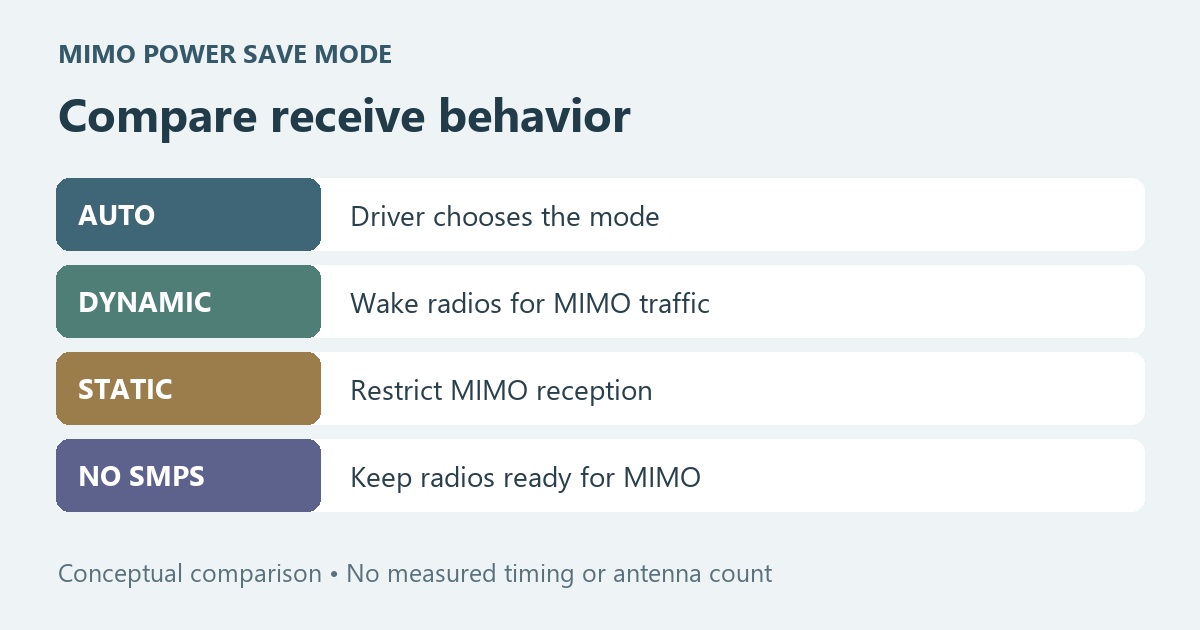
MIMO means multiple-input, multiple-output; SMPS means spatial multiplexing power save. Intel's legacy adapter reference describes the modes this way:
| Mode | Receive behavior described by Intel |
|---|---|
| Auto | The client chooses the SMPS behavior for the conditions. |
| Dynamic | Reception can begin with a reduced active radio set; an access-point RTS exchange wakes radios before MIMO traffic. |
| Static | The client restricts reception so the access point cannot send it MIMO packets. |
| No SMPS | Radios stay active so MIMO reception remains available. |
Intel identifies Auto as the default within that reference and notes that disabling SMPS may help with some older access-point compatibility problems. Apply those descriptions within the documented hardware and driver scope. They do not establish the factory default of every current card.
The distinction is about the adapter's handling of received traffic. Do not read “Static” as a static IP address, or assume that turning off this power-saving mechanism disables Wi-Fi. Transmit Power changes a different property: the client's outgoing radio level.
Why a manufacturer may recommend a different starting point
MSI's Wi-Fi 6E guidance recommends disabling SMPS as part of its supported Wi-Fi 6E configuration. The same document tells owners of notebooks with Wi-Fi 6 or older adapters to keep defaults or use a separate guide. That scope matters: a configuration article for one product generation should not become a rule for every laptop.
Before changing anything, identify the PC model, wireless adapter, driver version and the access point involved. Check the maker's instructions for that combination. A driver update can change which Advanced properties appear. If the option is absent, that is a documentation question for the OEM, not a reason to add a registry value from a different model.
A working mobile laptop may have different priorities from a plugged-in machine receiving large local files. Choose the symptom and operating conditions you need to evaluate before selecting a mode. Neither the name of the mode nor a manufacturer's performance recommendation provides a measured battery or latency result for your device.
Record the property before changing it
Open Device Manager → Network adapters → your wireless adapter → Properties → Advanced. Locate the MIMO power-saving entry if present and record its exact current value. MSI documents this route for supported notebooks. Work locally with a way to reconnect because applying a driver property can briefly interrupt the network.
For an optional read-only inventory, Microsoft documents Get-NetAdapterAdvancedProperty. This command displays advanced properties; it does not change them:
Get-NetAdapterAdvancedProperty |
    Format-Table Name, DisplayName, DisplayValue
Match the result to the intended wireless adapter. Property names may be localized, and not every driver exposes the same entry. The command output records the configured value; it does not measure which radios were active during an actual transfer. Keep device names and other private inventory information out of public screenshots.
Compare the idle-to-transfer transition with sustained reception
Use two observations instead of one headline speed result. First, after a similar idle interval, repeat the application action that shows the delay. Second, run the same sustained receive task, such as downloading the same file from the same trusted local server. Record what starts slowly, what remains slow, and whether the connection drops. These are suggested comparison controls, not results from a test performed here.
Keep the access point, location, band, driver and power source the same. If your original setting differs from the proposed alternative, change only this property, apply it, reconnect and repeat both observations. Leave roaming, transmit power, channel width and Windows power policy alone during this comparison. Otherwise a better result cannot be assigned to this single change.
If the alternative improves the same task repeatedly on one access point, save that limited result with its driver and network details. If a different access point behaves differently, record the difference rather than declaring the card fixed everywhere. If nothing improves, or reliability or acceptable battery behavior becomes worse, restore the exact starting value and confirm recovery.
An internet speed test alone combines the wireless link, internet path and remote service. When Windows' displayed rate is the confusing part, use the link-speed explanation. When the network cannot be joined at all, use connection-failure checks before treating a receive power-saving option as the cause.
Documentation reviewed October 25, 2026. No physical adapter, access point, radio-stream, battery, gaming or throughput test was performed. A virtual machine cannot validate this OEM radio behavior. The illustration is an original conceptual mode comparison, not a Windows screenshot or measured timing chart.
