
 Documentation-based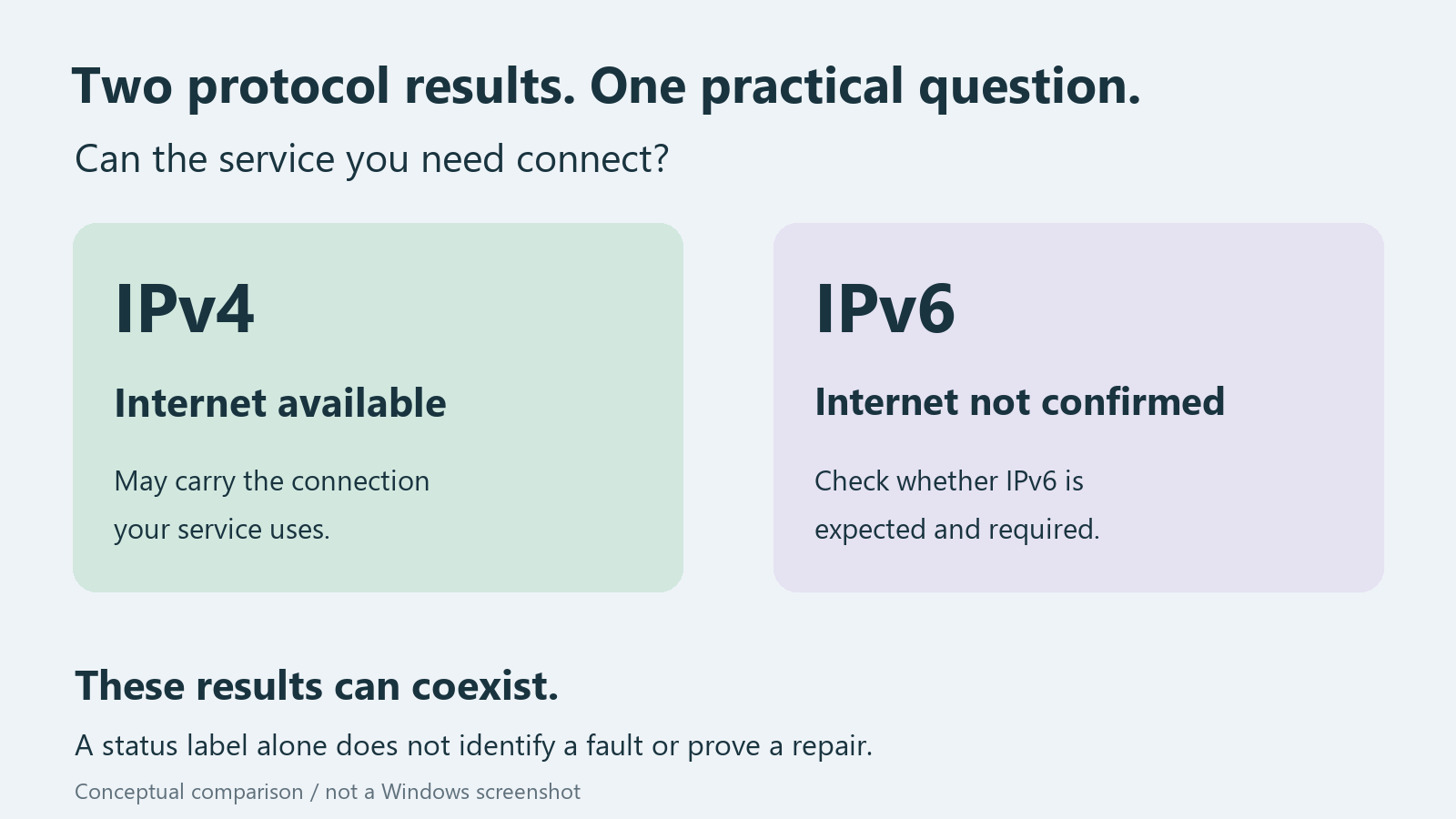
Microsoft documentation and RFC 4291 reviewed October 12, 2026 with AI assistance. No physical ISP, router, or IPv6-dependent service fault was reproduced. Alex Reed is an established pen name.
IPv6 No network access does not, by itself, mean your Windows 11 PC has lost all internet access. Read the IPv4 status beside it and check the service you actually need. A working IPv4 connection can coexist with IPv6 that has no confirmed internet connectivity.
There are two different questions: Can I do my work? and Is IPv6 working where it is expected? If your normal services work and this network does not provide IPv6 internet access, there may be nothing to repair on the PC. If IPv6 previously worked, or a required service needs it, the same label deserves investigation.
Read the two protocol results together
Windows assesses IPv4 and IPv6 separately. Microsoft's Network Connectivity Status Indicator (NCSI) sends separate active probes; either successful protocol probe can establish the device's internet status. It also uses passive observations. A status indicator is an assessment of connectivity, rather than a test of every website or application. Microsoft: NCSI overview
Use the following combinations to choose the scope of your investigation. These are interpretation examples, not captured test results or a promise that one label identifies a single cause.
| What you observe | What to establish next |
|---|---|
| IPv4 has internet access; IPv6 does not; required services work | Whether this network is supposed to offer IPv6 internet access at all |
| IPv4 has internet access; IPv6 does not; an IPv6-dependent service fails | Whether the failure follows this PC, network, VPN, or service |
| Neither protocol has internet access and ordinary browsing fails | Investigate the overall connection, rather than treating this as an IPv6-only problem |
| A status warning disagrees with working browsing or applications | Investigate the status assessment and affected application separately |
Keep the exact wording. No network access, No Internet access, and the PowerShell connectivity values are not labels to substitute for one another in a support report. Record which window or command produced each result and which adapter it describes.
Collect a small, read-only record
Open Windows PowerShell and run:
Get-NetConnectionProfile |
    Select-Object InterfaceAlias, InterfaceIndex, IPv4Connectivity, IPv6Connectivity
This reads connection profiles without changing a network setting. Match the interface name and index to the connection you are investigating. When several profiles appear, do not treat a disconnected or unused adapter as the verdict on the connection your application uses.
The command exposes protocol-specific values such as Internet, LocalNetwork, and NoTraffic. Preserve the returned value rather than translating all non-Internet results into the same diagnosis. Microsoft's cmdlet reference lists the accepted states. Microsoft: Get-NetConnectionProfile
For the corresponding address and gateway information, run:
Get-NetIPConfiguration -InterfaceIndex 12Replace 12 with the actual index from your first result. This command reads interface configuration, including addresses and DNS information. Selecting the interface explicitly helps avoid mixing a physical adapter with a VPN or another connection. Microsoft: Get-NetIPConfiguration
Keep the output locally. Before sending it to support, remove private network names, addresses, and organization details that are not needed for the case. Record the time, Windows build, VPN connection state, and one specific failed service alongside it. A useful report says which operation failed and when, rather than only saying “IPv6 is broken.”
An IPv6 address is not proof of an internet route
An address beginning with fe80: is a link-local IPv6 address. Link-local addresses serve communication on a single link; routers do not forward packets with those source or destination addresses to other links. Seeing one therefore does not demonstrate IPv6 internet access. RFC 4291, section 2.5.6
Likewise, the presence of an address and gateway is configuration evidence, not a completed application connection. Give those observations to the network owner if IPv6 is expected. Do not copy an IPv6 address, gateway, or prefix from an unrelated example into your adapter.
When the IPv6 result needs attention
If IPv6 internet access used to work on this same network, note the last known working time. Ask whether the router, ISP service, VPN, or managed-network policy changed. Compare with another authorized device on the same intended network, if available. A difference is useful evidence; it does not establish which component is responsible.
For a service that specifically requires IPv6, obtain the service's supported connectivity requirements from its administrator. Testing a different website that happens to work cannot settle that service's requirement. Conversely, an application failure without a stated IPv6 requirement should not be attributed to this label alone.
If ordinary access fails for both protocols, broaden the investigation. Check whether other devices have the same problem and whether the expected network is connected. On public Wi-Fi that needs a sign-in page, use the hotel Wi-Fi login-page guide. Do not change a hotel network to Private as a way to improve its internet status.
When the status and actual access disagree
Microsoft documents that VPN routing, proxy configuration, DNS resolution, and intercepted probes can interfere with NCSI. Its FAQ distinguishes an application or taskbar warning alongside working browsing from a general failure to perform network operations. Microsoft: NCSI FAQ
Use that distinction to describe the problem precisely. On a managed PC, give the administrator the affected adapter, time, exact application error, and connectivity output. Let the owner inspect the relevant probe or network policy. Do not disable a required VPN, endpoint protection, or firewall to make an indicator change.
A browser that works is evidence about that browser's current path. It does not prove that every application uses the same proxy, route, or protocol. Microsoft's troubleshooting guidance uses Get-NetConnectionProfile to compare protocol status before investigating NCSI. Microsoft: NCSI troubleshooting
Leave IPv6 enabled while identifying the issue
Unchecking Internet Protocol Version 6 (TCP/IPv6) is not a useful first response to this status. Microsoft advises against disabling IPv6 or unbinding it from interfaces because Windows components can depend on it. The advanced configuration article discusses address-preference policy, but that is not a reason to apply registry changes to an unexplained status warning. Microsoft: IPv6 configuration guidance
The adapter component guide explains the checkbox's separate role. A Network reset is also a broad change to postpone until the failure has been identified.
Your stopping point should match the original need: either the required service works and the network's lack of IPv6 is understood, or you have a specific IPv6 requirement and a clear record for the network or service owner. A different-looking status label alone is not a repair result.
Evidence and review date
Reviewed October 12, 2026 against Microsoft documentation and RFC 4291. This is a documentation-based explanation. The illustration shows a conceptual distinction, not a Windows dialog or a recorded network test. No ISP IPv6 fault, physical router configuration, or IPv6-dependent application failure was reproduced. No Windows interface screenshot is presented.
