
 Documentation-based
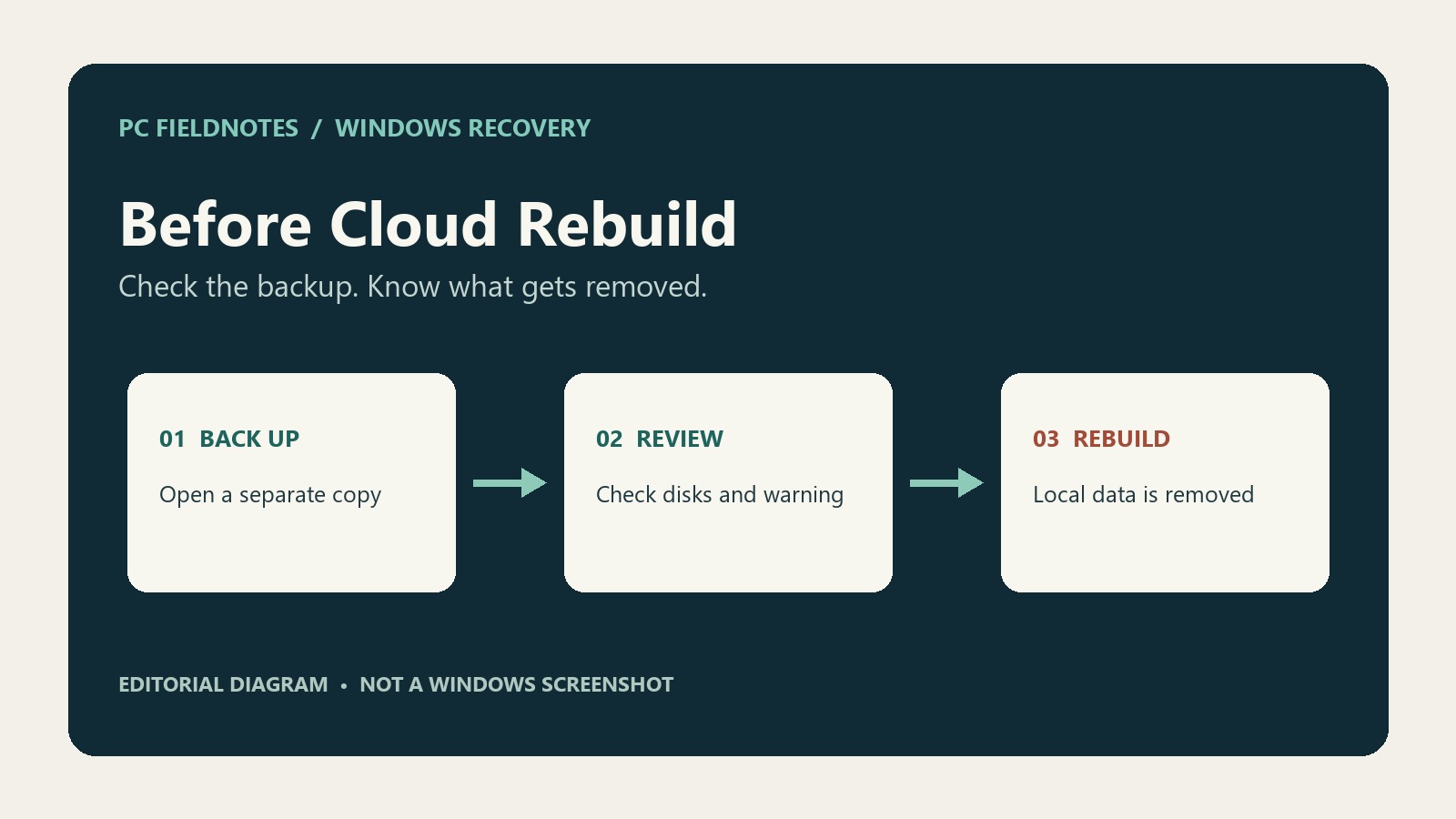
Microsoft documentation reviewed November 5, 2026 with AI assistance. No Cloud rebuild, disk sanitization, hardware recovery, or Windows interface test was performed. Alex Reed is the established pen name.
Last reviewed: November 5, 2026
Cloud rebuild reinstalls Windows and removes the personal files, accounts, apps, and settings on your PC. It does not offer a “keep my files” choice. If anything on the device matters to you and you do not have a verified backup, stop before starting it. If Windows still opens, consider a less disruptive repair first.
Cloud rebuild downloads a Windows image and device drivers from Windows Update and can be started from the Windows Recovery Environment even when Windows will not boot. It needs a supported installation, an internet connection, and power throughout the process. Microsoft introduced it in an October 2026 preview update; availability can vary by device.
First decide whether a rebuild is appropriate
| Your situation | Safer first consideration | What to know |
|---|---|---|
| Windows starts and you want to retain apps and files | Fix problems using Windows Update, if available | Microsoft says this reinstalls the current version while preserving apps, files, and settings. Back up first anyway. |
| You need to reset Windows but keep personal files | Reset this PC > Keep my files, if available | It keeps personal files but removes apps and settings. “Cloud download” is a download choice within Reset this PC; it is not Cloud rebuild. |
| Windows cannot start and your only copy of important files is on it | Stop before any destructive recovery | Confirm a backup from another device or get help recovering the files first. A reinstall is not a way to preserve an inaccessible original. |
| Other recovery options have failed, or you deliberately want a clean start | Consider Cloud rebuild only after backing up | It removes local files, accounts, apps, and settings. The later disk selection matters if you choose sanitization. |
| The PC belongs to work or school | Contact the administrator | Your organization may manage recovery, encryption keys, drivers, and policies. |
The Microsoft recovery overview describes these alternatives. Availability and outcomes depend on the option actually shown on your PC; no recovery method is a substitute for a backup. If you are considering reinstalling Windows because the internet itself is unavailable, resolve connectivity first or prepare another recovery route. Cloud rebuild needs a working connection in recovery. If Windows still starts and a network reset is being considered, review what network reset removes before changing that separate setting.
What is removed—and what “sanitize” means
According to Microsoft's Cloud rebuild guide, the normal rebuild removes personal files, accounts, apps, and settings stored on the PC. Files already stored in OneDrive or another cloud service are not removed from that service. That does not mean every file you can see in a synced folder has successfully uploaded: check the actual cloud copy or a separate backup from another device.
The recovery screen offers Remove files and Remove & sanitize. Both remove files; neither preserves them. Microsoft says ordinary removal is faster, but data could still be recovered with specialized tools. Sanitization uses the storage device's erase capability and is irreversible. It is intended for cases such as giving away, returning, or recycling a PC.
If you choose sanitization on a PC with multiple disks, Microsoft documents a choice between Windows disk only and All disks. All disks targets every disk on the PC and can take longer. Read the actual screen carefully; do not infer what happens to a second disk from a generic reset guide. If you cannot identify the disks or confirm the backup, stop and ask for help before confirming.
Before selecting Rebuild PC
- Verify a separate backup. Open a sample of important documents and photos from the backup or cloud service on another device. Include files outside the folders you normally sync. If you use File History, check the target drive and its latest backup; our File History reconnect-drive guide covers a disconnected backup disk. If the original PC cannot start and no verified backup exists, prioritize recovering the data rather than rebuilding.
- Find your encryption recovery key if applicable. Windows Recovery may ask for a BitLocker recovery key. Use Microsoft's key-finding guide, or contact your administrator. Store it securely, separately from the device; do not post it online.
- Arrange power and internet. Plug in the PC and use an available Ethernet or Wi-Fi connection. Know the Wi-Fi password if needed. A managed, captive-portal, or unsupported network may be harder to use from recovery; have an alternative ready.
- Know how to recover if this option is missing or fails. Keep access to another device and consider manufacturer recovery media. For a missing network driver on a working Windows installation, see the offline network driver guide. Cloud rebuild is not guaranteed to work if the necessary network or storage driver is unavailable through Windows Update.
- Confirm the intended device and disks. Read the displayed Windows version, edition, language, data-loss warning, and any disk selection. If a screen differs from what you expected, stop rather than guessing.
Where to find the option
On a running, eligible PC, Microsoft documents Settings > System > Recovery > Rebuild PC. Starting there restarts the device into Windows Recovery Environment. If Windows cannot start, WinRE may appear after repeated failed starts. Microsoft's consumer guide lists Troubleshoot > Cloud rebuild; the October update notes describe Troubleshoot > Recovery and uninstall > Cloud rebuild. The labels or intermediate menu may therefore differ. Use the labels on your device and stop if you cannot identify the option.
Before the final confirmation, connect to the network, review whether you chose ordinary removal or sanitization, and read the warning and disk selection. Once the operation starts, keep the PC connected to power and do not manually restart it. An interruption can leave Windows unable to start.
As of November 5, 2026, KB5127936 introduced the option in an optional preview for Windows 11 25H2 and 26H2, with features rolling out gradually. Microsoft's support guide says the October 2026 non-security update or later is required for the applicable Windows 11 version. Installing a preview does not guarantee the button appears immediately, and you should not install one solely to run a destructive recovery.
If Cloud rebuild cannot finish
Do not assume the data is intact after a failure. If the screen reports an error, write down the exact code and where it occurred. Microsoft's Cloud rebuild troubleshooting distinguishes, for example, network errors from missing required drivers. If a required driver is not available through Windows Update, Microsoft suggests contacting the manufacturer or using manufacturer recovery media or Windows installation media.
If sanitization reports failure, do not treat the disk as securely erased. Microsoft's guidance is to use the device manufacturer's secure erase method before recycling or transferring the machine. If the PC no longer boots after an interrupted rebuild, recovery media may be needed. Avoid repeated destructive attempts when unbacked-up data remains.
After a successful rebuild
Complete Windows setup, connect your accounts, restore verified backups, reinstall applications as needed, and check Windows Update. Windows Backup may help restore supported settings and apps, but check the result rather than assuming every application and local file returned. If your goal was data disposal, confirm the sanitization outcome before handing over the device.
This guide is based on Microsoft documentation reviewed November 5, 2026. We did not run Cloud rebuild, erase a disk, or verify the interface on a physical PC or virtual machine. Menu wording, rollout status, and the options shown can change.
