
 Documentation-based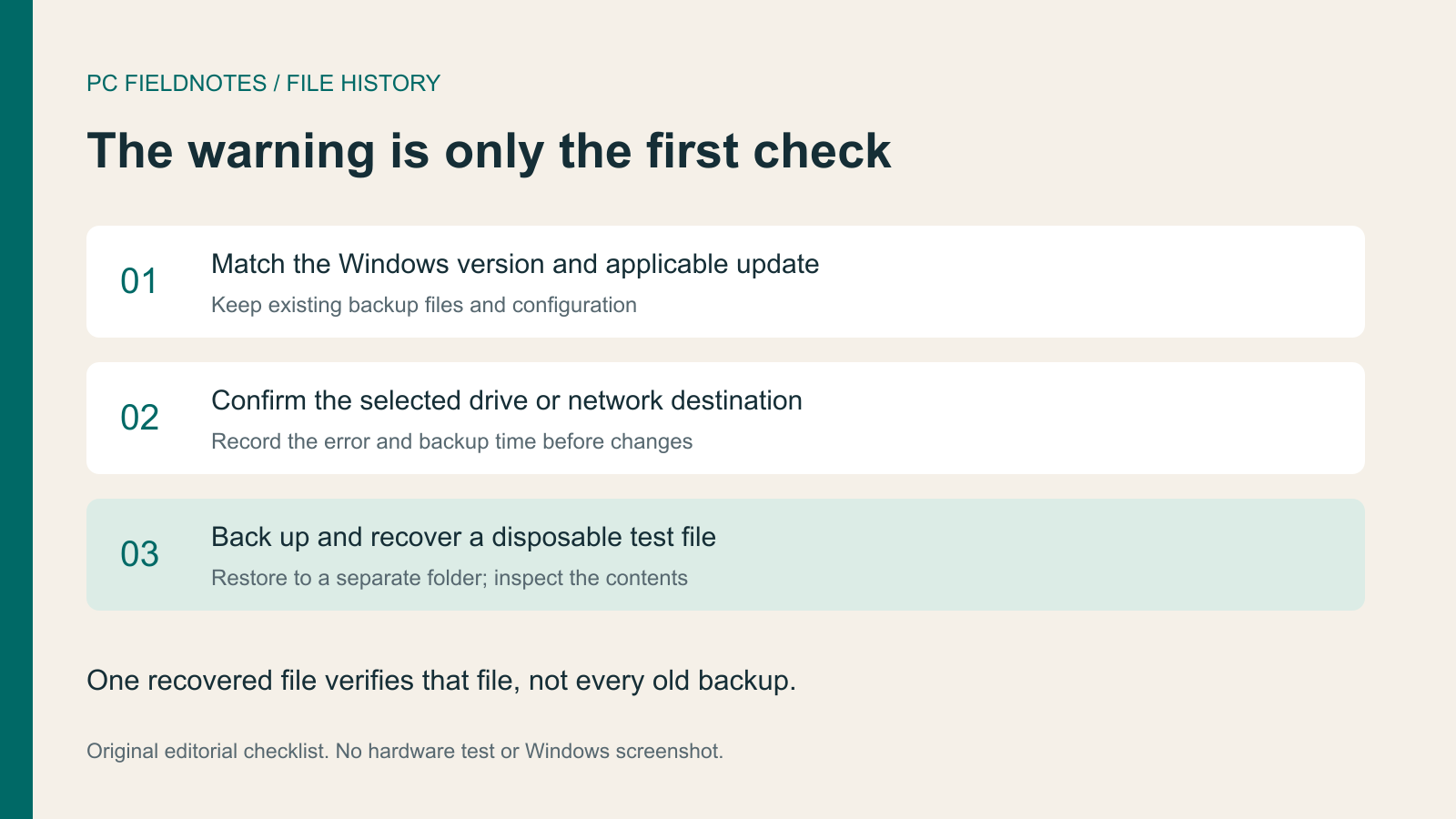
Microsoft documentation and release notes reviewed October 2, 2026 with AI assistance. No File History regression, physical drive, or restore test was performed. The verification procedure is editorial guidance. Alex Reed is a pen name.
If File History asks you to reconnect a drive that is already connected, check both the selected backup destination and your Windows update history before rebuilding anything. Microsoft confirmed that the September 2026 update could produce this message on a working backup drive. A genuinely unavailable USB drive or network location still needs the ordinary connection checks.
This guide was reviewed on October 2, 2026. It covers the File History feature in Control Panel. It does not describe OneDrive backup or a full system image. We have not reproduced the update regression or tested a physical backup drive; the version table below reports Microsoft's documented fixes.
Match the update to your Windows version
Microsoft's KB5124008 release notes describe File History failing to create or update backups after the September security update. The warning may appear even when a compatible drive works. Other documented symptoms include an unchanged Last Backup time, unavailable previous versions, and crash events mentioning FileHistory.exe and KERNELBASE.dll. These symptoms help identify a case to investigate; they do not establish that your drive is healthy or your old backups are intact.
Use winver to note the Windows version and OS build, then inspect Settings > Windows Update > Update history. Match the installed version to the release notes:
| Windows 11 version | Documented September 22 fix | Build in the release notes |
|---|---|---|
| 24H2 | KB5124010 | 26100.9550 |
| 25H2 | KB5124010 | 26200.9550 |
| 26H2 | KB5124010 | 26300.9550 |
| 26H1 | KB5124006 | 28000.3086 |
The KB5124010 page added 26H2 to its applicability on September 29. KB5124006 is the separate 26H1 release. Do not use a numerically higher build from another version as evidence that your PC has the relevant fix.
Microsoft marks the KB5124008 File History issue resolved by updates released on or after September 22, including KB5124010, and recommends the latest applicable Windows update. These September 22 packages are non-security previews. Check the current release notes and what Windows Update offers your device before deciding to install one. The linked pages also list other known issues, including desktop loading problems primarily observed on Azure Virtual Desktop hosts using FSLogix. Have IT review applicability on a managed device; avoid removing security updates as a routine backup repair.
Check the destination without erasing its history
Open Control Panel > System and Security > File History and read the selected destination. Compare that destination with the drive or network location you intend to use. Record the exact warning and the displayed backup time before changing the selection.
For an external drive, confirm that it is connected and visible in File Explorer. If Windows asks to format it, stop. Formatting is not a reconnection test and can destroy the backup you are trying to preserve. If the device is missing from Windows storage tools, investigate that separate detection problem; our SSD detection guide explains why initialization should wait until existing data is accounted for.
For a network destination, check that the same location is reachable while signed in to the account that uses File History. A reachable server and an accessible backup folder are separate observations. Preserve the path and error text for the administrator if access fails. Microsoft's reconnection guide instructs users to reconnect the external drive or reselect the network destination in File History, then wait for the scheduled backup or select Run now.
If File Explorer can access the destination but File History still rejects it, keep the update branch open. Do not delete the FileHistory folder, clear configuration folders, or choose a fresh destination just to suppress the notification. Those changes would also change the evidence and the history you need to inspect.
Prove that a new file can be backed up and recovered
After reconnecting the destination or installing an applicable fix, make a small, disposable text file in a folder included in your File History backup. Give it a distinctive name and a short line you can recognize. The purpose is to verify one new file through the backup and recovery path while preserving valuable files.
- Note the file's name, folder, contents, and the test time.
- Open File History and select Run now. Wait for the operation to finish, and record any error and the displayed backup time.
- Locate the test file's backed-up version through File History's recovery interface. Open it to check the contents.
- If you test restoration, use Restore to to choose a separate test folder, then compare the restored file with the original.
Microsoft's File History backup and restoration guide describes library-based coverage, selecting a destination, previewing previous versions, and restoring to a different location. It also warns that restoring over the current file replaces it and cannot be undone. Check that your test folder is included; a file outside the configured backup scope is an unsuitable recovery test.
Our disposable-file procedure is an editorial verification suggestion, not a reported test result. Recovering one file establishes that file's result. It does not prove that every old version, folder, or backup is recoverable. Keep the original backup destination unchanged while you check older versions that matter to you.
If the warning or stale backup time returns
Record the installed version, relevant KBs, destination type, exact error, and the disposable-file result. If a current backup can be opened but the displayed time remains stale, include both observations in a support report instead of relying on either alone. If you cannot recover the test file, treat the backup as unverified even if the warning disappears.
Preserve your existing backups and make a separate copy of essential current files while the failure is investigated. Do not use that precaution as proof that File History has recovered. Send the observations to Microsoft Support or your organization's IT team, with personal paths and account information removed from any public post.
Review limits
This article combines Microsoft's version-specific release notes with its ordinary reconnection and recovery instructions. The illustration is an original editorial checklist, not a Windows screenshot. A virtual machine cannot establish that your physical drive or network backup works. Recheck the release notes when a later cumulative update changes the resolution, and verify backup and recovery on the affected PC after any repair.
