
 Documentation-based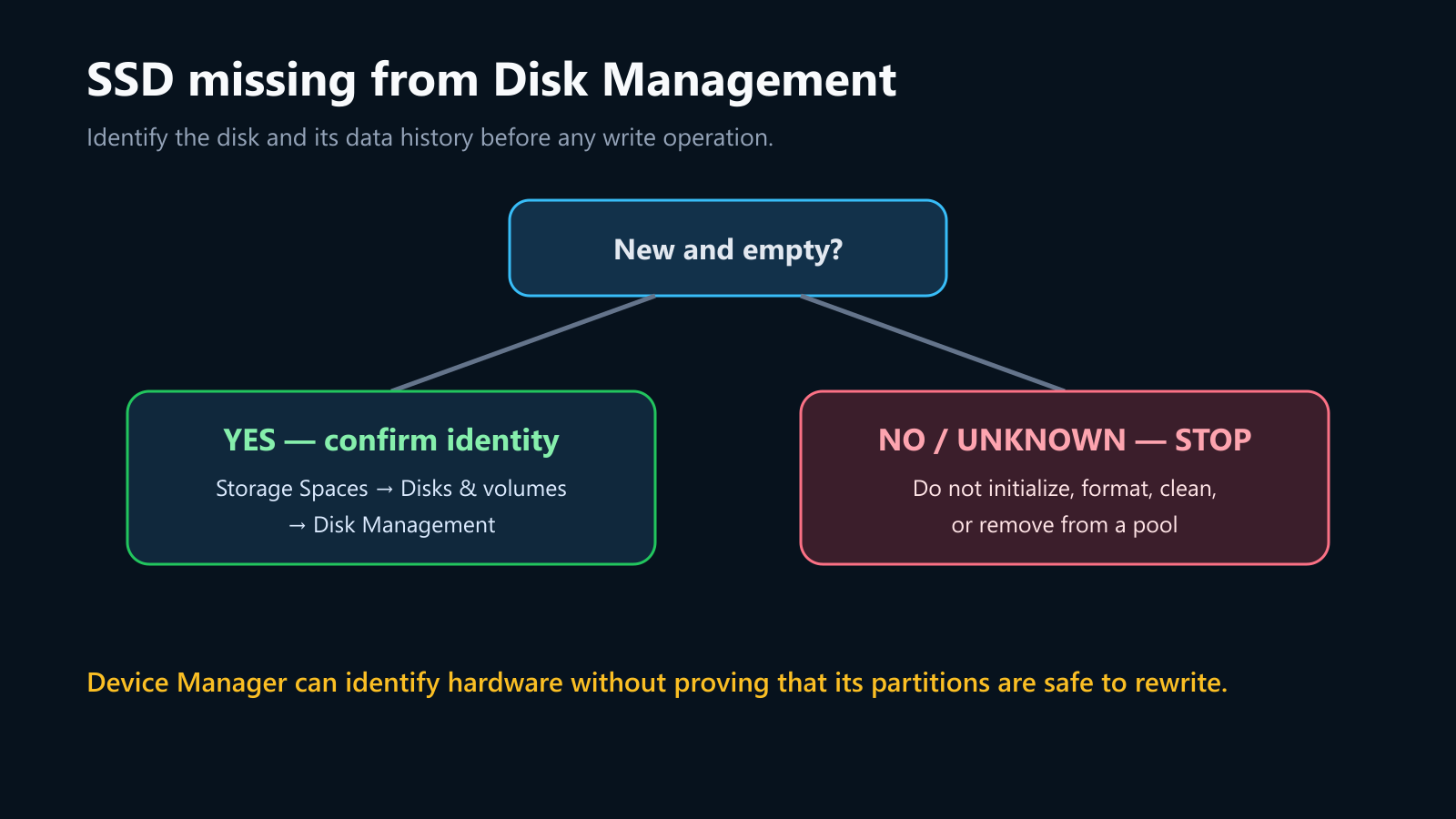
Based on Microsoft Disk Management and Storage Spaces documentation plus Dell's July 2026 scoped Storage Spaces case, reviewed September 30, 2026. No storage hardware or destructive operation was tested.
Last reviewed: September 30, 2026
If an SSD appears under Disk drives in Device Manager but not as a numbered disk in Disk Management, Windows has identified a device, but it has not necessarily exposed that SSD as a standalone disk that Disk Management can manage. Before initializing, formatting, cleaning, or removing anything, decide whether the SSD is truly new and empty or might contain data. Then identify it by model, capacity, serial number when available, and connection path.
For a new SSD, check Storage Spaces first: a pre-existing pool can claim the drive so it does not appear as an independent disk. For an SSD that contains or may contain data, stop before any initialization or format operation and preserve the original hardware and pool configuration.
Start with the data boundary
| What you know about the SSD | Safe next action | Do not do yet |
|---|---|---|
| Factory-new, never used, correct model and capacity confirmed | Inventory Storage Spaces, Settings > Disks & volumes, and Disk Management | Do not initialize until the exact disk identity is confirmed |
| Used SSD or data is expected | Photograph labels and screens, preserve the original PC/enclosure/controller, and arrange a backup or recovery assessment | Do not initialize, format, create a volume, clean, or remove it from a pool |
| History is unknown | Treat it as data-bearing until proven otherwise | Do not accept a prompt merely because Windows calls the disk unknown or uninitialized |
| Member of a Storage Spaces pool | Review pool health, resiliency, free capacity, and every physical drive | Do not remove it directly or break the pool configuration |
This is an original editorial decision diagram, not a Windows screenshot or a record of an SSD test.
Microsoft's initialization guidance is for a new, uninitialized disk with no existing data and warns that initializing a disk already in use erases its data. Formatting also destroys data on the partition. If files matter, the goal is identification and preservation—not making the disk writable as quickly as possible.
Confirm that Device Manager shows the SSD itself
Open Device Manager and expand Disk drives. Record the exact model shown in the device name. In Properties > Details, use a non-destructive property such as Hardware Ids or Device instance path to distinguish the SSD from an enclosure, RAID controller, or virtual disk. Do not publish a full serial number.
Then record:
- whether the SSD is internal NVMe/SATA or in a USB enclosure;
- the expected capacity;
- the PC, motherboard, enclosure, dock, or storage-controller model;
- whether BIOS/UEFI or the controller utility sees the same drive;
- any warning icon and the complete Device status message;
- whether the SSD previously belonged to another PC, RAID set, or Storage Spaces pool.
Device Manager presence alone does not confirm that Windows has a usable disk object, a readable partition table, or an accessible volume. It also does not prove the SSD is healthy.
Compare all three Windows storage views
Open these views without changing anything:
- Settings > System > Storage > Advanced storage settings > Disks & volumes.
- Disk Management by right-clicking Start and selecting Disk Management.
- Storage Spaces by searching for Storage Spaces, then expanding existing pools and physical drives.
In Disk Management, select Action > Rescan Disks once. Then compare model and capacity, not only disk numbers. Disk numbers can change between systems and connection paths.
| Observation | Meaning to investigate | Next non-destructive check |
|---|---|---|
| SSD appears under Physical drives in an existing Storage Spaces pool | The pool, not Disk Management, may own the physical disk | Record pool health, resiliency, free capacity, and whether the SSD is actually the newly added disk |
| SSD appears in Disks & volumes but not the Disk Management list | Windows has a storage object but the management views disagree | Rescan once, restart once, and collect screenshots/model details before changing it |
| Disk Management shows Offline | The disk is present but offline | Identify it by model/capacity and investigate why; bringing it online is a state change |
| Disk Management shows Unknown/Not Initialized | The disk is visible; this is different from being absent | Initialize only if it is confirmed new and empty |
| Disk Management shows Healthy without a drive letter | The disk is present and this is a volume/letter issue, not the original symptom | Confirm the file system and existing data before assigning a letter |
| No Windows storage view exposes the SSD as a disk | Focus on enclosure, controller, firmware, driver, lane sharing, power, or hardware | Check exact-model documentation and a controlled alternate path |
Check Storage Spaces before initializing
Dell documents a specific Windows 11/10 case: a newly installed SSD can appear in BIOS and Device Manager but not Disk Management because an existing Storage Spaces pool added it. That explanation applies only when Storage Spaces was already configured; it is not a universal cause.
If the SSD appears in a pool, do not remove it just to make it appear in Disk Management. Microsoft says Prepare for removal moves data to other drives and can take hours; insufficient free capacity can prevent completion. First confirm the pool is healthy, enough capacity exists, and the selected physical drive is the intended one. Keep the PC on stable power and prevent sleep during an authorized removal.
If the pool contains important data, is degraded, uses parity or mirroring you do not understand, or the SSD may be an established member, stop and use the pool's backup and recovery plan. Pulling a member or deleting a pool can cause data loss.
For a factory-new SSD that was unintentionally added to a healthy pool, follow Microsoft's Storage Spaces removal procedure or the PC manufacturer's exact instructions. Wait until Windows reports Ready to remove before removing the drive from the pool. Only after it becomes a standalone disk should you return to Disk Management.
Separate a new empty disk from a missing data disk
Confirmed new and empty
If Disk Management now shows the correct model and capacity as Unknown/Not Initialized, you may initialize it. Microsoft recommends GPT for modern UEFI systems and large drives. Confirm the selected disk one final time, initialize it, create a volume, choose a drive letter, and format it only because you have already established that it contains no data.
Do not use a clean command as a shortcut. A mistaken disk number can destroy the wrong disk's partition information, and DiskPart adds no safety when the identity is uncertain.
Used, unknown, or data-bearing
Do not initialize or format. If the SSD came from another PC, reconnect it through the original controller or enclosure when practical; RAID, hardware encryption, sector-size translation, and Storage Spaces metadata can depend on that path. If the drive is intermittent, clicking through repeated prompts can reduce recovery options.
Record the exact messages, power down safely, and choose an authorized recovery path. For irreplaceable data, a professional recovery service may be safer than repeated power cycles, firmware experiments, or controller changes.
If the SSD is absent from every disk-management view
Use one controlled comparison at a time:
- For an external SSD, connect directly to the PC rather than a hub, use the specified power source, and try a known-good data cable and another compatible port.
- For an internal SSD, shut down and disconnect power before reseating. Check the motherboard manual for slot type, shared lanes, disabled ports, and supported sizes.
- Check the PC or motherboard support page for the exact storage-controller, chipset, NVMe, Intel VMD/RST, or RAID driver required by the current firmware mode.
- If the SSD is behind RAID or VMD, do not change the controller mode in firmware casually; Windows may stop booting and an existing array may become inaccessible.
- Compare the SSD in another known-compatible system only when moving it will not break an encryption, RAID, Storage Spaces, warranty, or data-recovery requirement.
If the device reports errors, disappears intermittently, shows the wrong capacity, or fails in a second compatible path, stop treating the issue as a Disk Management refresh problem. Preserve logs and contact the SSD, enclosure, PC, or motherboard manufacturer with the model and comparison results.
Verify the outcome
For a new empty SSD, success means the correct model and full expected capacity appear as a standalone disk, the intended volume is created, a drive letter is assigned, and the volume survives one restart. Save a test file only after confirming you selected the new disk.
For a data-bearing SSD, success means the expected existing partitions and files return without initialization or formatting. Copy important data to a separate verified destination before further repair. A device merely appearing in Disk Management is not proof that its data is healthy.
Evidence and limitations
This documentation-based guide was reviewed on September 30, 2026. Microsoft storage guidance and Dell's July 2026 Storage Spaces case were checked. No SSD, Storage Spaces pool, RAID/VMD configuration, enclosure, firmware setting, initialization, format, or data-recovery operation was tested for this article. The tables and diagram are original editorial tools.
Sources
- Microsoft Support: Disk Management in Windows
- Microsoft Learn: Initialize new disks
- Microsoft Learn: Troubleshoot Disk Management
- Microsoft Support: Storage Spaces in Windows
- Dell: New SSD is not detected in Windows 11 and Windows 10 Disk Management
