
 Documentation-based
Microsoft documentation reviewed November 6, 2026 with AI assistance. No update failure was reproduced and no DISM, SFC, repair reinstall, or hardware test was performed. Alex Reed is the established pen name.
Last reviewed: November 6, 2026
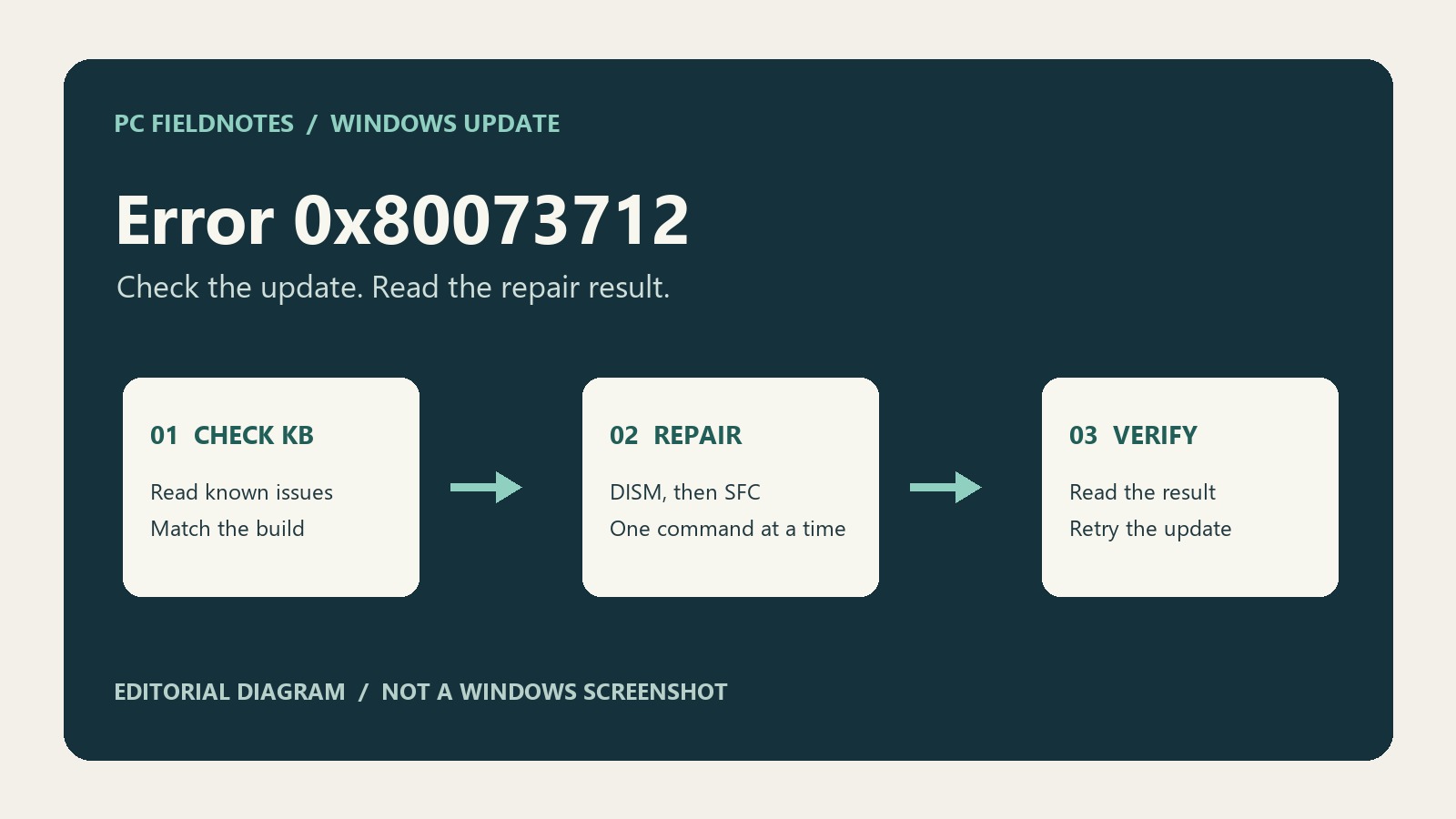
If Windows Update fails with 0x80073712, record the failed update's KB number before changing anything. Check Microsoft's notes for that update, then try the Windows Update troubleshooter and, if needed, DISM followed by System File Checker. The code can accompany missing or damaged servicing files, but it does not identify the cause of every failed update.
This guide is for a Windows 11 PC that still starts. If Windows cannot start, files are inaccessible, or the computer belongs to work or school, use the appropriate recovery or IT support route before attempting repairs. Back up important files before making system changes.
Identify the failed update first
Open Settings > Windows Update > Update history and note the failed update's name, KB number, date, and error. Run winver from Start to record the Windows version and OS build. Those details let you distinguish one failed package from a general servicing problem.
Find that exact KB on Microsoft Support and read its known issues and resolution. An error code alone is not enough to decide that the PC needs a reset. For example, Microsoft documented 0x80073712 as an installation issue with the March 2026 preview KB5079391, then identified KB5086672 as its resolution. The original KB's known-issue section describes that specific case.
That is a historical example, not an instruction to install a March package now. Follow the current instructions for your failed KB and Windows version. A similar error on a different update does not establish the same cause.
Complete the basic checks once
Save your work and restart if Windows is waiting for a restart. Confirm that the internet works and that the Windows drive has room for the update. Keep a laptop connected to power. If the error began with an optional preview, check its release notes before repeatedly attempting the same package.
On Windows 11, Microsoft's update troubleshooting guide directs you to the automated Windows Update troubleshooter in Get Help. Open Get Help from Start and search for Windows Update troubleshooting. Follow its prompts, restart if asked, and try the update again once.
Keep a note of what changed and whether the exact error persists. If it installs, stop here. Repeating every repair below after success adds no useful information. On a managed PC, send the KB, build, and error to IT; update sources and repair policies may be controlled centrally.
Repair the component store, then check system files
Microsoft's servicing reference identifies 0x80073712 as ERROR_SXS_COMPONENT_STORE_CORRUPT, meaning the component store is inconsistent. Its repair guidance explicitly includes Windows 11. This describes the error category; your PC still needs its own results checked.
If the KB notes do not provide a different solution and the error remains, open Command Prompt as administrator. Run this command on its own:
DISM.exe /Online /Cleanup-Image /RestoreHealthLet DISM finish and read its final result before continuing. /Online targets the Windows installation currently running. DISM can obtain repair files through Windows Update, so connectivity and the configured update source matter. It can take several minutes; a pause in the progress display is not enough to conclude that it failed.
If DISM reports success, run:
sfc /scannowWait for verification to reach 100%. Microsoft's System File Checker instructions put DISM first because it supplies files used for the subsequent repair.
Use the result to choose the next step
| Result | Next action |
|---|---|
| DISM succeeds and SFC finds no integrity violations | Restart and retry the failed update. A clean system-file scan does not establish that the update package will install. |
| DISM succeeds and SFC repairs files | Restart and retry the update. Record whether the original KB now succeeds. |
| DISM fails, reports a missing repair source, or returns another error | Save the complete result and error code. Resolve that repair failure before treating the component store as repaired. |
| SFC cannot complete or cannot repair every file | Keep its result for support or consider the repair reinstall below. Do not claim that the repair succeeded. |
| The update still fails after successful repairs | Recheck the exact KB and build, then consider repair reinstall or Microsoft support. Avoid an endless loop of the same commands. |
If DISM needs a repair source, Microsoft's Windows image repair documentation explains the source and policy options. A command copied from another PC can refer to the wrong source. Do not substitute a guessed drive letter or image index, download individual system DLLs from an unofficial site, or manually delete the WinSxS component store.
Consider a repair reinstall if Windows still runs
Windows 11 may offer Settings > System > Recovery > Fix problems using Windows Update > Reinstall now. Microsoft says this reinstalls the current Windows version, repairs components, and preserves apps, files, and settings. Read its repair reinstall guide before starting, and keep power and internet connected throughout.
Verify a backup first even though this option is designed to retain your data. If File History is your backup, confirm its last successful copy; a disconnected destination needs attention before a repair. Our File History reconnect-drive guide covers that separate problem.
The repair option can be unavailable on managed devices or older installations. Its absence does not by itself diagnose a new fault. Ask IT or Microsoft support for the next suitable route if it is missing.
Check the exact recovery option before confirming. Cloud rebuild removes local files, accounts, apps, and settings. Our Cloud rebuild data checklist explains that consequence. Use the option explicitly named above when your intention is a repair that retains apps and data.
What to keep if the failure continues
Record the Windows version and build, failed KB, error code, time of the latest attempt, troubleshooter outcome, and the final DISM and SFC results. Include whether Windows starts and whether the device is managed. Share those details with IT or Microsoft support, with account names, product keys, and private paths removed from screenshots or logs.
This guide was checked against Microsoft documentation on November 6, 2026. We did not reproduce 0x80073712 or run these repairs on a physical PC or virtual machine, and no success rate is claimed. Review the instructions again if Microsoft changes the relevant KB resolution or the Windows recovery options.
