
 Documentation-based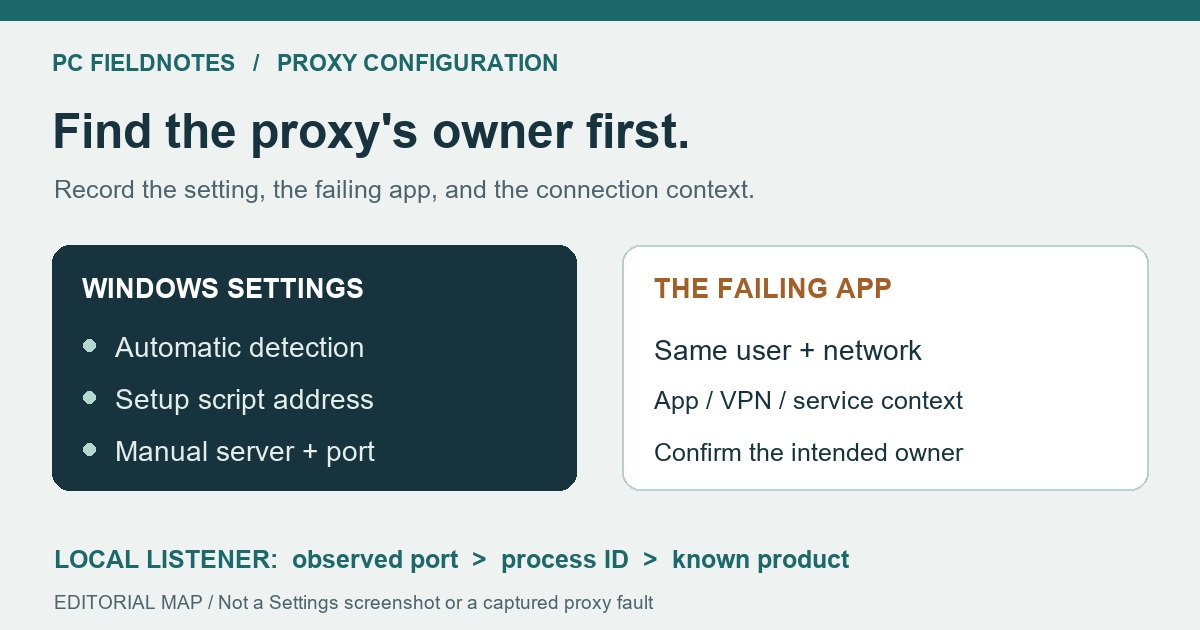
Microsoft Windows proxy, NetworkProxy CSP, WinHTTP, Get-NetTCPConnection and Get-Process references reviewed October 19, 2026 with AI assistance. Documentation-based guide; no proxy failure, malware case or Windows 11 build was reproduced. Example ports and process IDs are illustrative. Alex Reed is an established pen name.
If you see Windows could not automatically detect this network's proxy settings, record where the message appeared and which application actually fails. Then inspect Settings > Network & internet > Proxy before resetting the network. The useful question is whether your connection is supposed to use automatic detection, a supplied setup script, a manual server, or an application's own configuration.
That message alone does not identify a damaged adapter or prove that malware changed a setting. Troubleshooting surfaces vary by Windows version; this guide does not assume every current Windows 11 troubleshooter displays the same wording. If websites and your required apps work, preserve that observation rather than making a broad repair just to remove a diagnostic message.
Identify the configuration you are looking at
Microsoft's Windows proxy guide separates automatic detection, a setup-script address, and a manually specified server. It also says a VPN's proxy configuration is handled separately.
On the Proxy page, privately record the enabled options and any existing server, port, or script address. Do not post those details publicly: they can identify an organization or private service. If your workplace supplies the settings, confirm them with IT. A blank manual-server field is not a reason to invent a proxy address, and a supplied script address is not interchangeable with the address of a proxy server.
For a personal PC, compare the settings with the networking, VPN, filtering, or debugging software you deliberately installed. Use that product's documented way to restore its intended configuration. If you have no record of the expected values, identify their owner before toggling several options. Avoid testing an unfamiliar public proxy or downloading a generic proxy-fix utility.
Let the failing app narrow the investigation
Use a known site you are allowed to visit and the application that reported the error. Compare them on the same connection, without switching networks halfway through the check:
- A browser and other required apps work: record the warning's location and date. You have not established a general internet outage. Leave working settings alone while you identify what produced the message.
- Only one app fails: retain its exact error, version, and account context. Check that app's proxy documentation or ask its administrator; changing Windows settings may not change the path that app uses.
- Several apps fail while a configured proxy is expected: ask the owner to confirm that the server or setup script is still the intended one and is available through the approved connection. Keep the exact errors instead of trying unrelated DNS servers.
- Wi-Fi and Ethernet fail more generally: use the guide for both connections failing to check the affected layer. A proxy warning should not replace address, route, and application observations.
Microsoft's WinHTTP configuration reference explains that applications can select settings for a session or an individual request. It is developer documentation, not a claim about which API every installed app uses. The practical limit is simple: one working browser, or one basic system-proxy report, cannot certify every application's configuration.
A setting that returns needs an owner check
If a setting changes back after sign-in, a VPN connection, or starting a particular application, write down that sequence. A repeatable timing relationship is a lead; it does not by itself prove which program wrote the setting.
On managed devices, Microsoft's NetworkProxy management reference documents device configuration for Ethernet and Wi-Fi, including detection, script, and server settings. Its scope excludes VPN connections. A managed configuration can require administrator review, so do not fight it by repeatedly editing the registry or blocking policy refresh.
On your own PC, inspect the documented settings of the product associated with the change. Close or restart only that product in a way its vendor supports, after saving work and allowing for a connection interruption. If you cannot identify the product, stop making configuration changes and seek support with your observations. A returning setting is not enough evidence to label a program malicious.
If the configured server points to this PC
A loopback address such as 127.0.0.1 refers to this computer. Microsoft's .NET loopback reference identifies that address as loopback. The address alone does not establish who operates a local proxy or whether you should trust it.
If the displayed proxy port is known, you can make a read-only listener check in PowerShell. Replace 8080 below with that observed port; it is an example, not a recommended proxy setting:
Get-NetTCPConnection -State Listen -LocalPort 8080 |
  Select-Object LocalAddress, LocalPort, OwningProcess
Microsoft's Get-NetTCPConnection reference documents the local-port and connection-state filters and the owning process ID. Compare the reported local address too. If no matching listener is returned, record the result at that time; it does not establish what was running earlier.
To look up a returned process ID, replace 1234 with the actual number:
Get-Process -Id 1234The Get-Process reference documents lookup by ID. A process name is an identification clue, not a publisher or safety verdict. If access is denied, the process has exited, or the result is unfamiliar, retain the observation for the administrator. Do not terminate an unknown process or delete files solely because it holds that port. These commands do not change the proxy settings.
Keep the recovery check specific
After the configuration owner supplies a supported correction, retry the same failing app and known site on the same network. Record the single change and whether it survives the event that previously brought the setting back. A new outcome in another browser or after changing several settings is a weaker comparison.
Avoid an automatic Winsock, TCP/IP, or network reset for this message alone. Read what to preserve before network reset if broader evidence eventually makes a reset appropriate. Save VPN and virtual-network configuration first, and keep workplace settings under the administrator's control.
Evidence and limits: Documentation checked October 19, 2026. The comparison sequence is an editorial diagnostic guide, with no captured command output or measured recovery results. We did not reproduce a proxy fault, inspect a reader's processes, investigate malware, or test a Windows 11 build. The diagram and example port and process ID are illustrative.
