
 Documentation-based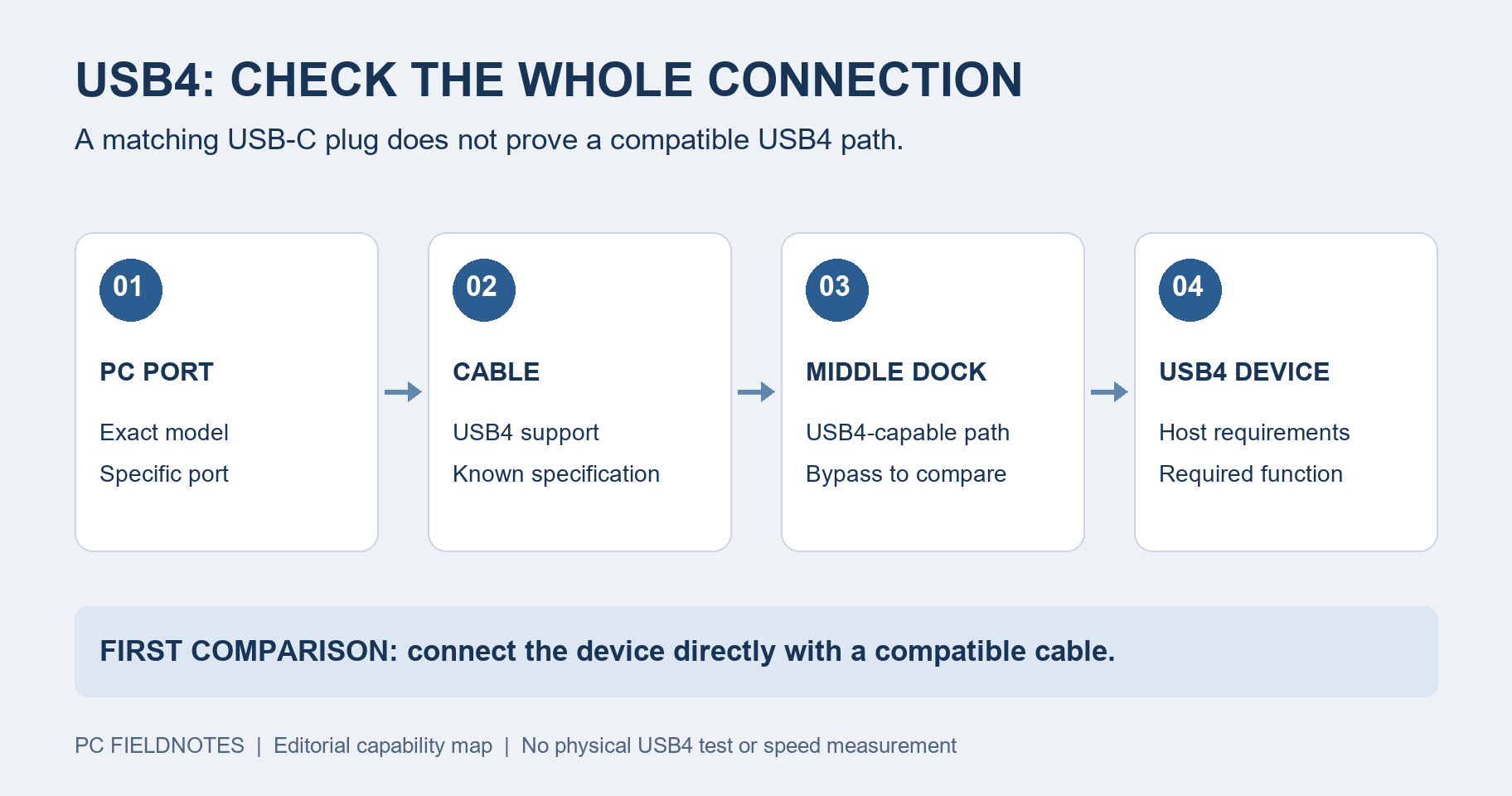
Microsoft Support and Microsoft Learn USB4 documentation reviewed October 9, 2026 with AI assistance. No physical USB4 compatibility or performance test was performed. Alex Reed is an established pen name.
When Windows 11 reports USB4 device functionality might be limited, check the whole connection: the exact PC port, the cable, and any dock between the PC and the device. Start with the USB4 device connected directly to a documented compatible port using its supplied cable or a suitable certified USB4 cable. A USB-C plug fitting into the socket does not establish USB4 support.
This guide addresses the USB4 compatibility notification. It is based on Microsoft documentation reviewed October 9, 2026; we did not test a physical USB4 connection, dock, or transfer speed.
Identify the notification before changing anything
Microsoft's USB-C notification reference treats power and connection-mode warnings separately. Its documented USB4 notification concerns a USB4 device connected to a system without the required support. A different port warning can appear when a compatible port exists elsewhere on the PC.
Copy the exact message, then identify the missing function: storage access, a display, another accessory, or no visible failure at all. If the message instead concerns charging, use the Slow charger guide. A Thunderbolt or display-mode notification deserves its own compatibility check; do not silently treat every USB-C warning as the same fault.
Record the connection as a line, naming each item rather than writing only “USB-C”:
PC model + exact port -> cable -> intermediate dock, if any -> USB4 device
Missing function:
Exact Windows notification:
That line is your checklist. An unknown item stays unknown until its manual or manufacturer identifies its capabilities.
Start at the PC end of the connection
Look up the exact PC model and port diagram. Identify which port supports the device's required connection mode. If there are several similar sockets, note their positions so the next comparison uses the intended one.
On supported Windows 11 systems, open Settings > Bluetooth & devices > USB > USB4 Hubs and Devices. Microsoft's settings documentation says this page lists connected USB4 devices and their capabilities, and appears when Windows detects a USB4 host router. The feature was introduced in build 22621.1778.
The page is useful supporting evidence, not a guarantee about every USB-C socket. If it is missing, compare the PC specifications with the Windows build and the manufacturer's guidance. Microsoft also documents systems whose host router appears only after a device is attached. Do not conclude from an absent settings page alone that a particular piece of hardware is broken.
That Microsoft article includes a registry value for OEM configuration. It is not an end-user conversion switch: editing it cannot add USB4 hardware to a port. If the manual confirms the required capability but Windows does not show the expected device, preserve the discrepancy for the PC maker.
Remove one intermediate connection
Save your work and safely eject any connected storage before rearranging the setup. Power a dock according to its manual. Remove an intermediate hub or dock for the first comparison, and connect the target device directly.
Microsoft's consumer USB-C guidance recommends the supplied or certified USB4 cable and a direct connection or USB4-capable docks. Check the cable's data specification separately from its charging label.
Use the result to choose one next test:
- Direct works; the intermediate dock brings back the warning. Check that dock's upstream and downstream connection specifications and supported topology. The direct result is evidence about the bypassed path, not proof that the dock is defective.
- One documented compatible cable works; another does not. Keep the working reference and identify the other cable before replacing hardware at random.
- No documented USB4-capable PC port is available. Check whether the accessory manufacturer supports a reduced-function connection on that PC. Accept only the functions the manufacturer documents; changing Windows settings cannot supply an absent hardware capability.
- The warning remains on the documented direct setup. Record the exact models and results for support. Avoid adding more adapters to the comparison.
Do not turn a working keyboard, charging indicator, or single monitor into a claim that every advertised dock feature is available. Verify the function you actually need, within the accessory's documented host requirements.
Collect useful Windows evidence if the supported setup still fails
Open Device Manager and choose View > Devices by connection. Microsoft's USB4 connection-manager documentation describes the host-router and device-router hierarchy shown in this view. Capture the relevant branch and any device-status error rather than uninstalling all USB controllers.
Provide the PC and dock models, port position, cable identifier, Windows build, direct-connection result, and missing function when contacting support. If a screenshot includes an account or device name, redact it before sharing. Compare model-specific driver or firmware guidance only after the hardware path has been identified; this article does not prescribe a universal firmware reset or update package.
If the dock actually disconnects storage and monitors during use, follow the dock disconnection investigation with the same connection record. Recheck this guide when Microsoft changes USB4 notification behavior or the manufacturers revise the relevant compatibility information.
