
 Documentation-based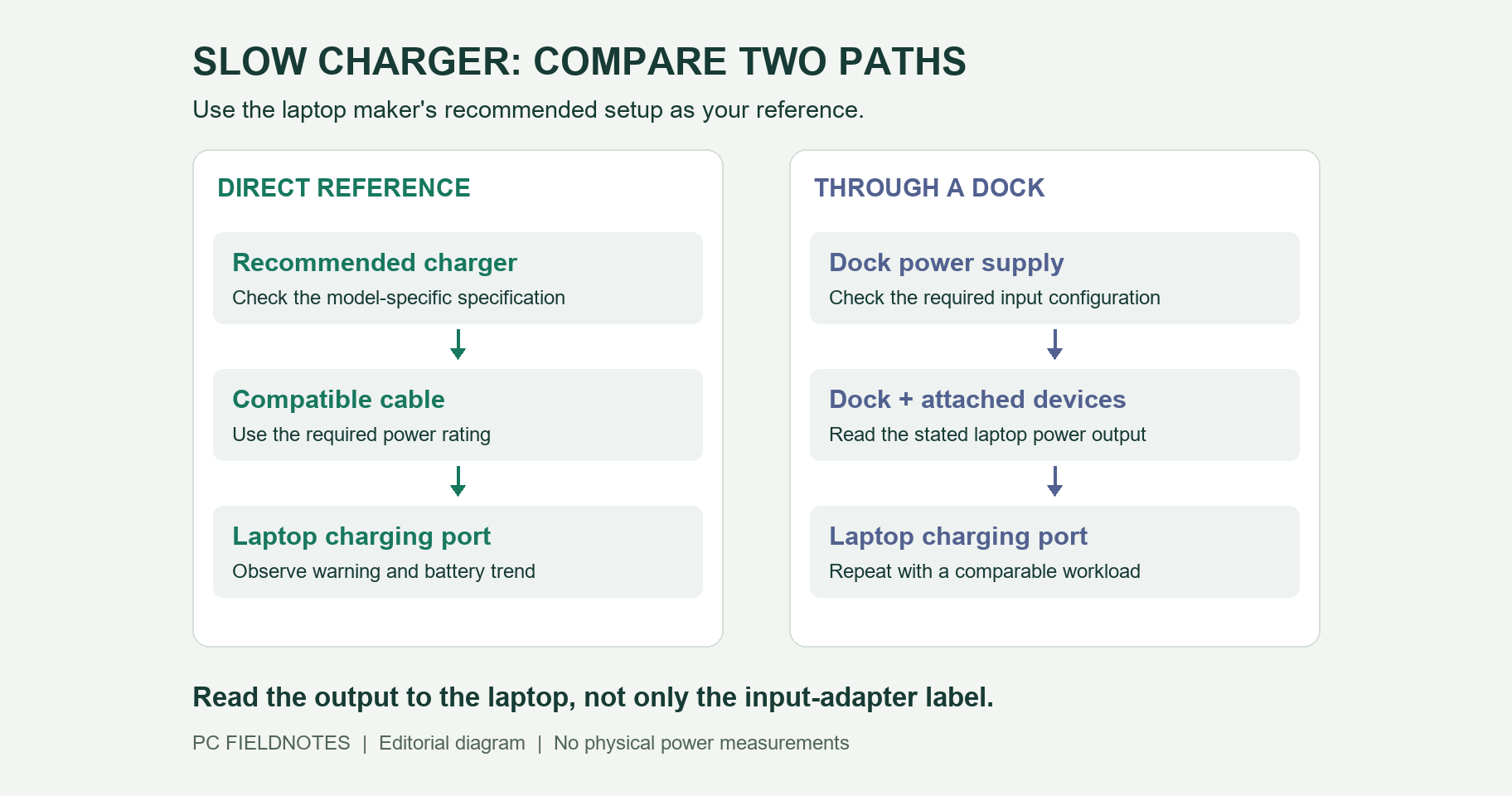
Microsoft, Dell, and ASUS documentation reviewed October 9, 2026 with AI assistance. No physical charging or power-delivery test was performed. Alex Reed is an established pen name.
If Windows 11 shows a Slow charger warning, start with the laptop maker's recommended charger connected directly to the correct charging port. Compare that with your usual USB-C setup before buying another adapter. The warning can come from insufficient available power, a cable or connection limitation, or a model whose USB-C charging allowance is lower than its main power adapter's rating.
This is a documentation-based guide, reviewed October 9, 2026. We did not measure charging power or reproduce the warning on a physical laptop. The comparison below is a way to collect evidence on your machine, not a claim that one charger fixes every PC.
Compare the direct connection with your normal setup
Save your work. If a dock has storage attached, stop transfers and safely eject the drives before disconnecting it. Note the battery percentage, the warning's wording, and what the laptop is doing. Avoid comparing an idle desktop with a gaming session.
Connect the recommended charger and its cable directly to a port identified for charging in the laptop manual. Keep the workload similar and record whether the warning returns and whether the battery rises, stays level, or falls over a short observation period. Ten minutes is a convenient comparison interval, not a charging-speed benchmark.
| Your observation | Useful next check |
|---|---|
| Direct charging works; the warning returns through a hub or dock | Read the dock's laptop power-delivery specification and its required power-supply configuration. |
| The warning follows one detachable cable | Compare it with a known-compatible cable of the required power rating. |
| The recommended direct charger still triggers the warning | Check model-specific guidance, connector condition, and the manufacturer's support options. |
| The battery rises at idle but falls during demanding work | Record both workloads; do not treat idle charging as proof that the setup supports full performance. |
These results narrow the investigation. A single comparison does not establish that a port, battery, or charger has failed.
Read the power specification at each connection
Microsoft's USB-C troubleshooting guidance identifies the charger, cable, charging port, and intervening hub or dock as possible causes. Compatibility and the power the PC requires matter together. A matching connector alone is insufficient.
Use the exact laptop and accessory manuals to fill in this record:
Laptop model:
Recommended main adapter:
Supported USB-C input and charging port:
Charger model and output specification for the port used:
Cable model and power rating:
Dock model, power supply, and stated power delivered to the laptop:
Other devices sharing the charger or dock:
Do not substitute the number printed on a dock's input adapter for the dock's specified output to the laptop. Dell documents reduced available laptop power through certain powered hubs and docks: their own electronics and attached devices also need power. Its guidance supports testing the laptop adapter directly. The amount reserved by a particular accessory is model-specific; do not apply one dock's wattage deduction to every brand.
For a multiport charger, consult its allocation table for the ports actually in use. Record the configuration with the test. If the manual does not identify that combination, leave the available output unknown rather than calculating it from the largest advertised figure.
A supported USB-C charger can still show a warning
Some laptops have two different power expectations: one for USB-C charging and another for their main AC adapter. ASUS explains that models supporting both DC-IN and USB-C can show the warning even when the USB-C supply meets its recommended USB-C wattage, if that is lower than the AC adapter's recommendation.
On a model with that documented behavior, repeatedly buying higher-rated USB-C chargers may not address the difference. Use the maker's recommended main adapter when the workload requires it. Do not generalize that explanation to a laptop whose documentation says otherwise.
Surface owners should check Microsoft's model-specific charging requirements, which distinguish minimum power from fast-charging recommendations. Microsoft's Surface USB-C guide also specifies USB Power Delivery and notes that a low-power supply may charge slowly or not at all. “It charges” and “it meets this model's recommended charging setup” are different observations.
When to stop changing accessories
If the original recommended adapter still produces the warning during the direct comparison, retain the record and contact the laptop maker. ASUS specifically recommends inspection when its original charger continues to trigger the alert. That is a better escalation point than cycling through unrelated battery-driver removal instructions.
Check the plug and port visually with power disconnected. Follow the device maker's cleaning instructions; do not insert metal tools or keep using a visibly damaged connector. If a cable must be held at an angle, stop using that connection and seek service.
If drives and displays also disconnect, record that as a separate symptom and use the USB-C dock disconnection guide. A stable but power-limited charging setup calls for a different comparison from a dock that repeatedly drops its devices.
Keep the warning text, exact models, direct-versus-dock results, and battery trend together when requesting support. Those details make the next test specific. Recheck this guide if Microsoft changes the notification guidance or the relevant manufacturer revises its charging specifications.
