
 Documentation-based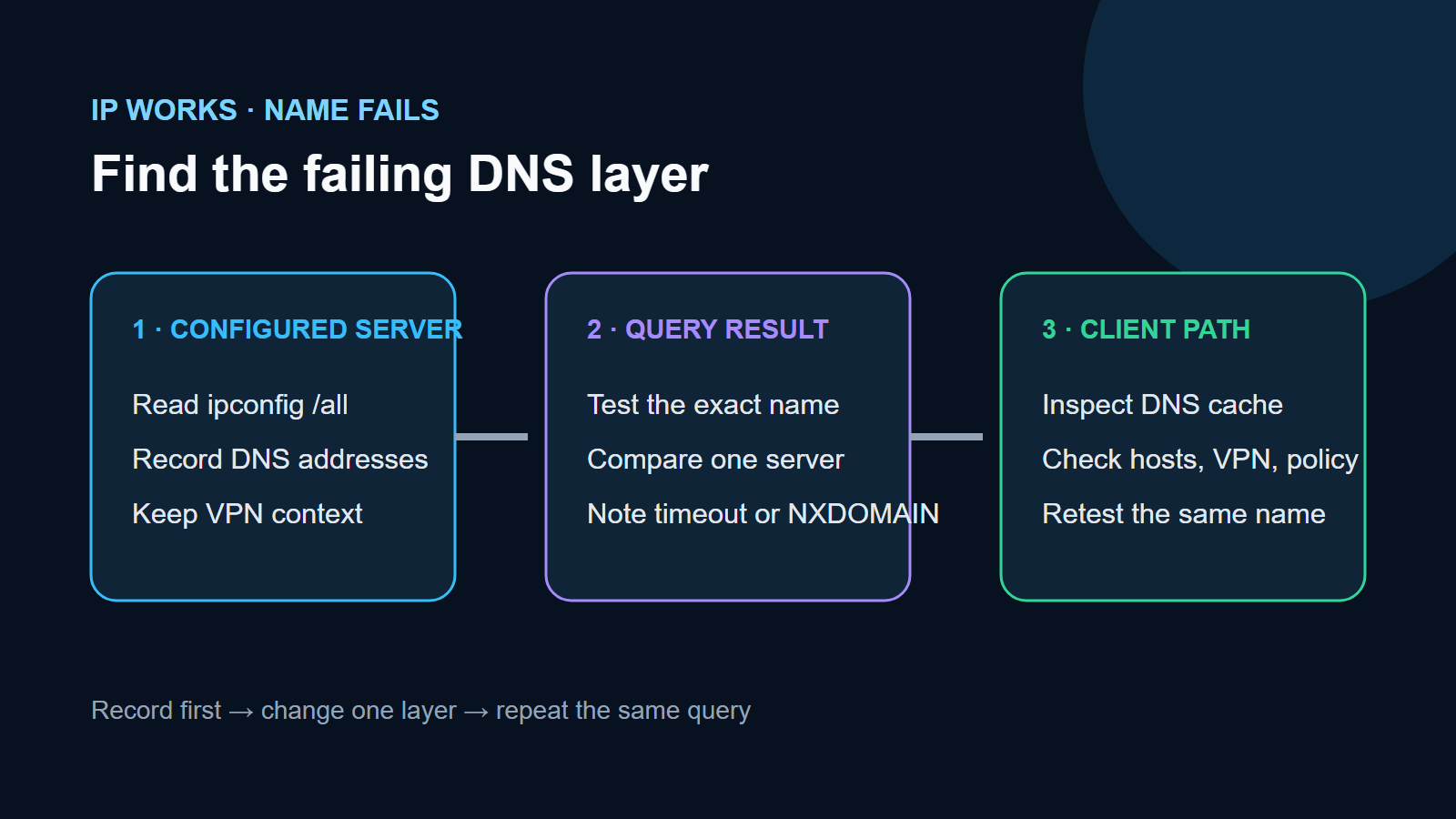
Based on Microsoft DNS client documentation reviewed September 29, 2026. No live DNS failure was reproduced.
Last reviewed: September 29, 2026
If a Windows 11 PC can reach a known IP address but cannot open the same service by name, the working IP path suggests that basic connectivity exists, while the failed name lookup points toward DNS configuration, the selected DNS server, a cached negative answer, a hosts-file entry, or a VPN or security policy. It does not prove that every internet path works, and a failed ping alone is not conclusive because firewalls can block ICMP.
Start by recording the exact failing name and the DNS servers Windows is using. Then compare the same name through the configured resolver before changing settings.
Use this result matrix first
| Observation | Most useful next check | What not to conclude |
|---|---|---|
A known IP responds, but nslookup times out | Confirm the configured DNS server and whether VPN or security software blocks DNS traffic | Do not assume the adapter or router is healthy in every respect |
nslookup returns Non-existent domain | Check spelling, whether the name is public or internal, and whether a negative result is cached | Do not replace DNS servers before confirming the name should exist |
nslookup succeeds, but the browser or app still fails | Inspect the Windows DNS cache, hosts file, proxy, VPN, and app-specific encrypted DNS | Do not treat a successful lookup as proof that the app uses the same path |
| A full domain name works, but a short name fails | Check the connection-specific DNS suffix or search list | Do not add a guessed suffix on a managed PC |
| Public names work, but an internal name fails | Reconnect the required VPN or corporate network and ask the administrator for the expected resolver | A public DNS server usually cannot answer private zones |
This is an original editorial diagram, not a Windows screenshot or packet-capture result. No DNS outage was reproduced for this article.
Record one failing case without exposing private data
Open Command Prompt and run:
ipconfig /allFor the adapter that is actually connected, record its DNS server addresses and connection-specific DNS suffix. Also record whether a VPN is connected. Redact the computer name, physical address, private corporate suffixes, internal server names, and public IP details before sharing the output.
Choose one exact name that fails. Use a public name you are authorized to test, such as example.com, for a public-DNS comparison. Do not substitute a private work or school hostname into a public troubleshooting post.
Ask the configured resolver the same question
Run:
nslookup example.comRecord the server shown at the top, the returned addresses, and whether the result is a timeout, SERVFAIL, or Non-existent domain. Microsoft notes that nslookup queries the configured DNS server without relying on the Windows DNS client cache, which makes it useful for separating a server response from a cached client result.
If ipconfig /all lists a specific approved DNS server, compare it explicitly:
nslookup example.com 192.0.2.53Replace 192.0.2.53 with the DNS server you recorded; the address above is documentation-only and will not answer queries. On a managed PC, do not test an unapproved public resolver or change DNS settings. Corporate split DNS, filtering, and VPN policies can make that test misleading or violate policy.
Interpret the response instead of changing everything
The query times out
A timeout can mean the configured server is unreachable, DNS traffic is blocked, the VPN path is wrong, or the server did not answer. Microsoft identifies client configuration, DNS servers, and intermediate devices as separate failure areas. Compare another device on the same authorized network and check whether the problem began with a VPN, firewall, or security-product change.
Ping is only supporting evidence here. Microsoft warns that ICMP must be allowed for a ping response, so a DNS server that does not answer ping may still answer DNS. Conversely, reaching some unrelated IP does not prove that UDP or TCP port 53 can reach the configured resolver.
The query says the name does not exist
Confirm the exact spelling and whether the name is supposed to be public. Internal names may require a company DNS suffix, VPN, or local network. If the fully qualified name works but the short name does not, Microsoft recommends checking the DNS suffix configuration rather than changing the adapter driver.
nslookup works, but Windows or the app still fails
Inspect the client cache:
ipconfig /displaydnsIf the failing name has a cached negative response and a fresh nslookup now succeeds, clear the resolver cache once:
ipconfig /flushdnsThen repeat the exact same lookup and app test. Do not disable the DNS Client service or repeatedly flush the cache; Microsoft recommends keeping client-side caching enabled.
Also check whether the hosts file contains the name, and whether a browser, VPN, endpoint-security product, proxy, or encrypted-DNS feature is using a different resolution path. Change one layer at a time and retain the original setting so it can be restored.
Separate public names from local names
A public site name should normally be resolvable without a private corporate DNS zone. A short printer name, NAS name, Active Directory name, or intranet name may require a connection-specific suffix or a private resolver. Testing those two categories as if they were interchangeable creates false diagnoses.
For a home network, compare a well-known public name with the local device name. For a managed network, record the result and ask the administrator which fully qualified name, DNS suffix, and VPN state are expected. Do not publish private zone names or server addresses.
Verify recovery with the same three observations
After one justified change, repeat:
- the exact
nslookupquery; - the same browser or app request;
- one restart or reconnect if the changed component requires it.
Success means the intended name resolves through the expected server and the affected app works again. If only nslookup works, keep investigating the client or application path. If neither lookup nor the app works, return to the configured DNS server and network path rather than reinstalling the network adapter.
If Windows says No internet while sites still open, use Windows 11 Says No Internet but Websites Work. If the adapter has a 169.254 address, use the 169.254 IP address checklist first because that indicates an address-assignment problem, not merely a DNS result.
Sources and evidence note
This documentation-based guide was reviewed on September 29, 2026. The matrix and diagram are original editorial work. No live DNS failure, packet capture, Windows 11 VM test, or physical hardware test was performed.
- Microsoft Learn: Troubleshoot DNS client name resolution issues
- Microsoft Learn: Troubleshooting DNS clients
- Microsoft Learn: ipconfig
