
 Documentation-based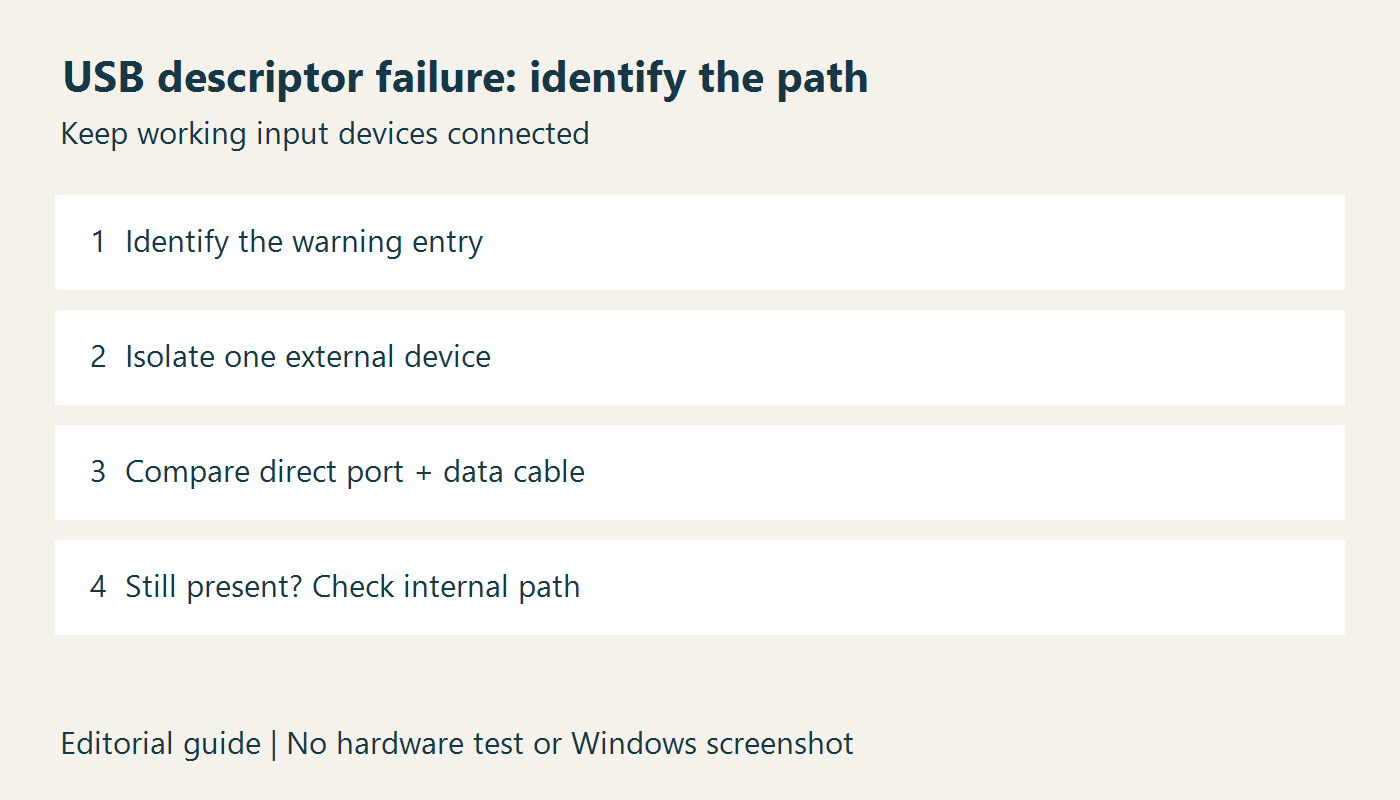
Microsoft documentation reviewed October 1, 2026 with AI assistance. No USB hardware or firmware tests were performed. Alex Reed is a pen name.
If Device Manager shows Unknown USB Device (Device Descriptor Request Failed), first identify which connection produces the entry. Disconnect one nonessential external USB device at a time, then compare the affected device on a direct PC port. Keep your working keyboard and mouse connected while you do this.
Windows needs identifying information from a USB device during enumeration. A failed descriptor request means that exchange did not complete. The message alone cannot distinguish a cable problem, a faulty peripheral, a hub problem, or a problem on the computer. Microsoft's descriptor reference explains what the device supplies; its enumeration case study documents several ways enumeration can fail.
This guide covers a personal Windows 11 PC. It does not diagnose a particular motherboard or promise a firmware fix. If the PC is managed by an employer, collect the observations and ask IT before changing drivers or firmware.
Find the connection behind the warning
Save your work. If a USB storage device is accessible, eject it before unplugging it; if a drive holds important data and repeatedly disconnects, avoid repeated recovery experiments and seek storage support. Make sure you can operate the PC locally. Removing a USB network adapter can end a remote session.
Open Device Manager from Start search. Find the warning entry, open Properties, and record the exact text under Device status, including any numeric code. Microsoft directs users to this field in its Windows 11 USB troubleshooting guide. A descriptor-failure name and a numeric Device Manager code are separate pieces of evidence; record both.
Unplug one nonessential external device and watch whether the specific warning entry disappears. Reconnect it once to see whether the same entry returns. Keep a short note of the device and port. Do not remove everything simultaneously: that loses the link between a connection and its error.
For a desktop, separate a rear motherboard port from a case-front port. For a laptop, note whether the connection is through a dock, monitor hub, or adapter. Those are different paths, even when their sockets look alike.
Use a controlled comparison
Once you have identified an external peripheral, bypass the hub or dock and connect it directly to a compatible PC port. Use the peripheral's supplied cable, or a known-working cable with the required data capability. A cable that charges a phone has not necessarily been shown to carry data. Use the manufacturer's power supply when the device requires one.
Change one part at a time and record whether the warning returns and whether the device performs its normal function. The following table is an editorial diagnostic aid; none of the outcomes are measurements made by this site.
| Observed result | What it narrows down | Next useful action |
|---|---|---|
| Device works directly but fails through the dock or hub | The added connection path is implicated | Check that hub's power, cable, compatibility and manufacturer guidance |
| Device works with a different data cable on the same port | The original cable or its connection is implicated | Replace that cable with the appropriate specification |
| Device fails on two compatible computers with a known-working cable | The peripheral or its own power path deserves investigation | Give the device vendor the comparison record |
| Several known-working devices fail on one PC port | The port or its upstream path deserves investigation | Stop using a visibly damaged port and contact PC support |
| Device works after reconnecting but fails after restart or wake | The failure depends on a state transition | Record the transition and connection path before changing settings |
A working test on another computer does not prove the first PC's controller is defective. Port capability, power, cable selection and firmware can differ. The purpose of the comparison is to narrow the support request.
If a USB-C display is detected but only starts displaying an image after reconnecting, use our separate USB-C monitor replug guide. That article separates display capability from USB device detection.
If the entry remains with external accessories removed
Leave essential input devices connected. A remaining warning can belong to an internal USB-connected component or to an external connection you have not isolated. It is insufficient evidence for uninstalling every USB controller.
In Device Manager, use View > Devices by connection to inspect the relationship between the warning and its parent devices. The tree can help identify the connection path, but an unknown entry may still lack a useful product name. Record the PC or motherboard model and any recent hardware work. Ask the manufacturer which built-in components or internal headers use that path.
Do not open a laptop or disconnect motherboard headers solely because the entry says “Unknown.” Internal inspection requires the model's service instructions and appropriate repair skills. A USB controller can serve the very keyboard and mouse you need to recover from a change.
Make a targeted software change only after identification
After saving work, restart Windows and repeat the same direct connection test. If the error remains, check Windows Update and the PC or device manufacturer's support page for the exact model. Use their documented driver or firmware procedure; do not install a driver selected only from the word “Unknown.” Descriptor information helps Windows form hardware identifiers, as Microsoft's USB identifier documentation explains.
For Code 43, Microsoft's Device Manager guidance includes uninstalling and reinstalling the affected device. Consider that only after you have identified the warning entry and have a working input path. Select that specific entry, retain any required manufacturer installer locally, and follow the documented restart or detection procedure. Stop if you cannot tell the warning entry from a parent hub or host controller. Reinstalling an entry cannot repair a damaged cable or guarantee that a peripheral will return a valid descriptor.
Do not make disabling USB selective suspend a blanket first step. Microsoft recommends keeping selective suspend enabled. If a manufacturer's model-specific troubleshooting procedure calls for a temporary power-setting comparison, record the original setting, test the specific failure and restore it afterward. A successful wake test is evidence about that test, not a general fix for all USB devices.
Avoid registry “USB fixes,” third-party driver bundles and firmware files for a similar-looking model. If a port is damaged, becomes unusually hot, or produces an overcurrent warning, stop using it and contact the manufacturer.
A useful support record
Before contacting support, keep the exact warning, numeric code, PC model, peripheral model and connection path. Add the outcomes of the direct-port, alternate-cable and alternate-computer comparisons you actually performed. State which restart or wake transition reproduces the fault. Remove serial numbers, account names and unrelated device details before sharing screenshots publicly.
Recovery means both that the warning has cleared for the affected connection and that the device completes its normal task. Check again after the restart or wake transition that originally failed. A single successful replug is a temporary observation.
Sources and evidence limits
Reviewed October 1, 2026. This article uses Microsoft documentation and an editorial isolation sequence. No USB peripheral, internal header, cable, controller, firmware update or power transition was tested. A Windows virtual machine cannot validate those physical paths. No screenshot of this failure is presented. Alex Reed is a pen name.
- Microsoft: Standard USB descriptors
- Microsoft: Troubleshooting an unknown USB device — an older engineering case study used for enumeration concepts, not its legacy Windows debugging tools
- Microsoft: Fix USB-C problems in Windows
- Microsoft: Standard USB identifiers
- Microsoft: Error codes in Device Manager
- Microsoft: USB selective suspend
