
 Documentation-based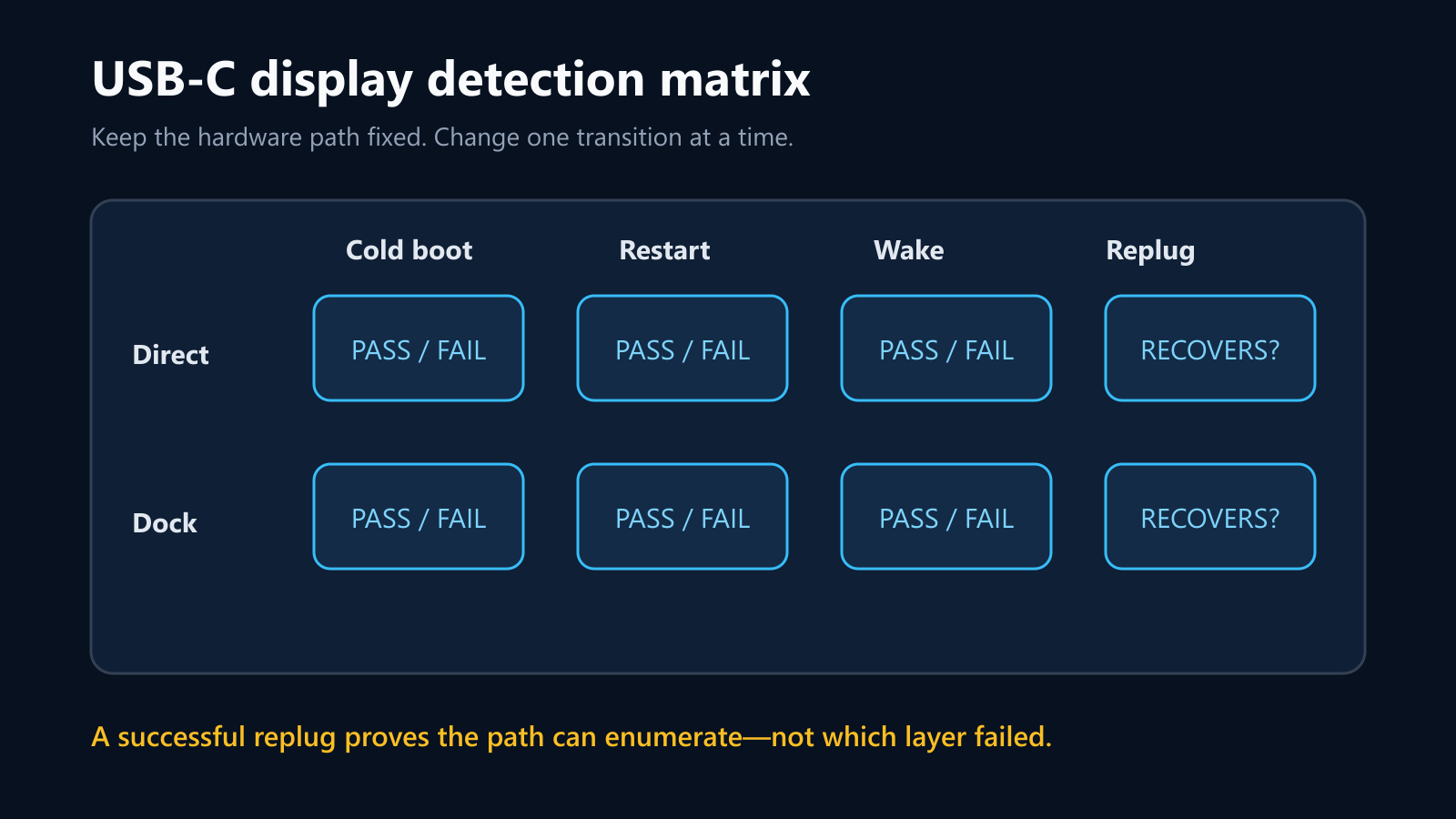
Based on Microsoft USB-C, display, and USB4 documentation plus a model-specific Dell manual, reviewed September 30, 2026. No physical USB-C hardware was tested.
Last reviewed: September 30, 2026
If a USB-C monitor appears only after you unplug and reconnect it, the replug is a useful clue: the display path can work, but it is not being established reliably during cold boot, restart, or wake. Record exactly which transition fails, then compare the same monitor and known-capable cable directly against any dock. Confirm that the PC port, cable, and display all support the required video mode before changing drivers or power settings.
Do not assume that every USB-C port carries video. Microsoft says the PC, cable, display, and any adapter must support the same DisplayPort Alternate Mode or other required feature. There is no Windows switch that adds an unsupported Alternate Mode.
Build a transition matrix before changing the setup
Use the same PC, USB-C port, cable, monitor input, and display mode for each test. Record whether Windows detects the display without touching the cable.
| Transition | Direct PC-to-monitor | Through dock | What the comparison can tell you |
|---|---|---|---|
| Cold boot with monitor already connected | Pass / fail | Pass / fail | A failure only at cold boot points to startup enumeration or firmware timing, not proof of a bad cable |
| Windows Restart | Pass / fail | Pass / fail | Restart differs from a full power-off on some systems; keep it as a separate result |
| Sleep, then wake | Pass / fail | Pass / fail | A wake-only failure narrows the issue to resume behavior |
| Connect after Windows reaches the desktop | Pass / fail | Pass / fail | If this always works, the live display path is capable even though pre-connected detection is unreliable |
| Same setup after one cable replug | Pass / fail | Pass / fail | Recovery confirms re-enumeration, but does not identify the failed component |
This is an original editorial test diagram. It is not a Windows screenshot and does not report a reproduced failure.
Record the exact hardware path
Write down the PC model, the marked USB-C port, monitor model, cable part number or specification, dock model and power adapter, and every adapter in the path. Also record the monitor input selected in its on-screen menu.
A connector shaped like USB-C does not describe all of its capabilities. Microsoft advises checking that the PC port, cable, display, and adapter support the same display Alternate Mode, and recommends a direct connection when diagnosing limited USB-C functionality. A charge-only or data-only cable is not a valid display test. A port that supports charging or USB data may still lack video output.
If the monitor has more than one USB-C port, confirm which one is the upstream video input. If the PC has more than one USB-C port, use the model manual to identify the port that supports DisplayPort over USB-C, Thunderbolt, or USB4 as required. Do not infer support from the icon alone when the manual is available.
Compare direct connection with the dock path
Shut down active work, then connect one monitor directly to the PC with a known-capable cable. Remove the dock, dongles, and other displays for this comparison. Microsoft lists docks and adapters as possible conflict points and recommends trying the monitor with another cable or system.
- Direct works at every transition, dock fails: check the dock's supported display combinations, power adapter, firmware, upstream cable, and PC compatibility.
- Direct and dock both fail before Windows but work after replug: focus on the PC's USB-C/graphics firmware and startup behavior, while still validating the cable and monitor input.
- Another capable PC fails with the same monitor and cable: check the monitor input, firmware, cable, and the monitor manufacturer's diagnostics.
- A second known-capable cable works: retire the original cable from this path; its connector fit or feature support may be insufficient.
Change one component at a time. If you change the dock, cable, port, and driver together, the result cannot identify which layer mattered.
Check what Windows sees before replugging
When the screen is blank, press Windows + P and confirm the intended mode, such as Extend. Then open Settings > System > Display > Multiple displays and use Detect if it is offered. Record whether the monitor is listed before and after the replug.
If the whole graphics stack appears stuck, Microsoft documents Windows + Ctrl + Shift + B as a way to reset the graphics driver. Use it once and record whether Windows plays a beep or the screen flickers. A successful recovery is a diagnostic observation, not a permanent fix.
On a USB4-capable Windows 11 PC, Settings > Bluetooth & devices > USB > USB4 Hubs and Devices can list attached USB4 devices and capabilities. Microsoft notes that this page is absent on systems that are not USB4-capable, so its absence does not prove a fault and should not lead to registry edits.
Also inspect Device Manager before replugging and again after it works. Record the display adapter, Monitors entries, and any warning icon under USB Connector Managers, Universal Serial Bus controllers, System devices, or Thunderbolt/USB4 components. Do not uninstall every USB controller as a first response.
Update only the model-specific path
Use Windows Update for current Windows fixes, then check the PC manufacturer's support page for the exact model. Depending on the design, the relevant packages may include BIOS/UEFI, graphics, chipset, USB-C or UCSI, Thunderbolt/USB4, and dock firmware. A generic driver site cannot confirm that a package matches the PC's power and display topology.
Before a BIOS or dock-firmware update, connect stable AC power, save work, and follow the manufacturer's instructions. On a managed PC, ask the administrator. Do not interrupt firmware updates or install a package intended for a different model.
If the issue began immediately after a recorded graphics-driver update, Microsoft documents rolling back the display driver when a previous version is available. Record the current provider, version, and date first. Do not force an unrelated older driver merely because Roll Back Driver is unavailable.
Keep power experiments reversible
A monitor, dock, and laptop can negotiate video, USB data, and power on the same connection. Test with the PC and externally powered dock or monitor connected to their specified power adapters. Disconnect unused USB devices during diagnosis, because Microsoft notes that insufficient or shared power can limit USB-C devices.
Avoid broad registry changes, disabling security features, or turning off power management on every USB device. If the manufacturer documents a specific setting for your exact model, record its original value, change only that setting, and repeat the same transition matrix.
For a monitor-specific power cycle, save work, shut the PC down, disconnect the display cable, remove monitor or dock power for the interval in its manual, restore power, and reconnect. This clears state in the display path but does not prove which component caused it.
Verify a fix instead of accepting one successful replug
A useful result survives the transition that originally failed. Repeat the affected cold boot, restart, or wake at least twice without touching the cable. Confirm the intended resolution, refresh rate, charging state, USB devices in the monitor or dock, and audio if those functions share the link.
If replugging remains the only reliable recovery, collect the matrix, model numbers, cable specification, firmware and driver versions, Windows build, and whether direct connection differs from the dock. Send that evidence to the PC, dock, or monitor manufacturer whose layer the comparison isolates. Do not describe replugging as a fix when the pre-connected path still fails.
Evidence and limitations
This guide was reviewed on September 30, 2026 using Microsoft USB-C, external-monitor, and USB4 documentation plus a Dell USB-C monitor manual as a model-specific example. No USB-C monitor, dock, cold-boot failure, firmware update, or physical cable was tested for this article. The matrix and diagram are original editorial tools, not measured results.
Sources
- Microsoft Support: Fix USB-C problems in Windows
- Microsoft Support: Troubleshoot external monitor connections in Windows
- Microsoft Learn: USB4 settings enablement
- Dell: P2719HC USB-C Monitor User's Guide
